ChatGPT from OpenAI has emerged as the most popular AI chatting platform. Though it is easy to use, it simply scraps data from the web without any citations which is very bad for publishers. On other hand, it will also automatically collect your chat conversation for training their AI model. That’s another privacy intrusion without asking for permission when you are using. So, here is how you can disable data sharing with ChatGPT when using the chatbot.
Also, learn how to disable Copilot AI assistant in Windows 11, disable Copilot in Bing search results and remove AI Overviews from Google Search.
Login Vs Logged Out
Earlier OpenAI was restricting the ChatGPT usage only for logged in users. However, now you can use the platform without even logging in. In both cases, they will collect your chat data by default.
Disable Data Sharing with Logged Out Usage (Website)
- Open ChatGPT website.
- Click on the small question mark symbol showing on bottom right corner of the screen.
- Select “Settings” from the menu that appears.

- Turn of “Improve the model for everyone” option.
- Close the pop-up and start using ChatGPT without sharing your conversations.

Disable Data Sharing When Logged In (Website)
- Open ChatGPT website and login with your account.
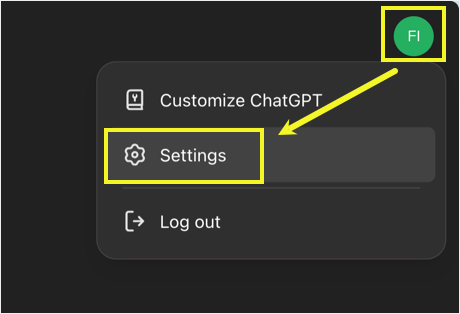
- Click your profile picture showing on top right corner of the screen.
- Select “Settings” from the menu that appears.
- Go to “Data controls” section and click on the “Improve the model for everyone” option.

- On the “Model improvement” pop-up box, turn off “Improve the model for everyone” button.
- Click “Done” button to apply the changes and close the pop-up.

- Now, you can start using the chatbot without sharing your conversations. If you have any customizations (Profile icon > Customize ChatGPT), that will not be shared with OpenAI anymore.
Your settings will be synchronized across all platforms (mobile & desktop apps) if you are logged in with your account.
Disable Data Sharing on Mobile ChatGPT Apps
Follow the below steps if you are using ChatGPT iOS or Android app:
- Tap on the sidebar icon on top left corner.
- Now, tap on the three dots icon showing against your name at the bottom.
- Select “Data Controls” option under “Account” section.
- Turn off “Improve the model for everyone”.
- Also, turn off “Include your audio recordings” and “Include your video recordings” options.

You can follow the same steps on mobile apps to disable data sharing from your profile settings as the app can be used only after logging in with your account. Also, avoid logging in with Apple or Google account to avoid OpenAI profiling your account data.
Disable Data Sharing on ChatGPT Desktop Apps (Windows & Mac)
- Open ChatGPT app and click on the “Toggle Sidebar” icon to view sidebar.
- Click your username showing at the bottom and select “Settings” option.

- Go to “Data Controls” section.

- Turn off “Improve the mode for everyone” and “Include your audio recordings” options.

The latest version also allows to disable location access for the ChatGPT app from the same settings screen.
Alternate Option – Use Temporary Chat
ChatGPT app offers an option to use the chat temporarily without storing any data. Simply tap on the model name and then select “Temporary Chat” option in the chat input prompt box.

You will see a notification that the chat conversation will not be used for training models and will not appear in history.

Start chatting and temporary chat will disappear when you open a new chat. However, OpenAI will retain the conversations up to 30 days for security reasons.
Final Words
These AI companies need personal data for training their machine learning models. For that they are literally stealing content from publishers and personal data from users without any consent or permission. They simply show a courtesy message “ChatGPT can make mistakes. Check important info” below the chat box in tiny font. But they do not get consent in collecting your conversational data for training their model and making money from them. Till the time ChatGPT shows citations and ask for consent before using your data, you need to manually turn off data sharing.