
Windows 11 is the most popular operating system in the world with over 50% of desktop usage. With millions of apps and frequent updates from Microsoft, it is common to face problems when using your computer (whether it is a desktop or laptop). It could be a minor issue likes icons not appearing properly or more significant issues like update failures or system crashes. When you are not able to fix the issue, the most important is to know where to look for the help. This article will guide you through the most effective ways to get help solving Windows 11 problems.
Before Looking for Help
Before you begin seeking help, make sure you have a few essentials in place to ensure you receive proper support:
- Sign in with Your Microsoft Account: Many support features and tools require you to log in with a Microsoft account. This allows synchronization of your settings, easier access to support channels, and personalized solutions.
- Verify Your Windows License: Ensure that your Windows 11 installation is genuine and activated. An original, licensed copy of Windows allows access to updates, security patches, and official Microsoft support. You can check your activation status by going to “Settings > System > Activation” section.
- Back Up Important Data: Before attempting troubleshooting steps or seeking remote support, back up important files. This helps prevent accidental data loss.
- Keep System Information Ready: Support teams may ask for details like your device model, Windows version (Settings > System > About) and recent changes to your system. Having this info on hand speeds up the process.
- Stable Internet Connection: Many troubleshooting steps, updates and help resources require internet access, so ensure your connection is active and reliable.
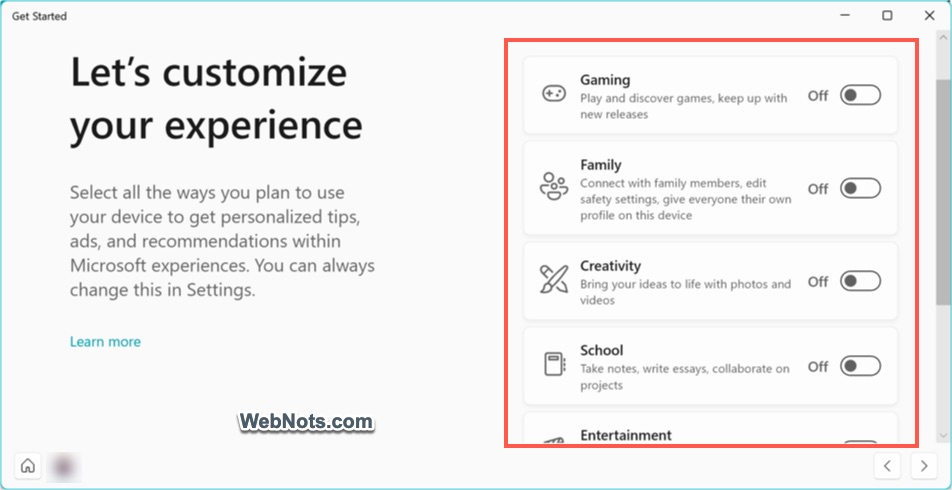
Note that Windows 11 comes with a “Getting Started” app designed to help new users quickly become familiar with the system and its main features. Turn on the required options to personalize your computer. The app also highlights tips and shortcuts for productivity, introduces you to built-in tools, and recommends settings to enhance your experience.
1. Using In-built Troubleshooters
Windows 11 comes with a suite of automated troubleshooting tools designed to detect and fix common issues with minimal user intervention. This is the first step you need to follow when troubleshooting the issues.
- Press “Windows + I” keys to open the Settings app.
- Go to “System > Troubleshoot > Other troubleshooters” in Settings app.
- You will find troubleshooters for a variety of problems including network connectivity, audio, printers, Windows Update and more.
- Simply click on the “Run” button beside the relevant troubleshooter and follow the on-screen instructions.
- The tool will attempt to identify and fix the problem automatically or guide you through steps to resolve it.

2. Use Live Chat with Help App
Windows 11 includes a dedicated Get Help app which provides instant access to Microsoft’s virtual assistant and a wealth of troubleshooting articles.
- Search and open “Get Help” app. Make sure you are logged in with correct Microsoft account. Otherwise, click the user name showing on the title bar and switch to correct account.

- Type a description of your problem in the box and press enter or select an issue from the suggested item.
- The app will suggest solutions along with the list of help articles.

- If those things do not help, click on the “Contact support” button.

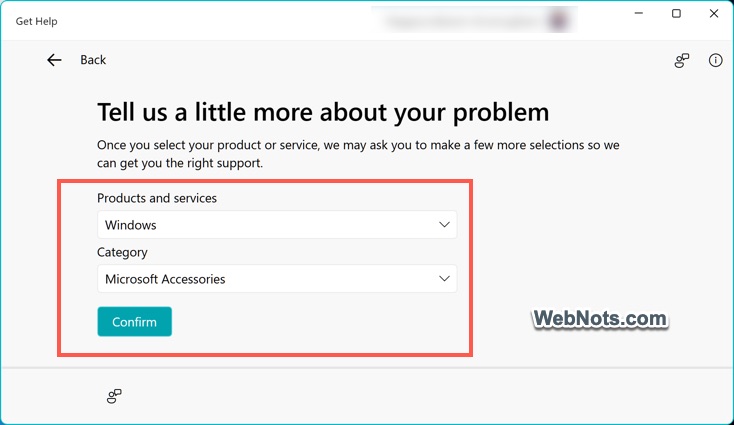
- Select your product and categories and click the “Confirm” button to connect you with a virtual assistant for step-by-step help.
3. Live Chat through Microsoft Support Website
The official Microsoft Support website is a treasure trove of resources for Windows 11 users. You can use the search bar or browse by topic to find official guides, video tutorials and community discussions. Follow the below steps for discussing with a support personnel:
- Go to support website and login with your Microsoft account.
- Scroll down to the bottom of the site and click on the “Contact us” link (you may be prompted to login again).
- Select Windows from the list of products.

- Click “Get Home Support” button (if you are business, click on the “Get Business Support” button).

- Type your problem and click the “Get Help” button.
- You will get a recommendations similar to “Get Help” app and click on the “Contact Support” button at the bottom.

- Select your product / category and click “Confirm” button to initiate the chat with customer care representative.

Though this method is similar to using “Get Help” app in Windows 11, this is the best option when you do not have access to your Windows device. You can access the support website from any other device including mobiles.
4. Using Quick Assist for Remote Help
If you need assistance but can’t reach a local technician or prefer remote support, Windows 11 includes a built-in tool called Quick Assist. It allows a trusted friend, family member or IT professional to remotely view or control your PC to help diagnose and resolve issues – ideal for both simple fixes and more complex troubleshooting.
- Search and open the “Quick Assist” in your system (if you don’t find the app, install it from Microsoft Store app).
- Choose whether you want to get assistance (let someone help you) or give assistance (help someone else).
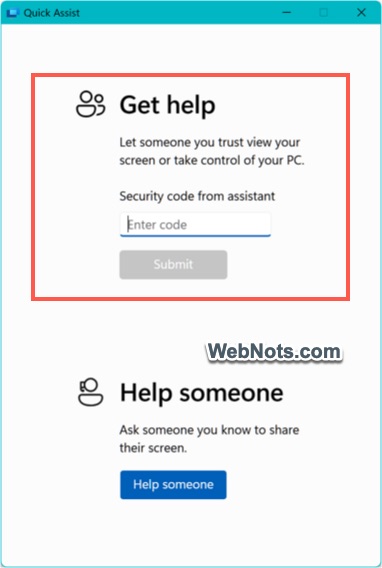
- If you are receiving help, your helper will give you a unique security code. Enter this code and follow the prompts to share your screen securely.
- During the session, you can watch as your helper navigates your system and you can end the connection at any time.
Quick Assist is an excellent option if you want real-time guidance without leaving home, making it easier for both beginners and experienced users to resolve Windows 11 problems efficiently.
Security Tips: Only accept help from people you trust and never share personal information during a session. Quick Assist sessions are encrypted for your safety.
4. Explore Microsoft Community Forums and Learning Hub
Sometimes, the best solutions come from other users who have faced – and fixed – similar problems. The Microsoft Community forums (support forum is merged with Q&A forum) are active spaces where Windows 11 users and experts share tips and troubleshooting advice.
- Login to Microsoft Q & A forum site for Windows for home.
- Search your query to find if there any previous answers.
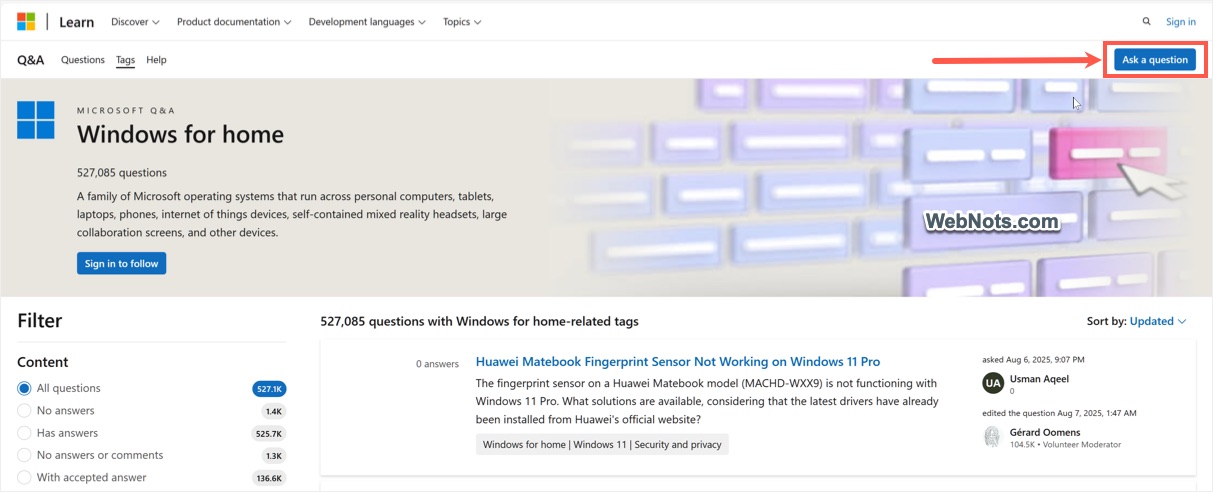
- Otherwise, click on the “Ask a question” button and post your query.
- Provide as much detail as possible like attaching screenshots, error codes and steps you have already tried.
Microsoft also regularly publishes official documentation, how-to guides and FAQs covering both common and advanced topics. These guides walk you through troubleshooting specific problems, such as blue screen errors, driver issues or application crashes. Though most documents are for other products like Microsoft 365, you can also refer the technical documentation for Windows.
5. Getting Help from Copilot
Copilot is an AI assistant app supplied with Windows 11 (otherwise, you can install it from Microsoft Store). If you are unsure how to solve a Windows 11 problem, Copilot can be a valuable resource.
- Search and open Copilot app and login with your account (you can also use the app without logging in).
- Type or speak your issue – for example, “How do I fix a printer connection problem?” or “Why is my computer running slowly?”
- Copilot will respond with step-by-step instructions, relevant links or point you to the right Windows settings. It can also help you find solutions for error codes, guide you to support documents or suggest when to contact a professional.
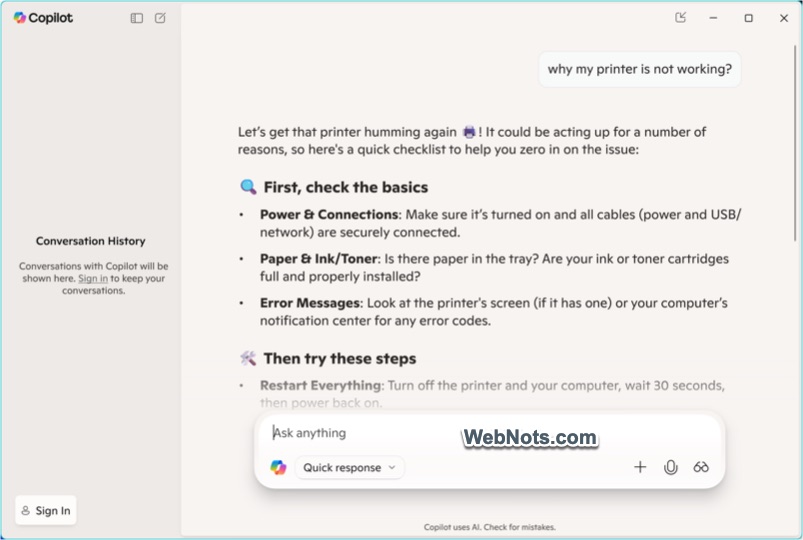
Using Copilot is especially helpful for less experienced users, as it breaks down complex issues into easy-to-follow guidance. For advanced users, it can serve as a quick reference or shortcut to deeper troubleshooting tools.
Final Words
Many users do not even know that you can get a live chat support for Windows issues from official Microsoft representatives. This is the reason you should use the legitimate licensed Windows 11 and not the pirated editions. Using Get Help or Microsoft support website is the best method or you can use Copilot and online documentations. Finally, you can also get third-party support on platforms like YouTube, Reddit and Twitter from vibrant communities and content creators who specialize in Windows troubleshooting.
If none of the above options help to fix your issue or if your computer has hardware issues, visiting a local repair professional or retailer is the best option to get required help.




Just purchased this new Dell PC and I can’t figure out how to print a document. I pressed the printer icon several times and nothing happened.
Please advise?