The Windows Command Prompt is a powerful tool for executing system-level commands, running scripts, and managing files and directories. By default, copying from any text editor and pasting into Command Prompt should work in Windows 10 or later versions. You can also paste text from the clipboard history. However, it can be frustrating if copy and paste is not working in Command Prompt and here are various options to fix the issue.
Earlier and Current Behavior
Before Windows 10, the Command Prompt did not allow simple copy-paste actions using familiar keyboard shortcuts like Ctrl + C and Ctrl + V. Instead, users had to rely on the mouse and right-click context menus or use awkward key sequences. This restriction was mainly for compatibility reasons, as Ctrl + C is traditionally used to terminate running commands rather than copying text. However, Microsoft introduced an improved Command Prompt in Windows 10 and newer versions that finally supports standard copy and paste operations, making text management far more intuitive.
Before proceeding, here are some important points to remember:
- This article deals with the Command Prompt app and not the Terminal app, as these two apps behave differently. For example, you can use the Shift key to select content in Command Prompt, which is not possible in Terminal.
- The cut action (using Ctrl + X) will not work.
- You can open Command Prompt by typing cmd in the search box and selecting the “Run as administrator” option.
1. Enable Ctrl Key Shortcuts
- Launch Command Prompt and right-click on the title bar.
- Select “Default” or “Properties” from the context menu.

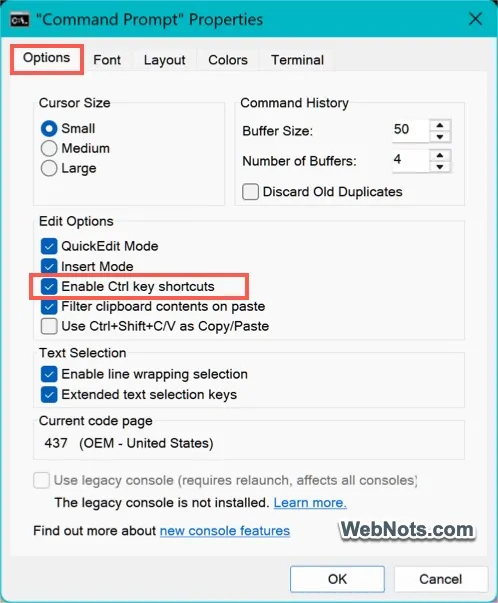
- In the Properties window, make sure you are on the “Options” tab and look for the “Edit Options” section.
- Check the box labeled “Enable Ctrl key shortcuts”. This will allow you to use the familiar keyboard shortcuts for copying and pasting text.
- Click “OK” to save your changes.
- Highlight the desired text with Shift + Left / Right Arrow keys or select the text using your mouse, then press Ctrl + C to copy.
- Place the cursor where you want the text to appear and press Ctrl + V to paste.
Since these settings persist for future Command Prompt sessions, you should be able to use the standard copy / paste shortcuts.
2. Try Ctrl + Shift + C / V
If Ctrl + C / V is not working, you can try using Ctrl + Shift + C and Ctrl + Shift + V.
- Right-click on the title bar of the Command Prompt app and select “Properties”.
- Under the “Options” tab, look at the “Edit Options” section.
- Check both “Use Ctrl+Shift+C/V as Copy/Paste” and “Enable Ctrl key shortcuts” options.
- Click “OK” to save your changes.
- Now try to copy with Ctrl + Shift + C and paste with Ctrl + Shift + V.

3. Copy and Paste Using the Edit Menu
Standard copy and paste functionality is limited in older versions of Windows (such as Windows 7, 8, and earlier). However, you can still use the “Edit” menu (available in all Windows versions) for copying and pasting text within Command Prompt.
Copying Text
- Right-click on the title bar and select “Edit > “Mark.
- Use your mouse or arrow keys to select the text you want to copy.
- Press Enter to copy the selected text to the clipboard.
Alternatively, after selecting the text, simply press Enter or go to “Edit > Copy”.

Pasting Text
- Simply press Ctrl + V keys.
- Alternatively, right-click on the title bar and select “Edit > Paste”.
The text from your clipboard will appear at the cursor location.
4. Using Mouse Shortcuts
Windows 10 and 11 also allow for quicker mouse-based copy and paste:
- Copy: Double-click a word to copy it or select multiple words and right-click to copy them.
- Paste: Right-click anywhere inside the Command Prompt window to automatically paste the latest clipboard content.
These are simple and fast ways to copy and paste content within Command Prompt as well as from other apps to Command Prompt.
Other Considerations
If you need more advanced copy and paste capabilities, consider these alternatives:
- Windows PowerShell: Supports copy-paste natively and offers more scripting features.
- Windows Terminal: A newer, more versatile command-line interface with tabs, themes, and robust copy-paste support.
- Third-Party Tools: Applications like ConEmu or Cmder offer extended features and customization, including enhanced text handling.
Additionally, make use of QuickEdit Mode and the Windows clipboard history:
- QuickEdit Mode: In Command Prompt Properties, enable “QuickEdit Mode” to select and copy text more intuitively.
- Clipboard History: Press Windows + V to open clipboard history. You can view a list of previously copied items and select the desired content to paste into the prompt.