In this digital world, it is kind of impossible to work for half an hour without any distractions. Though there are plenty of productivity tools available in Windows PC, there are also countless distractions. Sudden notifications and even the layout of your desktop can affect your focus and efficiency. Fortunately, with a few adjustments and techniques, you can transform your PC into a distraction free work environment. Here’s a guide to help you stay focused on Windows, whether you are working from home, studying, or simply looking to improve productivity.
1. Use Focus Sessions
If you want to finish a task within certain time (let us say – 30 minutes), then using Focus mode is the best way in Windows to avoid distractions. As the name indicates, it helps to avoid distractive notifications and enable do not disturb mode for the set duration.
- Go to “Settings > System > Focus”.
- Set the session duration and select the options.
- Click on “Start focus session” button.

Make sure to enable the timer option so that you will see a floating timer helping you to track your progress.

2. Completely or Partially Disable Notifications
If you are frustrated with email, messages and other notifications popping up all the time, you can simply disable the notifications.
- Go to “Settings > System > Notifications” section.
- Turn off “Notifications” option.
- Alternatively, you can turn on notifications and then disable sound, bell icon (on bottom right corner), and lock screen options.

If you do not want to completely disable notifications, go to “Settings > System > Set priority notifications” section. Here you can selectively add apps from which you want to receive alerts and remove all other apps.

3. Automatically Enable Do Not Disturb Mode
Though Focus mode will enable do not disturb (DND), you need to manually activate that session. Let’s say, you want to work distractions free during 2 – 3 PM every day, then the best option is to automatically enable DND mode.
- Go to “Settings > System > Do not disturb” section.
- Click “Turn on do not disturb automatically” option to expand it.
- Check “During these times” and set your turn on / off timer. You can also select the repeat option for daily, weekends or weekdays.

Also, turn on “When using an app in full-screen mode” so that all notifications are hidden.
4. Organize Your Desktop
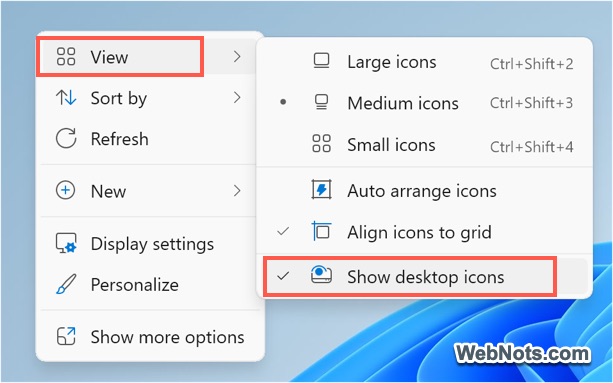
A messy desktop can be visually distracting. Organize files into folders and move non-essential items into a separate folder or cloud storage. If you have too many icons on the desktop, right-click and uncheck “Show desktop icons” option under “View” menu to hide them entirely.
5. Customize the Taskbar
Taskbar is a quick-launch bar, but if it’s cluttered, it can be distracting.
- Right-click on the Taskbar, select “Taskbar settings”, and choose which icons to show under “Taskbar items”, System tray icons” and “Other system tray icons” sections.

- Scroll down on the Taskbar settings page and expand “Taskbar behavior” section. From here, you can turn on “Automatically hide the taskbar” to keep it out of view until needed. Otherwise, you can turn off show badges and flashing to reduce the distractions by keeping the taskbar on.

6. Manage Your Browser Effectively
Another form of distractions come from your browser app, regardless of whether you are using Edge, Chrome or other browser.
- Separate Profiles – Using a browser for both personal and work tasks can lead to distractions. Consider setting up a dedicated browser or browser profile strictly for work-related tasks and keep only essential bookmarks.
- Use Extensions – Extensions like StayFocusd and LeechBlock can help you block or limit distracting sites.
- Disable Browser Notifications – Even work-related notifications from email or messaging apps can be distracting. Go to your browser settings and disable notifications for non-essential sites. For example, go to “Cookies and site permissions” section in Edge settings page and turn off “Ask before sending” option or turn on “Quiet notification requests”. You can also manually add sites frequently sending notifications under “Block” section.

7. Virtual Desktops for Task Separation
Virtual Desktop feature allows you to create separate desktops for different tasks, such as one for work and another for personal activities:
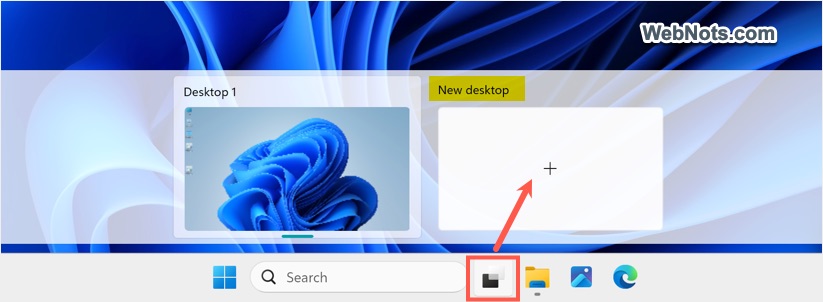
- Click the Task View button on the Taskbar.
- Select “New desktop” to create a separate workspace.
- You can switch between desktops using “Windows Logo + Control + Left/Right Arrow” keys, helping you to compartmentalize tasks and reduce clutter on each desktop.
8. Optimize Display Settings
If you need to work for longer time in front of the display, then it is important to use correct display and battery settings.
- Dark Mode – Go to “Settings > Personalization > Colors” section. set “Custom” option for “Choose your mode” and then select dark or light for Windows and apps as you need. Though there are no direct settings to schedule dark mode, you can use Task Scheduler or a third-party app for this purpose.

- Night Light – Activate this setting under “Settings > System > Display”. It reduces blue light, helping you stay focused for longer periods.

If you need to switch between devices while working, then make sure your screen stays active during work going to sleep mode. Go to “Settings > System > Power > Screen sleep, & hibernate timeouts” and set the screen to turn off and the PC to go to sleep after a reasonable period.
9. Use Third-Party Distraction Blocking Apps
If you need extra assistance in staying focused, consider these third-party apps designed to block distractions:
- Cold Turkey – Allows you to block websites, apps, and even the internet entirely for a set period.
- RescueTime – Monitors your computer activity, helping you understand how much time you’re spending on productive versus distracting tasks.
- Freedom – Similar to Cold Turkey, it blocks distracting websites and apps across all your devices.
These apps give you detailed reports on your focus patterns, enabling you to adjust your habits accordingly.
10. Schedule and Plan Your Work Time
In addition to optimizing system settings, it is also important to plan the tasks to avoid distractions.
- Organize your day and tasks using the Outlook integrating your emails.
- Microsoft To-Do is a great productivity app allowing you to plan your day, set deadlines, and create reminders.
You can use any other app to create daily, weekly, or project-specific to-do lists to keep track of your work schedule.
11. Take Regular Breaks
Working for extended periods without a break can lead to fatigue and loss of focus. Good thing is that you have plenty of tools for break reminder.
- Focus mode timer (which is Windows Clock’s Focus Session) has built-in break reminders.
- You can also use Parallels Toolbox Break Time tool to schedule a reminder for you to take breaks.

A five-minute break every 20 to 25 minutes can help sustain your focus over long hours of work.
Conclusion
It is easy to get lost with the social, notifications and other distractions whenever opening your PC. However, creating a distraction free workspace on a Windows PC is achievable with a few simple adjustments and some helpful tools. From managing notifications to setting up dedicated virtual desktops, each strategy is designed to help you minimize disruptions and maximize productivity. By regularly reviewing and adjusting these settings based on your needs, you will be better equipped to stay focused and efficient throughout your workday.