
Nowadays, it is kind of impossible to use apps in Windows 11 without internet connection. For example, OneDrive and Copilot are added as default options and you can’t use them without internet. Microsoft is also planning to introduce Copilot even in standalone apps like Notepad. Sometimes all you want is to work without distraction on an app or deny internet access only for browser apps to protect your kids. You can easily configure this for any specific app using Windows Defender Firewall and here is how you can do that in Windows 11.
Windows Defender Firewall
Defender is an antivirus and protection software which comes as part of Windows Security suite. So, you do not need any other third-party app for blocking internet access to a specific app installed on your system.
Block Internet Access to Apps
- Click on the “Windows Security” icon showing in Taskbar system tray section (normally hidden behind the up arrow). Alternatively, type “windows security” in Windows Search to find and open Windows Security app.

- Go to “Firewall & network protection” section and click “Advanced settings” link showing at the page bottom.

- This will open “Windows Defender Firewall with Advanced Security” dialog and go to “Outbound Rules” section.
- You can most of the Microsoft apps like Store, Tips, To Do, Photos, etc. in the list. Find an app that has outbound rule enabled indicated with a green check mark in the front. For example, let us take Microsoft Store app in the list.
- Double-click on the item to open its properties.

- Go to “General” tab and select “Block the connection” option showing under “Action” heading.
- Click “Apply” button and then “OK” button to close the properties window.

- You will see the green check mark is changed to stop mark symbol indicating that the outbound rule blocks network connection for that app.

- Now, open the app that you have blocked the connection (Microsoft Store in our case). You will see the internet connection is blocked and the app will show an error message to try again.

You can anytime go back to Windows Defender Firewall and change the outbound rule setting to “Allow the connection” to start using the app.
Creating New Rule for Blocking App’s Internet Connection
If an app is not listed in the default list under “Outbound Rules” section, you can create a custom rule and block that app’s internet access. For example, Microsoft Edge, Google Chrome or Firefox apps will not be shown in the default list. Follow the below steps to block those app’s outbound network connection:
- Find and open Windows Security app.
- Go to “Firewall & network protection” settings and open “Advanced settings” link.
- When you are in “Windows Defender Firewall with Advanced Security” app, right-click on the “Outbound Rules” section and select “New Rule…” option. Alternatively, you can select “New Rule…” from the “Action” menu or from the “Actions” column.

- “New Outbound Rule Wizard” will open, select “Program” option under “Rule Type” section and click “Next” button.

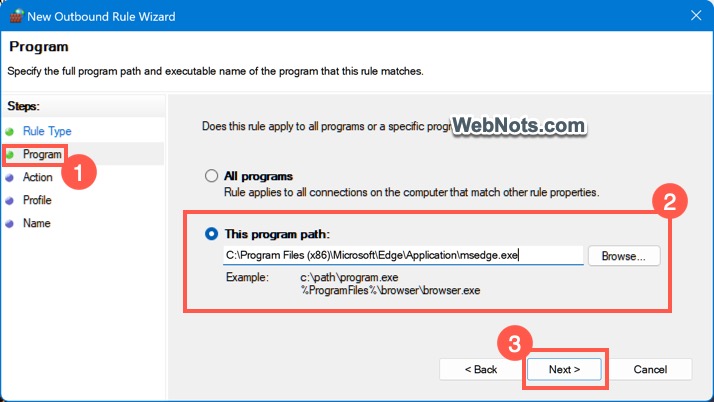
- Select “Program path” option and click on the “Browse” button to locate the executable application file for your app. For example, we will use “C:\Program Files (x86)\Microsoft\Edge\Application\msedge.exe” where Microsoft Edge application file is located and click “Next” button.
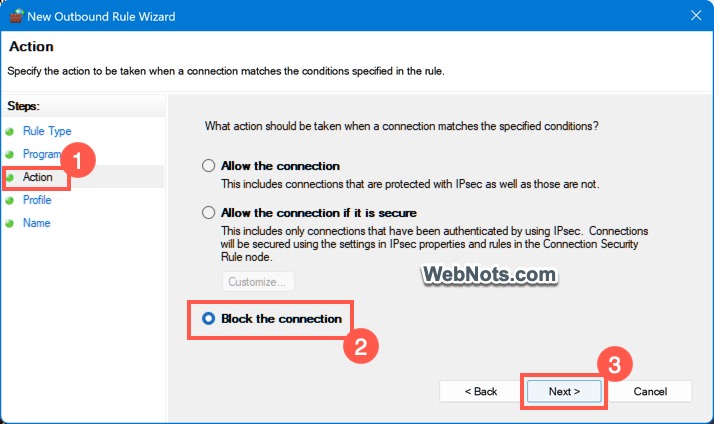
- Select the “Action” as “Block this connection” and click “Next”.
- You need to select the network profile in the next step. By default, public network profile is active which you can see under “Firewall & network protection” section in “Windows Security” app. However, you can check all “Domain”, “Private” and “Public” options and click “Next” button.

- Final step is to provide a name and description for your outbound rule. Make sure to enter a descriptive name so that you can remember and easily find it from the list later. Let us provide the name as “Block Edge Browser”, type some description and click “Finish” button.

- You will see a new outbound rule is created and shows the stop symbol indicating network connection is blocked for Microsoft Edge app.

- Open Edge app and you will see an error saying, “Hmmm… your internet access is blocked”. It will show the error name as “ERR_NETWORK_DENIED” with additional information as “Firewall or antivirus software may have blocked the connection”.

You can anytime go back to Windows Defender Firewall to disable or delete the outbound rule and enable internet connection access for Edge browser.
Final Words
Using Windows Defender Firewall is the easy way to block internet connection of any app in Windows 11. Though browser apps will show the network is blocked with firewall or antivirus, most other apps like Microsoft Store will not show the clear error. So, your kid or someone using the computer will not know that you blocked the connection only for that app. You can also work distraction free on an app and enable the connection whenever needed.


