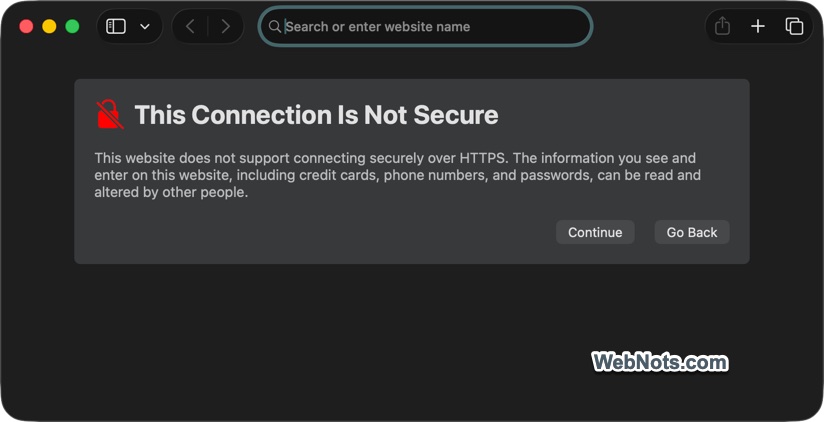
Most modern browsers, including Chrome, Edge, and Safari, display a security warning when you try to access a website over HTTP. This happens because HTTPS enforcement is enabled by default in browser settings. As a result, common scenarios such as accessing a local development site over HTTPS can be blocked. In these cases, you must manually locate the security certificate and mark it as trusted to allow access. This article explains how to do this step by step using a practical example on macOS.
Example Case
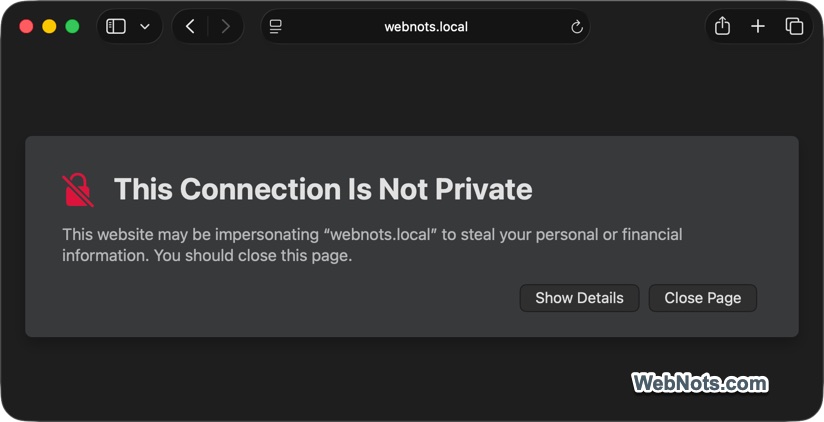
We have installed WordPress setup on macOS using Local WP app. This app installs a fake local SSL certificate to bypass the privacy or security error in browsers (any browser for that matter). However, macOS will not trust this fake certificate and below is how the error looks like on Safari:
And, below is how it looks as a privacy error on Chrome on Mac.
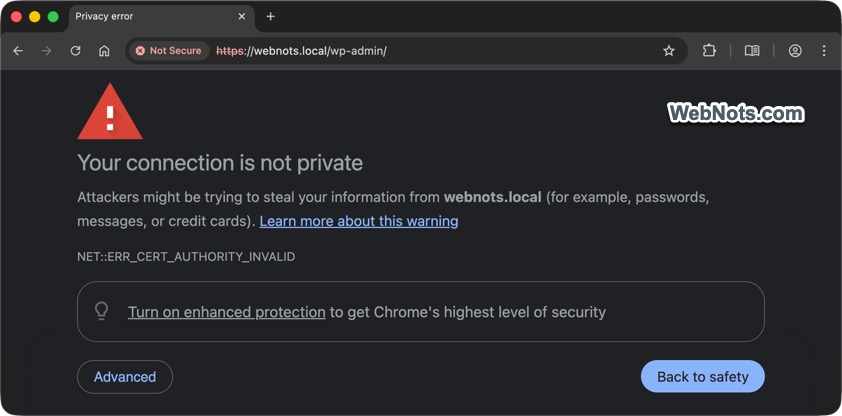
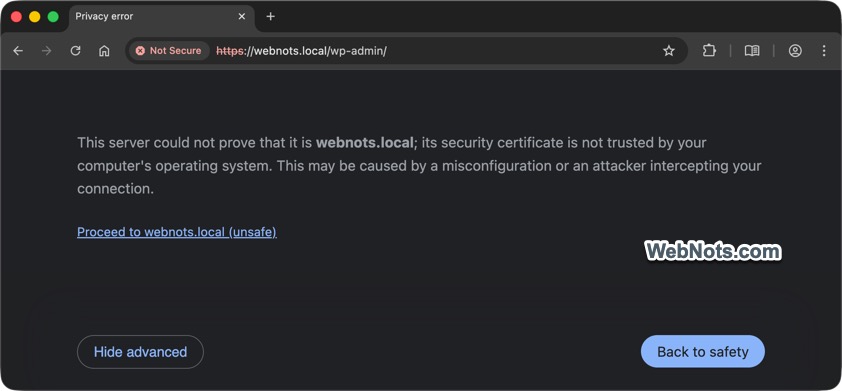
Though you can continue with accessing the site, every time looking at this type of errors may frighten you.
Trusting SSL Certificate in macOS
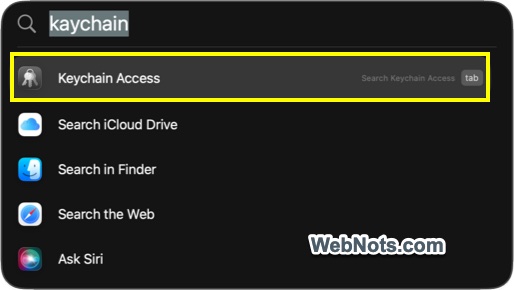
- Press “Command + Space” to open Spotlight Search.
- Type “keychain” to find and open Keychain Access app.
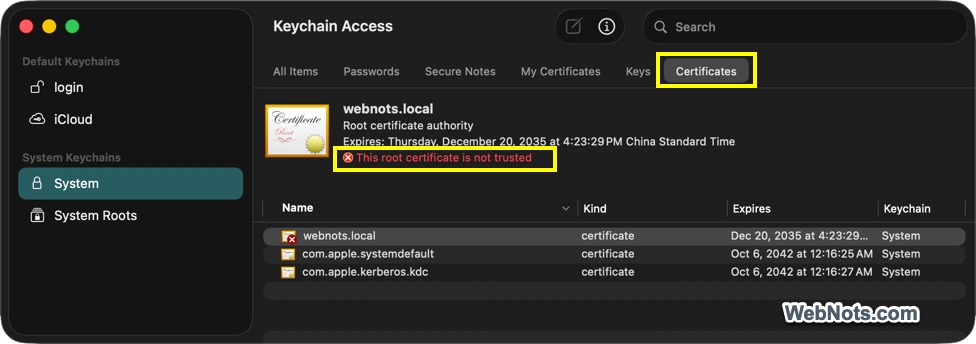
- Navigate to “Certificates” tab to find the correct certificate that you need. Otherwise, use the search box to find the correct item.
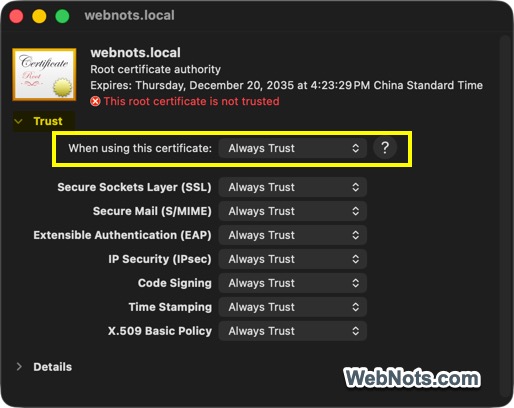
- Select the item and you will find a warning showing “This root certificate is not trusted”.
- Double-click on the certificate and expand “Trust” section.
- You will see “Use System Defaults” is selected for “When using this certificate” option.
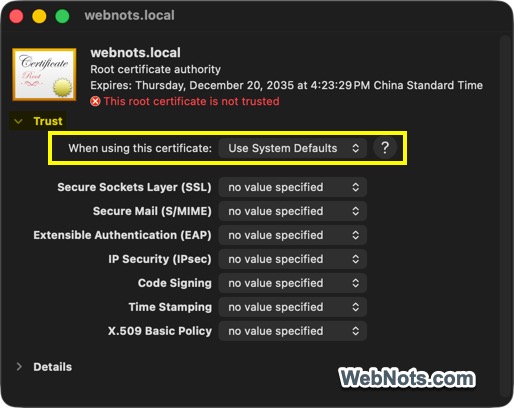
- Click the drop-down and select “Always Trust” option. This will automatically change all other parameters to “Always Trust”.
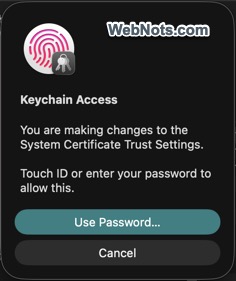
- Authenticate with your password or Touch ID fingerprint.
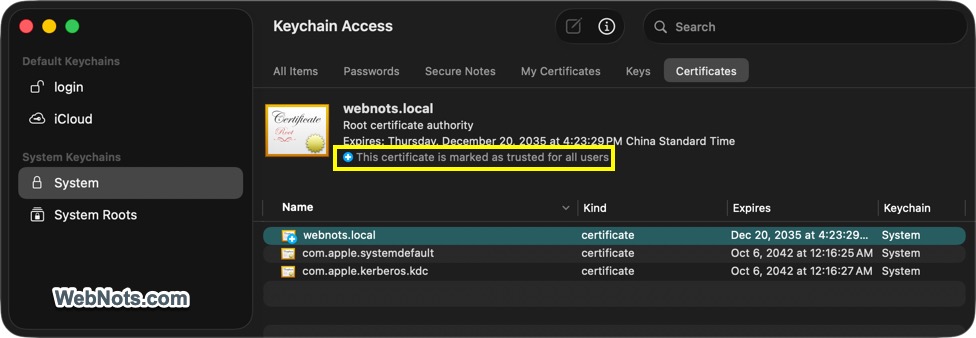
- Now, you will see the certificate shows “This certificate is marked as trusted for all users”.
Close the Keychain Access app and open your site in a browser tab. Now, it should be accessible without any errors.
Disable Forcing HTTPS on Browsers
As mentioned, browsers normally force HTTPS as a security measure and you can disable that to access HTTP sites.
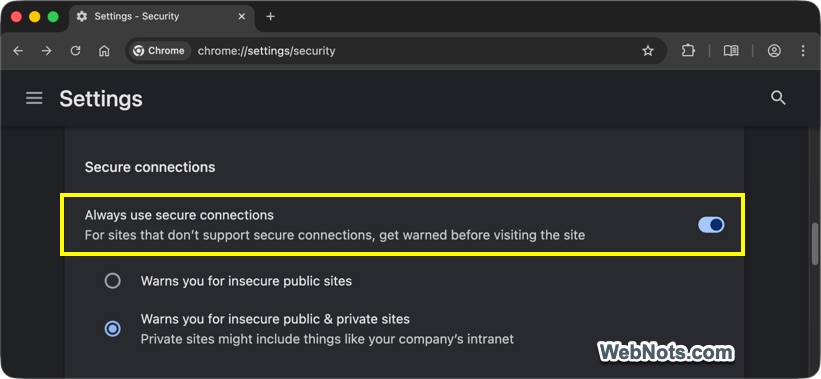
On Chrome: Go to chrome://settings/security page, scroll down to “Secure connections” section and turn off “Always use secure connections”. You can also go to chrome://certificate-manager/localcerts/platformcerts page to find the trusted SSL certificates added by macOS.
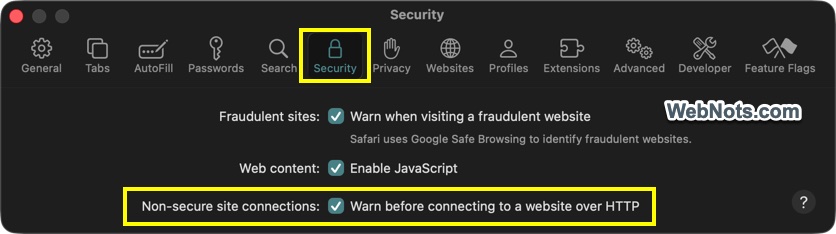
On Safari: Go to “Safari > Settings… > Security” and disable “Warn before connecting to a website over HTTP” against “Non-secure site connections” option.
Remember that this setting will be applied when accessing all websites. So, this is not recommended on your primary browser. You can change it on a secondary browser, which you can use for accessing localhost websites or other HTTP sites that you trust.