Do you know that Apple was among the first companies to introduce private browsing, launching it directly within the Safari browser? Safari comes preinstalled on macOS and offers a higher level of security than many third-party browser apps. However, its capabilities are often overlooked because Safari is closely tied to Apple’s ecosystem and works best as a platform dependent browser. If you primarily use Chrome or another third-party browser on your Mac, it may be time to take a closer look at Safari. Below are practical tips to protect your security and keep your data safe while browsing with Safari on macOS.
Safari’s In-built Protection
Unlike most other browser apps, Safari is deeply integrated with macOS. Although it has its own versioning, Safari updates are delivered as part of macOS system updates. So, the browser automatically benefits from built in protections at the operating system level.
- Passwords and passkeys are stored securely in Mac Passwords app and protected by macOS security mechanisms.
- Sandboxing helps to isolate Safari’s processes thus avoiding malicious websites from affecting other parts of the system.
- Intelligent Tracking Prevention limits cross site tracking by advertisers and reduces unnecessary data collection.
In addition to these default protections, below are the 10 important steps you should take to further strengthen your security while using Safari.
1. Fraud Site Warning and Force HTTPS
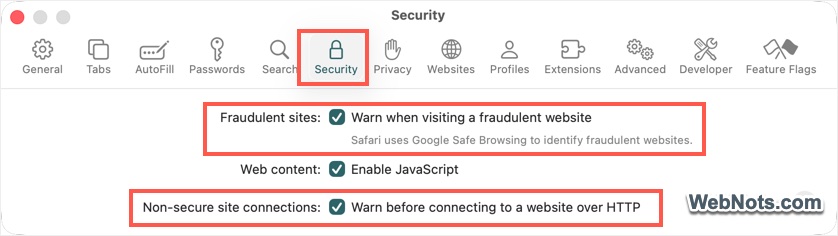
Go to “Safari > Settings… > Security” and turn on these two options:
- Fraudulent sites: Warn when visiting a fraudulent website – Apple uses Google’s Safe Browsing mechanism to compare visited websites against a list of known fraudulent domains and alert you before a page loads. You can safely close the website and protect against phishing and malicious attacks.
- Non-secure site connections: Warn before connecting to a website over HTTP – This setting will stop HTTP websites and force them load over secured HTTPS protocol. This will help to protect your payments and other personal data from unsecured websites.
2. Use and Lock Private Browsing
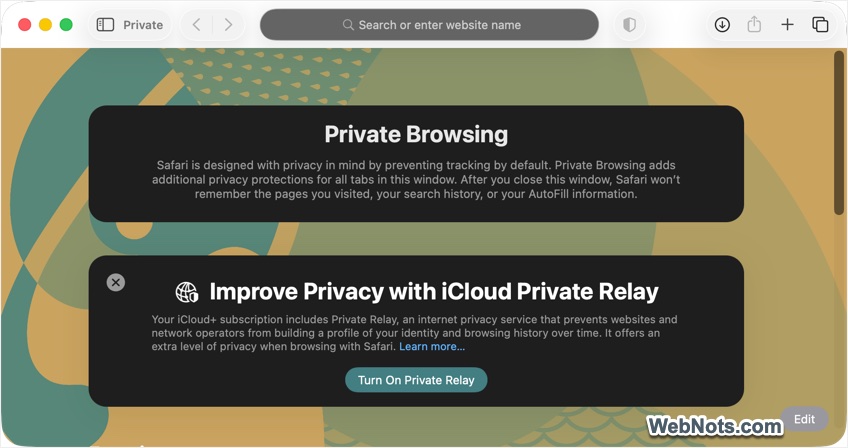
As mentioned, Safari was the first browser to implement private (also called incognito) mode. The best part is that you can lock the private windows from accidentally revealing confidential information while on video calls or when a family member suddenly browse using your device.
- Go to “File > New Private Window” or press “Command + Shift + N” keys to open a private tab.
- Press “Command + Control + L” keys or go to “Window > Lock All Private Windows” for locking the tabs. If this menu item is not showing, go to “Safari > Settings… > Privacy” and turn on “Require Touch ID to view locked tabs” or similar setting against “Private Browsing” option.
- Once locked, you need the system password or Touch ID to unlock and view the tabs again.
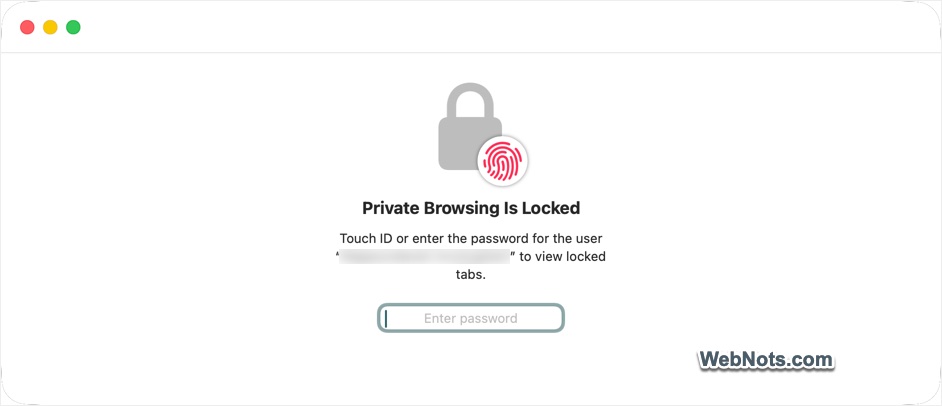
Safari will automatically delete all your browsing history, cookies, and search data after a private browsing session ends making it suitable when others may use your device.
Note: Apple also offers iCloud Private Relay feature to protect your browsing activities as an extra layer. However, this is part of iCloud+ premium subscription and is not available in certain countries like China.
3. Uninstall Unnecessary Safari Extensions
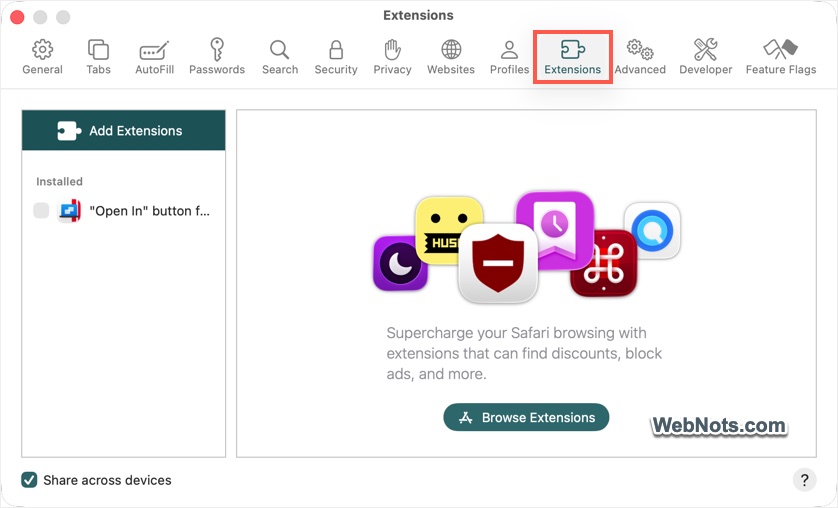
Extensions are the easy way to get additional features, especially with the isolated browsers like Safari. However, most extensions will track all your activities (including the passwords you enter on the login forms) and some can cause security risks due to poor coding or no maintenance.
- Go to “Safari > Settings… > Extensions” section and review all installed items.
- Select unnecessary items and uninstall them.
Make sure to install extensions only from the Mac App Store, and carefully review permission requests before granting access.
4. Use Strong Passwords
As mentioned, Safari stores all website credentials in macOS Passwords app. You can periodically review to make sure all your credentials are safe.
- Go to “Safari > Settings… > Passwords” section.
- Click “Open Passwords” to launch the Passwords app.
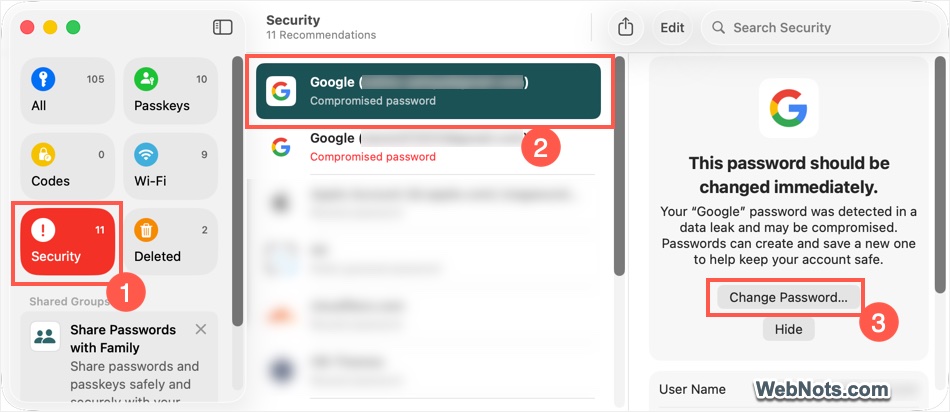
- Click the “Security” title on the sidebar or go to “View > Security” menu.
- Review the recommendations to find all compromised and reused passwords.
- Selected an item and click the “Change Password…” button.
- The website will open in Safari and change it to a strong password.
Where available, use passkeys instead of passwords, as they are more secure and cannot be reused across sites.
5. Set Manual Download Location
Most security issues occur when you click on download links and open malicious files. Although Safari warns you about dangerous websites and potentially unsafe downloads, it is equally important to act responsibly while browsing.
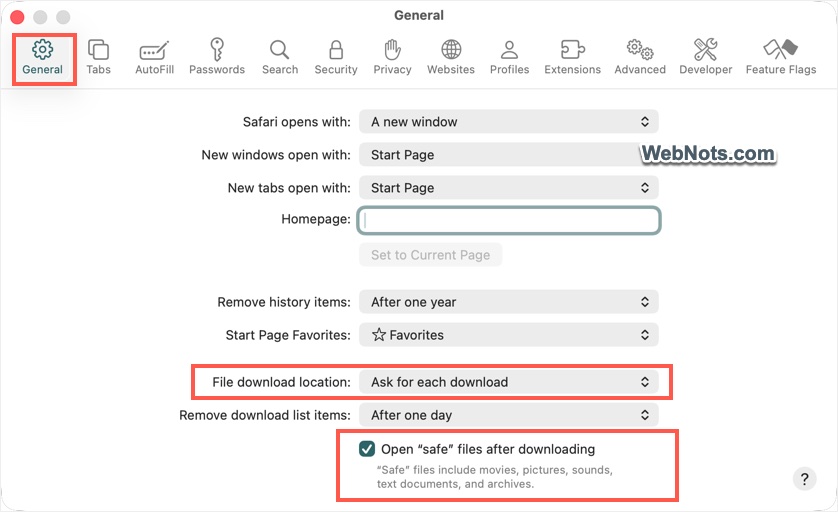
- Go to “Safari > Settings… > General” section.
- Select “Ask for each download” for “File download location” option.
- This will prompt you to select the location whenever downloading a file. In this way, you have an opportunity to stop all automatic and accidental downloads.
- Also, uncheck “Open safe files after downloading” option.
In addition, go to “Safari > Settings… > Websites” tab and go to “Downloads” section. Here you can review the websites previously allowed to download content and select “Ask” for “When visiting other websites” option.
6. Review Website Permissions
Websites can track your activity in several ways, including access to your location, camera, microphone, and showing pop-ups or notifications. By default, Safari prompts you to approve these permissions the first time a website requests them. Over time, you may have granted multiple permissions and forgotten about them. Regularly reviewing and removing unnecessary website permissions will protect your privacy and keep your online activity secure.
- In Safari settings, open the “Websites” section.
- Review each permission category and remove access for any site that does not absolutely require it.
- Set default behaviors to “Ask” or “Deny” rather than Allow. This ensures that websites cannot silently gain access to sensitive system features.

7. Use Safari Privacy Settings
Privacy and security goes hand in hand. So, check and enable privacy settings offered by Safari.
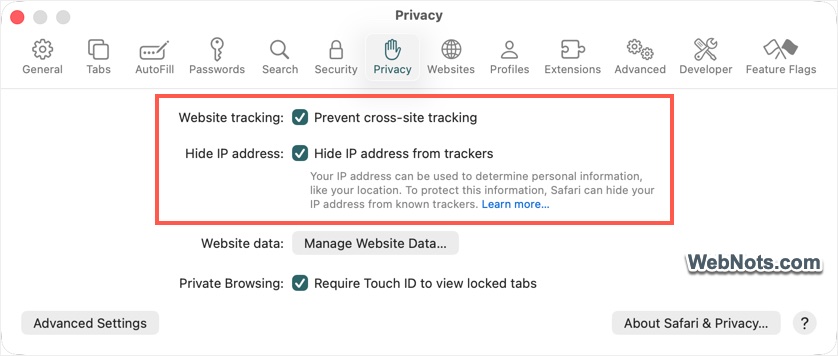
- Navigate to “Privacy” tab in Safari settings.
- Turn on “Prevent cross-site tracking” to limit how advertisers and third party sites follow your browsing behavior across the web.
- Also, enable “Hide IP address from trackers” option, which reduces the ability of websites to identify your location and network.
8. Use Safe Network and Consider Using a VPN
Besides the OS and Safari settings, using a safe network is very important to protect your online safety.
- When using Safari on public networks like in coffee shop, avoid accessing sensitive accounts unless necessary.
- Consider using a reputable VPN service to encrypt your internet traffic, especially on untrusted networks. This will add an extra layer of protection by hiding traffic from potential eavesdroppers.
9. Keep macOS and Safari Updated
As mentioned, Apple updates Safari through macOS updates. So, it is important to keep the system updated to protect you from latest vulnerabilities.
- Go to “Apple Menu > System Settings… > General > Software Update” section.
- Check and install if there are any updates available.
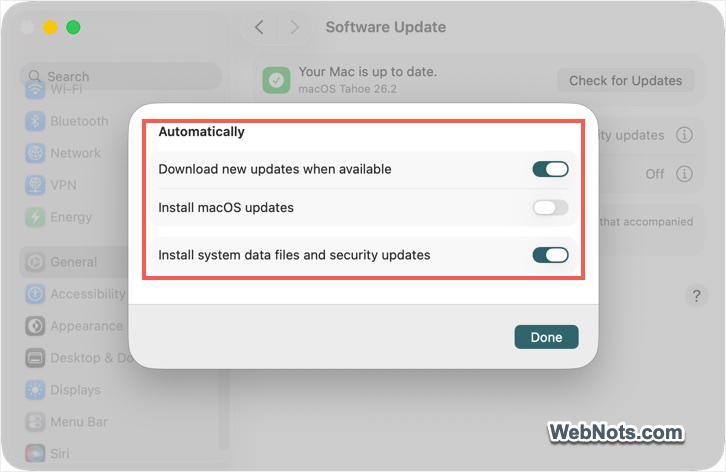
- Click the ⓘ icon showing at the end of “Automatic Updates” option.
- Enable all the options in the pop-up to automatically install the latest updates for both macOS and system security.
10. Secure Safari with System Level Protections
There are few more security options you can enable on macOS level to protect the entire system including Safari:
- Go to “Apple Menu > System Settings… > Privacy & Security” section. Scroll down to bottom and turn on “FileVault” option. This will encrypt your disk, protecting Safari data if your Mac is lost or stolen.
- On the “Privacy & Security” settings page, allow applications only from App Store and select “Ask Every Time” or “Ask for New Accessories” option for accessories connection. These settings will help to protect if you frequently install apps and connect USB to your Mac laptop.
- Go to “Network > Firewall” section and turn it on to block unauthorized incoming network connections.
- Use a strong login password and enable Touch ID if supported.
Final Words
Since Safari provides solid foundation for secured browsing, following few simple safe browsing habits are sufficient for protecting your data. Avoid clicking links in emails and messages, even if they appear to come from trusted sources and verify website addresses carefully before entering login credentials. You can show the full website address by turning on that option in “Safari > Settings… > Advanced” section. Another important thing is to avoid clicking on fake pop-ups claiming your Mac is infected. Safari and macOS do not display security warnings through random web pages. When in doubt, close the tab and verify the information through official sources.