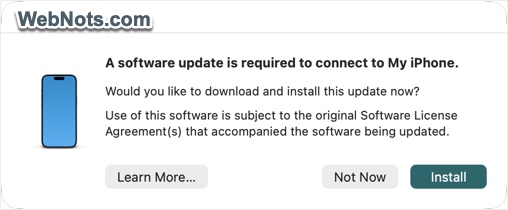
You plug your iPhone into your Mac, expecting to sync files, back up your data, or restore the device. Instead, a message pops up: “A software update is required to connect to your iPhone”. This alert can be frustrating, but it’s actually Apple’s safety mechanism at work. After digging through various Apple support pages, here’s what we understood on why it happens and how to fix it.
The Root Cause: A Version Mismatch
The message appears because your macOS version (specifically the components responsible for communicating with iOS devices) is outdated relative to iOS version running on your iPhone. So, you must be connecting the iPhone after updating your iOS (for example – iOS 26.4) and Mac will show the notification as it might be running on a lower version (for example – macOS 26.3).
Think of it this way: your iPhone’s operating system (iOS) is constantly evolving with new features, security protocols, and communication standards. When Apple releases a new iOS version, the supporting software on Mac must be updated to understand and interact with these changes. This isn’t a hardware problem or a sign that something is broken. It’s simply your Mac recognizing that it needs a compatibility update to safely and correctly communicate with your device.
The Simple Fix: Click “Install”
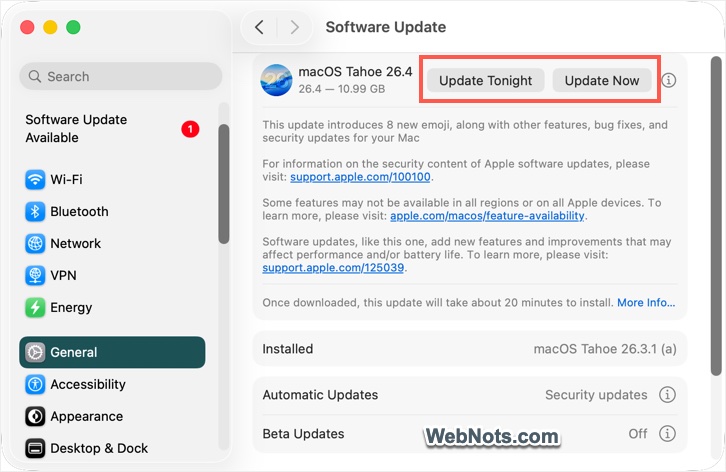
When you see the “Software update required” message, the easiest solution is right in front of you: click the “Install” button. This will take you to “Software Update” section in Mac’s System Settings app. Click the “Update Now” button to check the available updates and then click “Update Now” button. This will download and install the latest macOS, which contains necessary software components to fix the connection issues.
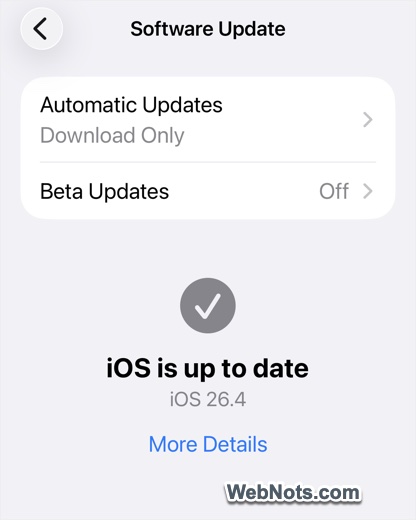
If the problem is due to the lower iOS version, go to “Settings > General > Software Update” section on your iPhone and install the available update.
In most cases, this is typically a small, targeted update (like iOS 26.4 and macOS 26.4) specifically designed to enable device connectivity and not a full macOS upgrade. Once the OS versions are matching, you can connect the iPhone without seeing the notification.
Compatibility Requirements
As per Apple’s support page, there’s a baseline requirement for connecting your iPhone or iPad to Mac.
- iPhone should be running on iOS 17 or later.
- iPad with iPadOS 17 or later.
- Mac with macOS 10.13 (High Sierra) or later.
Apple synchronized the OS version numbers from 26 onwards and hence make sure both iPhone and Mac run on same OS version.
- iPhone – Go to “Settings > General > Software Update”.
- Mac – Go to “Apple Menu > System Settings… > General > Software Update”.
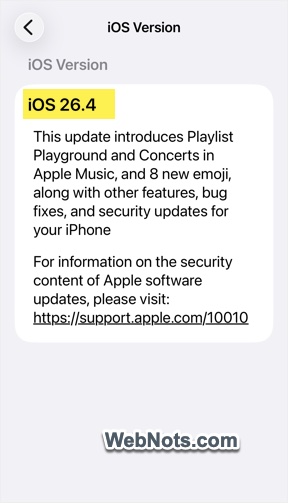
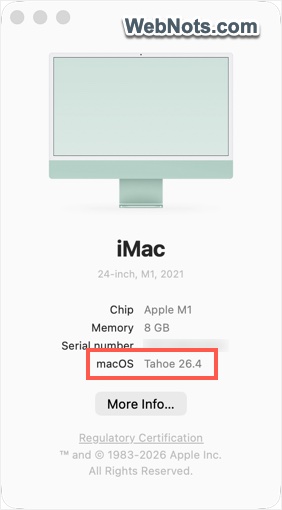
As you can see in the above screenshots, both iPhone (iOS 26.4) and Mac (macOS Tahoe 26.4) running on the same version and the problem is fixed with that. If one of your devices is not compatible to install the required OS, you can simply click the “Not Now” button on the notification to continue using your iPhone with Mac. However, this is not recommended as the message will appear every time you connect and some functions may not work as expected. That means, you will not be able to connect seamlessly if the devices are not compatible.
If the Installation Fails or the Message Returns
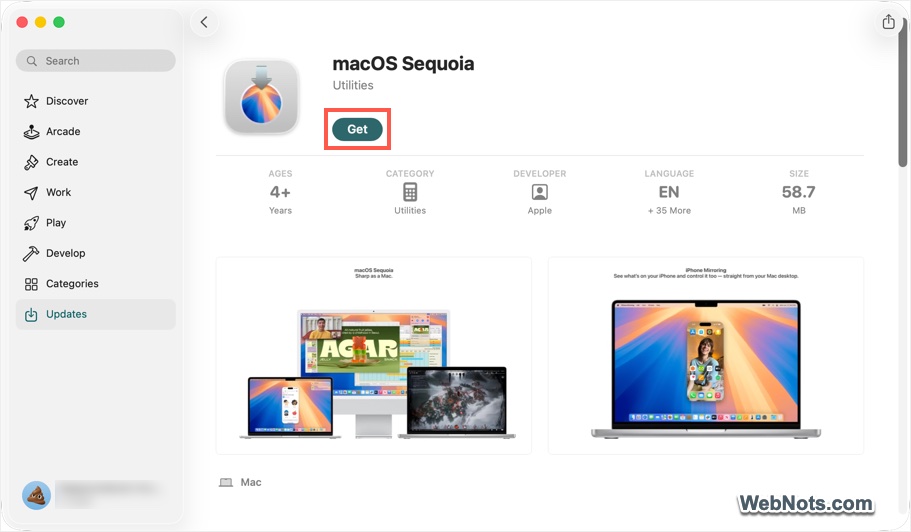
Sometimes, clicking “Install” doesn’t resolve the problem if the update fails to install. This primarily happens when you use an older macOS version that can’t be downloaded through “Software Update” section. In this case, you can use the links available in this official support page to download the compatible macOS installation file from the App Store or from Apple website. After downloading, the macOS installer will open allowing you to install the OS on your Mac.
If the problems happens on the iPhone, learn more on how to fix software update problem in iOS.
Final Thoughts
If you want to avoid this message in the future, enable automatic updates on both your Mac and iPhone. This way, compatibility updates install as soon as they become available, keeping your devices in sync without interruption.