Setting correct volume in iPhone can sometimes confuse the users as ringtone and music volumes work separately. Now that in iOS 18.2 onwards, Apple also introduced another control feature to limit the maximum volume when playing media files. Whether you are listening to music, watching videos, or enjoying podcasts on your iPhone, you can ensure that your iPhone is set to the desired maximum volume for media playback.
Set Maximum Volume for Media Playback
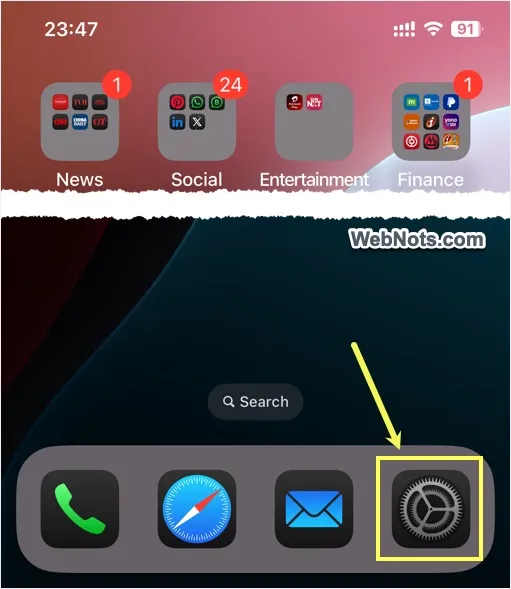
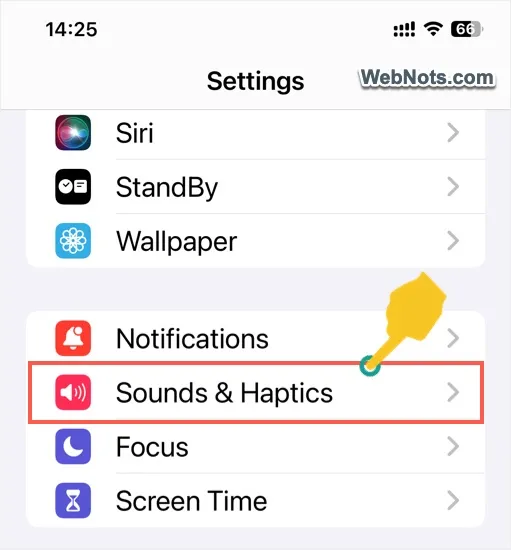
- Open Settings app from your home screen.
- Scroll down and tap on “Sounds & Haptics” option.
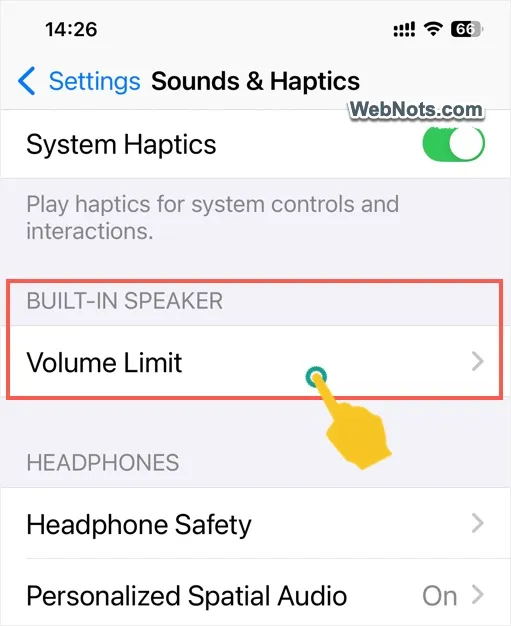
- Scroll down to bottom and find “Built-in Speaker” section.
- Tap on “Volume Limit” option.
- Turn on “Limit Maximum Volume” option.

- Move the slider to a desired level and set the % of volume you want to use.

The setting will be available only if you are using iOS 18.2 or later version. So, make sure to update your iPhone by going to “Settings > General > Software Update” section.
Test Your Volume
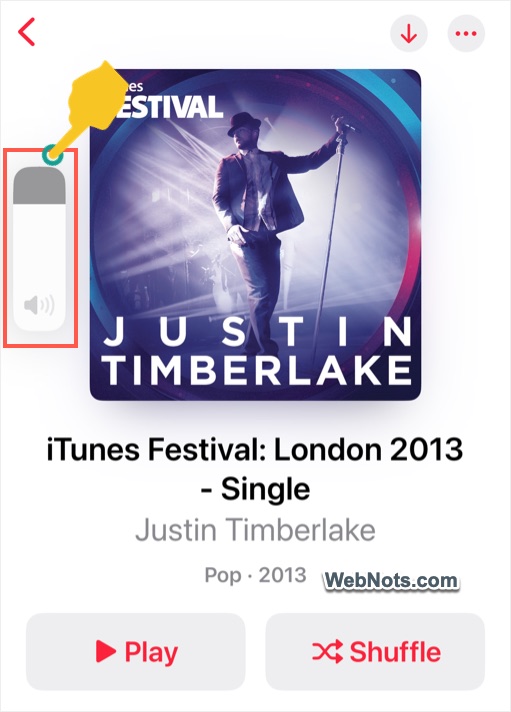
Open Music app and play your favorite audio or open YouTube and play a video. Press the up or down button on the left side of your iPhone and test the maximum volume. The maximum volume should be reduced as per your sound settings. If required, you can go back to the settings page and adjust the slider to set the level convenient for you.
Where it Works?
As mentioned, media and ringer volumes work independently in iPhone. So, the maximum volume limit controls the playback volume of audio, video and any other media files. However, it does not affect the ringer volume related stuffs like phone calls, FaceTime calls, alarm, system notification alerts, etc. It also works only for the in-built iPhone speaker and does not affect external speakers if connected (including Apple AirPods).
Note: For adjusting the ringtone volume, go to “Settings > Sounds & Haptics” and adjust the slider on the top under “Ringtone and Alerts”. If “Change with Buttons” option is enabled, you can adjust the volume with the side up or down buttons.