Most WordPress users know how to schedule a blog post and share its URL with others before publishing. However, when it comes to site-wide design changes, many users simply make edits and publish them immediately. What most people do not realize is that WordPress includes a hidden feature that allows you to schedule design changes or share them for preview before going live.
What are Site-Level Design Changes?
Before learning how to schedule or share design changes, it is important to understand what qualifies as a site-level change in WordPress. These are changes typically made in the WordPress Customizer section under “Appearance > Customize”. They can include:
- Changing your site’s theme.
- Typography changes such as fonts, font sizes, and text styling.
- Color modifications for backgrounds, buttons, links, and menus.
- Header and footer updates.
- Layout adjustments offered by your WordPress theme.
- Widget modifications.
- Menu changes.
- Additional CSS customization.
- Homepage and site identity settings, depending on your theme.
Essentially, any visual or layout-related change made through the Customizer can be saved, scheduled, or shared for preview, which helps to avoid creating a separate staging site for minor design approvals and also reduce the risk of accidental live changes.
1. Scheduling Design Changes
Follow these steps to schedule your site design updates to go live automatically at a specific date and time:
- Log in to your WordPress dashboard and navigate to “Appearance > Customize”.
- Make the design changes you want in the Customizer.
- Instead of clicking the “Publish” button directly, click the gear icon next to the Publish button.
- You will see three publishing options: Publish, Save Draft, and Schedule.
- Select “Schedule” option if you want the changes to go live later. Choose your preferred date and time for publishing.
- Click the “Schedule” button. Your design changes will now be automatically published on the selected date and time without requiring manual action.
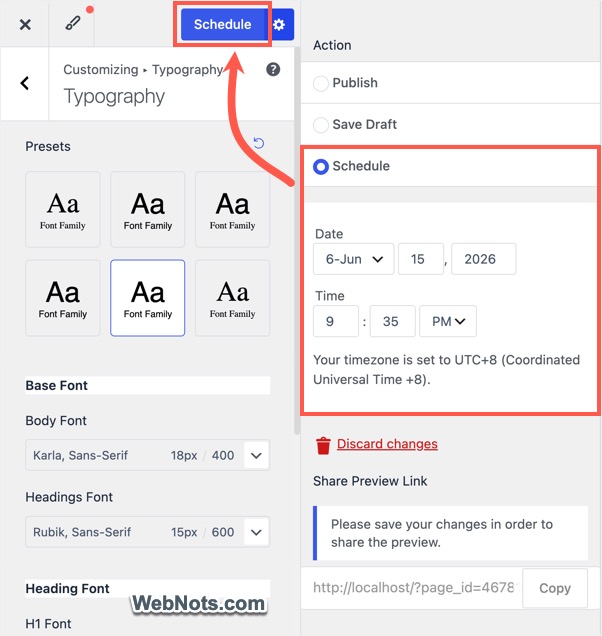
Keep in mind that WordPress uses the timezone configured in “Settings > General > Timezone” section. Make sure your timezone is correct to avoid publishing at the wrong time.
2. Sharing a Preview of Design Changes
One of the most useful aspects of this feature is the ability to generate a private preview link. After scheduling the changes or saving them as a draft, WordPress automatically creates a secret preview URL. This link allows others to view the unpublished design updates before they go live.
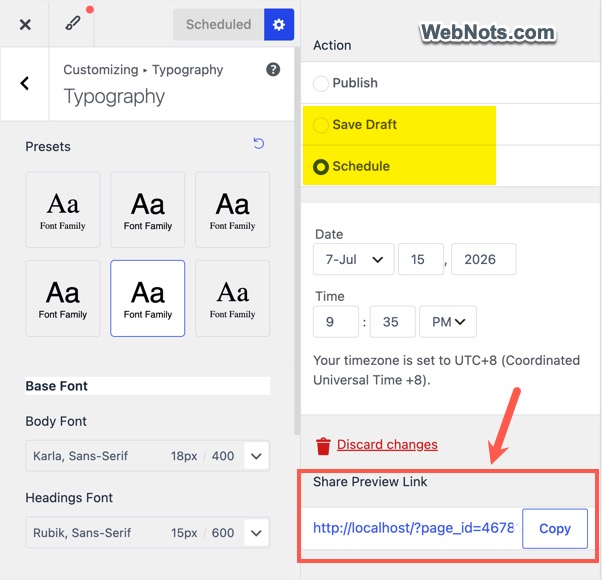
The preview URL may look something like this:
https://www.yoursite.com/?page_id=123&customize_changeset_uuid=123456-1234-1234Or depending on your permalink settings:
https://www.yoursite.com/page-url/&customize_changeset_uuid=123456-1234-1234Simply click the “Copy” button to copy the URL to your clipboard. You can then share it via email, messaging apps, or through any other tool. This makes it easy to collect feedback or receive approval before publishing the changes publicly.
3. Save Design Changes as a Draft
If you do not want to schedule the changes yet, you can save them as a draft instead. To do this select “Save Draft” option and then click the “Save Draft” button. WordPress will save your changes without publishing them and generate a preview URL that you can share with others.
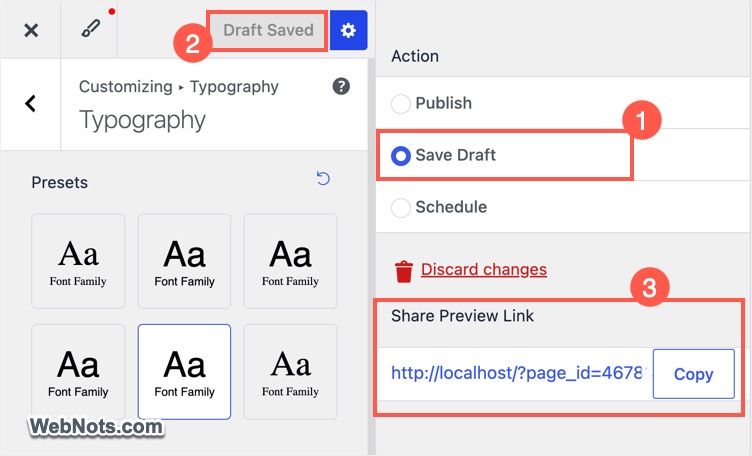
This option is particularly useful if you want to continue editing later or wait for stakeholder approval.
Limitations of WordPress Preview URLs
Although preview URLs are helpful, there are a few limitations you should be aware of:
- Limited Page Functionality – The preview works best on the page being previewed in the Customizer. Since the URL includes a specific page path, you can browse internal links and navigate through standard previous and next post links. However, theme-specific elements such as related posts sections and dynamic widgets may not function properly.
- Only One Active Preview Snapshot – WordPress allows only one preview changeset at a time. You cannot create multiple independent design snapshots for comparison or separate client reviews.
- Draft or Scheduled Changes are Required – A preview URL is generated only after you either save the changes as a draft or schedule them. If you simply make changes without saving, no preview link will be available.
- Link Privacy – Anyone with the preview link can access the unpublished changes. Since the URL acts like a private access key, only share it with trusted people.
- Not Available for Block Themes – This feature is only available in the WordPress Customizer, which is supported by classic themes. If your website uses a block-based (Full Site Editing) theme, you will not have access to the Customizer interface. As a result, you cannot schedule or share site-level design changes using this method on block themes.
Final Thoughts
The ability to schedule or privately share design changes is one of WordPress’s most overlooked features. Instead of publishing visual updates immediately, you can plan launches in advance, collect feedback, and ensure everything looks correct before going live. Whether you are working on a client project, redesigning your website, or coordinating a scheduled launch, this feature helps make the process more organized and professional without needing a separate staging environment.