Displaying date and time in a format that fits your site’s style and audience is important when managing a WordPress website. good thing is that WordPress provides built-in options to change the default date and time formats easily. For more advanced customization, there are also additional methods you can explore. In this article, we will guide you through the various ways to change date and time formats on your WordPress site.
Date and Time Display
WordPress displays date / time in various places as a meta data. However, the actual output is controlled by the theme you use. Commonly you can find the date / time below the blog post title and in archive pages. It is also recommended to show the last modified date in articles so that users and search engines can understand the time relevancy about the content.

1. Change Date and Time Format in WordPress Settings
WordPress has the_date() and the_time() functions to fetch date / time from the database. The formats to display the fetched date / time can be changed directly from the admin panel.
- Log in to the admin panel and navigate to “Settings > General” section.
- Scroll down to the bottom where you can find options for both “Date Format” and “Time Format”.
- Select one of the predefined formats for date / time and confirm the preview is showing correct date / time.
- You can also use the “Custom” box to input the required format.
- Click the “Save Changes” button at the bottom.

For using custom formats, here are the available options for you:
| Day | ||
| d | With leading zero | 01–31 |
| j | Without leading zero | 1–31 |
| S | Suffix | st, nd or th like 1st, 2nd or 10th. |
| l | Full name | Monday – Sunday |
| D | First three letters | Mon – Sun |
| Month | ||
| m | With leading zero | 01–12 |
| n | Without leading zero | 1–12 |
| F | Full name | January – December |
| M | First three letters | Jan – Dec |
| Year | ||
| Y | Four digits number | 2025 |
| y | Two digits number | 25 |
| Time | ||
| a | Lowercase | am, pm |
| A | Uppercase | AM, PM |
| g | Hour without leading zeros (12-hour) | 1–12 |
| h | Hour with leading zeros (12-hour) | 01–12 |
| G | Hour without leading zeros (24-hour) | 0-23 |
| H | Hour with leading zeros (24-hour) | 00-23 |
| i | Minutes with leading zeros | 00-59 |
| s | Seconds with leading zeros | 00-59 |
| T | Time zone acronym | EST, MDT |
| Other Formats | ||
| c | ISO 8601 | 2025-05-28T18:22:16+04:00 |
| r | RFC 2822 | Tue, 25 Feb 2025 23:42:06 +0600 |
| U | Unix timestamp | 1748449595 |
For example, typing F j, Y and g:I A in date and time formats box will show the date like February 18,2025 and time like 10:22 PM. You can play around with the options to produce different variations.
By default, WordPress displays the date in the format set in “General” settings, but themes may override this with custom formats. In such a case, if you want to change the way dates are displayed in your blog posts or articles, you will need to modify the theme files or use other options as explained below.
2. Modify Theme’s Template Files
It is easy to add or change the date format in block-based themes (like twenty-twenty five).
- Go to “Appearance > Editor” menu from the dashboard.
- Select “Templates” from the left sidebar.
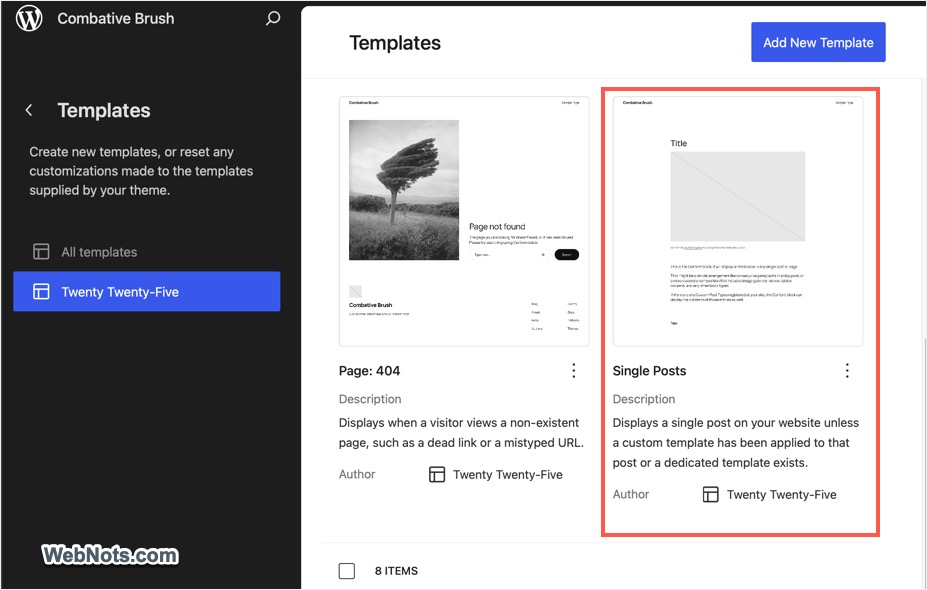
- Select your theme and click on the “Single Posts” template to edit.
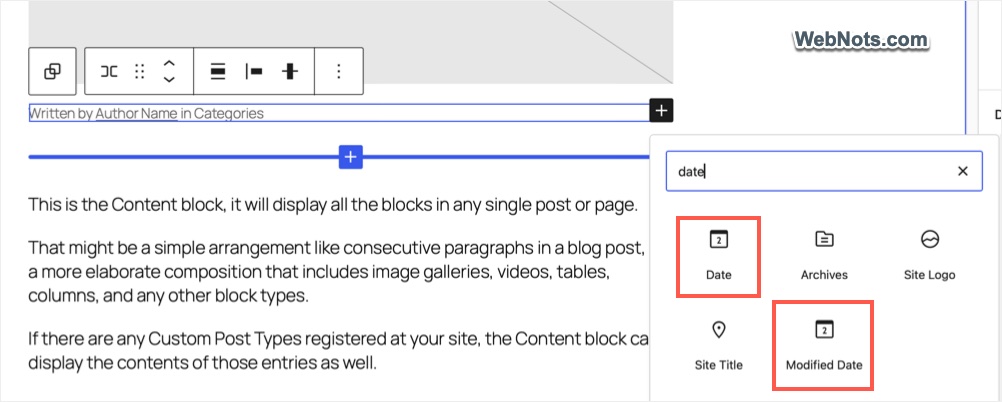
- If the date is not already displayed on the template, search and insert the “Date” or “Modified Date” block.
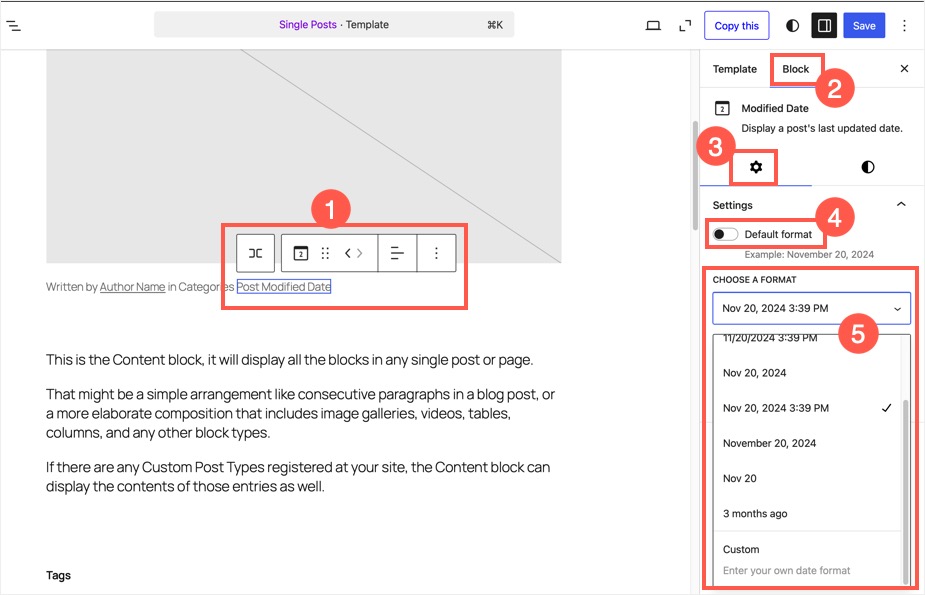
- Select the inserted date block and check the block settings on the right sidebar. It will show “Default format” which is the one you have setup in “General” settings page.

- Turn off the “Default format” option and select one of the predefined formats from the dropdown.
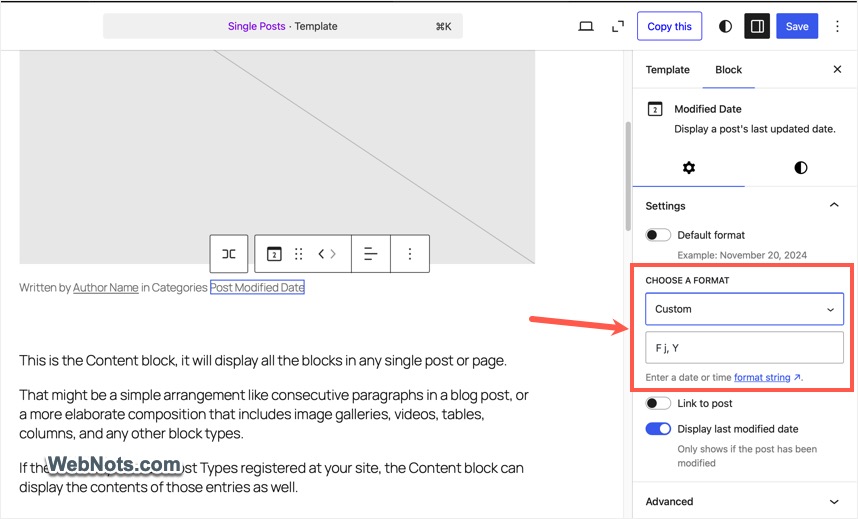
- Alternatively, select “Custom” option and type your preferred format as explained in the above table.
- Save your template and check a blog post to confirm the correct date / time format is displayed.
If you are using non-block-based theme (like Astra or GeneratePress):
- Go to “Appearance > Theme File Editor” menu. Find the file that handles your post layouts, which is usually single.php or content-single.php or template parts / functions file.
- Look for the the_date() or get_the_date() function in the PHP code. This function is responsible for displaying the post date.
- Replace the existing code with your custom date format. For example:
<?php echo get_the_date('F j, Y'); ?>- The format F j, Y will display the date as March 18, 2025. You can replace it with any custom date format you prefer.
- After updating the file, click the “Update File” button to save your changes.
3. Insert Custom Date / Time in Content
Sometimes, you might want to display the date or time dynamically within your pages or posts. For instance, you might need to display today’s date in a custom format on a landing page. There are multiple options to do this:
- Using Gutenberg Blocks – Use Date or Modified Date blocks to insert the date as per “General” settings or with any custom format (as explained in section 2 for block-based themes).
- Using Shortcodes – Install and activate WP Date and Time Shortcode plugin. Use one of the shortcodes as provided in WordPress plugin’s page to insert date / time.
- Using PHP Code – If you are creating a custom template, you can directly use PHP to show the date and time. For example, the code
<?php echo date('F j, Y'); ?>will display the current date in the “Month Day, Year” format. You can adjust it to your desired format by modifying the string inside the date() function.
4. Change Date and Time Format Using a Custom Plugin
For advanced users or those with a large number of custom formatting needs, you may want to consider building a small functional plugin or using a custom PHP function to adjust date and time formats across your entire WordPress site.
- Copy and paste the following code in a plain text editor (like Visual Studio Code). Save the file as “custom-date-time-format.php”.
<?php
/*
Plugin Name: Custom Date and Time Format
Description: A plugin to customize date and time formats
Version: 1.0
Author: WebNots
*/

// Customize date format
function custom_date_format($date) {
    return date('F j, Y', strtotime($date)); // Example format
}
add_filter('get_the_date', 'custom_date_format');- Archive or compress the PHP file to create a ZIP file (the ZIP file can be of any name like date.zip)
- Go to “Plugins > Add New Plugin” and click on the “Upload Plugin” button.
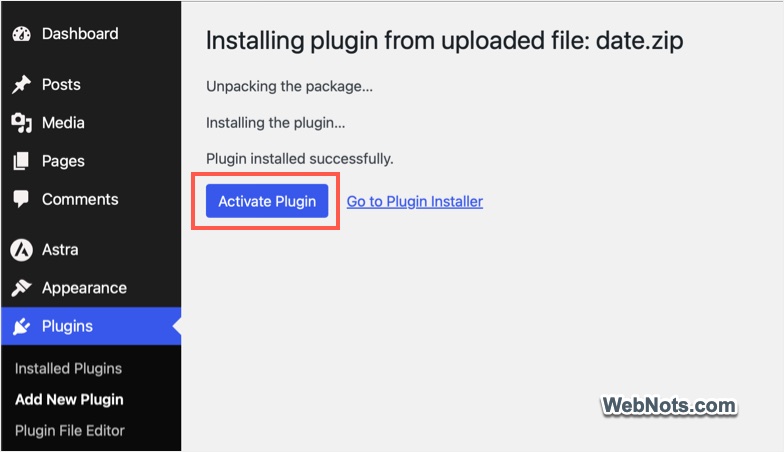
- Select the date.zip file and upload it on your site. Once uploaded, click on “Activate Plugin” button.
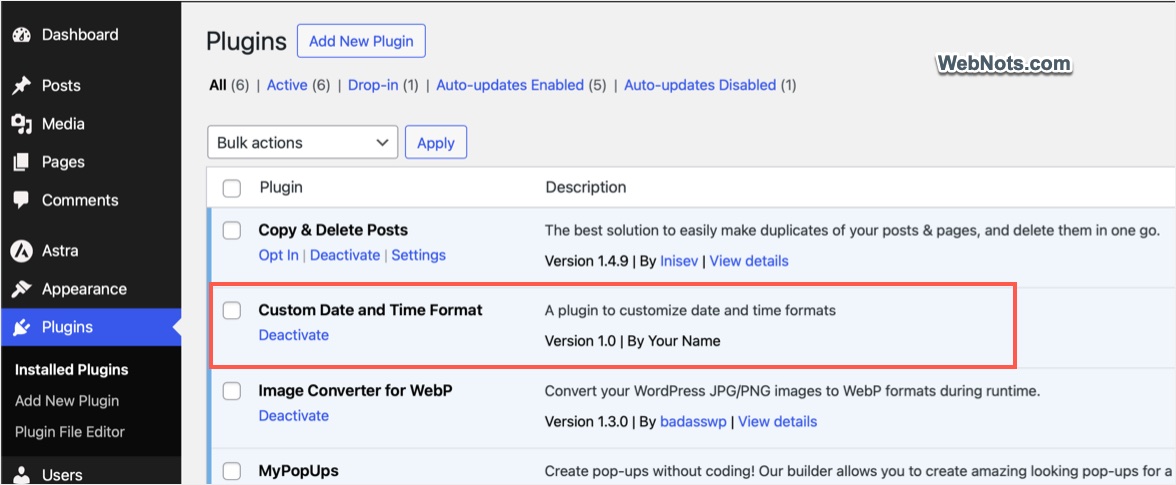
- The plugin will be activated and you can see it in the list under “Plugins > Installed Plugins” section.
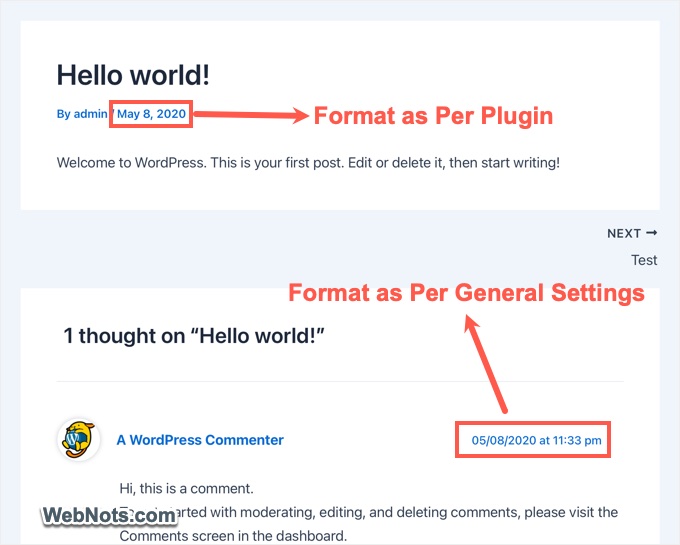
This will modify the date format for all posts throughout your site to match the custom format defined in the plugin. Remember that the date & time used in the comments section will not be changed with this plugin (that will use “General” settings formats).
Conclusion
Changing the date and time format in WordPress is an easy process that can be done through the “General” settings, theme customization, or using plugins for added flexibility. By modifying these formats, you can ensure your site reflects the appropriate regional or branding-specific formats, improving both user experience and content presentation.