Most small businesses and freelancers rely on PayPal for generating invoices and collecting payments from customers. It’s important your client or customer pays through the generated invoice instead of settling the amount through other means. In such a case, PayPal guys may limit your account status and ask for the proof of work for collecting money. You will also face problems with overdue invoices showing as not paid while the payments were received through bank transfer or direct payment in PayPal.
What is Record Payment in PayPal?
PayPal provides an option called “Record Payment” to cross reference your invoice with any other mode of payments.
- This is a manual action even though the payment was directly made to your PayPal id.
- There will be a note added to the invoice linking the payment reference.
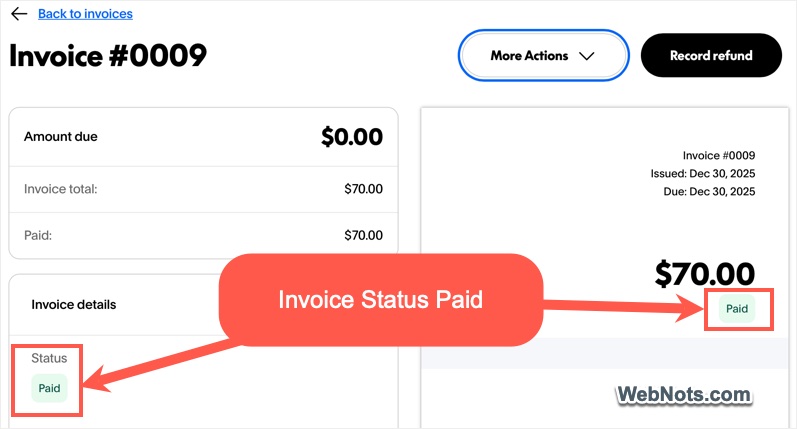
- Once the payment is recorded, the invoice will be marked as “Paid”.
There are two steps in this process to record a payment for an overdue invoice in PayPal.
1. Getting Original Payment Transaction Reference
This depends on how you have received the payment. For bank transfer, get the transaction reference number from your bank statement or from the bank. If you have received the money in PayPal, follow the below steps:
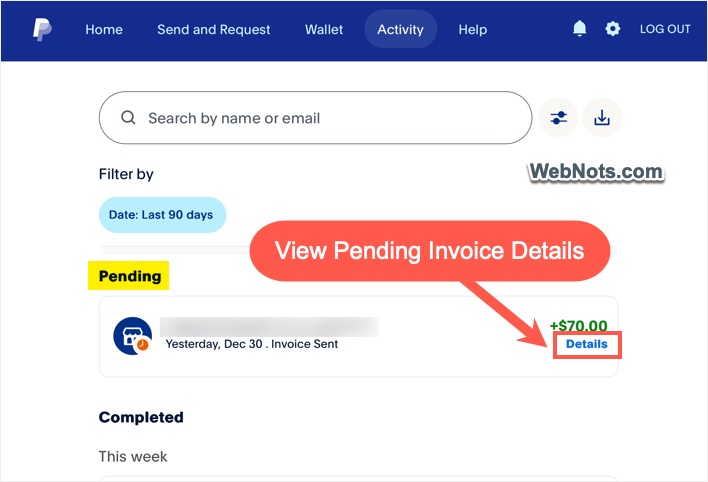
- In your PayPal account, go to “Activity” tab and filter the transaction. Click the item or the “Details” link to open its transaction details.
- Alternatively, if it is a recent transaction, you can find it under “Home” tab and click on it to open its details.
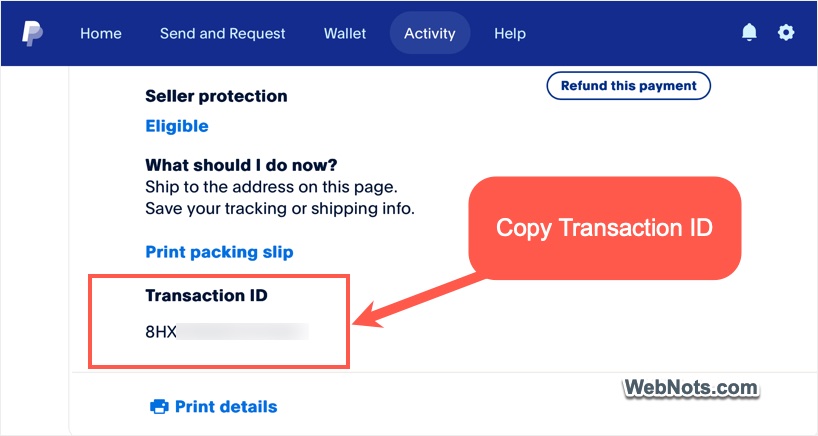
- Scroll down to the bottom and find the “Transaction ID”.
- Copy that and paste it somewhere.
2. Recording Payment Reference in PayPal Invoice
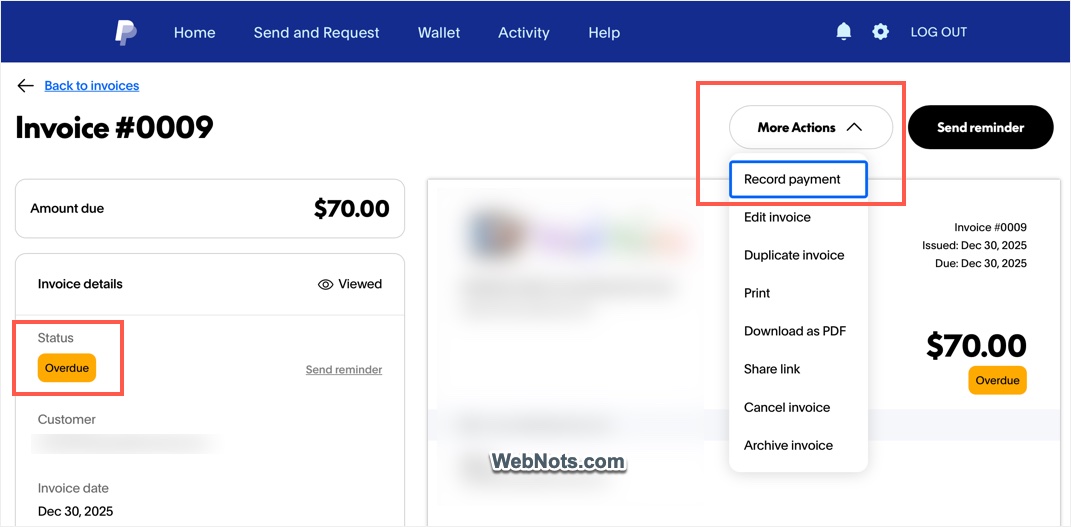
- Go to “Activity” section to find your overdue invoice and open it.
- Click the “More Actions” button and select “Record payment” option.
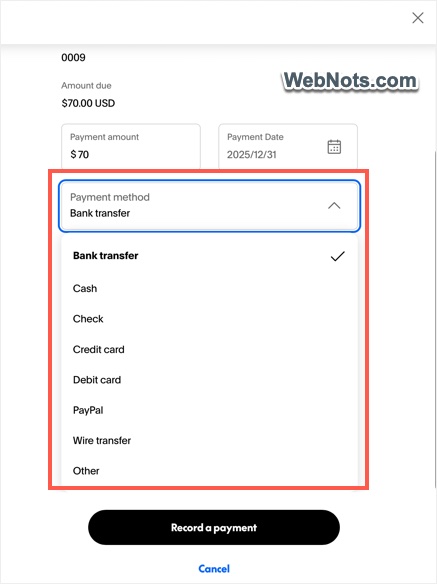
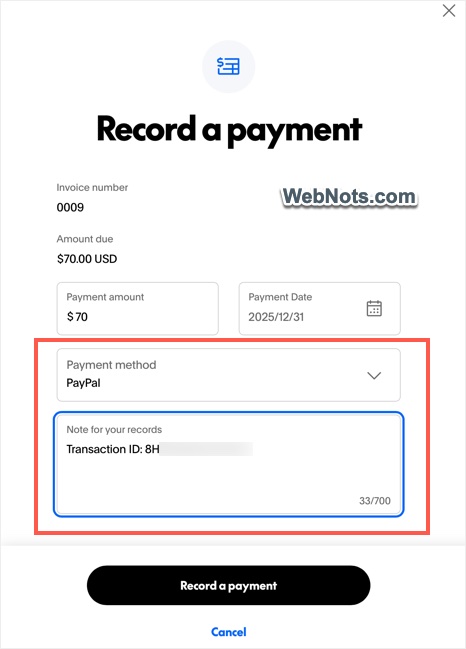
- It will show a pop-up with the amount and due date automatically filled from your invoice.
- Click the “Payment method” and select your option like cash, check, credit card, debit card, PayPal, wire transfer or other.
- Paste your transaction ID from the step 1 in “Note for your records” box.
- Click the “Record a payment” button.
- PayPal will process your invoice and change the status to “Paid”.
2.1. Alternate Method to Record Payment
Through there is no option to record multiple invoices at once, you have another quick method.
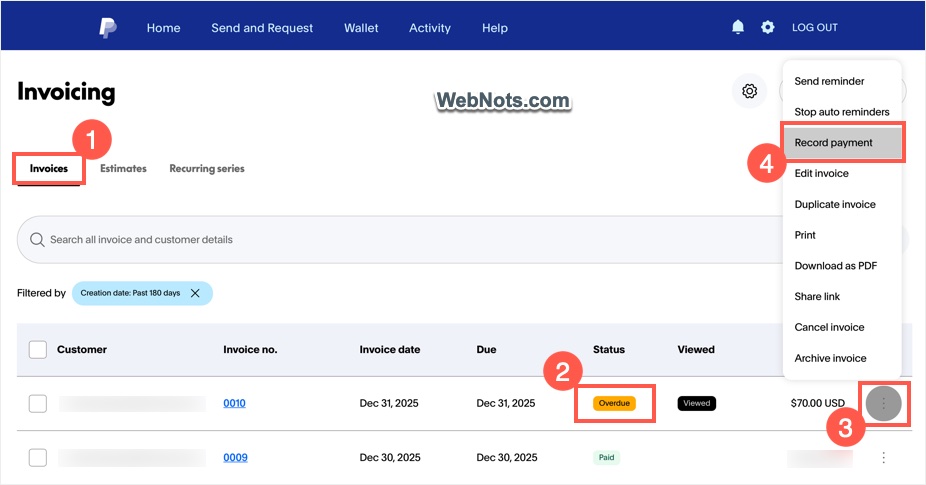
- When you are logged in to your PayPal account, go to the invoice management page.
- It will show all your invoices and click the three-dots icon at the end of any overdue invoice.
- Select “Record payment” option to open the same pop-up as explained above.
- Fill up the details and record your payment without actually opening that invoice.
Checking Recorded Details
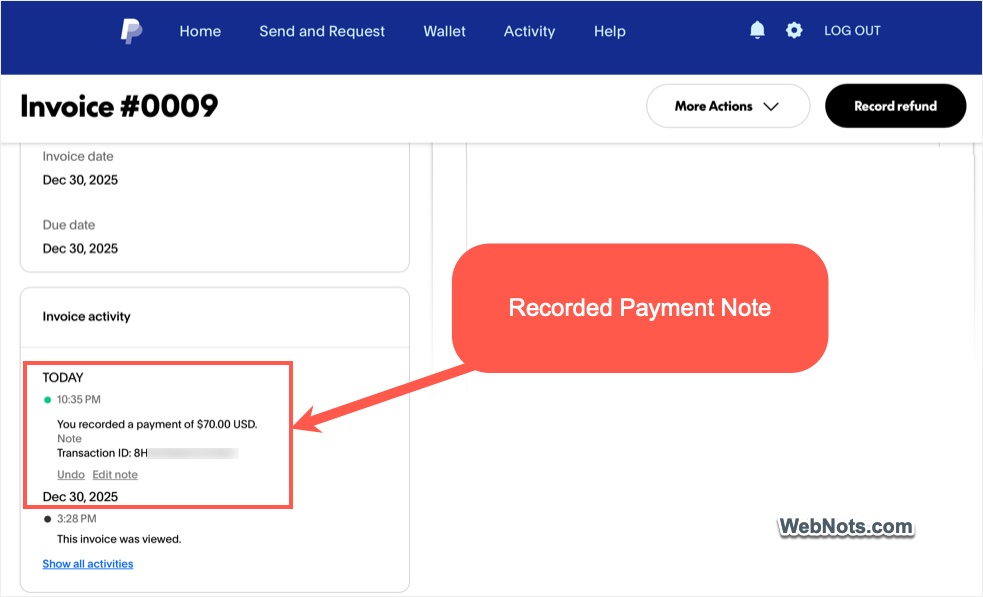
PayPal will simply add the recorded payment details to your invoice, which you can check anytime later.
- Open your invoice and check under “Invoice Activity” section (shown on left side).
- You will find the date, time, recorded amount and the notes (which has the original payment’s transaction ID).
Final Words
It is also possible to record a partial payment for an invoice and the invoice will be kept in an open state till the time complete amount is recorded. All your activities can be found in the “Invoice activity” section for reference.