SiteGround is the popular web hosting company primarily for WordPress websites. They use a custom Site Tool hosting panel instead of the standard cPanel setup. After creating your WordPress site, what happens if you forgot the admin email or password or both? Don’t worry!!! It’s easier to login to your WordPress site from SiteGround hosting account without using the credentials.
Accessing Admin Panel from SiteGround Dashboard
- Login to your SiteGround hosting account.
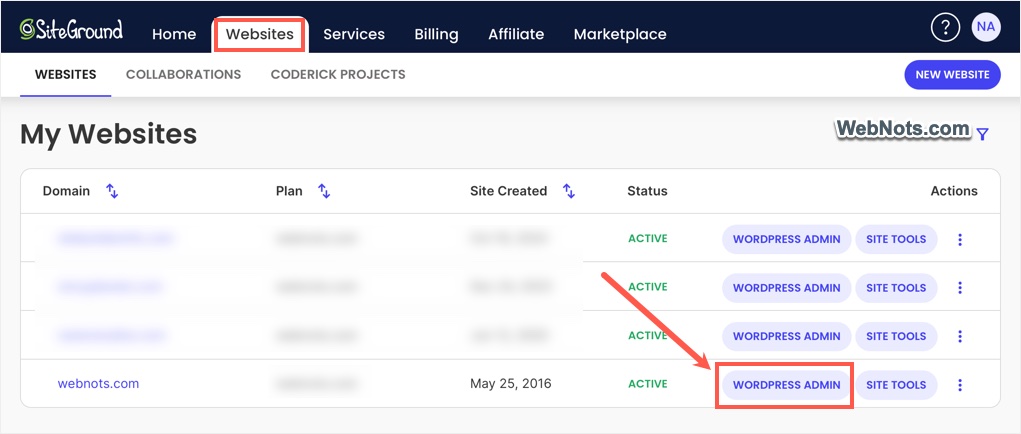
- Go to “Websites” tab to find all your websites.
- Click on the “WordPress Admin” button to login to your site.
Login to Your WordPress Site from Site Tools
If you want to edit any files and then login to your site, then you should go to Site Tool panel.
- When you are in the “Websites” tab, click the “Site Tools” button against the site that you want to access.
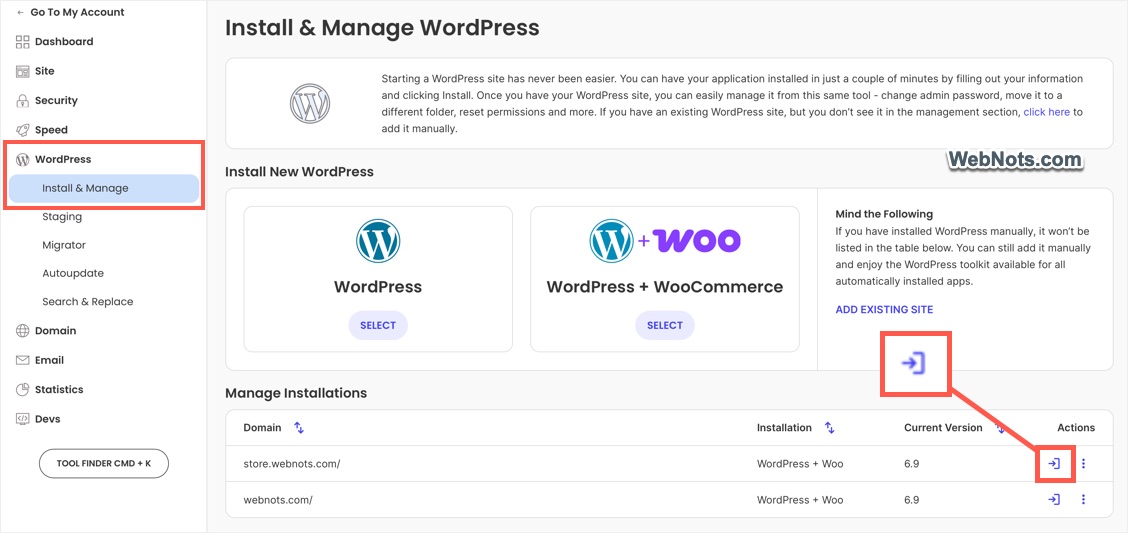
- In Site Tools, click “WordPress” section to expand it and go to “Install & Manage” section.
- You will find all existing WordPress sites under “Manage Installations” section on the right side.
- Click the “Login to Admin Panel” icon against the site’s URL.
- This will launch the WordPress admin panel without entering your username / email or password.
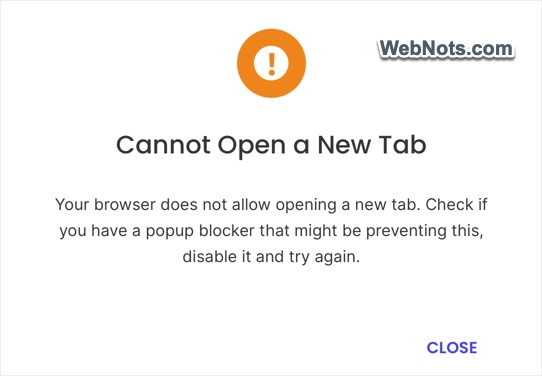
Make sure pop-ups are NOT blocked on your browser. If you see a notification like below, click the icon appears on the address bar to open the admin panel in a new tab.
Resetting Admin Password
Site Tools allows you to login as an administrator using the credentials provided during initial WordPress installation. This means you can’t login using any other user accounts like another admin, editor or contributor account. At any case, we recommend resetting the password for your account.
By default, WordPress allows to reset a password by using the following URL:
https://www.yoursitename.com/wp-login.php?action=lostpassword
Alternatively, you can click the “Lost Your Password” showing on the standard login page.
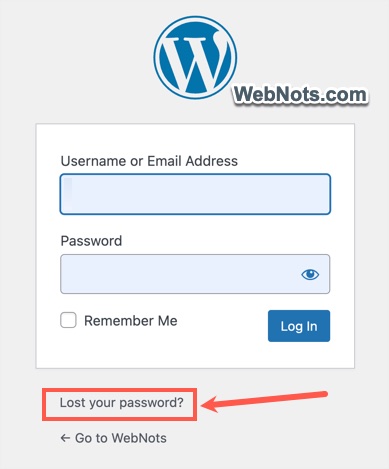
However, SiteGround Security Optimizer plugin allows to change the default login page with a custom URL. If you forgot that custom login URL, then follow the below steps to reset the password of any user account from the admin panel.
Changing Password For Your Own Account
- Go to “Users > Profile” section.
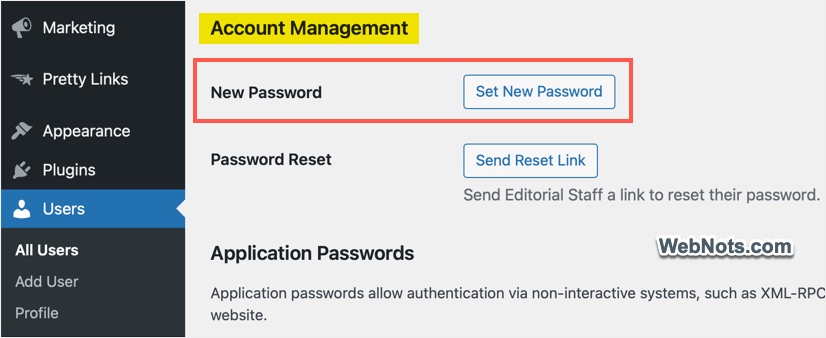
- Scroll down on the profile section and find “Account Management” heading.
- Click the “Set New Password” button against “New Password” to change the password.
- Scroll down to bottom and click “Update User” button.
Reset Password for Another User
Since you are logged in as an administrator, it is possible to reset the password of any other user account on your site.
- Go to “Users > All Users” section to search and find the username.
- Hover on the username and click “Send password reset” link.
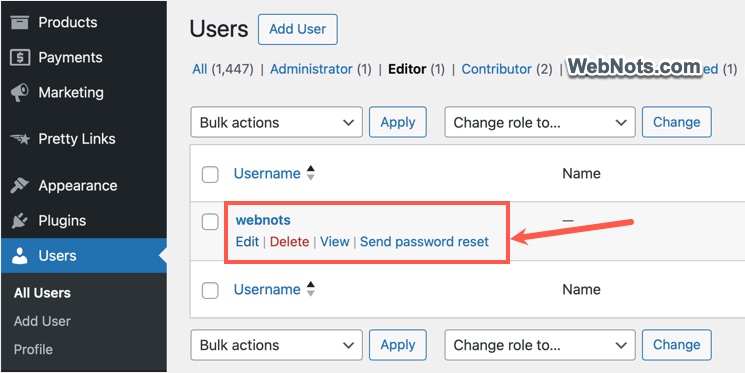
- Otherwise, click the username or the “Edit” link to access the profile.
- Scroll down to “Account Management” section and click the “Send Reset Link” button against “Password Reset” option.
- This will trigger an email to the user for resetting the password and show a notification message. The receiver email will be used from the same profile section available under “Contact Info” heading.
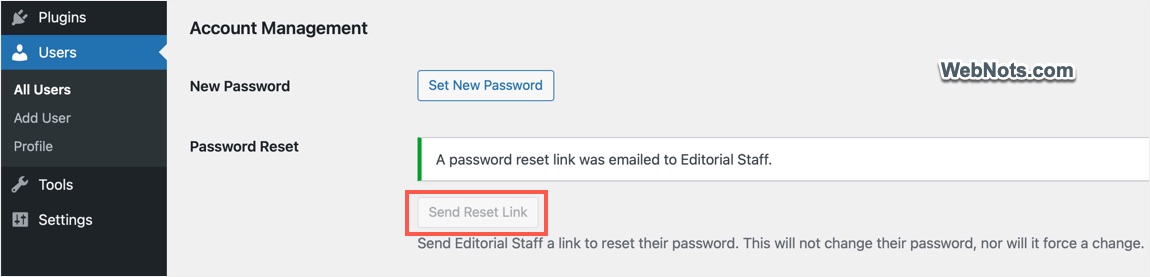
Note that the password will not be changed unless the user clicks the reset link from the received email and change it manually.