Whether you are a curious user, a system administrator or a technician, knowing how long a PC has been up and running can be surprisingly useful. Uptime information can help you troubleshoot performance issues, verify system stability and understand reboot patterns. This article explores several methods for finding out how long your Mac has been running.
Understanding Uptime and Its Importance
System uptime or boot time simply means the amount of time a computer has been powered on and operating without a restart or shutdown. Conversely, “downtime” refers to periods when a system is not operational. Uptime is an important metric in server and network environments, but it’s also handy for home users who want to keep a track of their system’s running history. Here are some of the reasons, why you might want to know your Mac’s uptime.
- To monitor hardware health and detect signs of instability.
- To check if automatic updates have triggered a recent restart.
- To debug random slowdowns or crashes that might be remedied by a reboot.
There are multiple methods to find the last boot time to understand how long your Mac is running.
1. Using System Information on macOS Monterey (12) or Earlier
Follow the below instructions to find the time since last boot on older Macs using macOS Monterey or earlier versions.
- Click on the Apple logo showing on the top left corner of your screen.
- Select “About This Mac” option from the list of menu items.

- Check under “Overview” tab and click on “System Report…” button.

- This will open the complete details of your Mac showing hardware, network and software details.

- Scroll down and click on the “Software” option from the left sidebar.
- You will see the “Time since boot” duration as a last item on the right pane.

Mac uses “Number of Days, Hours : Minutes” format for showing the time. As you can see in the above screenshot, the system is running for 11 days, 13 hours and 8 minutes. This is a good indication that the system needs to be restarted as it is more than 11 days since last boot.
2. Using System Information on macOS Ventura (13) or Later
If you are using Ventura or later version of macOS, follow the below steps:
- Click the Apple menu and select “System Settings…” option.

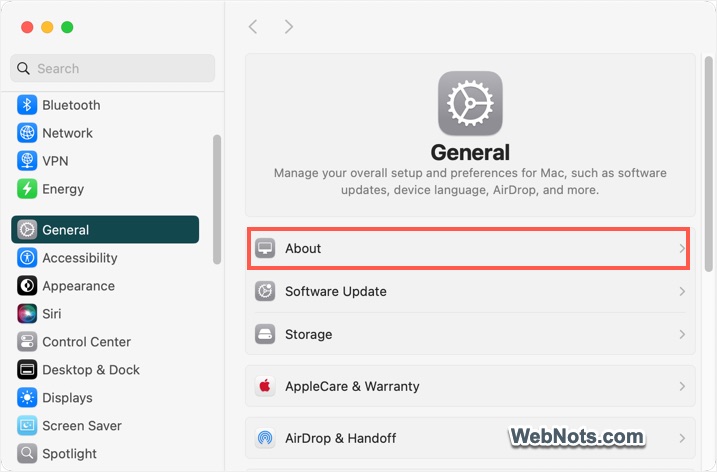
- Navigate to “General > About” section in the System Settings app.
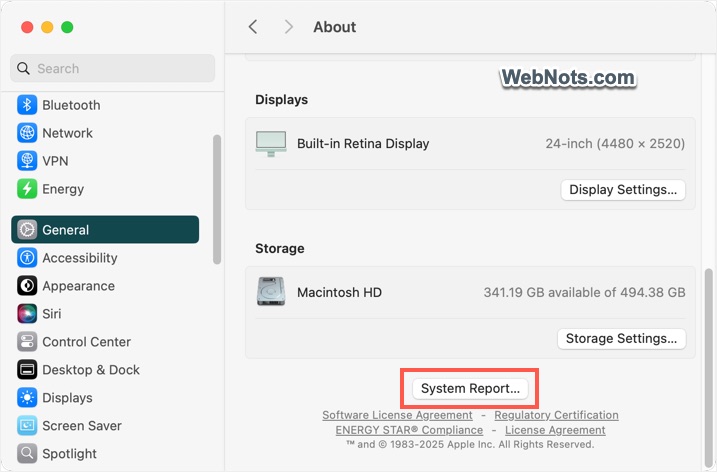
- Scroll down to the bottom of the settings page and click the “System Report…” button.
- In the left panel, select “Software” and look for the “Time since boot” field, which shows the system uptime.
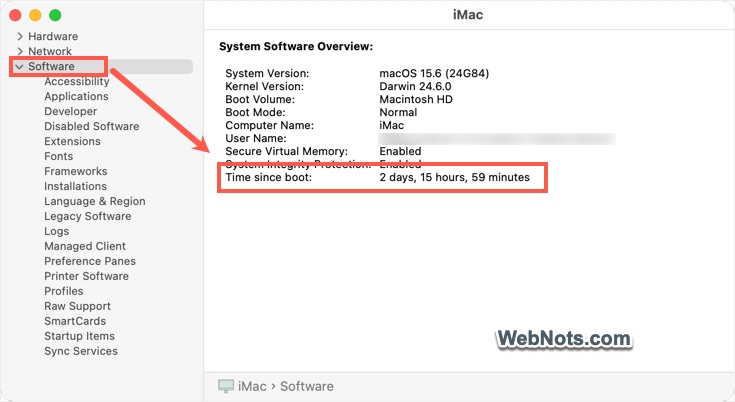
As you can see, the latest macOS version shows the boot time more clearly (as 2 days, 15 hours, 59 minutes) compared to older versions.
3. Using the Terminal App
- Use Spotlight to search and open Terminal app. Alternatively, go to “Finder > Application > Utilities” folder and open Terminal app.
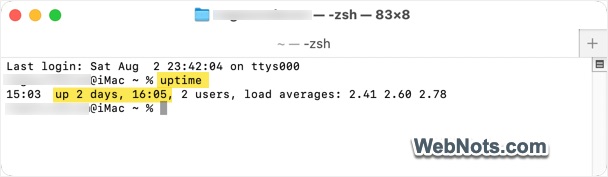
- Type the following command and press enter:
uptime- This command shows the current time, how long the system has been running, how many users are logged in, and the system load averages. The output will be something like: 15:03 up 2 days, 16:05, 2 users, load averages: 2.41 2.60 2.78 which indicates the Mac is up and running for 2 days, 16 hours and 5 minutes.
4. Using the “who” Command
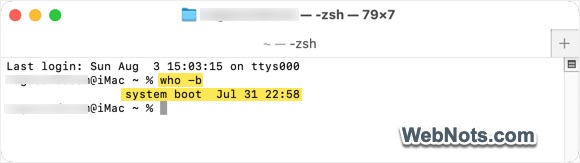
- Open Terminal app, type the following command and press enter.
who -b- This displays the last boot time of the system, for example: system boot Jul 31 22:58.
- You can calculate the difference from the current time for total uptime.
5. Checking Reboot and Shutdown History
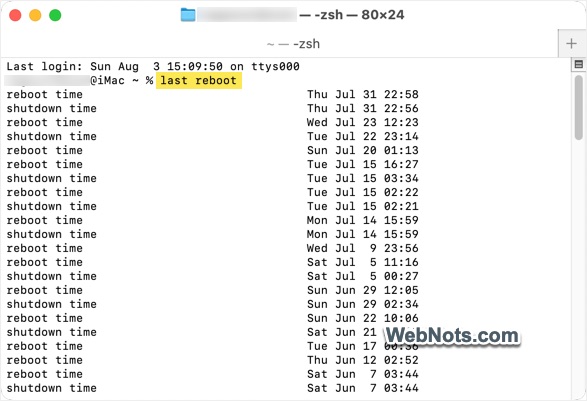
- It is also possible to find the recent history of shutdown and reboot using system logs.
- Open Terminal, type the following command and press enter.
last reboot- This command will list all the recent system reboot times, with the most recent at the top.
Final Words
So, these are the methods available to find how long your Mac is running or the last reboot time from which you can calculate the uptime. High uptime is not always ideal – regular restarts are necessary for system updates and optimal performance.