Excel comes with built-in lists like numbers, days and months, but alphabets are not one of them. For example, you can type 1 in cell A1, 2 in cell A2 and then drag the fill handle to automatically fill the numbers up to the required cell. Unfortunately, Excel does not automatically continue the series for letters as with numbers or dates. Because Excel doesn’t recognize A-Z as a natural sequence, it will repeat the pattern like A B A B… instead of A B C D… Therefore, you may need to use some advanced methods to automatically fill the letters A through Z into a column or row to save your time and minimizing the risk of errors.
1. Using CHAR and ROW Functions
Excel’s formulas can unleash powerful automation. With the help of the CHAR and ROW functions, you can generate the alphabet dynamically.
- Click on the cell where you want the sequence to begin (for example: A1).
- Enter the following formula and press enter.
=CHAR(64 + ROW())- You should see “A” appear.
- Now, drag the fill handle down until you reach the 26th row (A26). The cells should fill with letters A through Z.
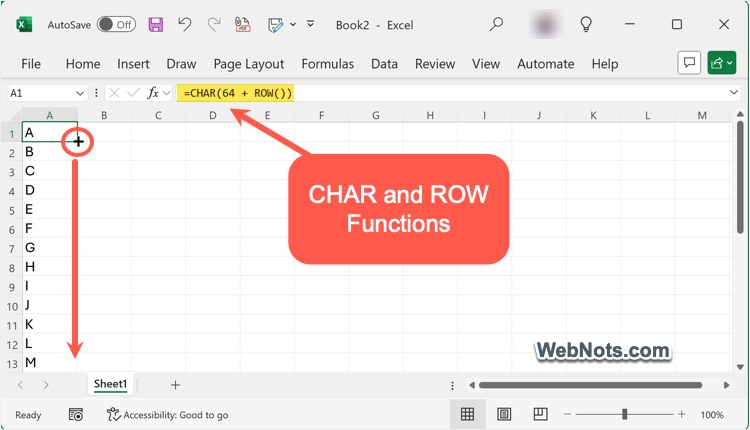
ROW() returns the row number of the cell. In A1, it returns 1; in A2, it returns 2, and so on. The formula =CHAR(64 + ROW()) converts the row number into the corresponding uppercase letter based on the ASCII code system (A=65, B=66, …, Z=90). Since ROW(A1)=1, 64+1=65, which is “A”. If your list starts in a row other than 1, you will need to adjust the formula to =CHAR(64 + ROW() – (row number above your starting row)). For example, if you start on row 5 (cell A5), use =CHAR(64 + ROW() - 4).
Note: For inserting a to z small case letters, use =CHAR(96 + ROW()) formula in the first cell and then drag it. If you want to start from a different letter, simply adjust the starting ASCII value in the formula (for example: “C” to “Z”, use =CHAR(66 + ROW()) and drag to the desired endpoint).
2. Using CHAR and SEQUENCE Functions
If you’re using a recent version of Excel (like Microsoft 365) with dynamic array functions, you can generate the entire alphabet in a single formula.
- Click on the cell where you want the list to begin.
- Enter the below formula and press enter.
=CHAR(SEQUENCE(26,1,65,1))- The column will automatically fill with letters A to Z without needing to drag the formula down.
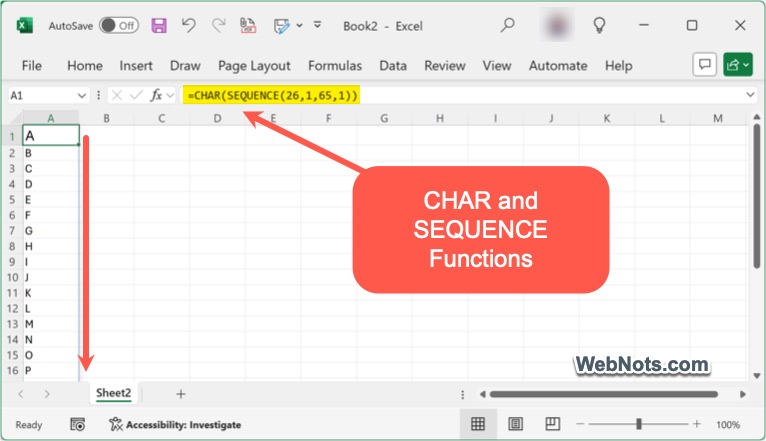
SEQUENCE(26,1,65,1) creates an array of numbers from 65 to 90 (the ASCII codes for A-Z). CHAR() converts each number in the sequence into its corresponding letter. Remember that Excel Online and older versions may not support dynamic arrays; use the ROW + CHAR as explained in method 1 instead.
Note: For automatically filling a to z small case letters, use the formula =CHAR(SEQUENCE(26,1,97,1)) in any cell and press enter.
3. Using Custom Lists
If you often need to fill A to Z, consider adding the alphabet to Excel’s custom lists so you can auto-fill them just like days of the week.
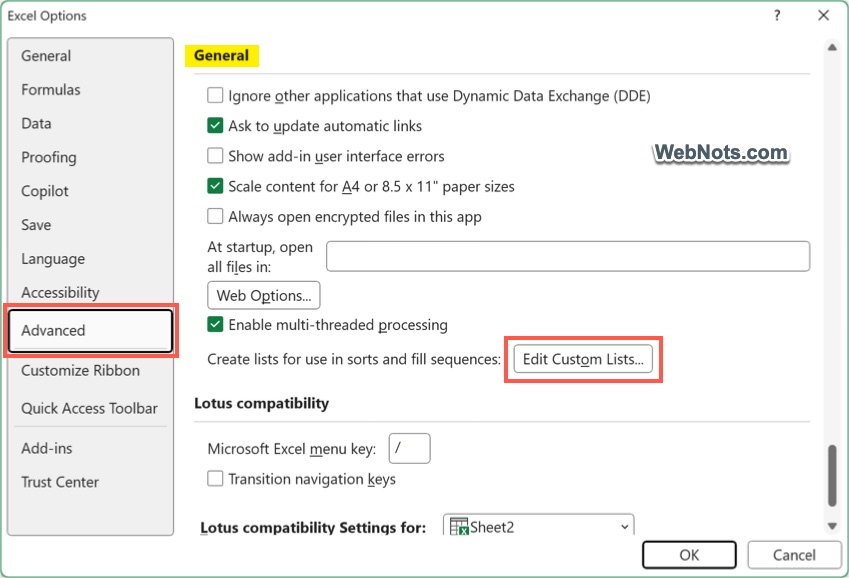
- Go to “File > Options” to open Excel Options dialog and navigate to “Advanced” tab.
- Scroll down to the “General” section and click “Edit Custom Lists…” button.
- In the “List entries:” box, enter the letters A to Z (one per line).
- Click “Add” and then “OK.”
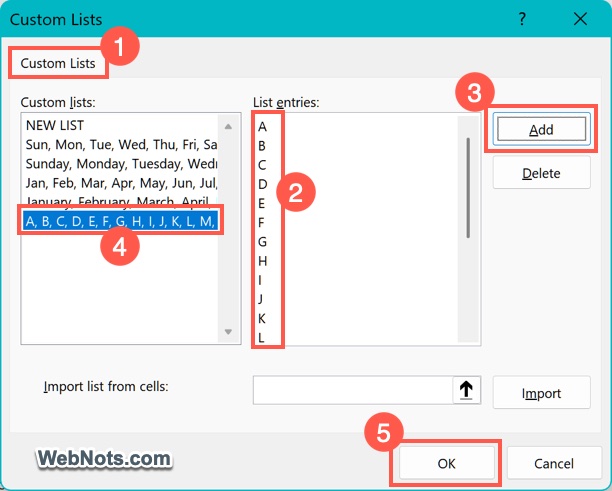
Now, when you type “A” in a cell and use the fill handle, Excel will reference your custom list and fill the entire alphabet automatically.
4. Using Visual Basic for Applications (VBA)
For users comfortable with scripting, VBA enables you to generate and manipulate alphabetic sequences with a single macro.
- Press “Alt + F11” to open the VBA editor.
- Navigate to “Insert > Module” menu to insert a new module.
- Copy the below Marco code and paste in the editor.
Sub FillAtoZ()
Dim i As Integer
For i = 1 To 26
Cells(i, 1).Value = Chr(64 + i)
Next i
End Sub- Press F5 to run the script.
- Column A will be automatically filled with A to Z.

5. Filling A to Z Across a Row (Horizontal List)
All the above methods can be adapted to fill the alphabet horizontally rather than vertically. For example, in the formula method, use the below formula in cell A1, then drag across to Z1.
=CHAR(64 + COLUMN())Or use the dynamic array in Microsoft Excel 365 version as below.
=CHAR(SEQUENCE(1,26,65,1))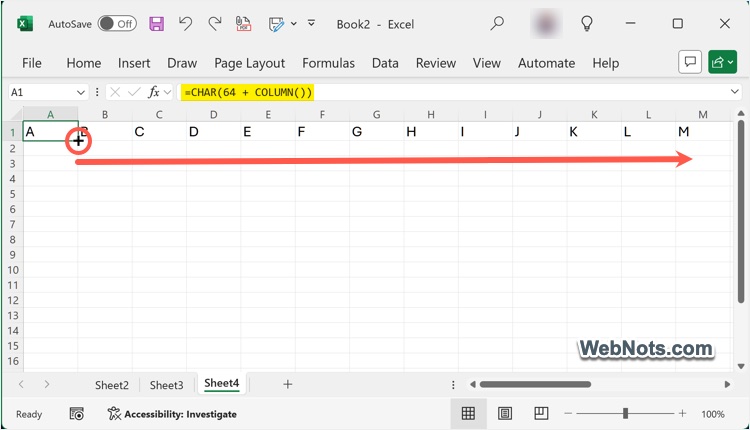
Conclusion
Creating a custom list as explained in method 3 is the simplest option without the need of creating formulas. However, you can also use the formulas or VBA editor methods if you prefer that way.