
Keyboard shortcuts are key combinations that allow you to perform actions quickly without relying on mouse clicks or menus. In the Notes app (comes preinstalled on Mac), these shortcuts help to create, edit, format, search, and organize notes more efficiently. Mastering these shortcuts means less time spent on repetitive actions and more time focusing on your content.
Notes Keyboard Shortcuts
All apps including Notes on Mac show relevant shortcut combination next to the menu items.
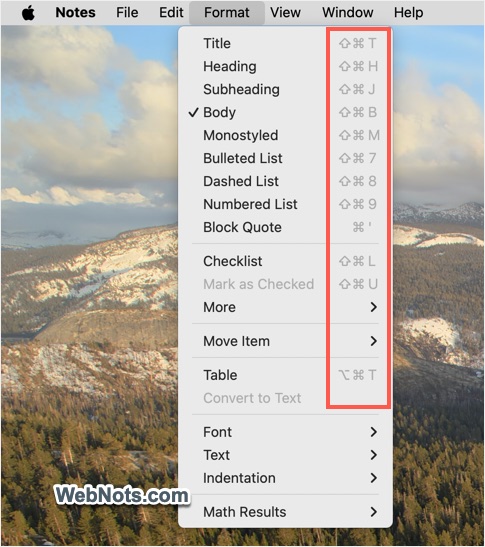
Though few shortcuts work across Mac (like Command + A for selecting all content), most shortcuts work only within the app (like Command + Shift + L for inserting a checklist in your note). Here are the symbols for the modifier keys used with the shortcuts:
- ⌘ Command
- ⌥ Option or Alt
- ⌃ Control
- ⇧ Shift
- ⌫ Delete
Below is the complete list of shortcuts that work on the latest Notes app. You can also download the PDF file for offline reference.
| Shortcut | Action |
|---|---|
| ⌘ , | Open Notes settings or preferences |
| ⌘ ; | Spell check note |
| ⌘ : | Open Spelling and Grammar dialog |
| ⌘ ‘ | Create block quote |
| ⌘ [ | Outdent list item |
| ⌘ ] | Indent list item |
| ⌘ { | Align text left |
| ⌘ } | Align text right |
| ⌘ ⇧ , | Zoom out |
| ⌘ ⇧ . | Zoom in |
| ⌘ ⇧ + | Increase font size |
| ⌘ ⇧ ⌫ | Move selected folder to Recently Deleted |
| ⌘ ⇧ 0 | Reset to actual zoom size |
| ⌘ ⇧ 7 | Create a bulleted list |
| ⌘ ⇧ 8 | Create a dashed list |
| ⌘ ⇧ 9 | Create a numbered list |
| ⌘ ⇧ A | Add attachment (photo, video, or document |
| ⌘ ⇧ B | Create to body text |
| ⌘ ⇧ C | Open Colors dialog |
| ⌘ ⇧ D | Duplicate folder |
| ⌘ ⇧ E | Highlight text |
| ⌘ ⇧ F | Find and replace text |
| ⌘ ⇧ G | Find previous match |
| ⌘ ⇧ H | Highlight selected text to heading |
| ⌘ ⇧ J | Create subheading |
| ⌘ ⇧ L | Create a checklist |
| ⌘ ⇧ M | Change to monostyled text. |
| ⌘ ⇧ N | Create a new folder |
| ⌘ ⇧ T | Change the text to title |
| ⌘ ⇧ U | Mark the item checked |
| ⌘ ⇧ Z | Redo last undone action |
| ⌘ + | Increase font size |
| ⌘ | | Align text center |
| ⌘ ⌃ ↑ | Move the item up |
| ⌘ ⌃ ↓ | Move the item down |
| ⌘ ⌃ I | View highlights |
| ⌘ ⌃ K | View Note activities |
| ⌘ ⌃ V | Open Paste Special dialog box |
| ⌘ ⌃ Z | Maximize the app window |
| ⌘ ⌥ [ | Go to previous note |
| ⌘ ⌥ ] | Go to next note |
| ⌘ ⌥ ← | Collapse a section |
| ⌘ ⌥ → | Expand a section |
| ⌘ ⌥ ⇧ ← | Collapse all sections in a note |
| ⌘ ⌥ ⇧ → | Expand all sections in a note |
| ⌘ ⌥ ⇧ V | Paste from clipboard and match style |
| ⌘ ⌥ C | Copy style |
| ⌘ ⌥ F | Search and find note list |
| ⌘ ⌥ G | Go to a page, section, bookmark, etc. |
| ⌘ ⌥ H | Hide all other apps |
| ⌘ ⌥ M | Minimize the Notes window |
| ⌘ ⌥ N | Create a new folder |
| ⌘ ⌥ P | Pin or unpin the note |
| ⌘ ⌥ T | Create a 2×2 table |
| ⌘ ⌥ V | Paste style |
| ⌘ ⌥ W | Close all open notes windows |
| ⌘ ⌫ | Move the selected note to the Recently Deleted folder |
| ⌘ 1 | Show all notes as a list |
| ⌘ 2 | Show notes as a gallery |
| ⌘ 3 | Show attachments browser |
| ⌘ A | Select all content |
| ⌘ B | Bold selected text |
| ⌘ C | Copy the selected content |
| ⌘ D | Duplicate the current note |
| ⌘ E | Search with selected text |
| ⌘ F | Search and find text |
| ⌘ G | Find next match |
| ⌘ H | Hide Notes app |
| ⌘ I | Italicize selected text |
| ⌘ J | Jump to selection when searching |
| ⌘ K | Insert a hyperlink |
| ⌘ M | Minimize the app window |
| ⌘ N | Create a new note |
| ⌘ P | Print the selected note |
| ⌘ Q | Quit app |
| ⌘ S | Save the current note |
| ⌘ T | Show Fonts dialog |
| ⌘ U | Underline selected text |
| ⌘ V | Paste content from clipboard |
| ⌘ W | Close the current note window |
| ⌘ X | Cut the selected content |
| ⌘ Z | Undo last action |
| ⌘ – | Decrease font size |
| Fn / Globe ⌃ ← | Move app window to left half |
| Fn / Globe ⌃ → | Move app window to right half |
| Fn / Globe ⌃ ↑ | Move app window to upper half |
| Fn / Globe ⌃ ↓ | Move app window to lower half |
| Fn / Globe ⌃ ⇧ ← | Arrange Notes and another app left and right |
| Fn / Globe ⌃ ⇧ → | Arrange Notes and another app right and left |
| Fn / Globe ⌃ ⇧ ↑ | Arrange Notes and another app top and bottom |
| Fn / Globe ⌃ ⇧ ↓ | Arrange Notes and another app bottom and top |
| Fn / Globe ⌃ C | Center the app window |
| Fn / Globe ⌃ F | Fill the ap window on the screen |
| Fn / Globe F | Toggle full screen mode |
| Fn or Globe E | Open emoji & symbols panel |
| Fn or Globe Q | Create a quick note |
Adding Custom Shortcut for Menu Items
Although the Notes app offers a comprehensive array of built-in shortcuts, certain functions lack assigned shortcuts. For example, strikethrough function (Format > Font > Strikethrough) does not have a default shortcut. Good thing is that macOS allows you to add custom shortcuts for these missing items with your own key combinations. It is also possible to overwrite the existing assignment, which is not recommended to avoid conflicts.
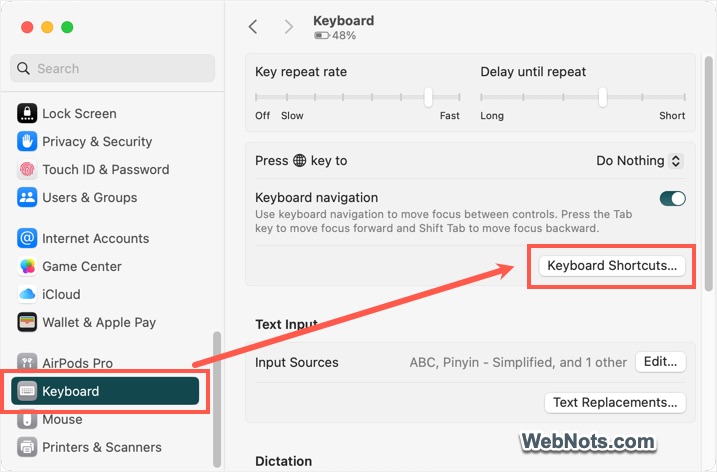
- Go to “Apple menu > System Settings… > Keyboard” section and click on the “Keyboard Shortcuts…” button.
- Navigate to “App Shortcuts” and click the “+” button to add a new shortcut.
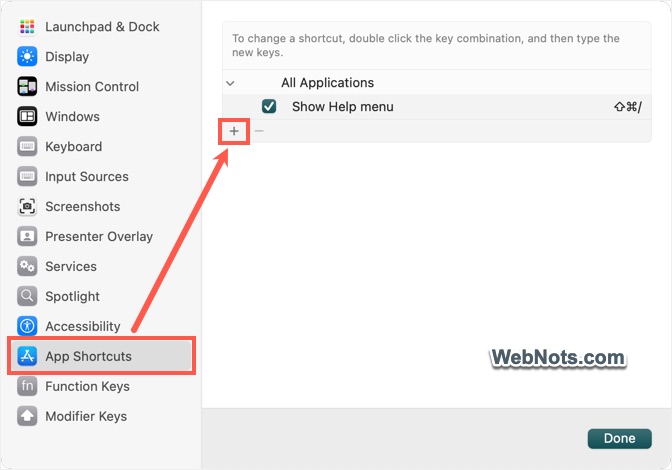
- Choose “Notes” as the “Application”, enter the exact menu item name as “Menu title”, and assign your preferred key combination. For example, you can assign “Command + Option + S” for Strikethrough.
- Click “Done” button to close the pop-up and open Notes app.

- Navigate to “Format > Fonts > Strikethrough” menu and you can find the custom assigned shortcut is showing.
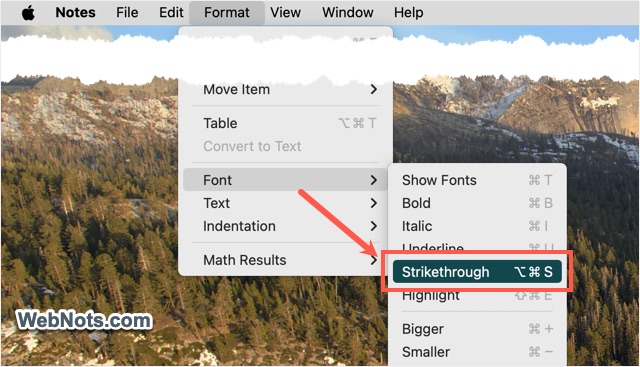
Customizing shortcuts can further streamline your workflow, especially for actions that you perform frequently like subscript, superscript, pinning or locking a note.
Example Usage
To illustrate how these shortcuts can transform your experience, here is a simple example:
Imagine you’re in a meeting and need to jot down key points quickly.
- Press ⌘ + N to open a new note.
- Use ⌘ + Shift + L to create a checklist for action items.
- Apply ⌘ + B for highlighting important keywords.
In minutes, your note is organized and formatted for clarity.


