Deleting a file or folder is one of the basic things every computer user will be doing as a routine. In Windows based PCs, you can simply select the file and press Delete key to send to Recycle Bin or press “Shift + Delete” to permanently delete the files. However, it does not work like that on Mac. Good thing is that you have so many other options from drag and drop to using command line.
Deleting Files and Folders in Mac
You can delete a single or multiple files and folders using one of the below methods permanently or temporarily. For deleting multiple items, select them using Shift or Command key in Finder or Desktop location.
- When deleting a file or folder, Mac will send it to Trash. You can click the Trash icon in Dock to open it in Finder and click the “Empty” button to clean up the items permanently.
- Alternatively, go to “Finder > Settings > Advanced tab” and enable “Remove items from Tash after 30 days” option to automatically clean up Trash.

Mac will not show any confirmation prompt when deleting a file as the file will go to Trash in this case. However, you will see the prompt when you are using one of the permanently deleting options as the files will not go to Trash (except deleting from Terminal).
1. Drag and Drop to Trash
- Find your file in Finder or Desktop location.
- Simply drag the file and drop it in Trash bin on Dock.
- The file will be sent to Trash.
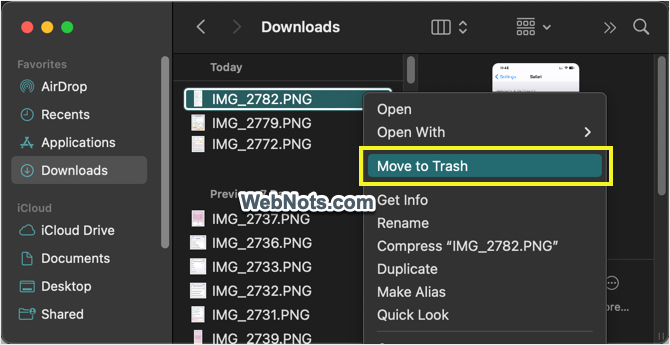
2. Right-Click Context Menu
- Select one or multiple files.
- Hold Control key and click the mouse button or right-click if you have enabled it in Settings.
- Select “Move to Trash” option from the menu.
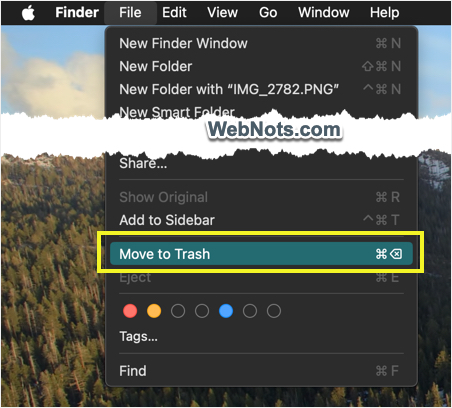
3. Using Finder Menu Bar
- Select your files in Finder or Desktop.
- Go to “File” menu from top menu bar.
- Select “Move to Trash” option.
4. Delete Files with Keyboard Shortcut
- Select single or multiple files or a folder.
- Press “Command + Delete” shortcut keys.
- Selected items will be moved to Trash bin.
5. Delete Using Terminal
If you are a command line guy, then follow the below method to delete files from Terminal app.
- Open Finder and navigate to “Applications > Utilities” folder.
- Find and open Terminal app from there.
- Use the mv command as given below to move or delete the file mentioned in the command.
mv file_path ~/.Trash/- For example, you can move a file named “File.txt” from Desktop to Trash using the following command.
mv ~/Desktop/File.txt ~/.Trash/- You may be prompted to provide access to Desktop folder and click “Allow” button.

- The file will be immediately moved to Trash without any confirmation.
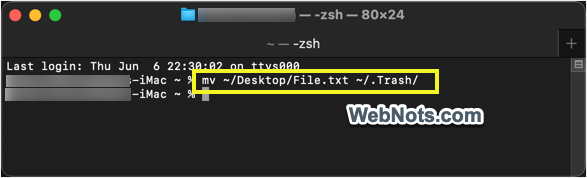
The only problem in using Terminal app is that the files deleted like this will not show “Put Back” menu in Trash. So, you will not be able to move the file back to its original location. on all the above cases, you will see a “Put Back” option in a control-click context menu which you can use to restore the deleted files from Trash.
6. Permanently Deleting File from Terminal
All the above options will delete a file temporarily and send to Trash bin. If you want to delete a file permanently, follow this or next methods.
- Open Terminal from “Applications > Utilities” folder.
- Type the following command by changing the file path and enter for permanently deleting a file.
rm file_path
- Use the following command for permanently deleting a folder.
rm -r folder_pathYou will NOT see any confirmation prompt when using remove (rm) command in Terminal.
7. Permanently Deleting File from Finder Menu Bar
- Select a file or folder in Finder or Desktop.
- Go to “File” menu from top menu bar.
- Press Option key and you will see the menu items are changing.
- Select “Delete Immediately…” option.
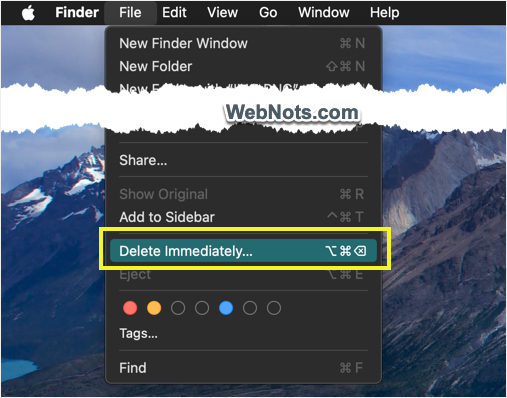
- Mac will a prompt mentioning that the item will be deleted immediately and you can’t undo this action. Click “Delete” button to confirm the permanent deletion.

8. Permanently Delete Using Keyboard Shortcut
The last method is to delete file or folder permanently using keyboard shortcut.
- Select a file or folder.
- Press “Option + Command + Delete” keys.
- You will see a confirmation prompt and click “Delete” button.
Final Words
The super easy method is to press “Command + Delete” keys to delete a file or folder or press “Option + Command + Delete” to permanently delete. We do not recommend using Terminal as it will not show a confirmation prompt even when you delete permanently with rm command. As mentioned, you will also not see “Put Back” option when using mv command. So, use other options to always send the files to Trash which will help you to recover any files deleted mistakenly.