Your iPhone is packed with powerful features, but many of them run silently in the background. These hidden settings can drain your battery, consume mobile data, and even track your activity without you realizing it. The good news is that you can turn most of them off in just a few taps. Here are 10 iPhone settings you should disable immediately to make your device faster, more private, and more efficient.
1. Background App Refresh
This feature allows apps to refresh their content even when you’re not actively using them. While it keeps apps up to date, it constantly uses battery power and can also consume mobile data in the background. Many apps, especially social media or shopping apps, don’t need real-time updates when closed.
- Go to “Settings > General > Background App Refresh”.
- Disable it completely or allow it only through WLAN.
- It is also possible to turn it off only for essential apps like email.

Note: This is one of the most effective ways to improve iPhone battery life quickly.
2. Significant Locations & Routes
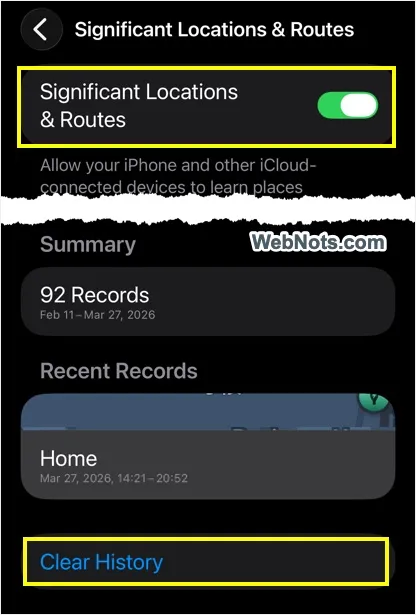
Your iPhone maintains a detailed history of places you frequently visit, including timestamps and patterns. This data is used for features like traffic predictions, but for most users, it provides little value compared to the privacy trade-off. So, this feature is unnecessary if you value privacy.
- Navigate to “Settings > Privacy & Security > Location Services”.
- Scroll down to bottom and select “System Services”.
- Tap “Significant Locations & Routes” and authenticate with Face ID or passcode.
- Turn off “Significant Locations & Routes” option. Scroll down to bottom and tap “Clear History”.
3. Personalized Ads
This setting allows Apple to use your activity to show more relevant ads. While Apple limits tracking compared to other platforms, disabling this reduces profiling and gives you a more private experience.
- Go to “Settings > Privacy & Security > Apple Advertising”.
- Turn off “Personalized Ads”.
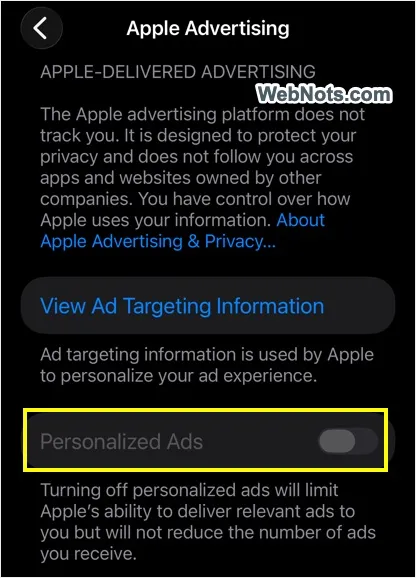
Note that turning this option will still show anonymous ads.
4. Allow Apps to Request to Track
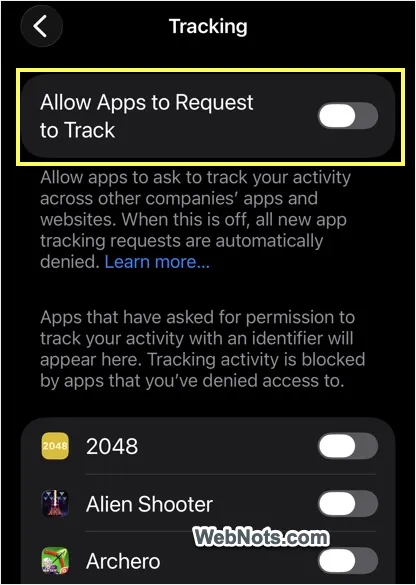
Apps can ask for permission to track you across other apps and websites. Even if you deny requests, the prompts themselves can be annoying. Turning this off blocks all tracking requests automatically.
- Go to “Settings > Privacy & Security > Tracking”.
- Turn off “Allow Apps to Request to Track”.
- If required, you can turn that global option on and disable it only for specific apps.
5. Saved to iCloud
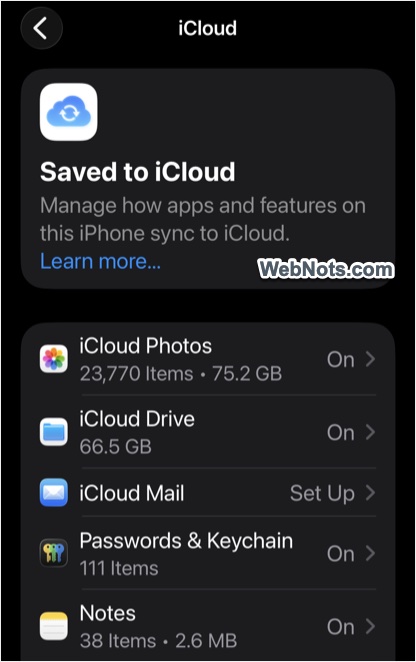
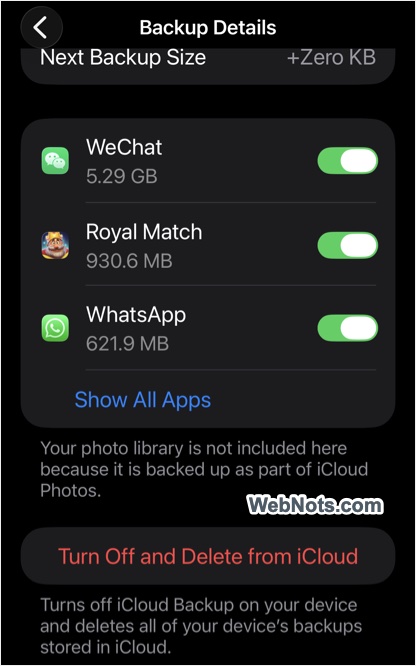
Many apps, including both built-in and third-party ones, automatically sync their data to iCloud. Over time, this can quickly consume your available storage. Not every app needs to be included in backups, especially those that store temporary files or non-essential data. This becomes even more important if you rely on the free 5 GB iCloud plan, as unnecessary backups can trigger frequent upgrade prompts. Turning off unneeded backups helps free up space and keeps your iCloud storage better organized.
- Open Settings and tap your name at the top, then go to “iCloud”.
- Under “Saved to iCloud,” disable any default iOS apps that don’t need to store data in iCloud.
- In the iCloud settings, tap “iCloud Backup,” select your device, and turn off backups for unnecessary apps. You can also disable backups entirely and remove existing data if needed.
6. Attention-Aware Features
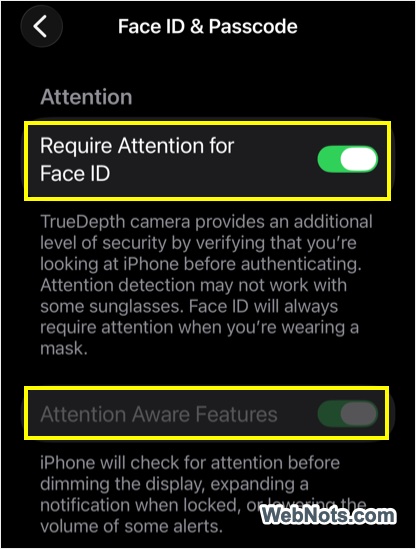
This feature uses the TrueDepth front camera to detect if you’re looking at your phone. It prevents screen dimming and lowers alert volume. While useful, it constantly uses sensors and may slightly affect battery life.
- Go to “Settings > Face ID & Passcode” and unlock the screen with passcode.
- Scroll down to “Attention” section and turn off “Require Attention for Face ID” and then turn off “Attention Aware Features” option.
7. Unnecessary Lock Screen Widgets
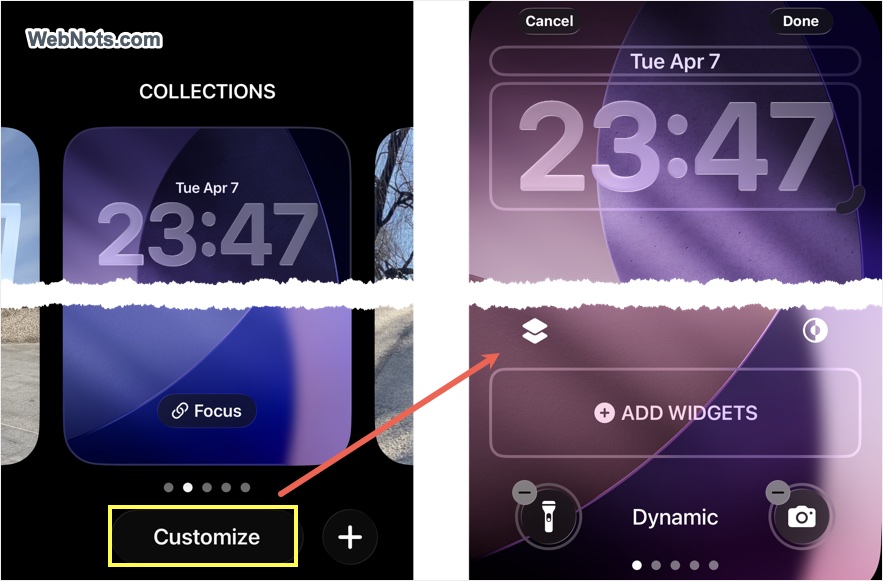
Lock screen widgets can display sensitive information like calendar events, home controls, or location data without unlocking your phone. Removing unnecessary widgets improves privacy and reduces distractions.
- Press and hold your Lock Screen and tap “Customize”.
- Remove widgets that show personal data.
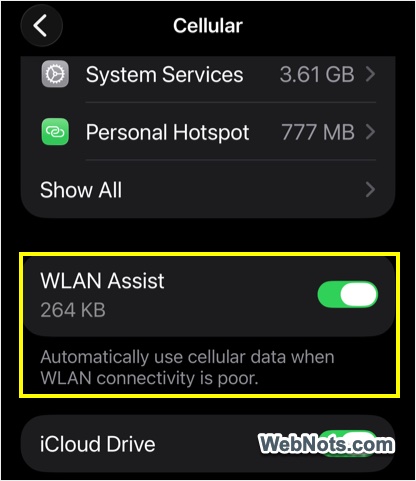
8. WLAN Assist
WLAN Assist automatically switches to cellular data when your Wi-Fi connection is weak. While helpful, it can silently use large amounts of mobile data. If you have a limited data plan, this can lead to unexpected usage.
- Go to “Settings > Cellular > WLAN Assist” and toggle it off.
9. Automatic Downloads Over Cellular
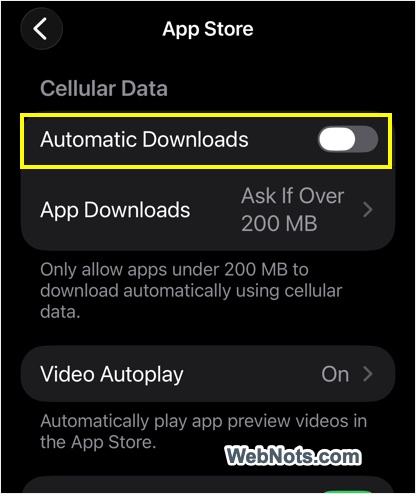
Your iPhone can download app updates using mobile data. This can quickly consume your data allowance and slow your connection.
- Go to “Settings > Apps” section.
- Select “App Store” and turn off “Automatic Downloads” under “Cellular Data”.
- Tap “App Downloads” and select “Always Ask” option.
10. Share iPhone Analytics
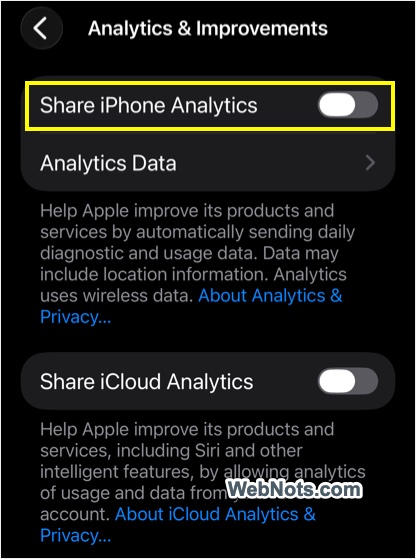
Your iPhone sends usage data and crash reports to Apple to improve services. While helpful for development, it shares information about how you use your device. Turning this off improves privacy with no impact on performance.
- Go to “Settings > Privacy & Security > Analytics & Improvements”.
- Disable “Share iPhone Analytics” option.
Final Thoughts
You don’t need to disable every setting at once. Start with the ones that matter most to you. If privacy is your priority, focus on tracking and location settings. If battery life is your concern, disable background activity and sensor-based features. For data savings, turn off WLAN Assist and automatic downloads. A few small changes can make your iPhone last longer, run smoother, and keep your personal data more secure.