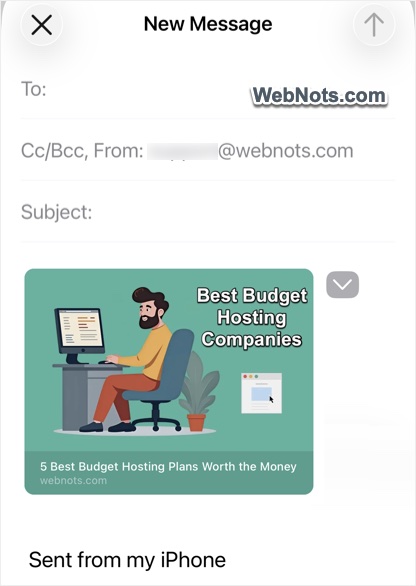
In our earlier article, we have explained how to preview links on iPhone without opening them. This is a kind of safety measure to protect you from spoofing links with fake anchor text. However, there is also another feature called “Preview Link” available in iPhone Mail app. This will show a beautiful preview card of the linked webpage instead of a plain hyperlink. It’s a good option for sending website details in a professional manner to your clients and others.
Preview Link on iPhone
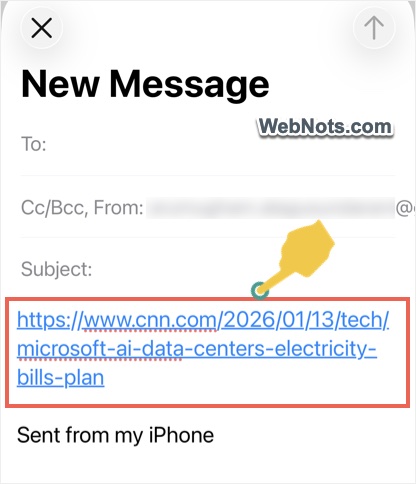
Before explaining how to enable it, here is how a plain text link will look on the Mail app when you paste or type.
And here is how the preview link will show:
Enable Preview Link in Mail
The feature is enabled by default in iPhone, otherwise, you can manually turn it on.
- Open Settings app from your home screen.
- Scroll down to bottom of the page and tap on “Apps” option.
- Find and open Mail app from the list.
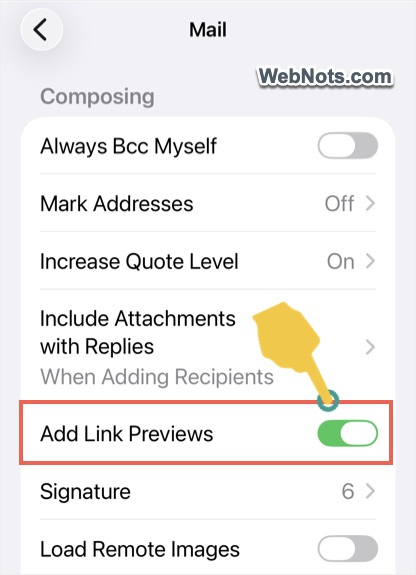
- Scroll down to “Composing” section and turn on “Preview Link” option.
Pasting Hyperlinks in Mail
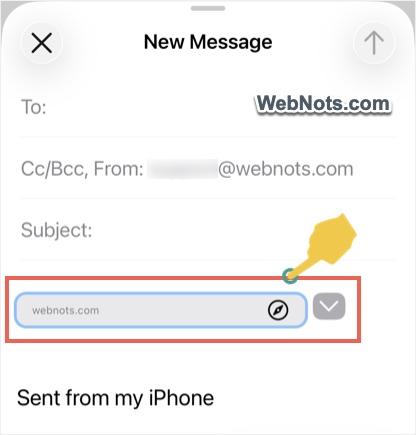
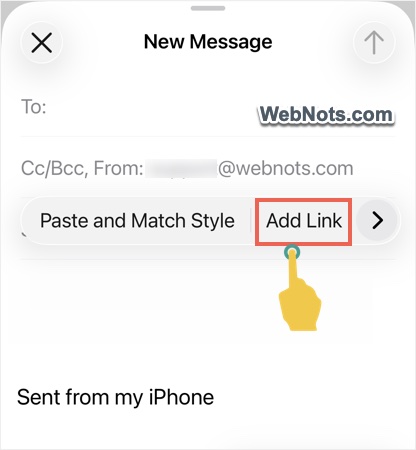
You can copy the hyperlink from Safari or any other app and directly paste it in your email. Alternatively, long press on the email content area and select “Add Link” option (if not visible, use the small arrow to expand the options and select from the list). Now, paste or type your link and insert it.
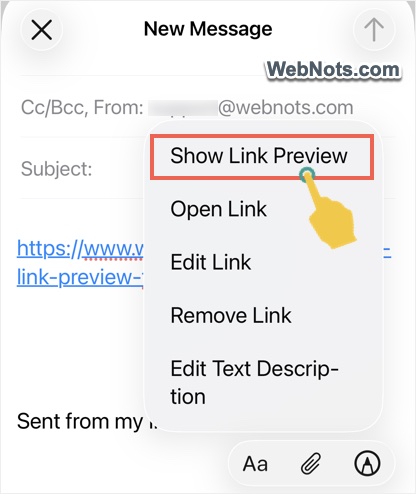
If the link is showing as a plain text, tap on it and select. Now, you will see a small down arrow and tap on that. Select “Show Link Preview” option.
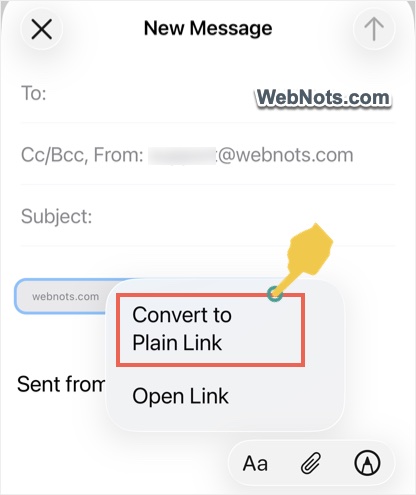
Sometimes, you don’t want to use the preview link feature for certain links. In this case, tap on the preview card and then tap the small arrow next to it. Now, select “Convert to Plain Link” to remove the preview.
Preview Image Not Showing
Generally, the featured or cover image of the article is shown in the preview card (similar to Twitter (X) and Facebook cards). If no cover image is used, then one of the images from the webpage is used in the preview. However, not all hyperlinks show the preview image and here are some reasons for that:
- The webpage does not have a cover image and also does not have any images in the content.
- Website owner protects the site using firewall or prevent hotlinking (directly linking images from other sources). Such a security measure will prevent the image from loading in Mail app. In this case, you will still the preview without the image as shown below.
- Preview link works fine in Mail app with all email providers like Gmail, Yahoo!, or with custom domain when sending emails. However, the preview image may load as a separate attachment in some emails like Gmail when the receiver views the message.