The default WordPress software (downloaded from WordPress.org website) comes with the necessary PHP files to install the content management system. Other than the files in wp-admin and wp-includes folder, you can find some important files located outside all other folders. That means, those files will go to the root of your WordPress installation and act like the backbone of your site. Wp-config.php is one such configuration file in the root directory containing configuration settings to keep your site running smoothly.
View wp-config.php File’s Content
Since most hosting companies automatically install WordPress when you purchase a plan, you might not have a chance to look at the core WordPress files. Simply go to WordPress.org website and download the latest version of the software. Extract the downloaded ZIP archive to find all core WordPress files as shown below.
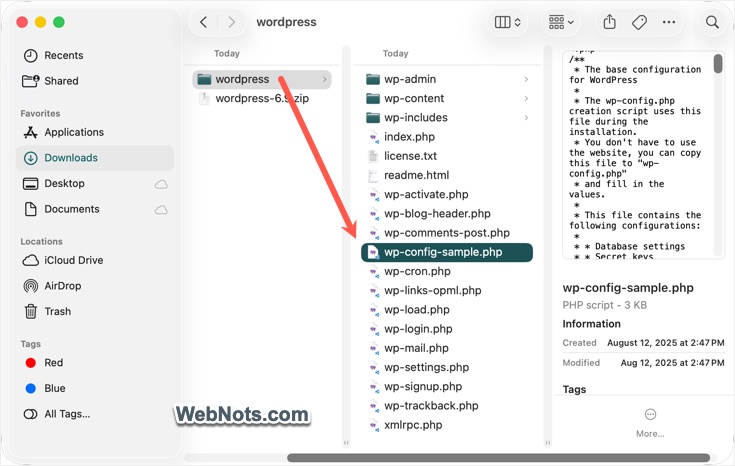
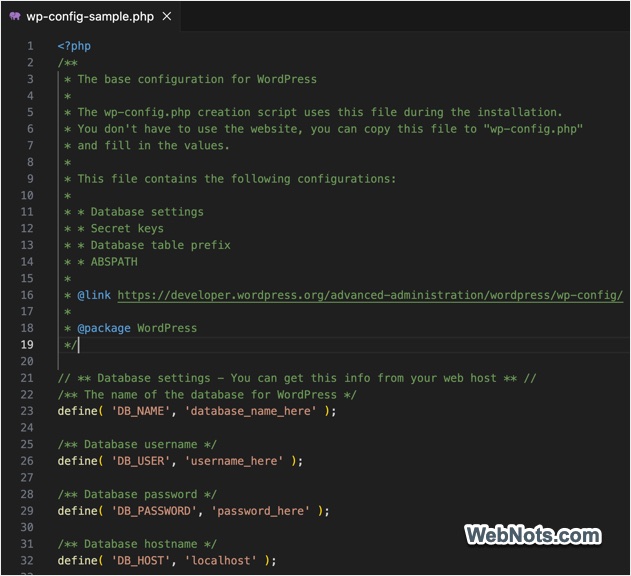
You will be surprised that the package does not come with wp-config.php file instead it has another sample file named wp-config-sample.php. During installation, WordPress will dynamically create the wp-config.php file with your database credentials using the content of the sample file (like a blank template). You can delete the sample file after finishing the WordPress installation on your domain.
The default file contains information about your site’s database, secret keys, database table prefix, and absolute path to WordPress directory (ABSPATH). If needed, you can manually add various rules to change or control the behavior of your site. So, it’s important to protect the wp-config.php file to avoid unauthorized access to your database and here are the 10 useful methods for that.
1. Set Strict File Permissions
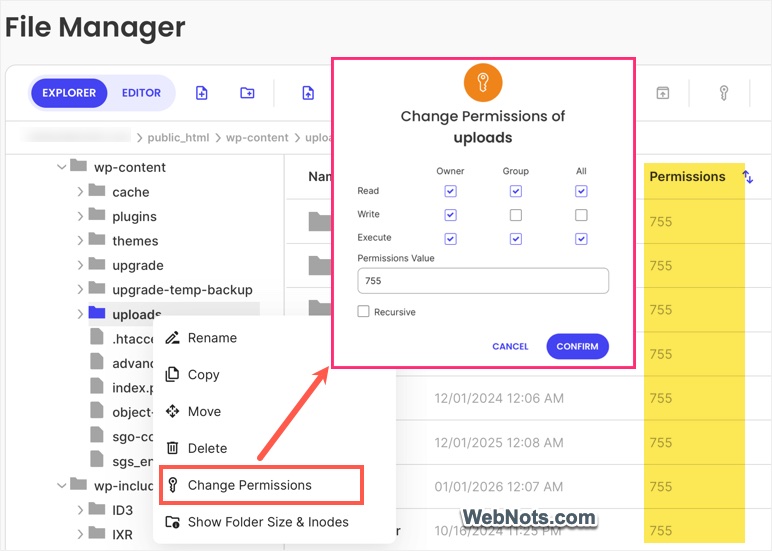
By default, WordPress assigns 644 as the file permission for wp-config.php file, which means read / write access for owner and read only access for group / public users. However, WordPress Administration Handbook recommends changing the permission to 400 (read access for owner) or 440 (read access for owner and group) for heightened security.
- Go to the File Manager app in your hosting panel or remotely login to your server using FTP.
- Locate the wp-config.php file and right-click on it.
- Select “Change Permissions” or “File Permissions” or similar option.
- Set the new value to 400 or 440 as you prefer.
You can do this immediately after installing WordPress, as the setup does not need write access after installation (read access is necessary for validating your database username and password, otherwise, you will see a file permission error or error establishing database connection error).
2. Move wp-config.php Outside Root Directory
As mentioned, wp-config.php is located in the root directory of WordPress installation. If anyone having access to the root, they can edit or copy content from the configuration file. To avoid this, you can move the wp-config.php file one level above your root directory. Your site will work properly as WordPress will find the file even if it is located just outside the root directory.
Generally, WordPress is installed in /public_html folder, which is the root. So, you need to cut and paste the file just outside this folder. Even if someone get your FTP credentials for the root access, they will not be able to find the wp-config.php file.
3. Block Access via .htaccess
WordPress sites running on Apache servers will have a server configuration file called .htaccess. You can add the following directive at the start of .htaccess file to deny access to everyone for wp-config.php.
<Files "wp-config.php">
Require all denied
</Files>
4. Change Authentication Keys and Salts
The file also contains a unique set of keys (automatically generated during installation) for validating cookies and login sessions. If you find someone has unauthorized access to your site, changing the authentication keys will force all users to logout of the site. You can take necessary actions after changing the keys.
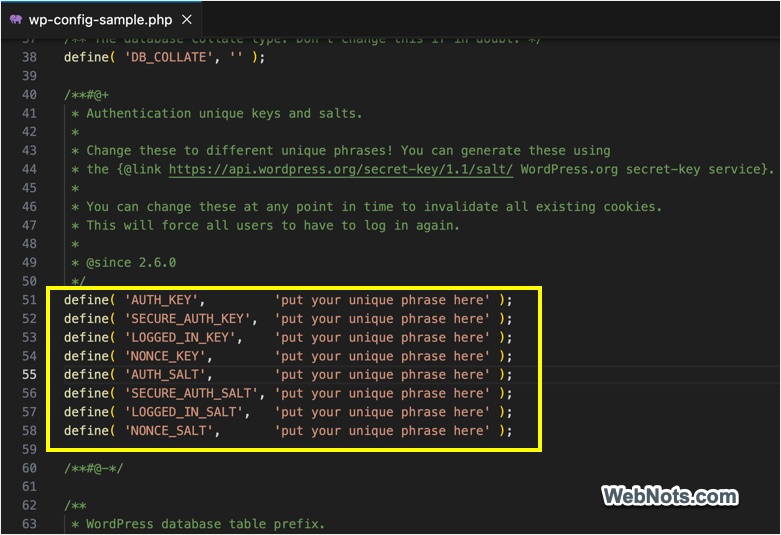
- Open the wp-config file and check the section below the “Authentication unique keys and salts” comments section.
- You can find the official WordPress.org secret-key service link https://api.wordpress.org/secret-key/1.1/salt/ and go to that webpage.
- This will automatically generate a new set of unique keys and salts.
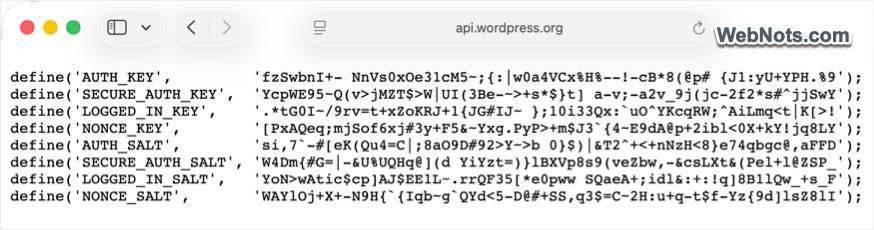
- Copy and replace the existing set of items between the comments section in your wp-config.php file
5. Use Strong Admin Password
Anyone having admin access to your dashboard can install plugins. There are plugins to browse through your database and files directly from the dashboard.
- Database Manager – WP Adminer plugin allows you to access the database right from the dashboard using Adminer tool.
- File Manager plugin allows to browse through your entire site’s files (including the wp-config.php) from the admin dashboard.
So, it’s important to use strong password for your login page and use a custom login URL with two-factor authentication if needed.
Note: Also, make sure to use strong password or two-factor authentication for your hosting and FTP accounts.
6. Disable File Editors in Dashboard
Though it is not possible to edit wp-config.php file from admin dashboard, you can still edit the themes / plugins files (Tools > Theme / Plugin File Editor). Hackers having access to your dashboard can inject malicious files and try to change the behavior of wp-config.php file. So, it’s a good idea to disable file editors by adding the following code in wp-config.php file.
define( 'DISALLOW_FILE_EDIT', true );7. Enable Automatic WordPress Updates
New WordPress versions come with patches for known vulnerabilities, which could indirectly expose configuration files. Hosting companies will automatically update the versions whenever they are released. If your site is not getting automatic updates, add the following code in your wp-config.php file.
define('WP_AUTO_UPDATE_CORE', true);This will ensure your WordPress core files are automatically updated and your site is protected.
8. Disable Directory Browsing
Try to open https://www.yoursite.com/wp-admin/ page from any web browser. If you can access the files and folder from the browser, you can move one level up and find the files in your root directory. Though some files like robots.txt in the root directory should be accessible from the browser, files like wp-config.php should not be available. You can turn off this directory browsing to prevent someone accidently accessing sensitive files on your server.
- Go to the root installation directory using FTP or File Manager.
- Find and edit the .htaccess file.
- Add the following line at the end of the file.
Options -Indexes- This will prevent directory browsing and show 403 unauthorized access error adding additional security to your site.
9. Monitor File Changes Using a Security Plugin
This is a precautionary step to keep track of the important files on your site.
- Install a reputable security plugins like All-in-One Security (AIOS).
- After activating the plugin, go to “AIOS > Scanner > File change detection” section.
- You can either scan the important files immediately or schedule a periodic scan to get the information in your email.
- Immediately take necessary actions to protect your site, if there are changes notified in wp-config.php file.
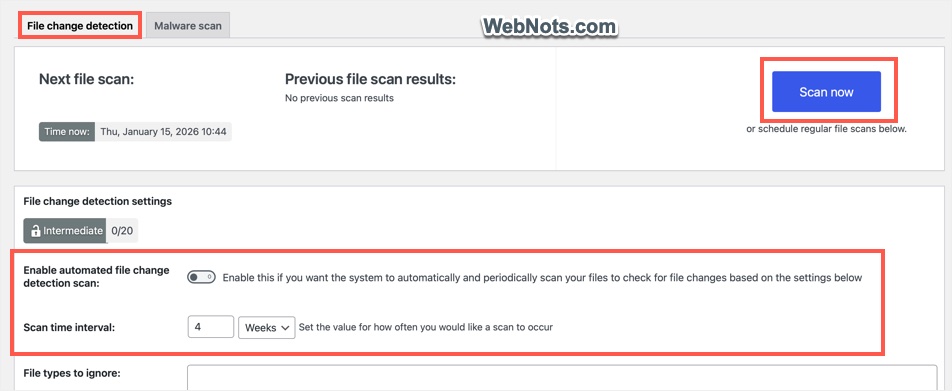
Go to “File Security” section to disable PHP file editing (as explained in point 6) and set the recommended file permissions (as explained in point 1).
10. Use Cloudflare or WAF
This is a final but best recommendations if you are not sure about the above suggestions. Simply add your site to Cloudflare (free plan is sufficient). This will route all your site’s traffic through Cloudflare’s DNS and protect using Web Application Firewall (WAF). Trying to open any PHP file from your domain URL (like https://www.yoursite.com/wp-config.php) or even searching for .php on your site will trigger the protection and Cloudflare will block the access before even the request is sent to the server.
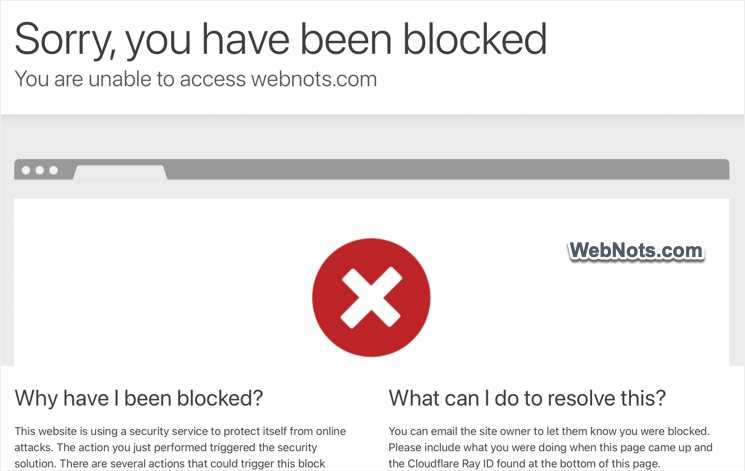
Note that firewall can also enabled using AIOS plugin. However, it works on your server, which means the action will be triggered after the request is processed on your server. Cloudflare is recommended as it blocks the requests before it reaches your server.
Final Words
These steps are sufficient for protecting the wp-config.php file, reduce the risk of exposure and maintain control over your site’s sensitive data. Check our WordPress security guide to find the complete details for protecting your entire WordPress site.