
Pop-ups are useful to show a callout so that users can view the attractive content. For example, asking to sign up for a newsletter, shows advertisement and showing a coupon code are common ways to use pop-ups in a website. Though pop-ups are generally shown when you try to close the page, many website owners show when viewing the content making it annoying. If you are fed with sudden windows popping up when viewing webpages, here is how you can block them in Microsoft Edge browser.
1. Block Pop-ups on All Websites
Edge offers an in-built option to block pop-ups and redirects on all websites.
- Open Edge and go to edge://settings/ page.
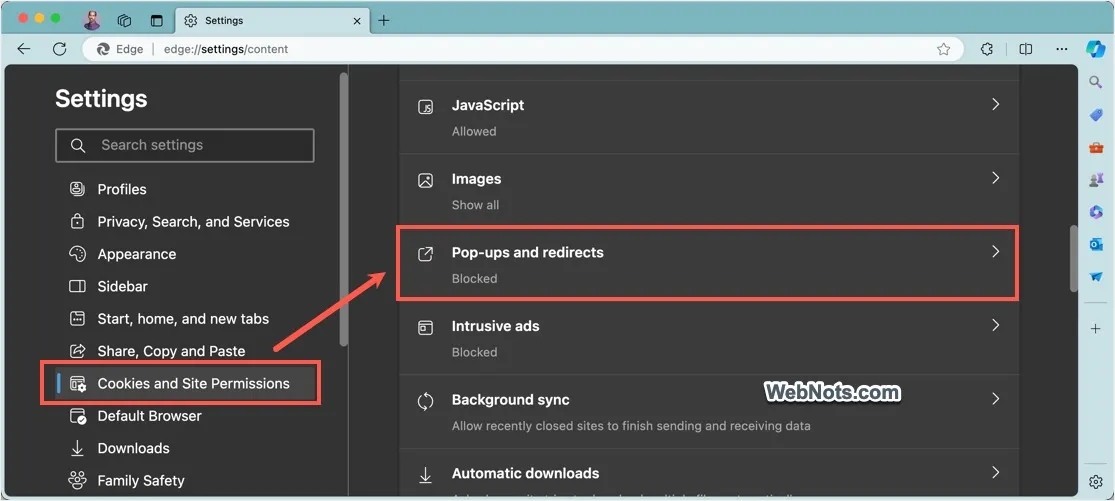
- Go to “Cookies and Site Permissions” section from left sidebar.
- Scroll down on the right section and click on “Pop-ups and Redirects” option.
- On the next page, turn on “Blocked (Recommended)” option.

2. Blocking Pop-up on Specific Website
If you want to block pop-up on a certain page, then you can do that by following the below steps.
- Open Edge and go to edge://settings/ page.
- Navigate to “Cookies and Site Permissions > Pop-ups and Redirects” section.
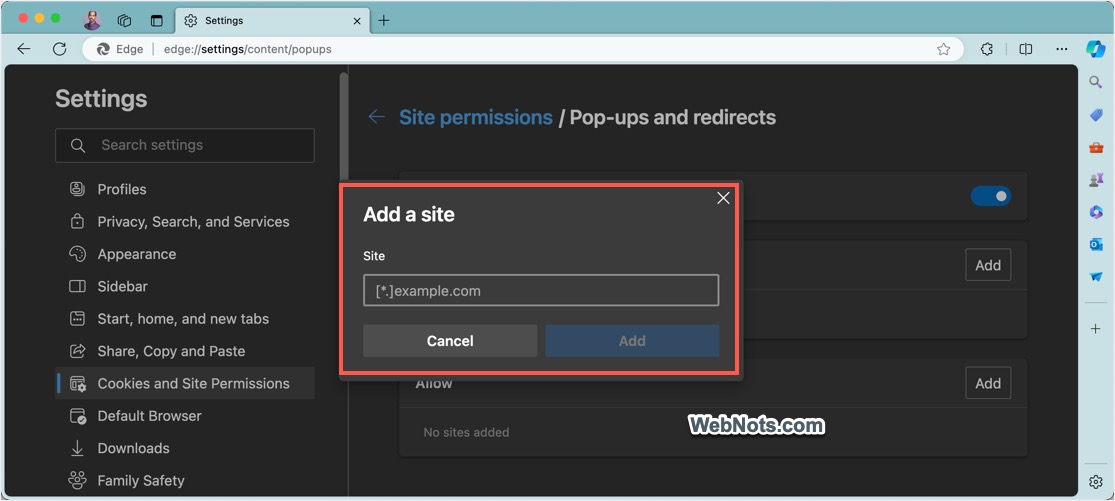
- Click the “Add” button against “Block” option.

- Type the URL of the website and click “Add” button.
- You can see the site is added under “Block” section. Anytime, click on the three dots icon and select “Remove” option to delete the site from blocked list. You can also select “Allow” to instantly add the site under “Allow” list.

“Allow” option is useful to allow pop-ups from certain websites while blocking from all others.
3. Blocking Pop-up from Site Permission Settings
There is also an additional option for blocking pop-ups on a site level.
- When you are viewing the site in Edge, click the padlock icon showing in the address bar.
- If you have blocked or allowed the site as explained in method #2 above, then you will “Pop-ups and Redirects” option in the menu. Click the see dropdown and change your settings.
- If you have not allowed or blocked site previously in settings page, then click on the “Permission for this site” option.

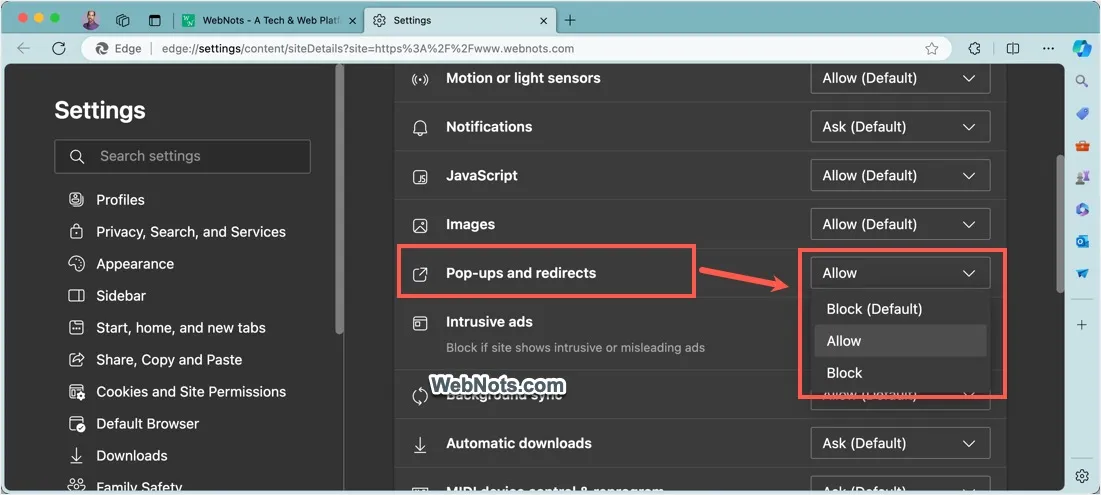
- This will take you to site permissions settings page. Click the dropdown against “Pop-ups and Redirects” option and select whether you want to allow or block or use the default option.
4. Using Extension to Block Pop-ups in Edge
If you notice websites are showing pop-ups even after blocking as explained in above methods, then you can go for a third-party extension for this purpose. Most free ad blocker extensions also stop intrusive pop-ups on websites.
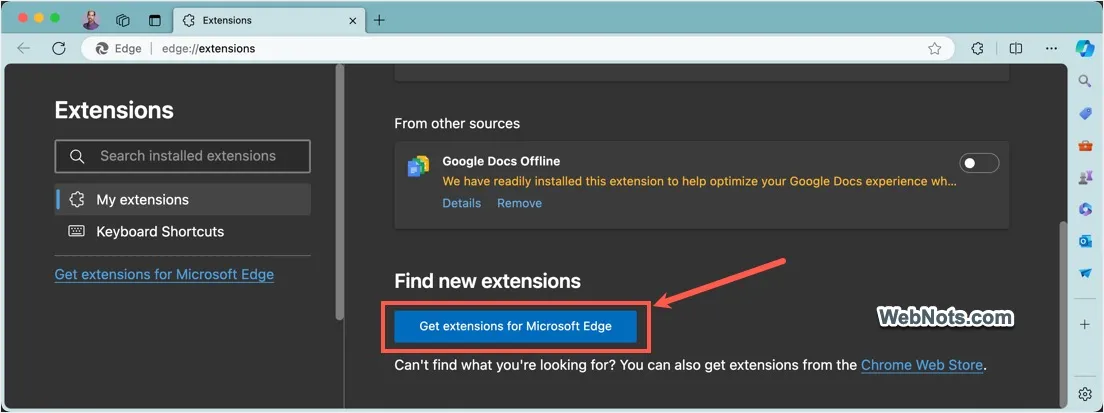
- Open Edge and go to edge://extensions/ page.
- Click on the “Get Extensions for Microsoft Edge” button.
- Search for “pop-up blocker” in Edge Add-ons store and install any ad blocker or pop-up blocker extension.

- Once installed, the extension will automatically start blocking ads and pop-ups in Edge. You can anytime click on the “Extensions” icon showing next to address bar and select the extension to block or allow a website.

Note that you can also install any Google Chrome extension in Edge browser as both browsers use the same Chromium backend.


