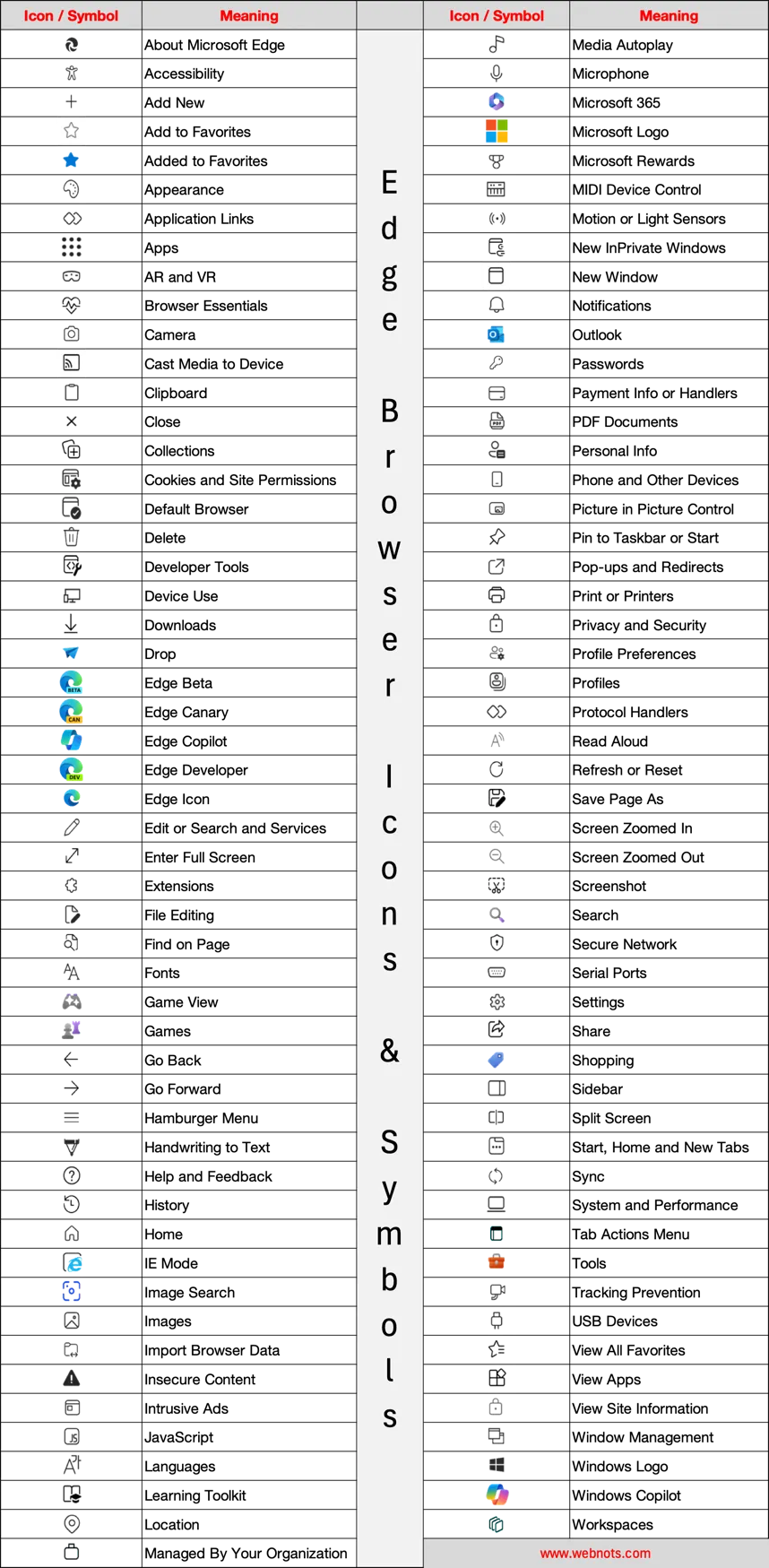
The latest version of Microsoft Edge browser is filled with icons and symbols all over its interface. Though some icons are commonly used across other browsers like Chrome, most of them are custom symbols used only in Edge browser. For example, the heart with pulse icon in address bar and menu item is called Browser Essentials which helps to monitor the performance and network security. If you struggle to find what an icon means, here is a complete list of 100+ icons and symbols used in the latest version of Edge browser
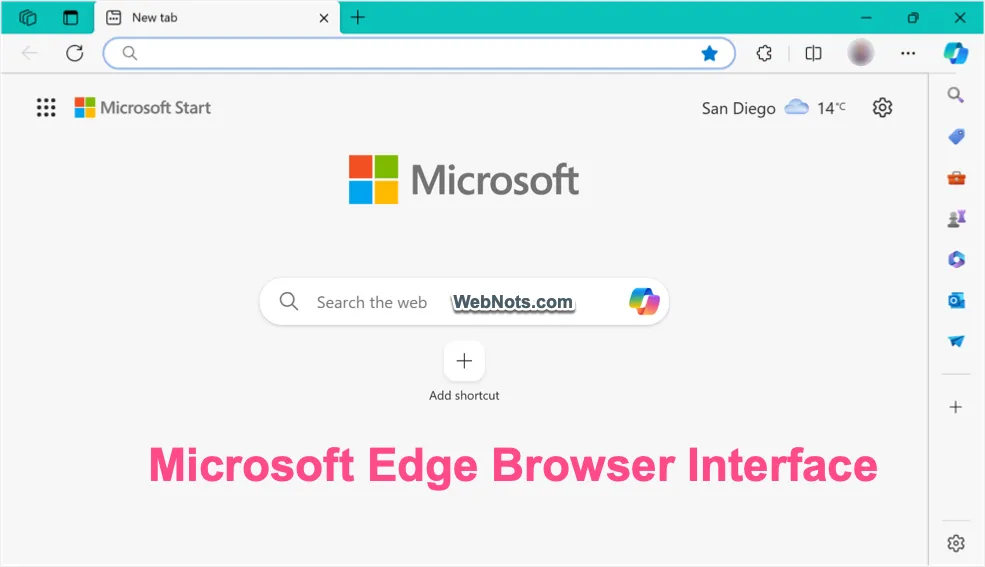
Edge Browser Icons & Symbols
Note that some of the icons are used in different places with different meaning. For example, this padlock  icon in front of the site address is named as “View site information” while the same icon in Settings page is used for “Privacy and security” section. Again, similar padlock icon without a center dot
  is used to show locked items in Settings page indicating those items are managed by your organization.
| Icon / Symbol | Meaning |
|---|---|
 | About Microsoft Edge |
 | Accessibility |
 | Add New |
 | Add to Favorites |
 | Added to Favorites |
 | Appearance |
 | Application Links |
 | Apps |
 | AR and VR |
 | Browser Essentials |
 | Camera |
 | Cast Media to Device |
 | Clipboard |
 | Close |
 | Collections |
 | Cookies and Site Permissions |
 | Default Browser |
 | Delete |
 | Developer Tools |
 | Device Use |
 | Downloads |
 | Drop |
 | Edge Beta |
 | Edge Canary |
 | Edge Copilot |
 | Edge Developer |
 | Edge Icon |
 | Edit or Search and Services |
 | Efficiency Mode |
 | Enter Full Screen |
 | Exit Split Screen View |
 | Extensions |
 | File Editing |
 | Find on Page |
 | Fonts |
 | Game View |
 | Games |
 | Go Back |
 | Go Forward |
 | Hamburger Menu |
 | Handwriting to Text |
 | Help and Feedback |
 | History |
 | Home |
 | IE Mode |
 | Image Search |
 | Images |
 | Import Browser Data |
 | Insecure Content |
 | Intrusive Ads |
 | Items Blocked |
 | JavaScript |
 | Languages |
 | Learning Toolkit |
 | Link Tabs |
 | Location |
| Managed By Your Organization |
 | Media Autoplay |
 | Microphone |
 | Microsoft 365 |
 | Microsoft Logo |
 | Microsoft Rewards |
 | MIDI Device Control |
 | More Options |
 | Motion or Light Sensors |
 | New InPrivate Windows |
 | New Window |
 | Notifications |
 | Open Page in New Tab |
 | Outlook |
 | Passwords |
 | Payment Info or Handlers |
 | PDF Documents |
 | Personal Info |
 | Phone and Other Devices |
 | Picture in Picture Control |
 | Pin to Taskbar or Start |
 | Pop-ups and Redirects |
 | Print or Printers |
| Privacy and Security |
 | Profile Preferences |
 | Profiles |
 | Protocol Handlers |
 | Read Aloud |
 | Refresh or Reset |
 | Risks Prevented |
 | Save Page As |
 | Screen Zoomed In |
 | Screen Zoomed Out |
 | Screenshot |
 | Search |
 | Secure Network |
 | Serial Ports |
 | Settings |
 | Share |
 | Shopping |
 | Sidebar |
 | Sleeping Tabs |
 | Sites Scanned |
 | Split Screen Vertically |
 | Split Screen Horizontally |
 | Start, Home and New Tabs |
 | Sync |
 | System and Performance |
 | Swap Tabs |
 | Tab Actions Menu |
 | Tabs in Split Screen |
 | Tabs Performance |
 | Tools |
 | Tracking Prevention |
 | Unlink Tabs |
 | Unpin |
 | USB Devices |
 | View All Favorites |
 | View Apps |
 | View Site Information |
 | Window Management |
 | Windows Logo |
 | Windows Copilot |
 | Workspaces |
Icons in Edge Interface
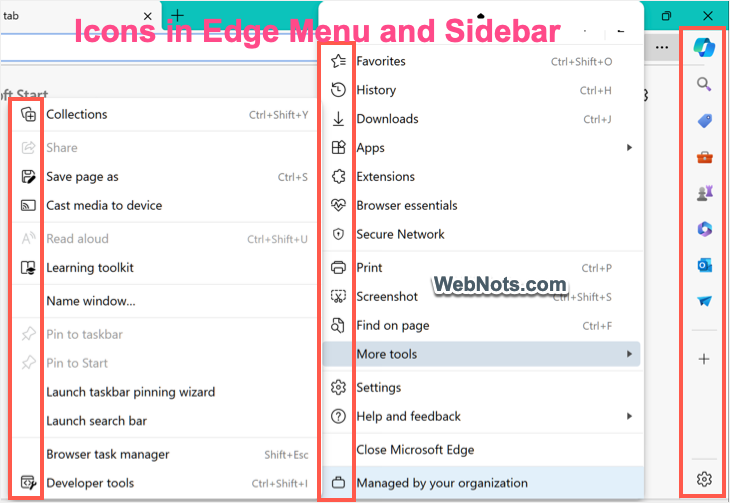
You can find these icons & symbols in address bar, title bar, menu items, sidebar and on Settings page. Below is how they look in the default Edge menu and sidebar in Windows. Edge uses same set of icons in Mac version also.
Download Image
Below is the image reference of the complete Edge icons with meaning. Right-click on the image and save to your computer in case if you want for offline use.