If you use keyboard shortcuts, you already know how much they speed up your workflow. The problem? Nobody has the memory power to remember every shortcut for every app, not even for popular ones like Word or Excel. In our earlier article, we explained how to find all shortcuts for any app on macOS using a tiny utility called CheatSheet. The good news is that Microsoft PowerToys solves this same problem on Windows with a tool called Shortcut Guide. Here’s how to use with supported apps and add custom shortcuts for apps that aren’t supported out of the box.
What is Shortcut Guide?
PowerToys is a free, official app from Microsoft that you can download from the Microsoft Store. It packs around 30 powerful utilities into a single interface. Check our complete guide for details and some useful tools include Registry Preview, Hosts File Editor, Always on Top, Power Rename, and Image Resizer.

Shortcut Guide is one of those tools, which used to show a list of useful Windows keyboard shortcuts. In its latest version (v0.100.0 or later), it has been enhanced to show shortcuts for most default Windows apps like Notepad and Paint, as well as popular third-party apps like Word and Excel.
Enabling Shortcut Guide
- First, install the latest Microsoft PowerToys version from the Microsoft Store (you can also download it from GitHub repository).
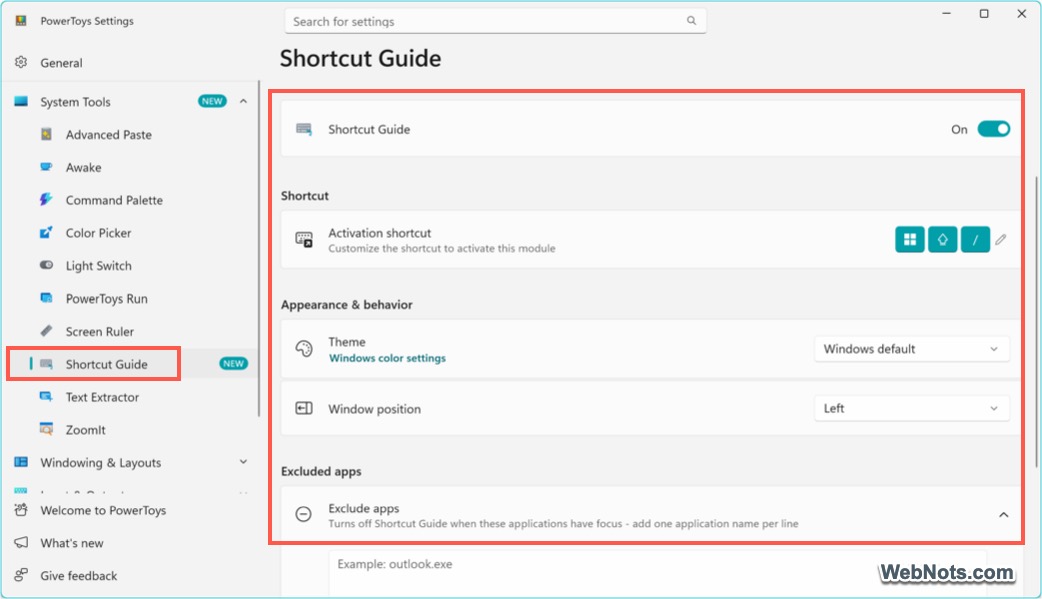
- Launch the app, navigate to “System Tools > Shortcut Guide”, and turn on the “Shortcut Guide”.
- The default activation shortcut is Win + Shift + ? or Win + Shift + /. Click the pencil icon next to the default keys to change it to any preferred combination.
- Select a theme as Windows default, light, or dark.
- Choose the window position to show the list on the right or left side.
- If you want to exclude any app from Shortcut Guide, simply add it to the “Excluded apps” list.
Viewing Shortcuts of an App
Shortcut Guide supports most Windows and Microsoft apps right away.
- Make sure the PowerToys app is running, then open any supported app.
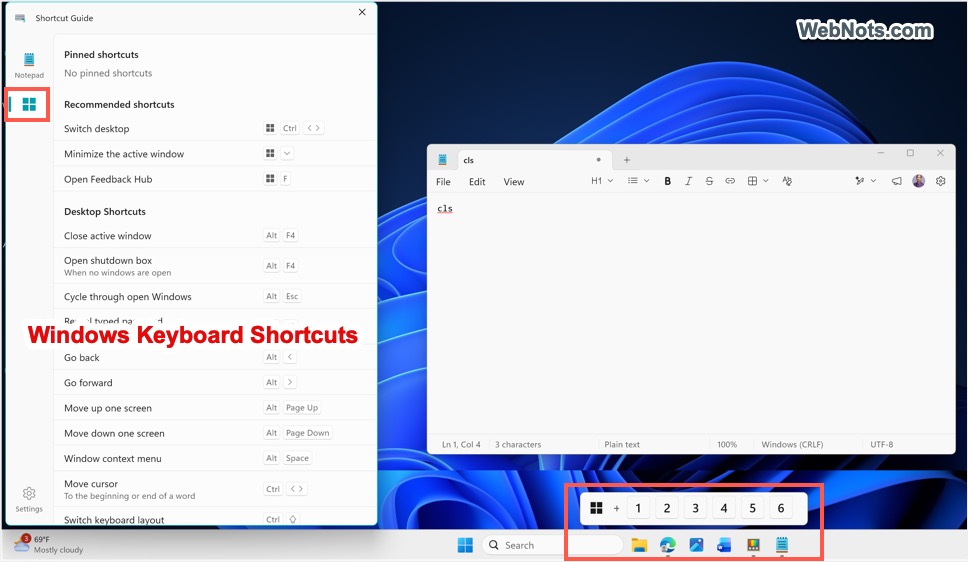
- Let’s open Notepad and press the activation key Win + Shift + ?.
- A new window will open on the left or right side (as per your chosen window position) and display the app’s shortcuts.

- Click the Windows key on the sidebar to view all Windows operating system shortcuts.
- Press the same activation key again or press Esc to close the Shortcut Guide window.
Pinning and Unpinning Shortcuts
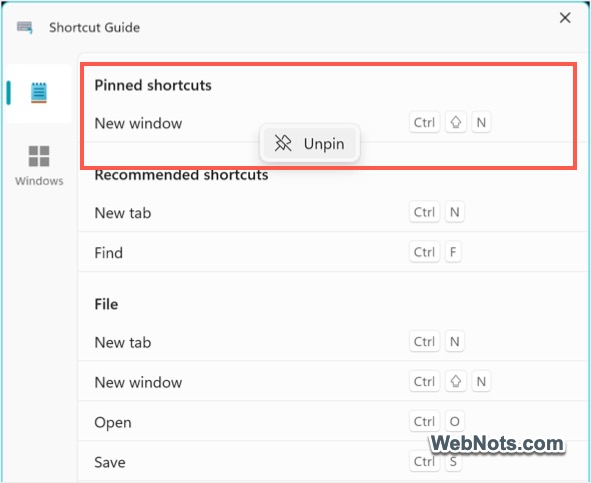
By default, Shortcut Guide will categorize the items and show them in a neat list. You will also find “Recommended shortcuts” pinned to the top. The best part is that simply right-click your favorite shortcut and select “Pin” to permanently move it to the top of the list for quicker visibility.

You can pin multiple items, and Shortcut Guide will remember them permanently (they will stay on top even if you close and reopen the app later). Anytime you want to remove one, just right-click the pinned item and select “Unpin”.
List of Supported Apps
Here are the supported apps as per the official documentation:
| Category | Apps |
|---|---|
| Windows | Windows Shell, File Explorer, Notepad, Paint |
| Microsoft 365 | Excel, Word, PowerPoint, Outlook, OneNote, Project, Publisher, Visio, Access |
| Browsers | Microsoft Edge, Google Chrome, Mozilla Firefox |
| Communication | Microsoft Teams, Slack, Discord, Telegram Desktop |
| Developer Tools | Visual Studio Code, Windows Terminal, IntelliJ IDEA |
| Creative | Photoshop, Illustrator, InDesign, After Effects, Figma, GIMP, Inkscape, Blender |
If your app isn’t listed, you have two options: request it on the PowerToys GitHub repository (you need to login) or add it yourself using a custom manifest.
Adding Custom Shortcuts
If Shortcut Guide doesn’t work with your app out of the box, this is where things get confusing. You need to create a manifest file with custom entries for this purpose. A manifest is simply a YAML file (with .yml extension) that tells Shortcut Guide about the app you’re talking about, when to show the shortcuts, and what shortcuts to display.
- Navigate to the following folder on your computer. If it doesn’t exist, create it:
%LOCALAPPDATA%\Microsoft\WinGet\KeyboardShortcuts- Create a new plain text file and name it something like MyApp.yaml. Then copy and paste the following template, changing the parameters as needed:
PackageName: "YourApp.PackageName"
Name: "Your App Name"
WindowFilter: "yourapp.exe"
BackgroundProcess: false
Shortcuts:
  - SectionName: "File"
    Properties:
      - Name: "New File"
        Recommended: true
        Shortcut:
          Win: false
          Ctrl: true
          Shift: false
          Alt: false
          Keys:
            - N
      - Name: "Save"
        Shortcut:
          Win: false
          Ctrl: true
          Shift: false
          Alt: false
          Keys:
- S- Save the file in the folder, make sure PowerToys is running, and press Win + Shift + ? keys. Your app should now appear in the sidebar with your custom shortcuts.
Understanding Fields in the Manifest File
Here is the meaning of each field in the manifest file:
| Field | What It Means | Example |
|---|---|---|
| PackageName | A unique identifier for the shortcut package. You can choose any descriptive name, typically using a company and app format. | MyCompany.MyApp |
| Name (App Title) | The application name displayed in Shortcut Guide. | My App |
| WindowFilter | The exact executable filename that Shortcut Guide uses to identify the application. | myapp.exe |
| BackgroundProcess | Specifies whether the application runs primarily in the background (true) or as a normal desktop app (false). | false |
| SectionName | A category heading used to group related shortcuts. | File |
| Name (Shortcut Label) | The display name shown for an individual shortcut. | Save |
| Recommended | When set to true, the shortcut is highlighted and shown near the top of the guide. | true |
| Win / Ctrl / Shift / Alt | Indicates which modifier keys must be held when using the shortcut. Set each modifier to true or false. | Ctrl: true |
| Keys | The main key or key sequence pressed along with the modifiers. | [“S”] or [“K”, “L”] |
Here is how to read the “Shortcut” section:
Win: true= Hold the Windows key.Ctrl: true= Hold Ctrl.Shift: true= Hold Shift.Alt: true= Hold Alt.Keys= The final key(s) you press.
So, the below code means Ctrl + Shift + S:
Shortcut:
  Win: false
  Ctrl: true
  Shift: true
  Alt: false
  Keys:
    - S
And the below code means Win + E (which opens File Explorer).
Shortcut:
  Win: true
  Ctrl: false
  Shift: false
  Alt: false
  Keys:
    - E
Frequently Asked Questions
Make sure PowerToys is running in the background (check the system tray for the PowerToys icon). On some virtual machines, you may need to use the Fn key like Fn + Win + Shift + ?. Otherwise, change the default activation shortcut to a custom key combination in the settings.
Double-check that the WindowFilter matches the exact process name (case-insensitive). You can find the exact .exe name by opening “Task Manager > Details” and looking at the “Name” column.
As shown in our example, simply add more items under the Properties section.
You can list multiple keys in the Keys array. For example, ["K", "L"] represents pressing Ctrl + K, Ctrl + L (if Ctrl is set to true).
Simply add the app’s executable file name under the Excluded apps section in the settings page. For example, add winword.exe to exclude Microsoft Word.
Turn off the modules you aren’t using. Open PowerToys and toggle off any utilities you don’t need to speed up the app.
Final Words
Shortcut Guide turns hidden keyboard shortcuts into discoverable ones. This is especially useful for apps with a massive number of shortcuts, like Microsoft 365 (Word, Excel, PowerPoint, and Outlook). While adding custom apps requires a bit of technical setup, once you’ve created your first YAML file, you’ll wonder how you ever worked without it.