Edge browser has an in-built password manager to automatically save login usernames and passwords. When you open the login page again, Edge will autofill the password thus allowing to login seamlessly. However, this can create problems when sharing your computer with multiple users. Perhaps your kid can click the frequently visited website shortcut showing on new tab page and login to your personal email account with auto filling password. The solution here is to set a master password to access any username/password stored in Edge browser.
Setting Master Password for Edge Password Manager
There are two ways you can protect the stored passwords in Edge:
- Use the system’s admin password as a master password.
- Set a custom master password.
You can use one of the options depending upon your situation.
Changing Autofill Password Setting in Edge
Whether you want to use the device’s password or set a custom password, you can do that from the same settings page in Edge.
- Open Edge app and click the three horizontal dots icon (Settings and more) showing on top right corner.
- Select “Settings” from the list of menu items that appears.
- Go to “Profiles” section and click on “Passwords” option.

- This will open “Passwords” section of Microsoft Wallet and click the “Settings”.

- Scroll down on the settings page to “Passwords” section and find “Autofill passwords and passkeys” heading.
- By default, autofill password option is enabled and Edge uses the first option “Fill website password and sign in automatically, or suggest available passkeys”. Due to this option, Edge will autofill passwords in the website login forms.

Note: If you turn of autofill option, you can still click the username field in login from and get the credentials from Edge password manager.
Set Device Password
Select “Prompt for the device password before filling website password” option. You need to allow the changes by providing your administrator password.
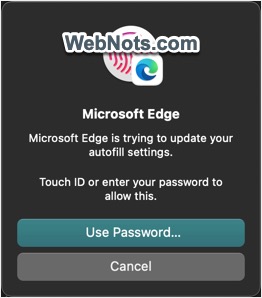
When the device password option is selected, Edge will show an additional dropdown. Click on that and select the permission methods.
- Always ask permission – need device password for each time when you try to login to websites.
- Ask permission once per browsing session – need device password once per browsing session. You need to authenticate again after closing and reopening the browser.

Whenever you try to login, Edge will NOT autofill the username / password in the form. You need to manually click on the username (or email) field and select an account. Edge will prompt you to authenticate with device password as shown below.

Set Master Password
This is an ideal option as your device password may be known to other users also. In addition, admin password is anyway required for viewing/changing credentials stored in Edge password manager section. So, select “Prompt for custom primary password…” option and confirm the changes with your administrator password.
You will see a pop-up, type your master password twice and click on “Create” button. A notification will appears showing the master password is successfully created.

Now, you will see similar two options whether to use the master password for each time or once per browsing session. Choose one option as per your preference.

In this case also Edge will NOT autofill username / password details in the login form and you need to manually select an account by clicking on the username field. However, this time you will be prompted to enter the primary password for retrieving the credential of the selected account from Edge password manager.
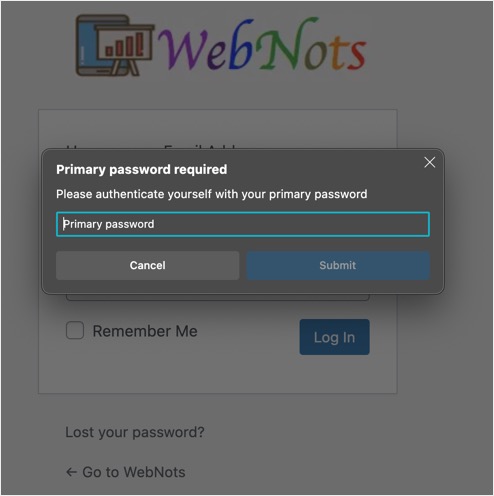
Primary or master password will work per profile and only set on the current device. Therefore, you need to set master password on each device and for each profile and will not be synced even though you logged in. The password will be removed when you change autofill setting to one of the other two options.
Final Words
Remember that the master password will only protect accessing Edge password manager section either from browser’s settings page or when you want to retrieve the stored credentials in a login form. It will NOT lock the browser itself. You have different options for locking Edge browser and learn more about it here.