
There are different types of quotation marks symbols you can use for different purposes. By default, text processing apps like TextEdit and Pages will use curly quotes on Mac. Though this smart quotes looks beautiful, it creates problem when you copy and paste the content to another app. Especially, when you write technical documentations, it’s foremost important to use straight quotes in the code blocks. In this article, we will explain how you can disable curly quotes on Mac and force using straight quotes in Pages and other default apps.
Default Setting Vs Specific App
Mac has a global setting to control the use of proper quotes while typing in default system apps. However, dedicated text processing apps like Pages have their own setting superseding the global option. In addition, third-party apps, like Microsoft Word also follow their own settings. You can learn more on disabling curly quotes in Microsoft Word documents.

Force Straight Quotes on Mac
Follow the below steps if you are using macOS 13 (Ventura) or newer versions:
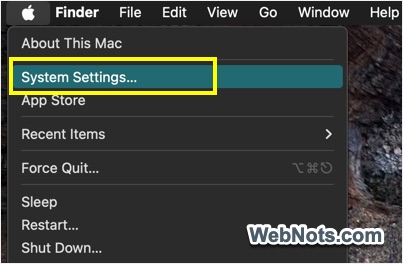
- Click the Apple Menu and select “System Settings…” option.
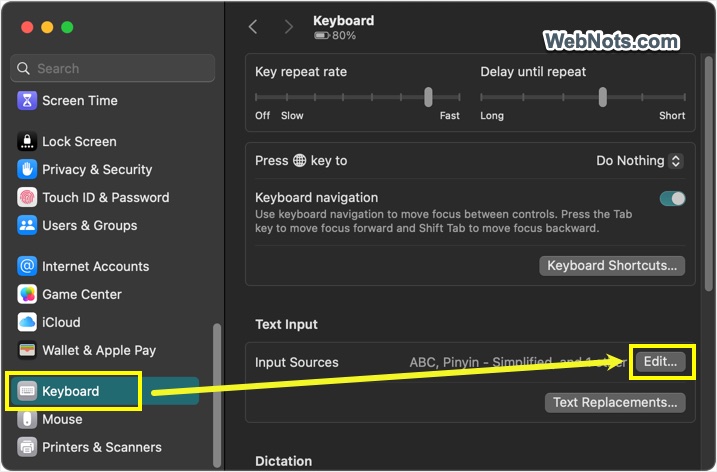
- Go to “Keyboard” section and find “Text Input” section.
- Click the “Edit” button showing against “Input Sources” option.
- Under “All Input Sources” section, scroll down to bottom on the right pane.
- Turn off “Use smart quotes and dashes” option.
- Click the “For double quotes” dropdown and select the option with straight quotes. Similarly, select the straight quote option for “For single quotes”.

Follow the below steps if you are using macOS 12 (Monterey) or earlier versions:
- Click the Apple Menu and select “System Preferences…” option.

- Select “Keyboard” option from the list of available items.

- Go to “Text” tab and uncheck “Use smart quotes and dashes” option.
- Click “for Double Quotes” and “for Single Quotes” dropdowns and select the correct formats you want to use.

Using Straight Quotes in Pages
As mentioned, Pages app has its own settings.
- Open Pages document and click the “Edit” menu.
- Go to “Substitutions” and uncheck “Smart Quotes” option.
- Now onwards, Pages will start using the straight quotes for both single and double quotes.

Using Straight Quotes in TextEdit
Like Pages app, you can also disable smart quotes in TextEdit from “Edit > Substitutions” menu. However, the best option is to use plain text editor instead of rich text editor to avoid formatting issues. Simply, press “Command + Shift + T” or go to “Format > Make Plain Text” to toggle the editor to plain text format. This will remove the text formatting options and save the content in plain text encoding with UTF-8 format.


