iOS is the Apple’s mobile operating system that powers all iPhone models. Apple regularly releases software updates for iPhones to introduce new features, security patches, and improvements in performance. Software update is the process of updating or upgrading iOS so that your iPhone is safer and supports latest features. However, sometimes you will not be able to update iOS due to various reasons. If you are stuck with software update not working on your iPhone, here are some suggestions to fix the issue.
Software Update Failures
You can update iOS by going to “Settings > General > Software Update” section on your iPhone. There are two major reasons an iOS update may fail:
- Requirements from Apple – latest iOS versions are supported only on newer models. If your iPhone does not meet Apple’s requirements for a particular iOS version, then it is not possible to update the OS. Generally, this happens with the major iOS upgrades like from iOS 17 to iOS 18. In this case, you will not see any error on software update screen and the only option is to purchase a new iPhone that supports the latest iOS version.
- Issues on your iPhone – it could be software, hardware, storage or any other problem which you can fix by taking necessary actions. In this case, you will see an error message on the screen like below.

1. Basic Update Requirements
Here are some of the basic stuffs you should remember before trying to update iOS:
- Cellular Data – in most cases, major updates will not work with cellular data as the file size will be very large (like 10+ GB as mentioned above). So, make sure to connect to stable wireless connection.
- Low Power – update will not work when your iPhone is on Low Power Mode or running out of power. You need to connect to power source to make sure the phone is not shutting down in-between the update.
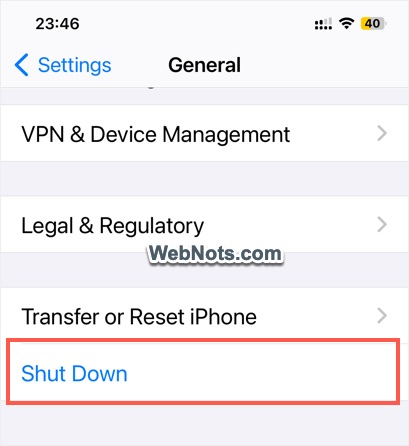
- Restart iPhone – restarting your iPhone can help to fix the issue especially when the update is frozen without progress for longer time. Go to “Settings > General > Shut Down” to shut down your iPhone. After that, long press the side button to restart.
2. Check iOS Compatibility
As mentioned, each iOS version has specific requirements generally listed on Apple’s website. For example, you can find the supported iPhone models for iOS 18 in this Apple webpage. Apple will have a separate webpage for each major iOS version. So, make sure to check the correct page applicable for your case.

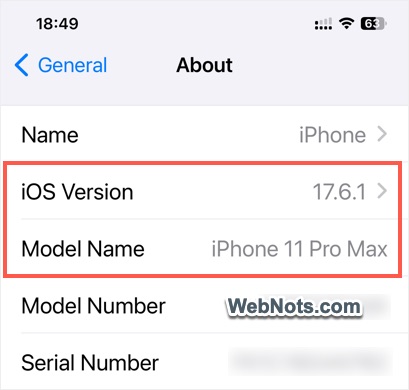
Now, go to “Settings > General > About” section on your iPhone. Here, you can find the iOS Version and Model Name. Compare your phone details with Apple website to find whether your iPhone is compatible.
3. Check Server Issues
Sometimes, Apple servers may not be available due to momentary glitches. Simply try again after few minutes and everything should work fine. This happens especially when you try to download immediately after iOS release. If the problem persists, go to Apple System Status page and check the servers are up and working. If the servers are having problem, then you have to wait till the time the issue is resolved.
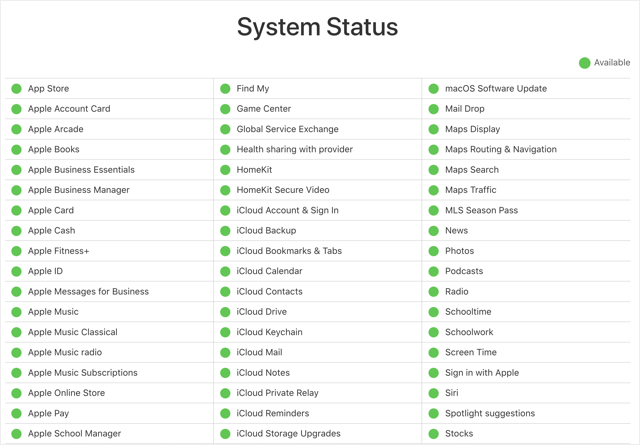
Unlike macOS Software Update, Apples does not have separate server for iOS update. So, you need to check App Store and other related server’s statuses.
4. Check Storage Space
Whether it is iOS, iPadOS, watchOS or macOS, it needs significant amount of storage space (generally 10 to 20 GB size). The update will fail if your iPhone is running low on storage space.
- First, go to “Settings > General > Software Update” section and find the file size of the iOS version you want to install.
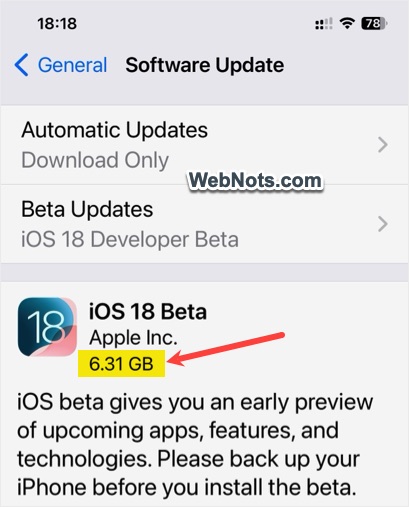
- Now, go to “Settings > General > iPhone Storage” section and find whether you have sufficient space. You can also scroll down to bottom of the page to find the size of currently installed iOS file size for reference.
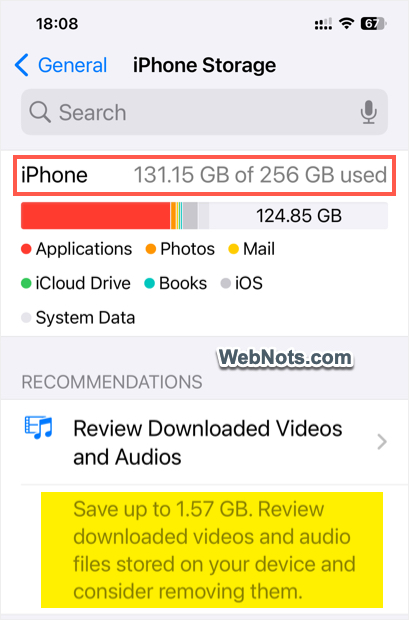
If sufficient space is not available, delete unnecessary apps and files to free up the storage. iPhone also will show recommendations for cleaning up files (like downloaded audios and videos) which you can follow to recover the space.
Note: If the storage is full while downloading iOS update, iPhone will allow you to temporarily remove some apps. Those removed apps will be automatically reinstalled after installing iOS.
5. Disable VPN App
Apple simply blocks most of the popular VPN services. In this case, you will see an error showing “Unable to Check for Update” without any other clue that your VPN is actually blocking the update. All you need is to disable your VPN app and try again to initiate the software update process.
6. Disable Beta Update
If you have opted for beta iOS installation, then you will not get any minor updates for that version. For example, your iPhone will never get any updates like 18.1, 18.1.1, etc. when you have installed iOS 18 beta or developer version. In this case, go to “Settings > General > Software Update” section and tap on “Beta Updates” to turn it off. After that, wait for the next major iOS update. The major version will appear in “Software Update” section which you can download and install.
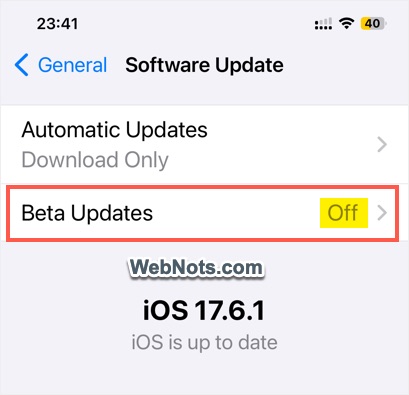
If you want to get stable minor iOS versions while using beta or developer version, the only possibility is to restore your iPhone from backup to previous stable iOS version.
7. Reset Network Settings
If you have consistent problems with the network only on your iPhone (not on other devices connected to the same network), then it is a good idea to reset your network settings on iPhone.
- First, find and note down your Wi-Fi password (Settings > WLAN > Select Your Network > Tap on Password and Copy) as you need this after resetting network.
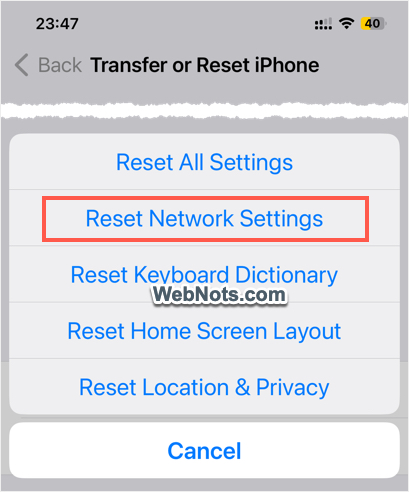
- Go to “Settings > General > Transfer or Reset iPhone > Reset” and select “Reset Network Settings” option.
- After resetting, reconnect to your Wi-Fi network and try updating iOS again.
8. Update via iTunes or Finder
If you are not able to update from the “Software Update” section of your iPhone, then try updating through your computer. You can try updating though iTunes on Windows PC or through Finder on Mac.
- First, connect your iPhone to PC or Mac with the lightning / USB cable.
- Open iTunes (Windows) or Finder (Mac) and select your iPhone from the sidebar.
- Click “Check for Update” button to check if there any updates available.
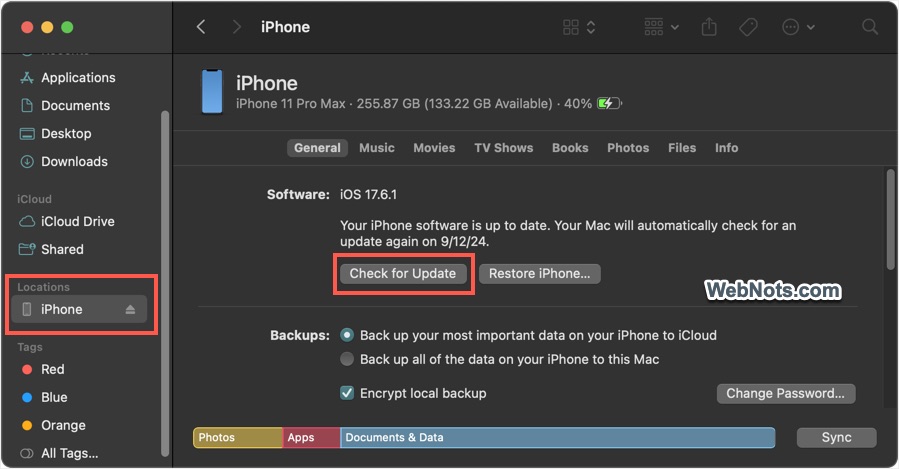
- If iTunes / Finder detects an available update, then you will see “Update” button and click on it to install the latest iOS.

Note that you can also use Apple Devices app on Windows instead of iTunes if that app is available on your Microsoft Store.
9. Use Recovery Mode
This is similar option like updating through iTunes or Finder. However, recovery mode will reinstall iOS without deleting your data.
- Connect your iPhone to your PC or Mac with lightning / USB cable and open iTunes / Finder app.
- Press and release the volume up button, press and release the volume down button and then press and hold the side button until the recovery mode screen appears.
- You will be prompted to update or restore your device. Click the “Update” button to reinstall iOS.
10. Contact Apple Support
If you are not able to resolve the issue with the above options, then contacting Apple Support or visiting an Apple Store is the final option. This is a good option especially when your iPhone is under warranty period. Go to “Settings > General > AppleCare & Warranty” section and check if your phone is still under warranty.
Conclusion
Updating iOS version is not just important to keep your iPhone safer and secure. It is also needed for installing the latest apps as apps need a specific iOS version to run. For example, Instagram can’t be installed on iOS 15.1 or older versions when we published this article.
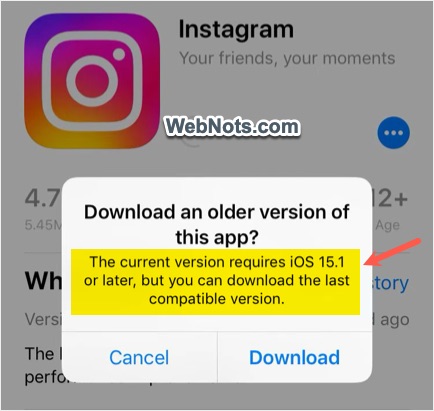
So, you can’t leave the software update issue and continue using older iOS version. Follow the above-mentioned steps to troubleshoot and fix the problem to get latest apps and features.