Apple primarily uses their own typeface called San Francisco for typography across devices. You may also find some apps use default system fonts on your iPhone. Unfortunately, it’s not possible to completely change or replace the system fonts used for menus, settings, and on other system apps. However, you have few alternate options to change fonts only on supported apps using iOS settings or replace the default keyboard using a third-party app.
1. Viewing and Installing Fonts in iOS
You can check all the fonts currently installed on your iPhone and download custom fonts without any third-party apps:
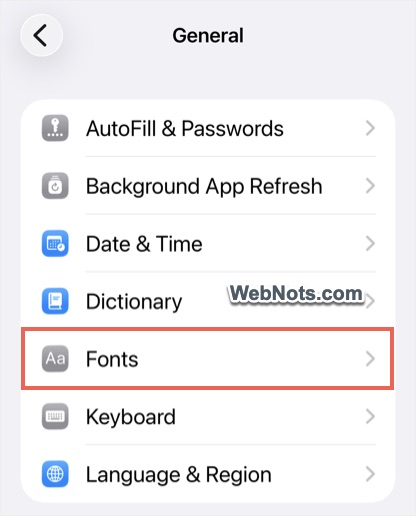
- Open Settings app and navigate to “General” section.
- Scroll down and tap on “Fonts” option.
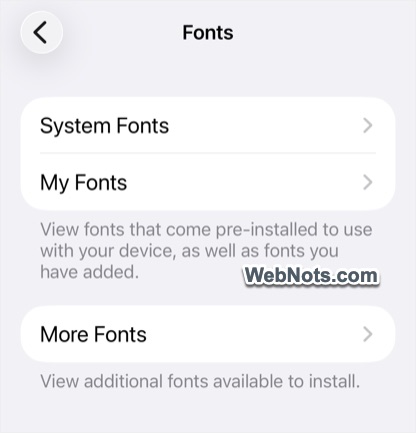
- You can view multiple fonts sections:
- System Fonts – these are the fonts preinstalled on iOS and you can’t delete them.
- My Fonts – these are custom fonts downloaded by you (or added by an app) and you can delete them.
- More Fonts – you can download and install one of the custom fonts available from here. It is possible to delete them from the list.
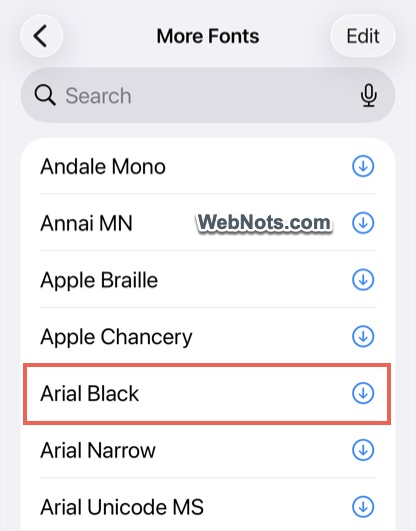
- Tap on the “More Fonts” and then tap the “Download” icon against the font that you want to install. Let’s download “Arial Black” font.
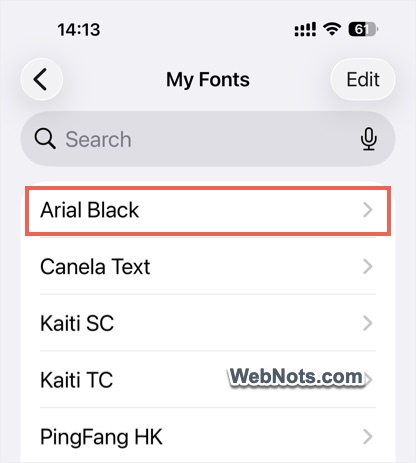
- Now, go to “My Fonts” section where you can find the downloaded font and tap on it.
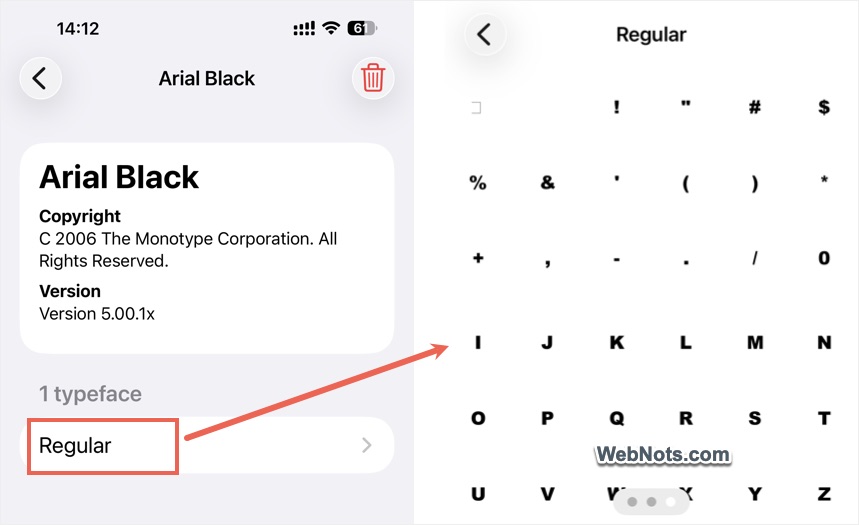
- You will see all available typefaces (like regular, bold, italic, etc.) and tap any of the typeface item to view the glyphs (Arial Black has only regular typeface).
- Simply tap on the trash icon to delete the downloaded font.
1.1. Using Custom Fonts in Supported Apps
Now that we have download Arial Black font and let’s see how to use it on Pages app.
- Find and open Pages app or you can install it free from the App Store.
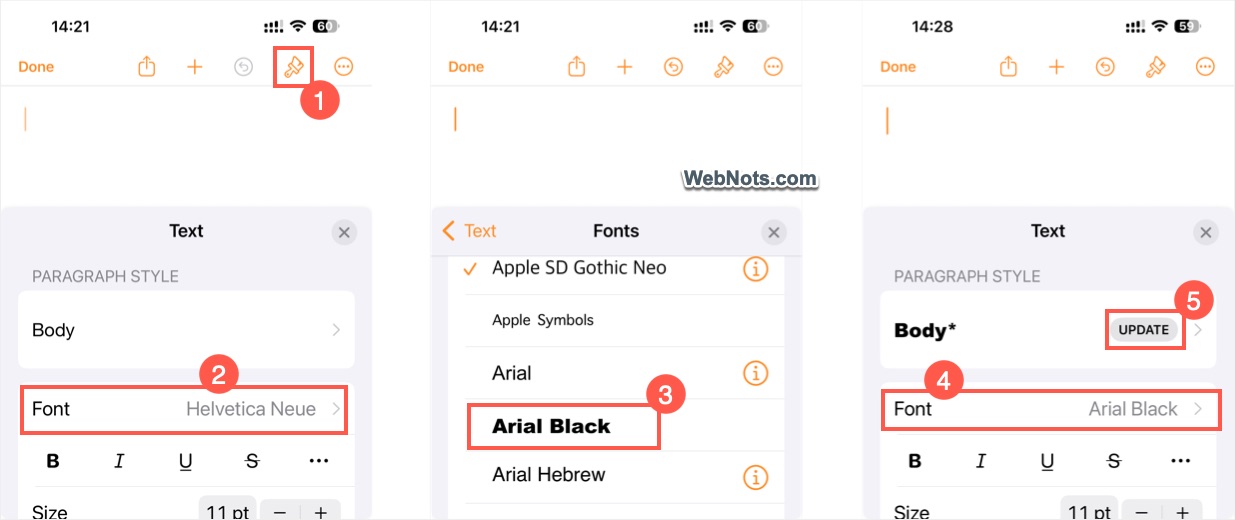
- Tap on the “Format” icon on top right corner.
- You will see the app uses “Helvetica Neue” as the default body font family and tap on it.
- Scroll down to the top in the fonts list to find the custom downloaded font (Arial Black in our case).
- Tap on the custom font to set it as the body font.
- Go back and tap “Update” against body style to use the custom font henceforth on the document body.
Instead of using custom fonts from iOS settings, you can also download fonts using any third-party apps. As mentioned, all downloaded fonts can be managed under “My Fonts” section and only available on supported apps.
2. Using Custom Keyboard Layout with Custom Fonts
Though the above method does not need any third-party app, it has two problems. First, it offers a limited number of custom fonts and you can’t find fancy fonts like ⓒⓘⓡⓒⓛⓔ or 🅂🅀🅄🄰🅁🄴. Second, it works only on few apps like Pages and Keynote and you can’t change font in apps like Messages, WhatsApp, or Instagram. In these cases, you need to replace the keyboard layout using a third-party app and use custom fancy font.
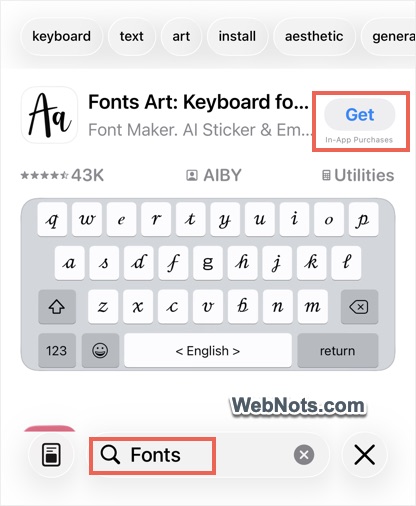
- Open App Store and search for “fonts”.
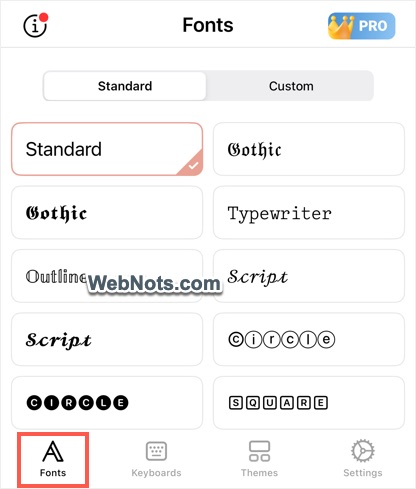
- You will see hundreds of apps and install the one you like. Let’s install Fonts Art app.
- Launch the app and check under “Fonts” tab to view the available items. Download any additional items and change the themes / layouts if needed.
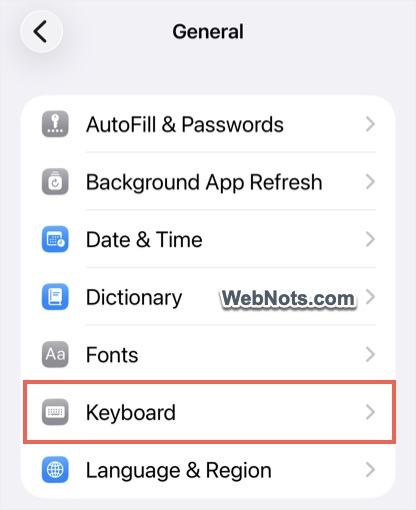
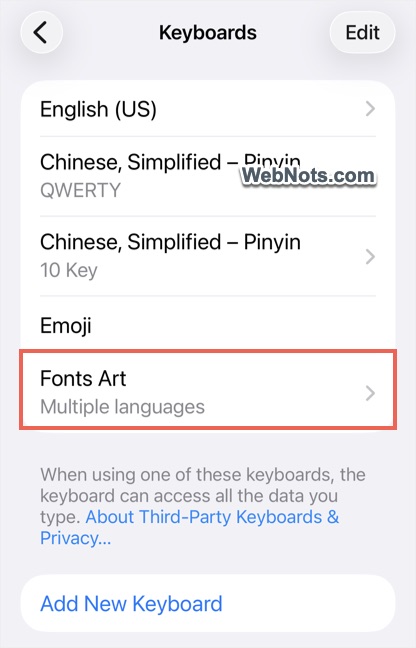
- Now, open iPhone Settings app and navigate to “General > Keyboards > Keyboards” section.
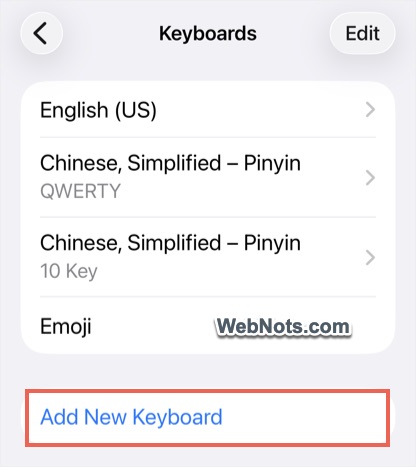
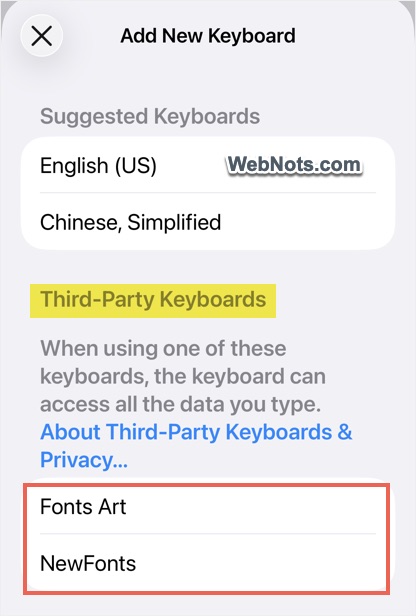
- Tap on “Add New Keyboard” and select the keyboard from “Third-Party Keyboards” list.
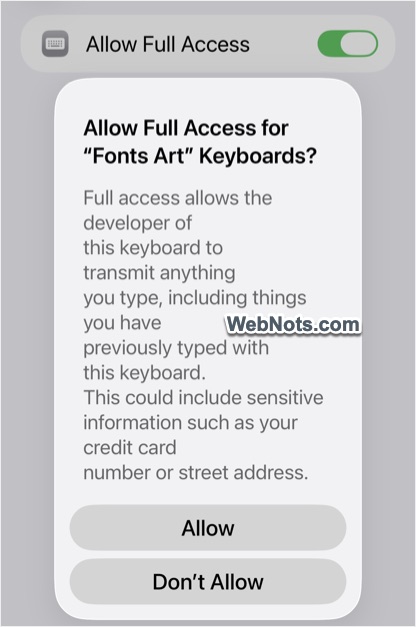
- Tap on the added keyboard and turn on “Allow Full Access” option. Confirm your action by tapping on “Allow” button on the pop-up.
Note: In this method, downloaded fonts will not appear in iOS fonts section. They will be shown only within the app and on the keyboard.
2.1. Using Custom Keyboard Layout in Apps
After allowing access, you will have an option to replace the default iOS keyboard layout in apps.
- Open any app that shows the keyboard like Messages or Instagram.
- Long press the globe icon and select the newly added custom keyboard (Fonts Art in our case).
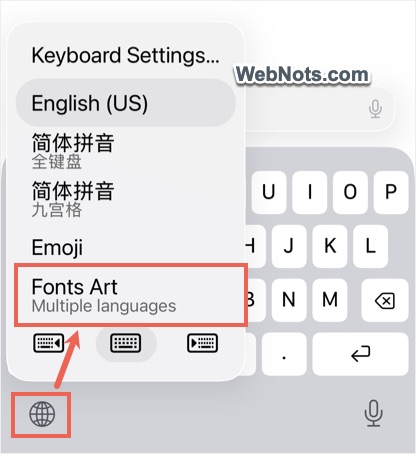
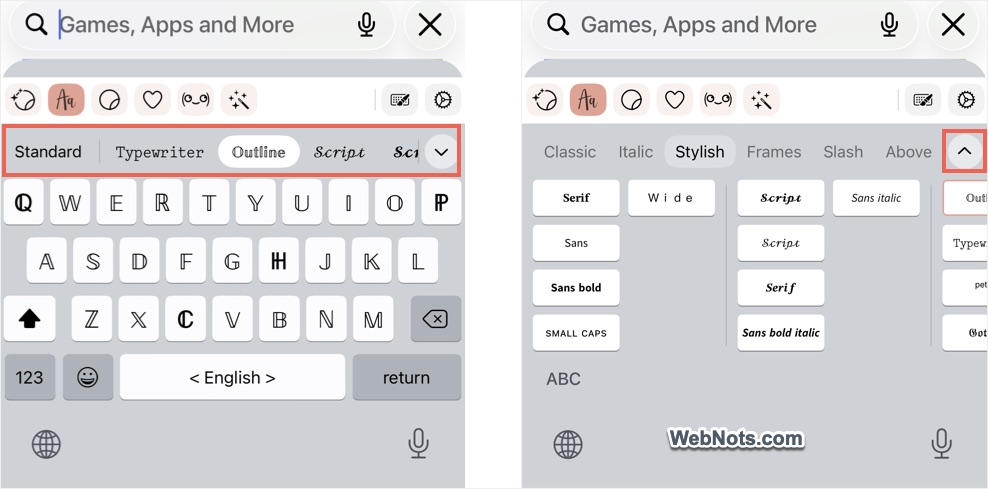
- This will change the layout and shows a list of new fonts on top of the keyboard.
- Tap the style you want and type with the selected fancy font style. Also, tap on the small arrow and select additional customization options.
Important Note: Third-party font apps often have full access to your keyboard, which means they can see everything you type. Many developers also collect personal data to serve advertisements. You will see a clear warning when providing a full access. While these apps may look fancy, it is important to understand the privacy risks. Entering sensitive information, such as banking passwords, can be unsafe when the keyboard has the ability to capture and transmit that data to the developer.
3. Additional Customization in iOS
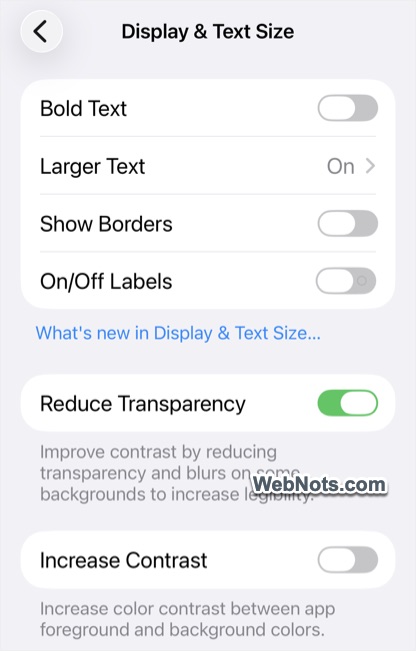
While iOS doesn’t allow changing the system font style, it does provide several accessibility options that can affect font’s appearance. You can access the below settings under “Accessibility > Display & Text Size” section in iPhone Settings app.
- Bold Text – This makes all system text thicker and easier to read.
- Larger Text – Turn this on and adjust the slider to increase text size across the system and compatible apps.
- Increase Contrast – Makes text stand out more against background colors.
- Smart Invert and Color Filters – Change text and color presentation, which can have a significant impact on readability and perceived font style.
Some apps also offer their own font customization options, independent of system settings, which you can make use to type comfortably.
Frequently Asked Questions
No, Apple does not allow users to change the system font across menus and system apps for security and consistency reasons.
Custom iOS fonts are available only in apps that support font selection. Most Apple productivity apps support this feature.
Always check privacy policies and App Store reviews before installing as the app can read whatever you type. If you like the font, use it only on social and documentation apps, and use default iOS keyboard on other apps.
Go to “Settings > General > Fonts > My Fonts” section and delete the items you don’t want to use. However, fonts used in keyboard replacement apps will not be shown there. In that case, you should simply delete the app or delete a particular font style within that app.