
After using Microsoft Office products for almost 30 years, few months before I’ve made the switch from the premium Microsoft 365 suite to the free version of WPS Office. I was using the Personal subscription ($99.99/year) with additional Copilot Pro license ($20/month). Don’t get me wrong; Microsoft 365 is a powerhouse, but for my purposes, WPS delivers everything I need without the ongoing subscription fees. Let me break down the key reasons behind my choice through a direct comparison, focusing on cost, features, interface, compatibility and performance. This isn’t about declaring one “better” in absolute terms, but rather why WPS fits my workflow perfectly while saving me money.
Comparison Summary: Free WPS Office vs. Premium Microsoft 365
Here’s a quick-reference table summarizing the main differences based on current offerings. I’ve included a notes column to explain my personal take.
| Aspect | Free WPS Office | Premium Microsoft 365 (Personal Plan) | My Notes: Why WPS Wins for Me |
|---|---|---|---|
| Number of Apps | One single app | Packaged apps | I don’t need or use most of the packaged apps like OneDrive, Teams or even Outlook. |
| Cost | Free core app with optional login and premium upgrades. | $99.99 yearly subscription for Personal plan | No recurring fees mean big savings. |
| Word Processing | Robust Writer app with templates, track changes, and real-time collaboration. | Word with dictation, translation, and advanced editing; real-time co-authoring. | WPS covers 95% of my daily needs like documentation for free; I rarely need collaboration or other extras. |
| Spreadsheets | Spreadsheets with formulas, PivotTables, and real-time collaboration. | Excel with advanced analytics, AI insights, and co-authoring. | Sufficient for my budgeting and data tasks; no need for premium analytics. |
| Presentations | Presentation tool with animations, transitions, and other features. | PowerPoint with AI design suggestions and advanced tools. | Gets the job done for my slides without overkill. |
| Built-in editor for converting, annotating, signing, and protecting PDFs. | Only basic PDF conversion possible. | Huge win, integrated PDF handling saves me time and money. | |
| Interface | Sleek, tabbed design for multi-document work. | No tabs, single document view with customizable ribbon. | Ribbon and menus are similar, especially for Word. |
| Compatibility | Full support for .docx, .xlsx, and .pptx. Works on Windows, Mac, Linux, iOS, Android. | Native MS format support; broad platform compatibility. | Compatible formats means no hassle in sharing. Linux support is a bonus. |
| Performance | Lightweight, fast-loading; great on older hardware with minimal resource use. | Feature-rich but can be resource-heavy on low-end devices. | Runs smoother on my setup, saving battery and time*. |
| Cloud Integration & Collaboration | Basic cloud sync and real-time editing; limited free storage but sufficient for personal use. | 1TB OneDrive; advanced collaboration via Teams and SharePoint. | Good enough for my solo/small group needs; less reliant on internet. |
| Security & Support | Local storage focus; community support and FAQs. | Prioritize OneDrive integration; premium support options. | Prefer local control for privacy; hasn’t let me down yet. |
| Additional Perks | Large templates and multi-language support. | AI Copilot, Defender security, integrated ecosystem (Outlook, OneNote). | Templates and extras add value without cost; MS perks feel enterprise-focused. |
* I primarily use Word on Mac, so WPS is the better option for Mac compared to Pages or Microsoft 365 apps.
Cost Savings: The Primary Reason I Switched
The most compelling argument for WPS Office is its price or lack thereof. Microsoft 365 operates on a subscription model, with plans starting at around $99.99 per year or $9.99 per month for the Personal edition. The package includes access to apps like Word, Excel, PowerPoint, Teams, Outlook, OneNote, and 1TB of OneDrive storage. These costs can add up, especially with Copilot – I was also using $20 per month Copilot Pro subscription.

In contrast, the free version of WPS Office provides a single core app with Writer (like Word), Spreadsheets (like Excel), Presentation (like PowerPoint), and even a PDF editor. WPS does offer a Premium upgrade for $10.83 per month for Pro + AI plan (price may vary). This unlocks extras like advanced PDF tools, AI features, and 20GB of cloud storage. The free tier is sufficient for most personal needs and to avoid the recurring expenses of Microsoft 365.

Important Note: The free WPS app is meant only for personal use and not for commercial or organizational needs. You should upgrade to premium plan for commercial uses.
Feature Parity: Getting the Essentials
Obviously, Microsoft 365 shines with Outlook, OneNote, AI powered designer (in PowerPoint), Editor (in Word), real-time co-authoring, and deep integrations with Teams. Also, you can use the apps simultaneously on five devices when logged in with a same account. The question is – do you really need Outlook and Teams when you actually use Gmail and Zoom? For example, I’ve never used Access, which is only available for PC.
For everyday tasks, WPS Office works remarkably well. The free version includes robust word processing with track changes and templates, spreadsheet functions like PivotTables and formulas, and presentation tools with animations and transitions. The best part is that it even has built-in PDF editor for editing and annotating without another app (like Acrobat).

You can also get AI features like smart writing assistants and spell check and synchronize documents across devices when logged in with an account. While Microsoft excels in complex data analysis or enterprise-level collaboration, WPS provides 90% of what I need for free, without the bloat of unnecessary advanced features that I rarely touch. Same goes for the presentations as well. WPS also offers large number of templates (you need an account to download most of them), which is useful to quickly create a document, slide, or presentation.

User Interface and Experience: Sleek and Intuitive
Frankly, both WPS and Microsoft offers similar interface with familiar ribbon and menus (or tabs). For example, WPS Writer features like font settings, styles, themes, layouts and table tools are similar to Microsoft Word features and you don’t feel any difficulties when switching. However, WPS has limited icons in the ribbon (compared to the cluttered ribbon on Word or Excel) and you have a tabbed interface.
With the modern tabbed interface, you can easily manage multiple documents without switching to separate apps. This tabbed design has made my workflow smoother, as I can jump between a report in Writer and data in Spreadsheets (or refer a PDF or PowerPoint) seamlessly. There’s no steep learning curve since it mimics Microsoft’s setup closely, but it’s tidier and less distracting, which is why I prefer it for daily use.

Compatibility and Cross-Platform Support: No Compromises
Both suites are cross-platform, but WPS edges out with native support for Linux in addition to Windows, Mac, iOS, and Android. As mentioned, I primarily use Mac and Microsoft Office products have limited features on Mac (compared to Windows). For example, there is no Word Options and the available Settings are very limited on macOS. So, WPS Office with its simplified approach is the best suited on Mac-like environment.
File compatibility is also not an issue as WPS handles Microsoft formats like .docx, .xlsx, and .pptx perfectly. This means you can easily share the documents without a second thought about compatibility (remember that the default Pages documents on Mac can’t be opened with Microsoft Word on Windows).
Performance: Lightweight and Efficient on Any Device
WPS Office is 2.63GB size on Mac App Store while the single Microsoft Word app is 2.65GB. You can imagine the size and system resources needed for simultaneously using Excel, PowerPoint, and Word together. This can easily slow down your computer, especially if you are using older hardware or when dealing with large files.
On other hand, the lightweight WPS Office can run smoothly without lag, which is crucial when you are multitasking or working on the go. This efficiency translates to better battery life on mobile devices, another subtle win over Microsoft’s more demanding apps. Also, repairing or reinstalling Microsoft Office apps is a pain as there are no possibilities to repair Word or Excel independently with the latest Microsoft 365 setup. You need to download the entire package again and reinstall it. With WPS, you can simply delete the app and re-download it from the respective App Store in few minutes.

Cloud Integration and Collaboration: Adequate for My Needs
With Microsoft 365, you can use the free 1TB OneDrive storage for managing document’s version history and real-time collaboration with others. This is ideal when you have a team editing a single document. WPS also offers 1GB free cloud storage for syncing and sharing documents or you can completely rely on your local storage (ideal for situations like iCloud). While it’s not as seamless for large teams, for my solo tasks or small work, it gets the job done without the subscription lock-in. Plus, I always have an option to go for WPS Pro for less than $36 per year to get 20GB cloud storage.
AI Features: Copilot Vs. WPS AI
Since the Personal plan comes with limited AI credits, I was having a separate Copilot license ($20 per month) for using AI features in Office apps. It allows to summarize Word documents, draft emails in Outlook, create presentation from raw file, and validate your Excel formulas. If not needed, you can simply disable Copilot icon from the ribbon.

However, WPS AI is integrated as top and context menu items with the app shows relevant features applicable based on the document. The features are similar to Copilot like summarizing, creating and adjusting the content. You can use the free trial and upgrade to WPS Pro (with AI) for $10.83 per month. This is a very low price compared to the Microsoft Office + Copilot subscriptions.

Concerns with WPS Office: Minor Hiccups
There are few points, which may hinder some users:
- The free version is restricted for personal use.
- Free app will show non-intuitive ads with an upgrade button on top right and through promotional pop-ups. You will also find promotional offers on the “Home” tab.
- Integrated AI menus may distract you and I don’t see an option to disable them.
- You may miss your popular add-ins for Microsoft Word and Excel on Windows as there are limited options for WPS Office. Anyway, you will not feel the difference on Mac as Microsoft does not offer add-ins on Mac.
- WPS Office is owned by Kingsoft Office Software, a subsidiary company of Kingsoft Corporation headquartered in Beijing, China. Donald Trump banned WPS Office (on 05th Jan 2021) due to security concern about the data collection and the ban was subsequently lifted by Joe Biden. Currently, their end user agreement says the product can’t be used in China Mainland. Though you can safely download the app from official App Stores, some users may not be comfortable with a product with this kind of history, especially when using their AI tools. However, this will be the same concern with Microsoft Office apps also (Copilot will send data to Microsoft for processing).
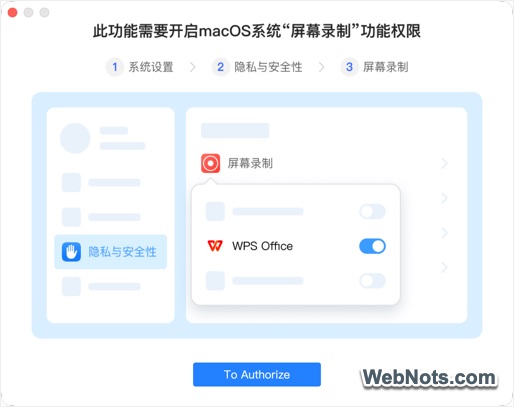
- Some elements show in Chinese, for example – screen grab shows the below pop-up in Chinese to allow access in macOS.
Conclusion: WPS Wins for Value and Simplicity
If you’re in a large enterprise needing top-tier collaboration or advanced analytics, Microsoft might be worth the splurge. But for individuals like me, or anyone prioritizing affordability and ease, WPS is an underrated gem that delivers without compromise. Give it a try, you might find yourself ditching the subscription too.


