Microsoft Sway is a web-based application that enables users to create visually appealing presentations, stories, reports, and newsletters without advanced design skills. Developed as part of Microsoft’s Office family, Sway offers a fresh take on storytelling by departing from traditional slide-based presentations and embracing a more dynamic, web-oriented canvas. Sway’s interface is simple, intuitive, and designed for both business and personal use, making it possible for anyone to craft compelling digital content.
At its core, Sway is about telling stories with ease. Unlike PowerPoint, which is structured around individual slides, Sway works with “cards” and a continuous flow of content, allowing for endless creativity and engaging layouts. Every Sway is hosted in the cloud, making sharing and collaboration seamless.
Key Features of Microsoft Sway
- No installation required; access Sway from any device with an internet connection.
- Content automatically adapts to different screen sizes – perfect for mobile, tablets, or desktops.
- Easily add text, images, videos, audio, charts, and more, simply by dragging and dropping.
- Pull content directly from OneDrive, SharePoint, and other Microsoft services.
- Embed YouTube videos, tweets, and other web content directly into your Sway.
- Sway’s intelligent engine suggests layouts, color palettes, and fonts that work harmoniously together.
- Share editing privileges with others for real-time co-creation.
- Share your Sway via link, email, or social media; you control privacy settings.
Getting Started with Sway: Step-by-Step Guide
To use Sway, all you need is a Microsoft account (Outlook, Hotmail, or an organizational Microsoft 365 account). Here’s how you can get started.
1. Access Microsoft Sway
- Go to the Sway website.
- Sign in with your Microsoft account credentials.
- Once logged in, you’ll be taken to the Sway dashboard to create or manage your presentations.

2. Creating a New Sway
There are multiple ways to create your Sway:
- Click on the “Create New” button from your dashboard. You’ll be presented with a blank canvas – a new Sway to begin your work.
- Alternatively, you can start from an existing document (Word, PowerPoint, or PDF) by clicking “Start from a document”. Sway will import the content and help you structure it.
- For automatic generation, select “Start from a topic” option, provide your topic and the outline will be created automatically from Wikipedia.
- Select one of the predesigned template and start editing the content to save your time.

3. Understanding the Sway Interface
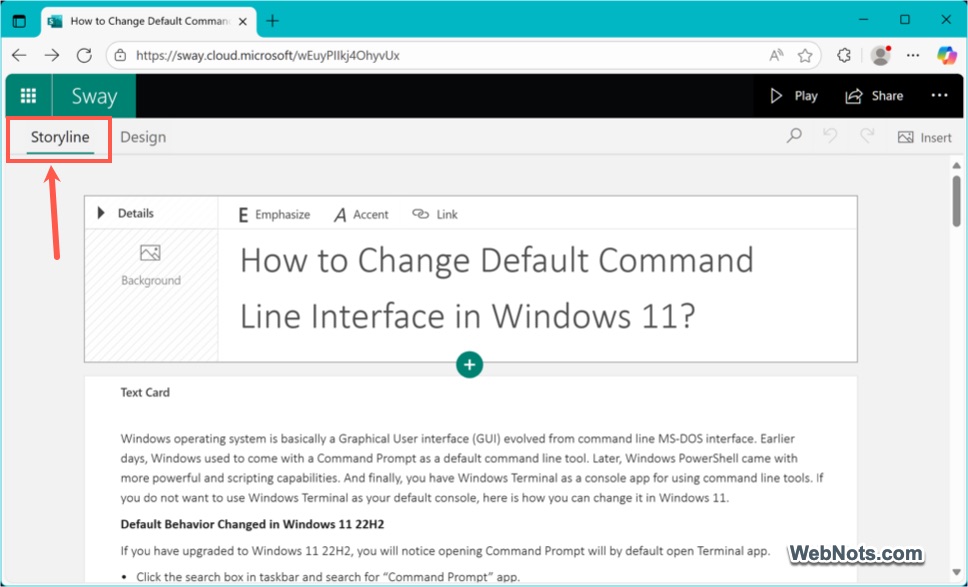
Sway’s interface is divided into two main sections:
- Storyline: This is where you add and organize your content. Each piece of content like heading, text, image, or video is a card.
- Design: Here, you see how your Sway will look to viewers. You can tweak styles, preview layouts, and adjust the way your story flows.

4. Adding and Organizing Content
- To add content, click the “+” icon in the Storyline. Choose the type of card you want like Heading, Text, Image, or Video.
- Drag and drop cards to rearrange the order as you see fit.
- Add multimedia by searching the built-in content sources: Sway can pull images from Bing, OneDrive, Flickr, YouTube, X (Twitter) and more.
- You can also upload files directly from your device.

5. Applying Design and Styles
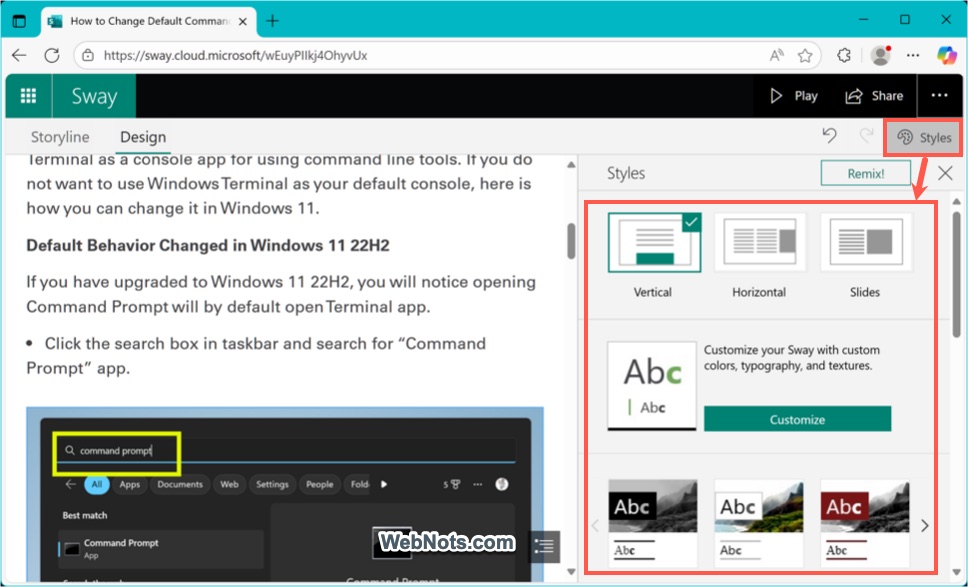
- Switch to the Design tab and click “Styles” option on top right corner to apply themes, color palettes, and fonts.
- Use the Remix button to let Sway suggest new looks for your story instantly.
- Customize further by adjusting emphasis, groupings, and background images for particular sections.

6. Previewing Your Sway
- Click the Play button at any time to preview your Sway as your audience will see it.
- Check the flow, transitions, and media presentation across different device layouts.

7. Sharing and Collaborating
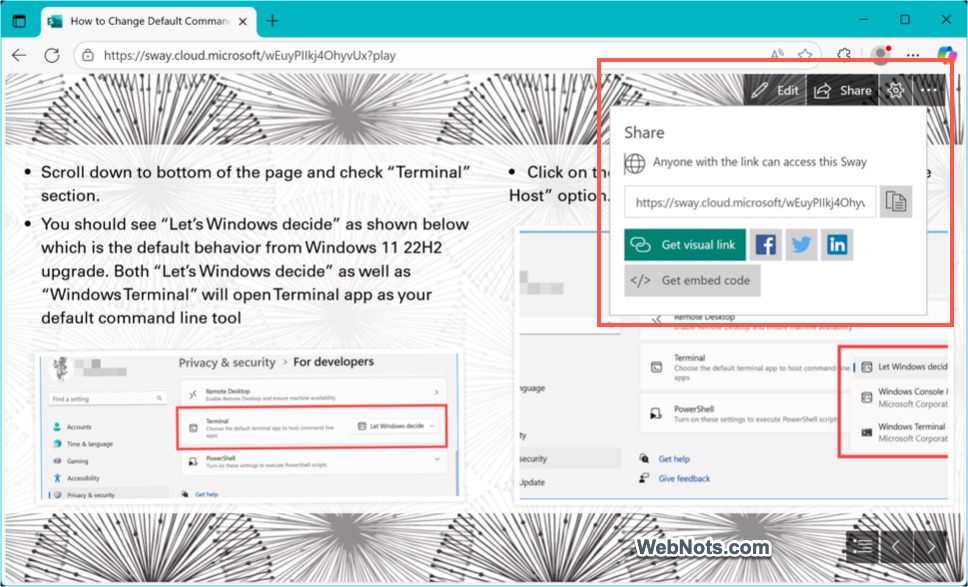
- Click the Share button to generate a link to your Sway.
- Set permissions: make it public, accessible within your organization, or restrict to specific people.
- Send the link via email, post on social media, or embed on websites.
- Invite others to co-author your Sway by granting editing access.
You can also save your Sway as a template for reusing or export to Word or PDF document.
What Can You Create with Microsoft Sway?
Sway’s versatility means it can be used across a wide range of scenarios, including:
- Presentations for work, school, or community groups.
- Personal portfolios and resumes.
- Newsletters and company announcements.
- Event recaps and invitations.
- Reports, proposals, and business summaries.
- Educational storytelling and lesson plans.
- Travel journals and family updates.
You can view the featured Sway items from Microsoft on your dashboard (at the bottom) to get an overview of what you can create. When you’re learning, experiment with grouping cards for side-by-side comparisons or photo stacks. Also, use interactive elements, like clickable images, to boost engagement.
Best Practices for Using Microsoft Sway
- Keep Content Concise: Sway excels with succinct, well-organized information. Use headings and group related items.
- Embrace Multimedia: Enhance engagement by mixing text with images, videos, and interactive elements.
- Use Design Suggestions: Trust Sway’s design engine to guide your layout, but don’t hesitate to experiment with your own creative choices.
- Leverage Templates: Sway offers templates for newsletters, reports, presentations, and more. These can save time and spark inspiration.
- Review on Different Devices: Since Sway is responsive, test your content on mobile, tablet, and desktop to ensure readability and appeal.
- Check Accessibility: Use Sway’s built-in accessibility checker to ensure your content is usable for all audiences.
Microsoft Sway vs. PowerPoint
Though Sway is also used for creating presentations, there are plenty of difference between Sway and PowerPoint.
| Aspect | PowerPoint | Sway |
|---|---|---|
| Presentation Structure | Uses slides | Fluid, card-based storyline |
| Design Automation | Requires more manual design | Design engine handles much of the layout work |
| Collaboration | Supports collaboration | Web-based approach simplifies sharing and co-authoring |
| Use Case | Ideal for in-person, detailed presentations | Perfect for digital storytelling and sharing online |
Conclusion
Microsoft Sway stands out as a modern solution for digital storytelling and presentation. Its intuitive, design-driven platform empowers users to craft engaging, media-rich content without the steep learning curve of traditional slide-based tools. Whether you are sharing a business report, teaching a classroom lesson, or chronicling a summer adventure, Sway provides the creative flexibility and ease of sharing that modern communication demands.