
Popular search engines use their proprietary web crawlers to crawl webpages. For example, Bing uses Bingbot, and Google uses Googlebot as its primary content crawler (both companies also use other bots for different purposes). Crawling is very important for website owners because it is the first step toward showing their pages in search results. Since Google is still the most important search engine, your website must be well optimized for its web crawler, Googlebot.
Optimizing a WordPress Site for Googlebot
Google continuously improves its algorithm and web crawling performance. This means you can no longer use outdated methods to fool a web crawler and gain higher SEO performance. However, you do not need to rack your brain or hire an SEO agency to optimize your WordPress site. There are some basic things you can do yourself as a website administrator to ensure your pages are properly crawled.
Note that Google Search Console provides limited control over Googlebot’s crawling rate. If Googlebot is putting excessive load on your server, you can request a reduction in the crawl rate. For normal websites, Google recommends allowing Googlebot to determine the appropriate crawl rate automatically.
Important Note: Successful crawling of pages does not guarantee that they will be indexed and shown in Google search results. It depends on various ranking factors, the algorithm, and the quality of your website. On the other hand, failing to crawl a page means the page cannot appear in search results at all.
1. Check Your XML Sitemap
A Sitemap is essential for Googlebot to quickly find pages on a website, and it is an important way to inform Google about newly published and updated content. WordPress comes with built-in XML Sitemap support, which you can access with the following URL (replace yoursite.com with your domain name):
https://www.yoursite.com/wp-Sitemap.xmlHowever, if you are using an SEO plugin, it will also generate a separate Sitemap. For example, the Yoast SEO plugin generates a Sitemap index, which you can access with the following URL:
https://www.yoursite.com/Sitemap_index.xml
The problem comes when there are multiple Sitemaps for your site. So, make sure your website has only a single Sitemap by redirecting the default WordPress Sitemap to the plugin-generated one and submitting the correct Sitemap in Google Search Console. Popular plugins like Yoast SEO and Rank Math do this by default without any configuration. However, check and confirm that the plugin you use also does this.
2. Split Your Sitemap into Smaller Sitemaps
Large Sitemaps are another problem for sites hosted on shared servers. For example, Yoast SEO automatically splits the Sitemap into files with 1,000 URLs, and there are no settings in the plugin to reduce this number. Most shared hosting companies do not support loading a Sitemap page with 1,000 URLs, preventing search engine crawlers from properly accessing the Sitemap’s content.
So, open your XML Sitemap in a browser and test whether you can access the page. Then submit it in Google Search Console and test whether Google can crawl it successfully. Otherwise, use plugins like Rank Math to split your Sitemap into files with 200 or 300 URLs to make crawling easier for Googlebot.

Note: If you are using a manual Sitemap (easier for smaller sites), make sure that your Sitemap does not contain dead 404 pages for content that has been changed or deleted. You can use a free broken link checker tool and set up 301 redirects to fix the errors.
3. Adjust Your robots.txt File
Whenever Googlebot crawls a page, robots.txt is the first file it looks for to confirm whether crawling of the page is allowed. So, it is important that you make use of the robots.txt file to optimize crawling. You can simply open the robots.txt file using the following URL in your browser and confirm there are no mistakes in the file.
https://www.yoursite.com/robots.txt- It is good to include your Sitemap link in the file so that search engine bots can find the location of your XML Sitemap, especially if it is stored outside the WordPress installation directory.
- You can also use the robots.txt file to block /wp-admin/ and other unnecessary folders so that Googlebot does not waste time crawling those pages.
- In addition, check if your plugins, developer, or hosting company mistakenly added disallow directives that block Googlebot from accessing a portion of your website. For example, a rule like the one below would prevent crawlers from accessing the entire site:
User-agent: *
Disallow: /
If you find any problem, use FTP or the File Manager app in your hosting account to modify and update the file (located in the root installation folder). It is also possible to edit the robots.txt file in WordPress using plugins like Yoast SEO. Be aware that after you correct a problem, it may take a couple of weeks or more before Googlebot recrawls your website and organic traffic starts to show up.

4. Use Simple URLs and Good Internal Links
Generally, a URL does not affect the SEO performance of an article. However, it is better to follow certain guidelines for effective crawling, as recommended by Google in its developer documentation:
- Avoid using query parameters in URLs (parameters appended to URLs with a ?). WordPress uses parameters in certain places like when searching (for example: https://www.yoursite.com/?search-keyword). You can block these generic URL patterns using the robots.txt file to avoid unnecessary crawling of these non-existent pages.
- Structure your pages with categories and tags and disable crawling of duplicate and thin archive pages. For example, you can disable crawling of tag archives, author archives, date archives, etc. (an SEO plugin can do this for you).
- When you have multilingual webpages, make sure to use the hreflang attribute to identify the correct language used on your page.
- For product and other duplicate pages, you can use a canonical meta tag. This will inform Googlebot which page to consider for indexing while ignoring other pages as duplicates.
- When launching your WordPress site, make sure to select the correct and simple URL structure from the “Settings > Permalinks” section in your WordPress admin panel. Remember that you should not change the URL structure of an existing site to avoid losing the ranking of existing pages.

In addition, you can make use of breadcrumb navigation to inform search engines and users about the exact location of your current page. This is useful when you have multiple categories covering different topics on the same site.
5. Use Structured Data Where It Makes Sense
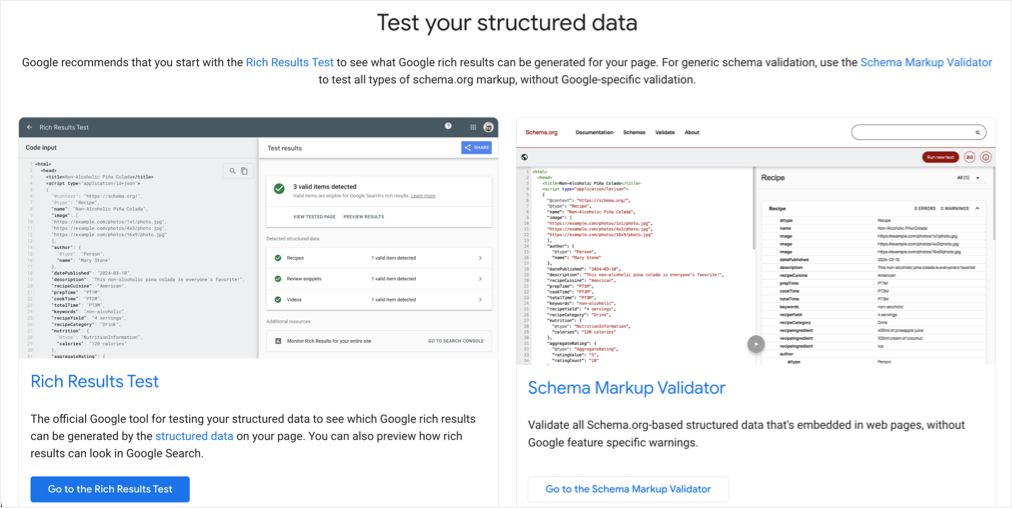
It is easier for Googlebot to understand your website’s context if you use structured data. For example, a recipe page can provide structured information about the recipe like its name, ingredients, author, and other supported properties. However, when using schema, make sure that it follows Google’s guidelines:
- For most WordPress sites, JSON-LD is a practical format for implementing structured data, although microdata and RDFa are also supported.
- Do not add structured data simply because a particular schema type exists; make sure the markup properly describes the content on the page.
- Many WordPress SEO plugins automatically generate basic structured data. Before installing another schema plugin, check what your existing plugins and theme already provide. Multiple plugins generating conflicting markup can create unnecessary problems.
- You can test eligible structured data with Google’s Rich Results Test and inspect how Google renders a page using the URL Inspection tool in Search Console.
Check out our article on optimizing WordPress site to show rich snippets in Google Search results.
6. Avoid Complex Script Elements
Using heavy JavaScript is one of the main reasons crawlers struggle to understand the content of a page. Some common examples include:
- Too many ads that are dynamically loaded or automatically refreshed.
- Page builder plugins like Elementor and WPBakery.
- Interactive elements like accordions, quizzes, and galleries.
Most WordPress users simply test their pages with Google PageSpeed Insights and try to fix issues related to Core Web Vitals. However, in most cases, these factors do not affect crawling as such, and you also cannot find JavaScript related crawling issues in Search Console because they do not return errors like 404. So, the only option is to manually test the page using the URL Inspection tool in Search Console for this purpose.
Since testing every page is difficult, here are some general guidelines to make sure scripts do not affect crawling:
- Reduce bloat on your site by using lightweight themes like Astra or GeneratePress and avoid using heavy page builder plugins.
- Remove unnecessary scripts and CSS from your site by using optimization plugins like Perfmatters.
- Defer and delay scripts and use caching plugins like WP Rocket. Use a CDN like Cloudflare to deliver your content from the location nearest to your visitors.
Final Remarks
Imagine a crawler seeing an empty landing page while you have beautiful, animated content for your visitors on that page. All your efforts will be in vain because Googlebot cannot even crawl your page. Although most of the methods explained above are technical tasks (like adjusting robots.txt, adding schema, and optimizing scripts) and you have no other option but to follow them. Unlike many other website building platforms, WordPress offers a complete solution to optimize your site for Googlebot and other search engines. So, make use of these features to have a successful online presence.
Beware of Fake Googlebot Requests: Not every visitor that identifies itself as “Googlebot” is actually Googlebot. Anyone can send a request with a Googlebot-like user-agent string, so you should not trust the user-agent alone. If you are suspicious about Googlebot traffic, check our article on how to verify Googlebot’s IP address and block fake requests to protect your server.




Excellent article! Googlebot crawling is an important part of SEO, and optimizing your WordPress site with a clear site structure can help search engines. Great practical tips for improving website visibility.