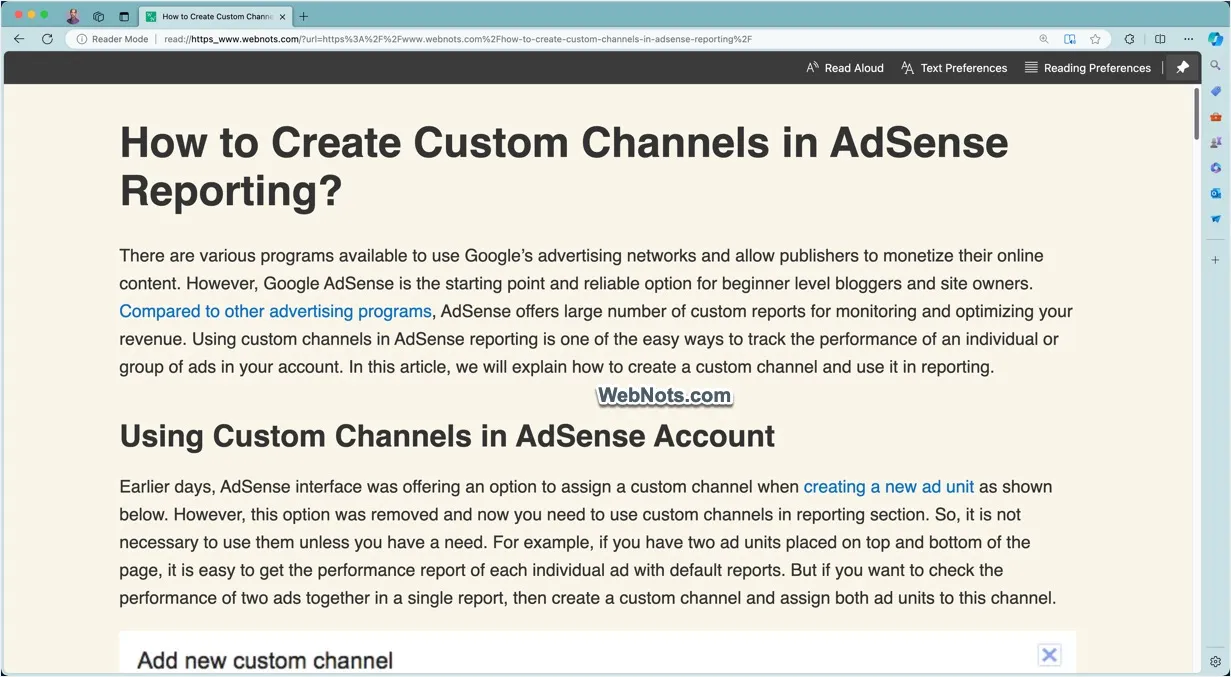
Nowadays, webpages have too many distractive elements along with the main content. Navigational menu items, header, footer, sidebar and advertisements are generally part of any single webpage. Though these elements help to navigate or make money for publishers, they can easily distract you from reading quietly. Chrome offers reader mode to turn off these unnecessary elements on a webpage and Edge browser offers an option called Immersive Reader mode for this purpose.
Edge Immersive Reader Mode
We don’t see an option to turn immersive reader mode on or off in Edge. This is turned on by default and you can toggle whenever needed. Note that Edge will show reader mode option only when the page has main readable content area. For example, you can’t use reader mode on home page of a website if it only shows collection of blog post articles.
Turn On Immersive Mode in Edge
- Open a webpage that has readable content.
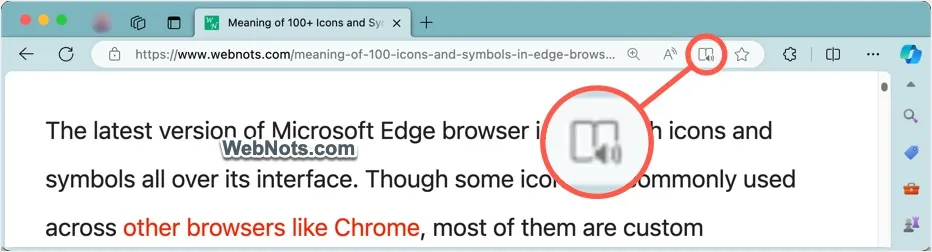
- Click the “Enter Immersive Reader” icon in address bar or simply press F9 key.
- The latest version of the Edge shows a “More actions” icon (three dots inside a circle) at the right end of the address bar. Click on that icon and select “Immersive reader” option.

- Edge will remove all advertisements and other distractive elements on the page and show you a top toolbar with options.

- Any time click on the “Exit Immersive Reader” icon in the address bar or press F9 key to quit the reader mode and load the page as normal.
Note: You can also open reader mode by simply adding read:// in front of any URL in the address bar and press enter key.
Immersive Reader Mode Options
There are four options available in the reader mode toolbar in Edge.
1. Read Aloud
Clicking on this will allow Edge to read the content for you. You can use this feature to listen to an article while doing other tasks or when you have vision problems in reading the page.

You can also use “Read Aloud” in Edge without going to Immersive Reader mode.
2. Text Preferences
This helps to customize the appearance of the page while using reader mode in Edge. You can change the text size, spacing, font, column width and theme from the dropdown.

3. Reading Preferences
Under this option, you can change the “Line Focus” and translate the entire page to another language. Line Focus allows you to focus on one, three or five lines instead of the entire page while using read aloud function.

If you want to translate the page, select your language from the dropdown and then turn on “Translate Entire Page” option.
4. Pin or Unpin Notification Bar
By default, the toolbar is pinned to the top and will be floating when you scroll the content. If this disturbs your experience, simply click “Unpin Toolbar” icon showing on the right corner to hide the toolbar. You can again reveal it by moving the cursor to the previous top toolbar position.
Below is how the normal and reader mode will look in Edge.