In recent years, Google has cluttered the search results page with plenty of distractive elements. AI Overview, 4 to 5 sponsored ads, People Also Ask box, featured snippet, People Also Search for box, YouTube videos, shopping images, knowledge panel and promoted Quora / Reddit forum posts are sufficient enough to annoy anyone. Among these, the lengthy AI Overview panel is particularly concerning (and also confusing) with misleading and unverified information. So, if you are frustrated with the wrong AI generated answers, here are some simple tricks to remove from the search results.
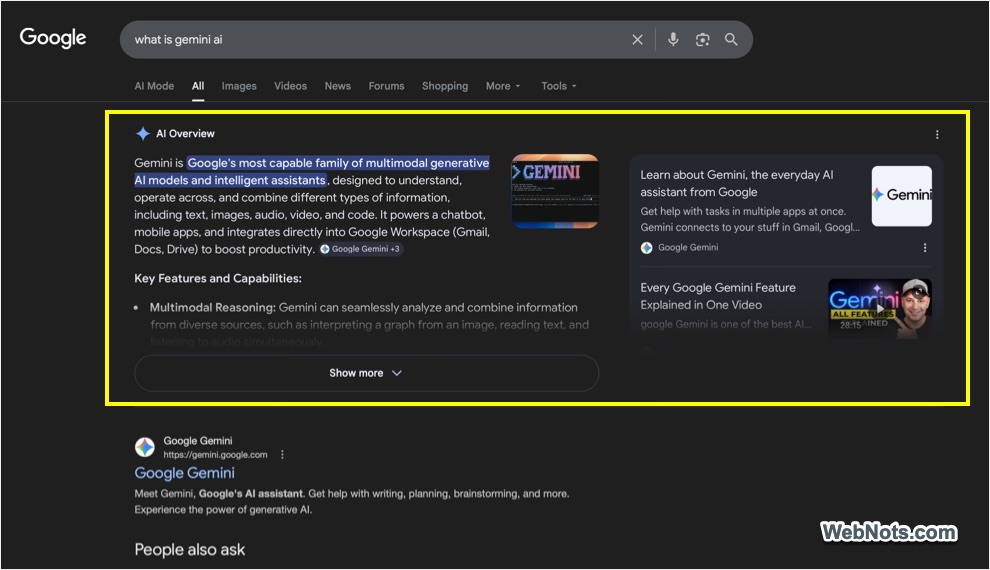
1. Use Web Filter to Remove AI Overviews
Google added a simple “Web” filter to the search results so that you can simply remove all distractions and view blue links like before. All you need is to simply select “Web” from the filter options when using Google search. Below are the screenshots from Google how the “Web” filter will look like.
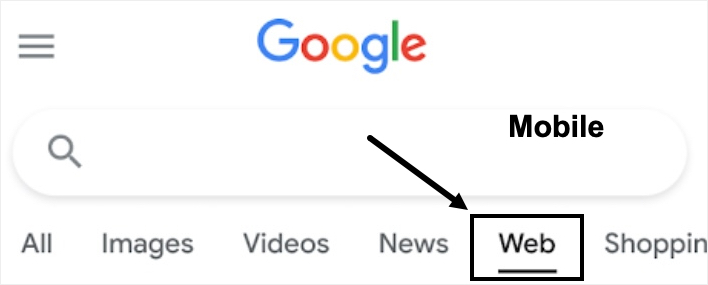
On mobile, it may visibly appear along with other filters.
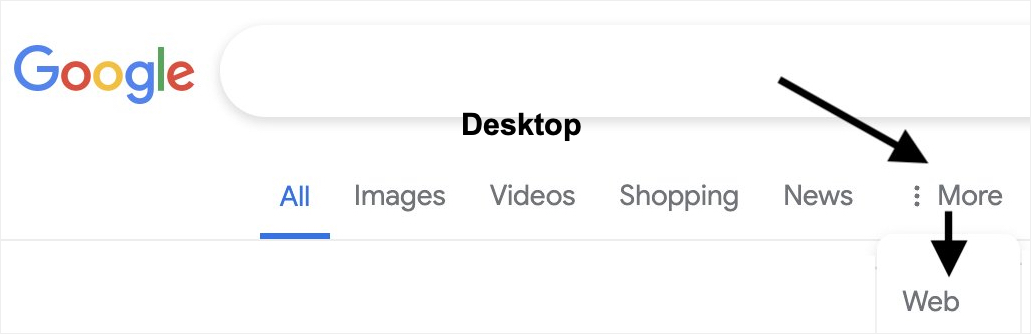
On desktop, the filters are shown dynamically and if you do not find, select it from “More” dropdown.
Below is the screenshot showing how the “Web” filter results appear. As you can see, “Web” filter removed all distractions including the AI Overview. However, the sponsored ads on above the fold area will be there, which is the obvious way for Google to make money.
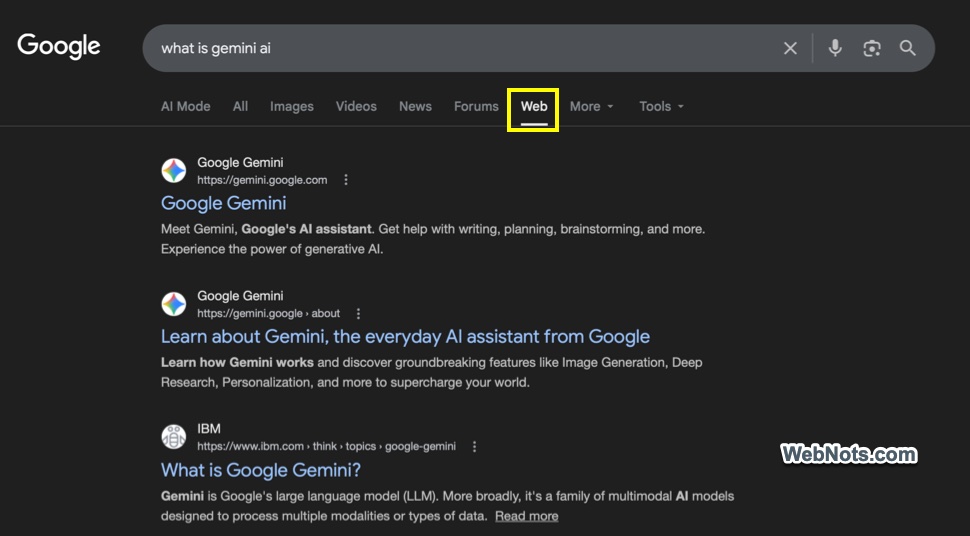
This is probably one of the useful features Google implemented in recent years (especially when everything is focused on AI). So, make sure to use this filter on mobile and desktop to have a neat search results page. Also, this is a way to move away from the AI hallucination and look for real human written content.
When this filter was introduced (on May 15, 2024), Danny Sullivan, then serving as Google’s Search Liaison, stated on Twitter that he was pleased with the feature, noting that it had been something he had requested since joining Google and was glad to see it finally launched.
2. Use -AI Operator
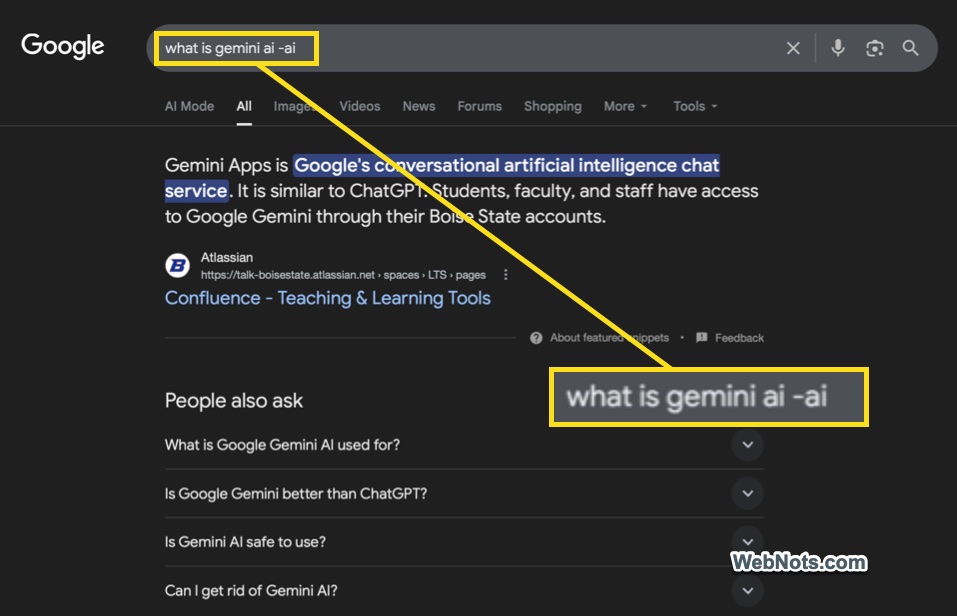
In one of our earlier articles, we explained the complete list of Google Search shortcuts, including the use of minus (-) operator to exclude specific terms from search results. To remove AI-related results, simply add -AI to your query, for example: what is Gemini -AI. While this prevents the AI Overview from appearing, other elements such as YouTube videos and the People Also Ask section may still be shown.
3. Use a Chrome Extension
If you primarily use Google Chrome for searching, you can install an extension to remove these distractions. The same extension can also be installed on the Edge browser.
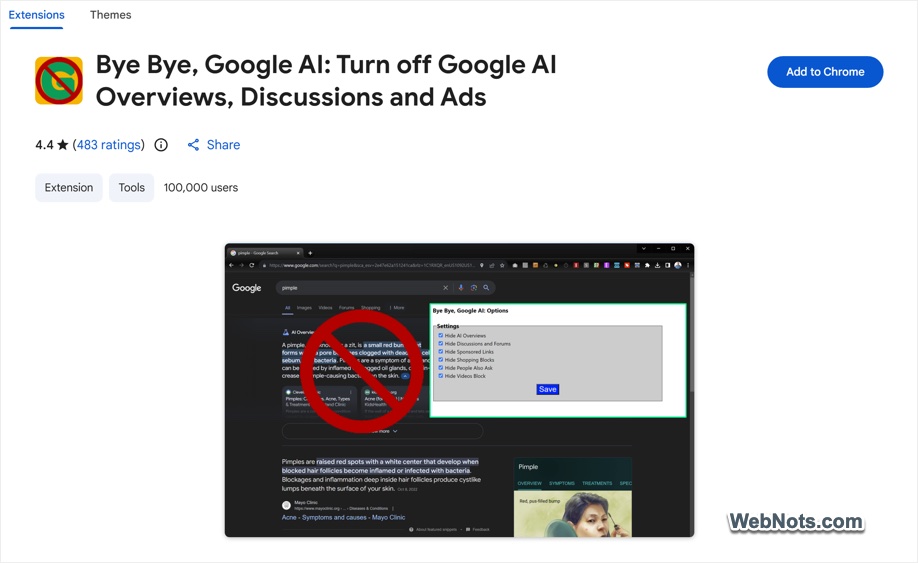
- Open “Bye Bye, Google AI” extension page in Chrome Web Store.
- Click the “Add to Chrome” button and install the extension on your browser.
- After installation, you will see an “Options” page. Otherwise, click the extension icon on the address bar and go to “Options”.
- Check the items you want to remove from Google Search and save your settings.
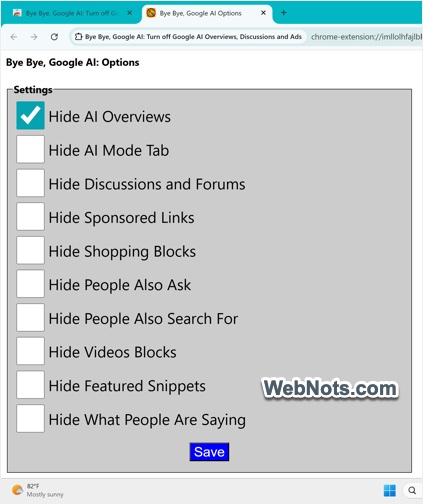
You can remove the following:
- AI Overviews
- AI Mode
- Discussions and Forums
- Sponsored Links
- Shopping Blocks
- People Also Ask panel
- People Also Search For panel
- YouTube and other videos
- Featured snippets
- What People Are Saying panel
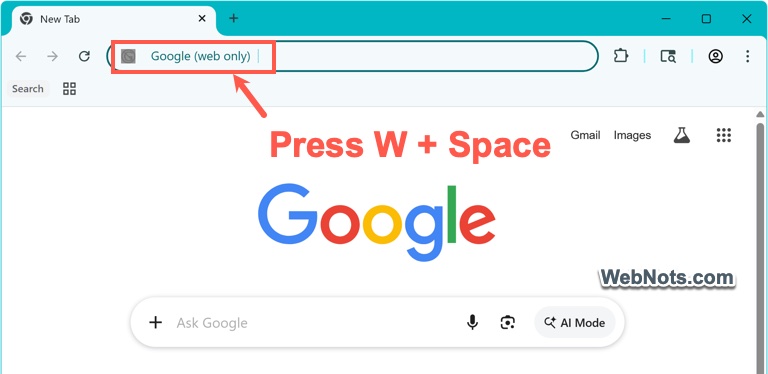
After installing the extension, you can use the “Web” filter by simply pressing W + Space keys.