360 Total Security is a legit security app package that offers various features like virus scanning, malware protection, junk file cleanup, etc. However, the free version is nothing but an adware pushing pop-up ads reluctantly and asking for you to upgrade. If you are frustrated, here is how to uninstall the app from your PC. Though the process is similar to uninstalling other Windows apps, the English interface may confuse you easily.
How it Got Installed?
If you have not manually downloaded and installed it on your PC, it might have been installed in one of the following ways:
- Through another app’s installer package like installing a free game will also install 360 Total Security free version.
- Sometimes, the retailer pre-install this type of apps on your PC. Since the app is from a Chinese company, this is the case if you have purchased a laptop from China.
So, don’t wonder how the app had come to your PC. The problem is that the free app will show sponsored ads (annoying colorful pop-ups) and you need to upgrade to premium version for removing those ads. You can uninstall it to get rid of the pop-ups and the in-built Windows Security app is more safer safer than this adware.

Quit Real-time Protection
The app will add to startup apps section and will launch automatically to protect on real-time. So, right-click the app icon showing on system tray section on taskbar and select “Exit”. Confirm the prompt to quit the app running in background.

Uninstall 360 Total Security from Settings
- Press “Win + I” keys and open Windows Settings app.
- Navigate to “Apps > Installed apps” section.
- Find 360 Total Security app, which should be in the top when the list is sorted with the name.
- Click the three dots icon and select “Uninstall” option.
- Confirm your action by clicking on the “Uninstall” option again.

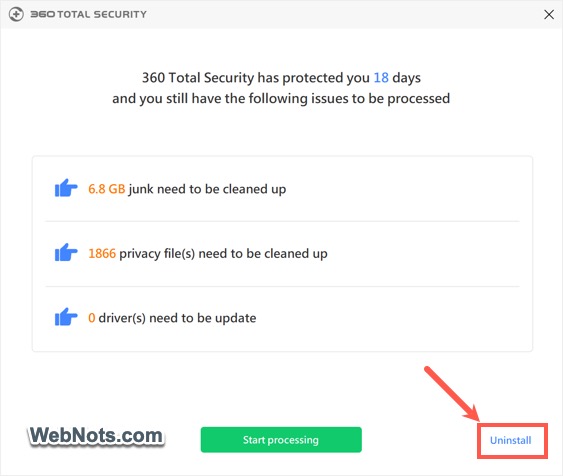
- Unlike other apps, 360 Total Security will not allow you to uninstall easily. It will show you a list of items having issues and prompt you to process them. Simply ignore that and click on the tiny “Uninstall” link.
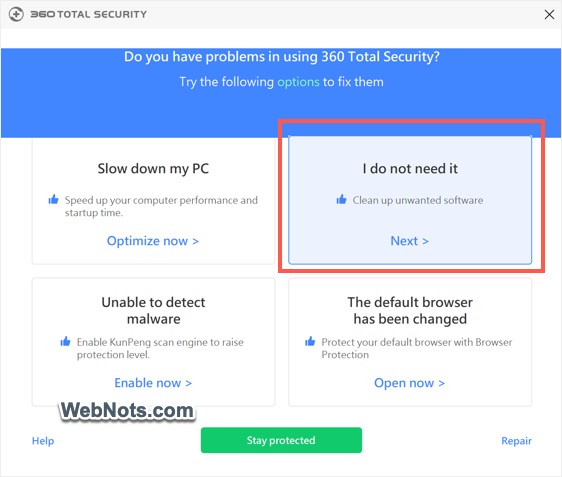
- Again, you will be shown with the list of options to fix the issue without any clue about uninstalling the app. This time you will see a tiny “Repair” link which will help to update or repair the app. The shown options will also shuffle every time when you come to this screen adding more confusion. Click on the “Next” link under “I do not need it (Clean up unwanted software)” box.
- You will see options to Temporary Exit, Repair & Re-Install and Uninstall. Select “Uninstall” option and click “Uninstall” button.

- On the next screen, select “Delete Files in Quarantine” and “Delete Game Booster Settings” options and click “Next”.

- Finally, you will see the typical uninstall progress bar starts running.
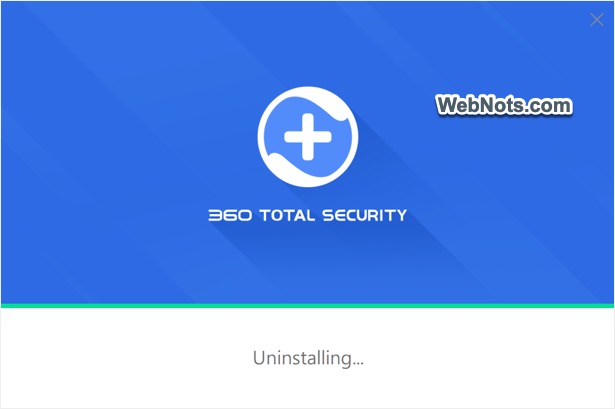
- Click the “Finish” button to completely delete 360 Total Security app from your PC.

- You will be taken to their website for filling up a form and simply close that page.
Uninstalling Through Control Panel
If you are not able to uninstall the app through Settings, then follow this method. This will essentially launch the same uninstaller as explained above.
- Click on the Start menu, type “Control Panel” and press enter to open the Control Panel app.
- Change the “View by” option to “Large icons” and click “Programs and Features” option.
- In the list of installed programs, find and select “360 Total Security”.
- Now, click on the “Uninstall/Change” button at the top of the list.
- This will open the uninstaller and follow the instructions to delete the app from your computer.

Using App’s Uninstaller Package
It is also possible to manually open the uninstaller package from File Explorer.
- Press “Win + E” to open File Explorer app.
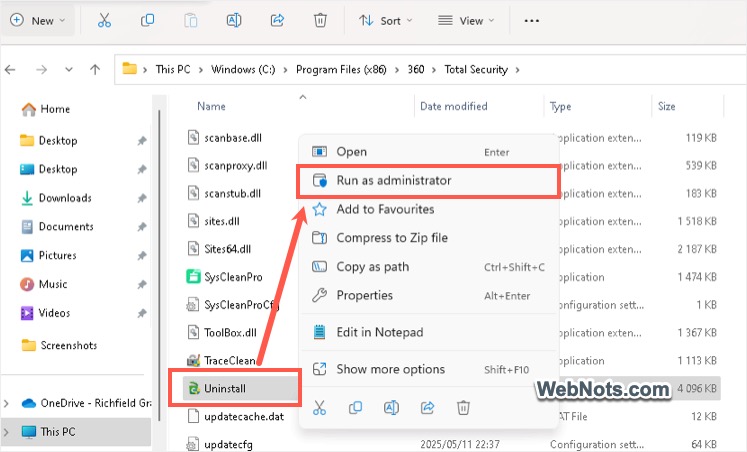
- Navigate “C:\Program Files (x86)\360\Total Security\” folder.
- Find “Uninstall” file with the type as “Application”.
- Right-click on it and select “Run as administrator” option.
- This will open the uninstaller and follow the instructions to delete the app.
You can also delete any residual files left over in this folder to completely remove the app.
Final Notes
As mentioned, 360 Total Security isn’t a harmful app. However, the free version is an adware and the installation process is shady when you try to remove it. If you follow the steps above in order, the app should be deleted completely, including any residual files that try to stick around.