In recent days, Microsoft is playing around with the Start menu in Windows 11 by moving the placement and adding additional options. The latest inclusion is to split the Start menu into two sections. The primary section shows normal content like apps, search box, recommendations, user account, etc. The newly added split section shows an option to connect your smartphone for call pickups, notification and message monitoring. If you don’t like the split section, here is how to remove it from Windows 11 Start menu.
Phone Link and Split Start Menu
As you can see in the below screenshot, the new Start menu shows an option to select Android or iPhone for connecting with your Windows PC.

This is an already existing function using the Phone Link app and Microsoft simply integrated that feature directly in Start menu. You can also search and open the Phone Link app which will show similar screen for connecting your phone. You can simply scan the QR code and provide necessary permissions for connecting your iPhone or Android smartphone. Once connected, the split section allows you to manage your smartphone’s calls, messages and notifications right from the Start menu.

When you connect your phone, the Link to Windows app will be installed on it automatically. The Phone Link app on your Windows PC will then use Bluetooth to communicate with your device through the Link to Windows app.
How to Remove Split Start Menu?
Follow the below steps, if you don’t want to manage your phone through Start menu.
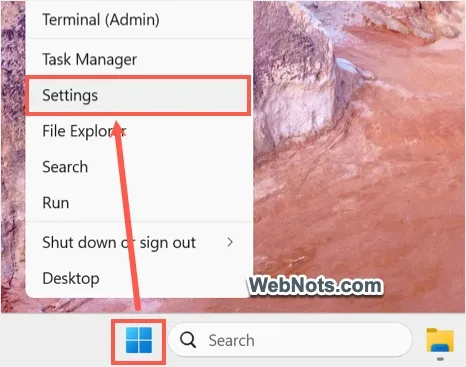
- Right-click on the Start menu icon and select “Settings” menu to open the Settings app.
- Navigate to “Personalization” section and click on “Start” option.

- Scroll down below Layout section and turn off “Show mobile device in Start” option.
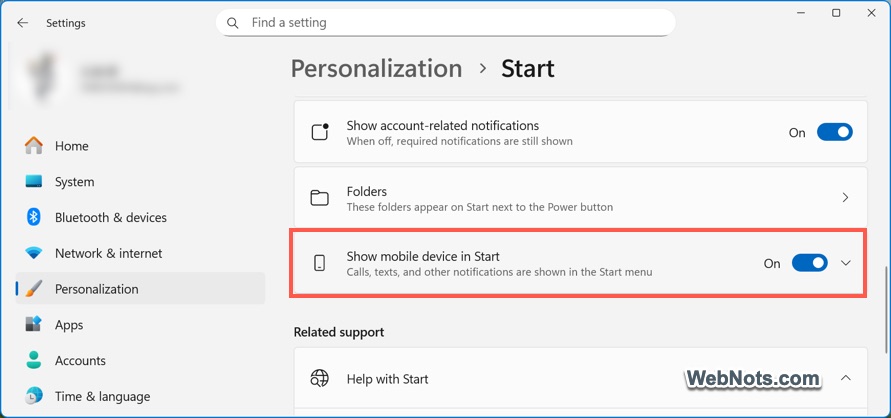
- This will disable the split section in Start menu and only show the primary section.
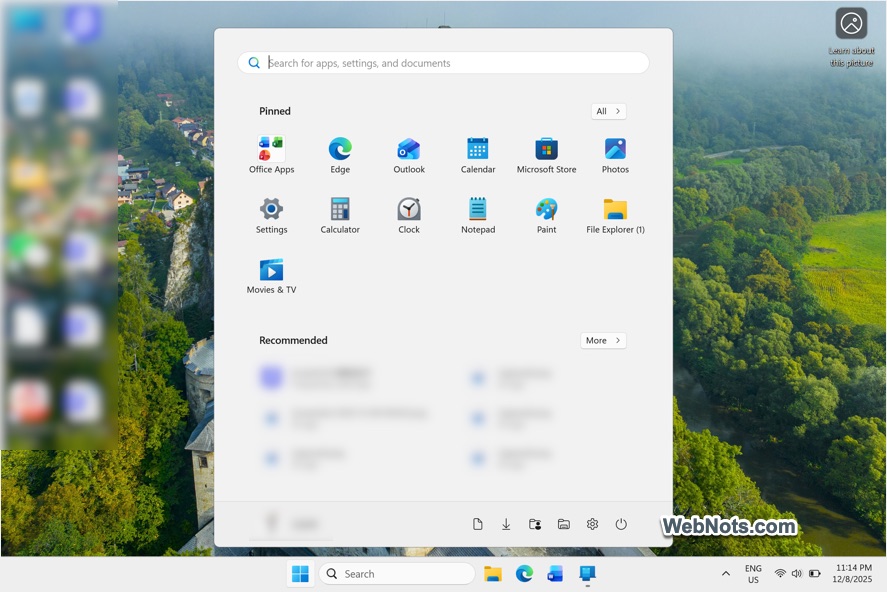
You can still continue to use Phone Link app without showing any details in split Start menu section. On the same settings page, you can disable recommendations, recent apps, websites from browsing history, etc. to remove the clutter from Start menu layout.