Downloading archive files, whether in ZIP or other compressed formats, is something most of us do regularly. Browsers like Chrome and Edge typically save the compressed archive file as-is, without extracting its contents. Safari on Mac, however, may automatically unarchive ZIP and other compressed files after download, which can lead to confusion. Good thing is that a single setting adjustment is all it takes to stop this behavior.
Auto-Extracting ZIP Files: What Happens
- Let’s download a ZIP file in Safari.
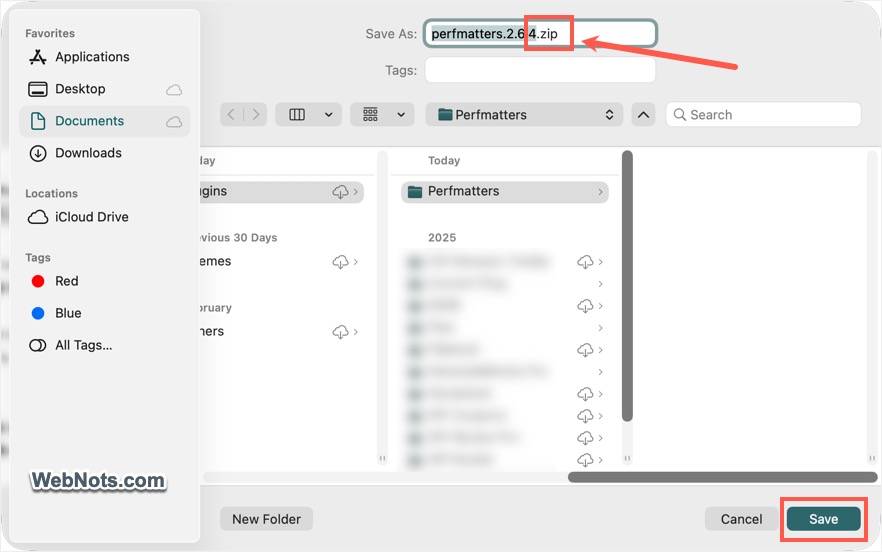
- If Safari asks for a save location, make sure the file remains in its original archive format (like .zip) before saving.
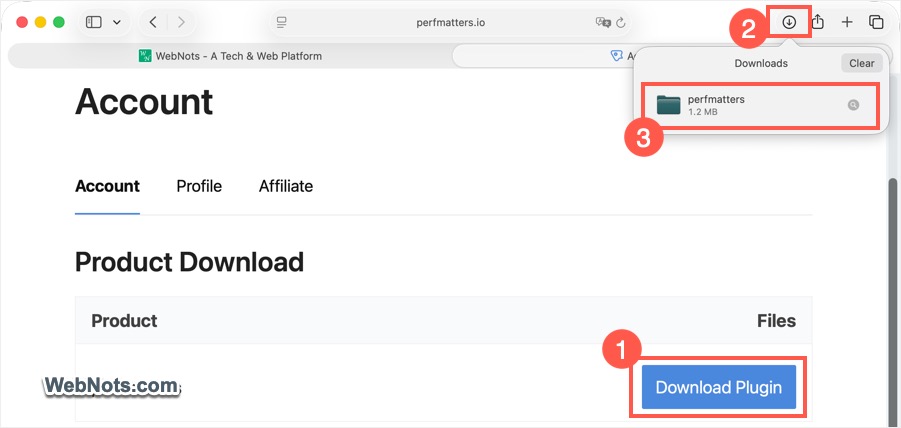
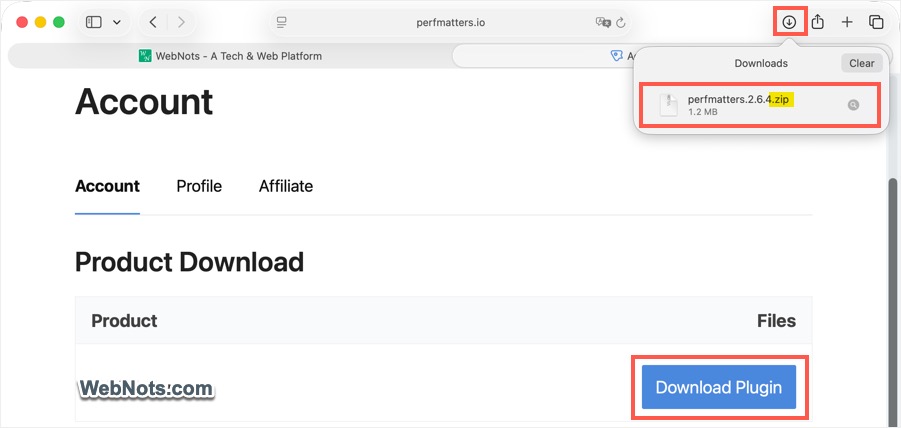
- After downloading, click the “Show downloads” icon (a downward arrow inside a circle, located in the top-right corner of the Safari window).
- As you can see that Safari displays the extracted folder name, not the original ZIP archive filename.
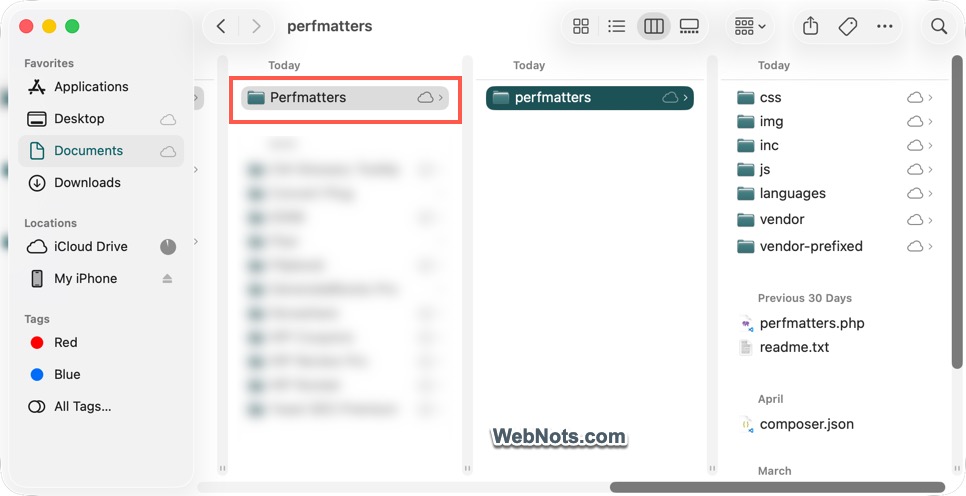
- Navigate to the downloaded location, and you’ll find the extracted folder with no ZIP archive in sight.
How Safari Handles the Extraction?
- Safari downloads the ZIP file.
- If the file is deemed safe, it automatically extracts the contents to the chosen save location.
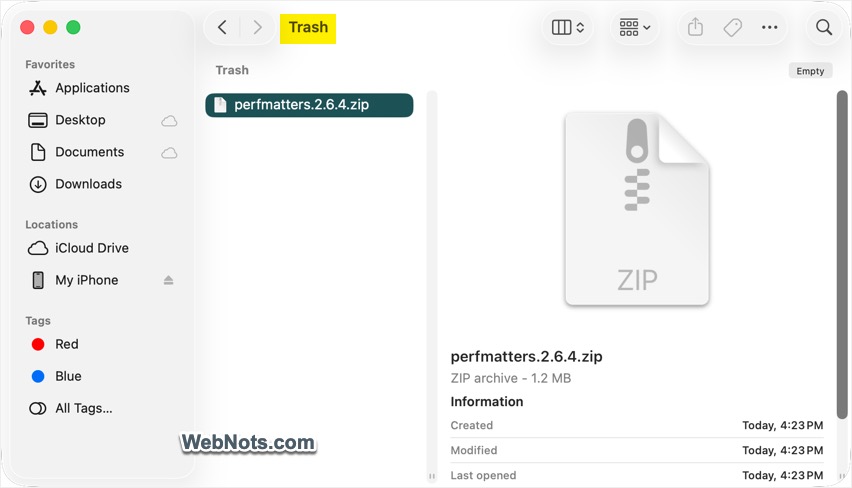
- Safari then deletes the original ZIP file and moves it to the Trash.
- To recover the deleted ZIP, open the Trash, Control‑click (or right‑click) the file, and select “Put Back”. This restores the ZIP to its original download location.
How to Stop Safari from Automatically Opening Files?
This auto‑extraction behavior isn’t limited to ZIP archives. Safari can also automatically open documents, movies, and audio files with their default associated applications after download. Here’s how to disable the feature entirely:
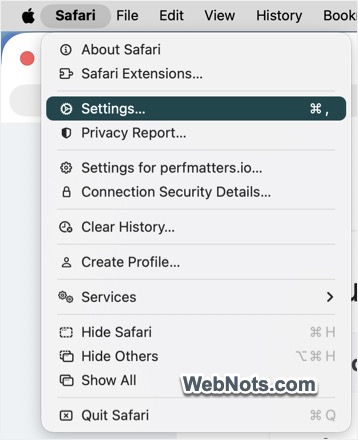
- Open Safari and press Command + , (comma), or go to the “Safari > Settings…” menu.
- Make sure you are in the “General” tab.
- Uncheck the “Open “safe” files after downloading” option.
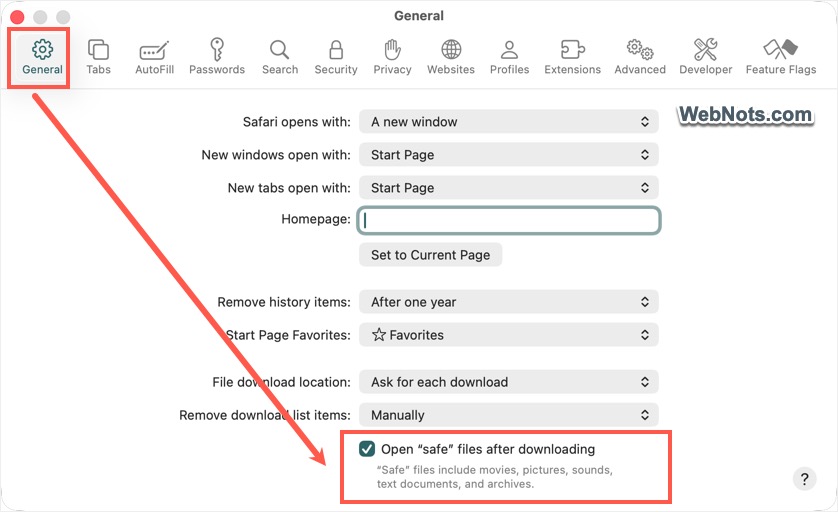
After this change, Safari will no longer extract archives or automatically open any other file types after download. You will see the ZIP file name in your downloads list instead of the extracted folder name.
Why Should You Disable Auto‑Opening?
While this feature may seem convenient, it can cause several issues:
- Deleted archives still occupy storage space, even after being moved to the Trash.
- The feature works fine for small ZIPs, but if you download a large, compressed database file (like a GZip file in .sql.gz format), Safari will attempt to extract it to .sql. This can fail entirely or corrupt the database.
- Automatically opening images or playing video and audio files may pose privacy risks, as it can expose content you didn’t intend to view or play immediately.
By turning off this setting, you regain full control over your downloads keeping archives intact and avoiding unexpected file openings.