IIn our earlier article, we have explained how to create a new AdSense ad unit and style it for your site’s layout. However, it is common practice among site owners to change the existing AdSense unit codes to experiment the pattern in revenue changes. Google also recommends testing various ad units suitable for your content to find out the best match. If you wonder how it works, here is how to edit an existing AdSense ad unit in your AdSense account.
Reasons for Editing an Ad Unit
There are the two important reasons for webmasters to update their existing ad units.
- Change the ad style customization to use different fonts and colors.
- Change the ad size from fixed to responsive or vice versa.
Let’s take an example scenario that you have a website with 200+ pages. You have pasted a fixed display ad code in the above fold area of each page of your site. After some time, you realized that you are losing revenue because of fixed ad size and want to change the ad size to responsive mode. It is a cumbersome process to create a new responsive ad unit and replace existing ad codes on all 200+ pages. Google offers an auto update mechanism where you can just edit your existing ad to change the size without the necessity of replacing ad codes in all 200+ pages. Once you modify and save the ad unit within your AdSense account, all existing ad units will be auto updated and start displaying responsive ads on all your pages.
Editing AdSense Ad Unit
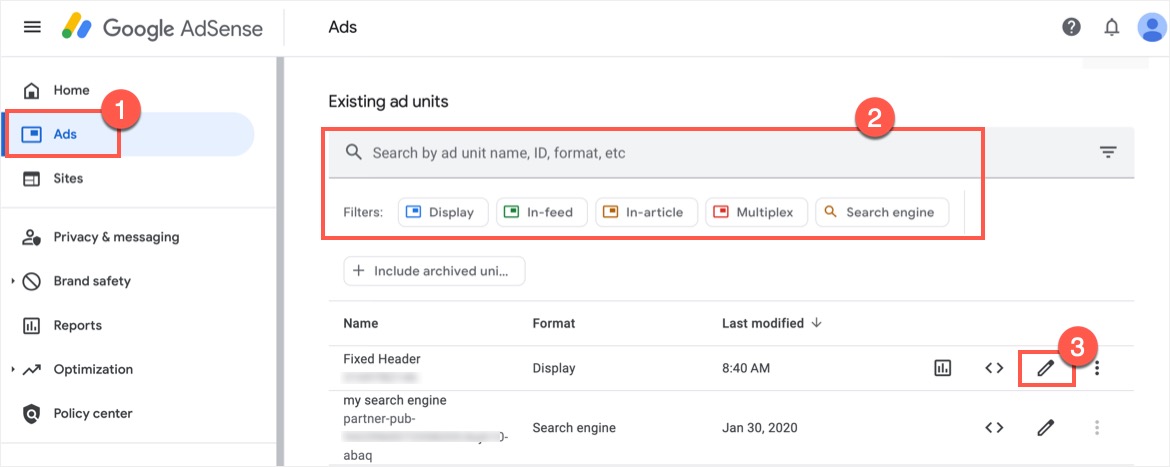
- Login to your AdSense account and go to “Ads” tab.
- Navigate to “By ad units” section and scroll down to view “Existing ad units” section.
- If you have too many units, use the filters to find the relevant type or type the name in search box to filter the unit quickly.
- Click on the “Edit” pencil icon showing against the name of your ad unit.
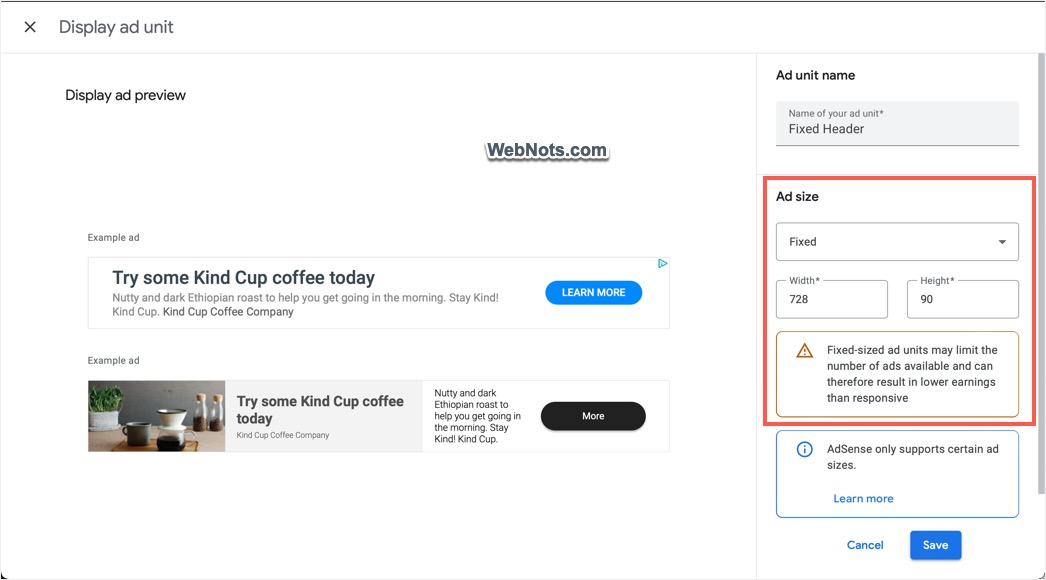
- This will open the same screen as ad creation setup where you can change the ad size or style.
- Click on the “Save” button after making changes.
- All your existing ad units on the site will be auto updated based on your new settings.
Editing Display Ads Vs Other Formats
Display ads have only “Ad Size” option and you can switch from fixed size to responsive or vice versa. Simply, select the “Ad Size” dropdown and choose different option.
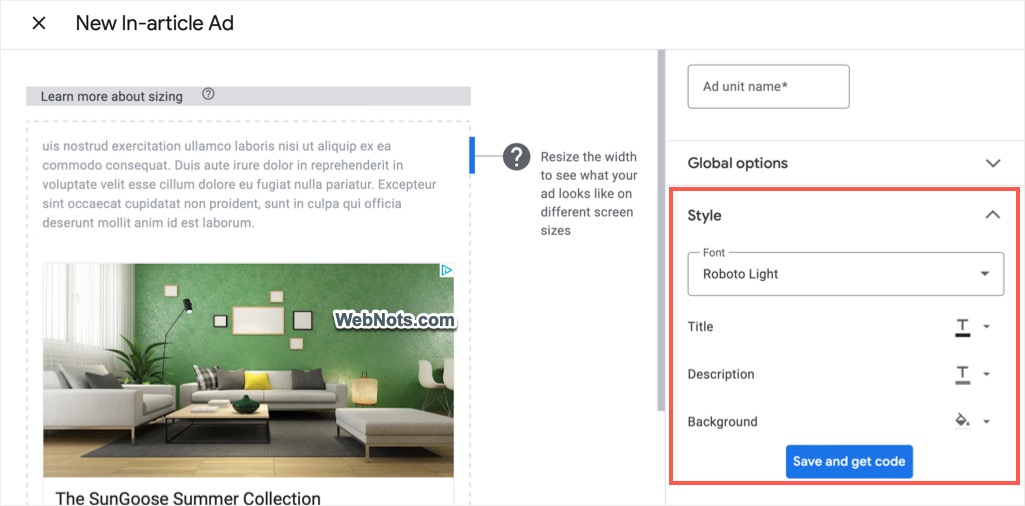
In-feed, In-article and Multiplex ad formats have additional styling options. So, you can modify them to change the color, font and background as per the applicable parameters available with the ad format.
Points to Remember
Remember the following points when editing your AdSense ad units:
- It typically takes about 20 minutes for all Google servers to be informed of the changes and reflect it on your pages.
- You can’t delete the ads but hide it from the list by clicking on the three vertical dots icon and selecting “Archive” option under “Existing ad units” section.
- Click the “See report” icon” showing against any of your ad unit to get the revenue report for that ad unit. You can customize the report with various parameters and schedule it to receive in email.
- Click the “Get code” icon to copy the ad unit code any time when needed without going to the edit screen.
- It is not possible to switch the ad format once created. For example, you can’t change the display ad unit to a multiplex ad unit.