
Each device has its own name used for identifying it in the network. Apple iPhone comes with a default name as “iPhone” which will appear when someone searching for you in AirDrop. The name also appears when you connect the iPhone to your Mac or other devices. When you have multiple people in a group or meeting, it makes sense to assign a unique name for you iPhone so that it is easy for others to find you. And here is how you can do that easily.
Change Name of Your iPhone
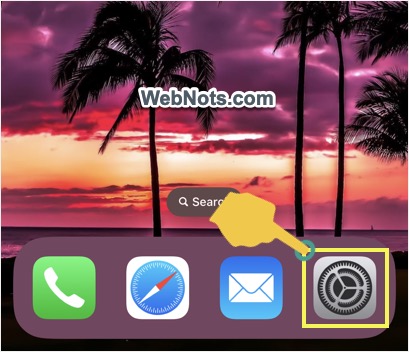
- Tap on Settings app on your iPhone’s home screen.
- Go to “General” section.

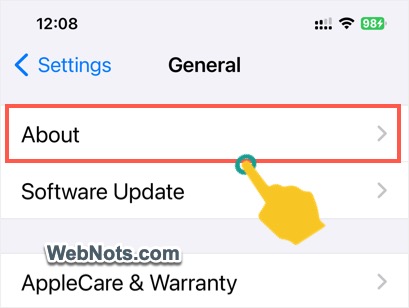
- Tap on “About” option showing as a first item in the list.
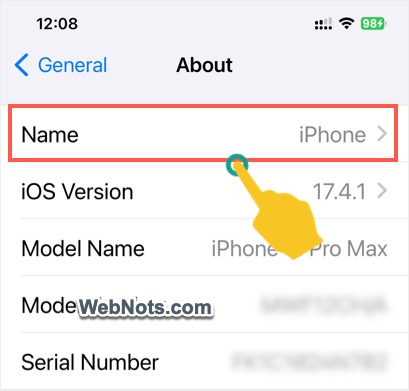
- You can find the current iPhone’s name against “Name” label and tap on it.
- Delete the existing name and replace it with your desired name.
- Tap “done” on your keyboard to finish the change.

Viewing Name in Other Devices
Whenever you connect iPhone to Mac, the name will be shown under “Locations” heading in Finder’s sidebar.
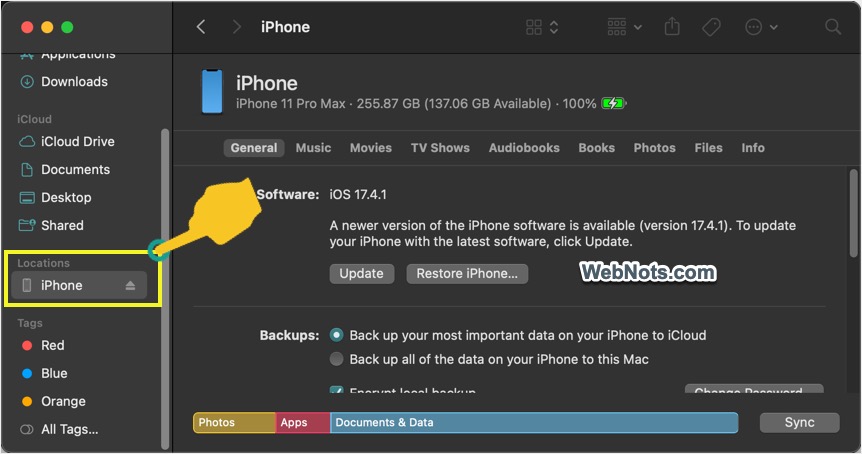
Similarly, iPhone’s name will appear in Find My and other apps for locating your device.

Also, anyone nearby can find your iPhone’s name in the network like AirDrop for sharing files.
Note: iPhone can’t be used for enquiring warranty and AppleCare services. You should use the serial number for those purposes.


