WooCommerce allows you to launch an online store directly from a WordPress website. Whether you are adding a store to an existing site or building a new one, setting up products, payments, and layouts takes time. During this setup phase, it is often necessary to place the site in maintenance mode and display a coming soon page until the store is ready for visitors. You do not need to install a separate maintenance mode plugin for this purpose. Although WordPress offers many such plugins, WooCommerce itself provides a simple way to put your site into maintenance mode while you prepare your product pages and complete the store setup.
WooCommerce Coming Soon Mode
WooCommerce introduced a coming soon mode feature in version 9.1 and show an indicator called “Site Visibility Badge” on the top admin bar from version 9.4. Coming soon mode is enabled depending on whether you have a new site or an existing site:
- WooCommerce will automatically enable coming soon mode for all fresh WordPress installations.
- For an existing site, only WooCommerce related pages (like cart, checkout, product, and shop pages) will be under maintenance mode.
Enable Coming Soon for Site or Store
You can anytime manually enable the coming soon mode when there are problems with your site or shop pages
- In your WordPress admin panel, go to “WooCommerce > Settings” section.
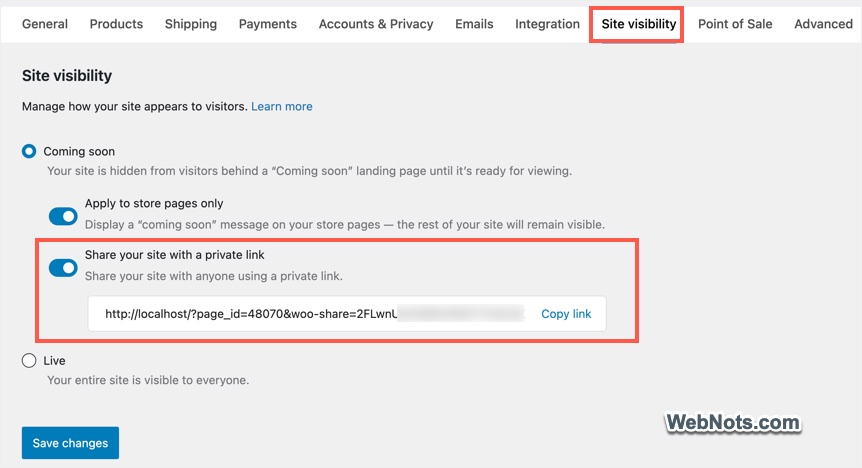
- Navigate to “Site visibility” tab.
- You will see “Live” and “Coming Soon” options and select “Coming Soon” to put the entire site in maintenance mode.
- Turn on “Apply to store pages only” to keep all store pages behind the coming soon mode.
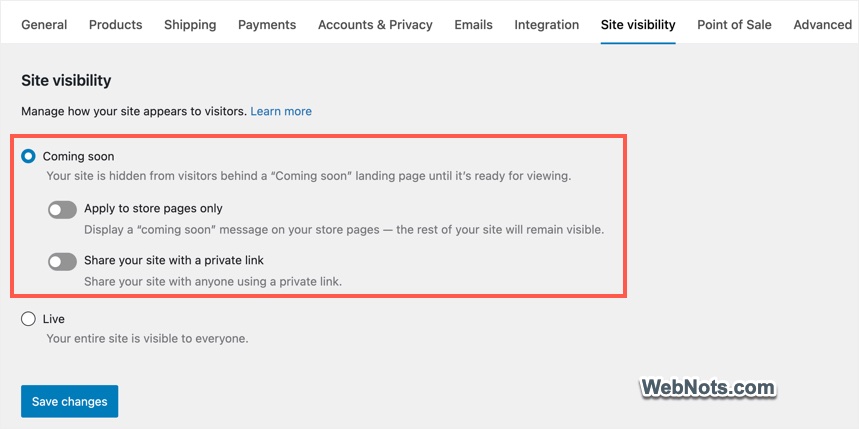
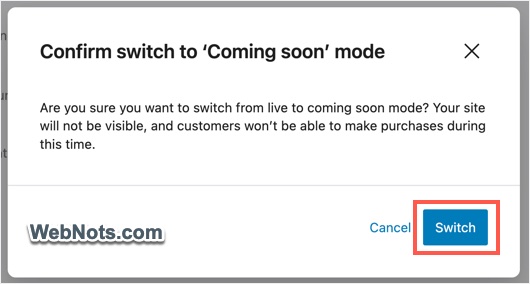
- Click “Save changes” and you will be prompted to confirm. Click the “Switch” button to apply the coming soon mode.
Testing Site Under Coming Soon Mode
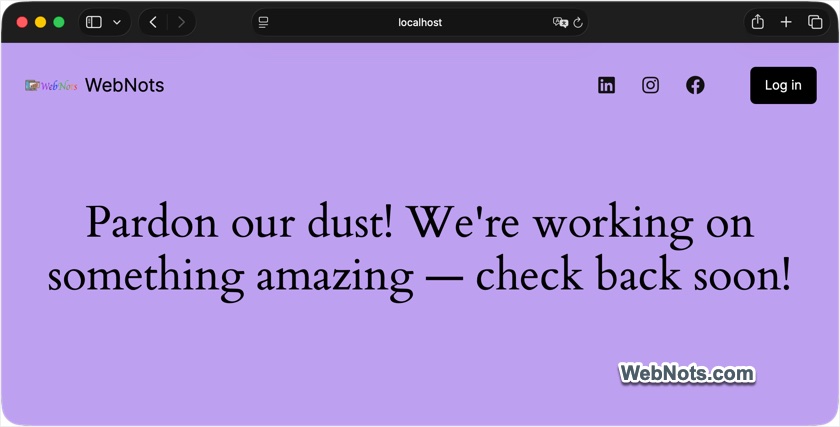
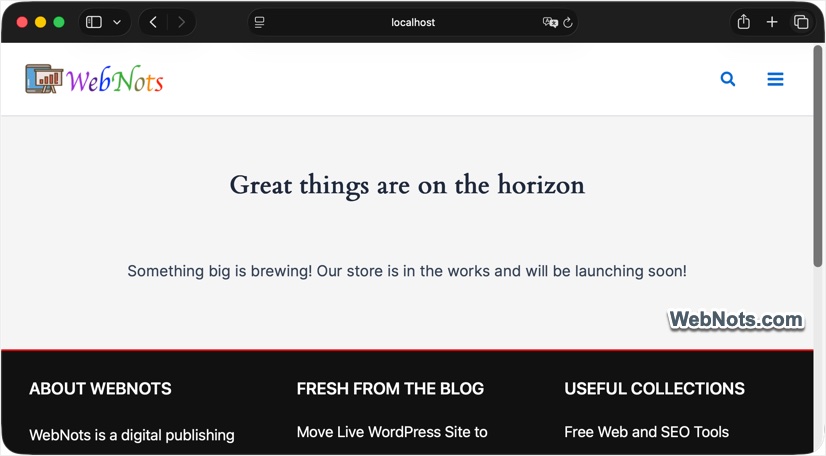
The site will show a message like below when coming soon mode is applied for the entire site.
If you have only enabled it for shop pages, it will look like below allowing to access other content on your site.
If an administrator is viewing when logged in to the admin panel, then WooCommerce will show a dismissible notification at the bottom.
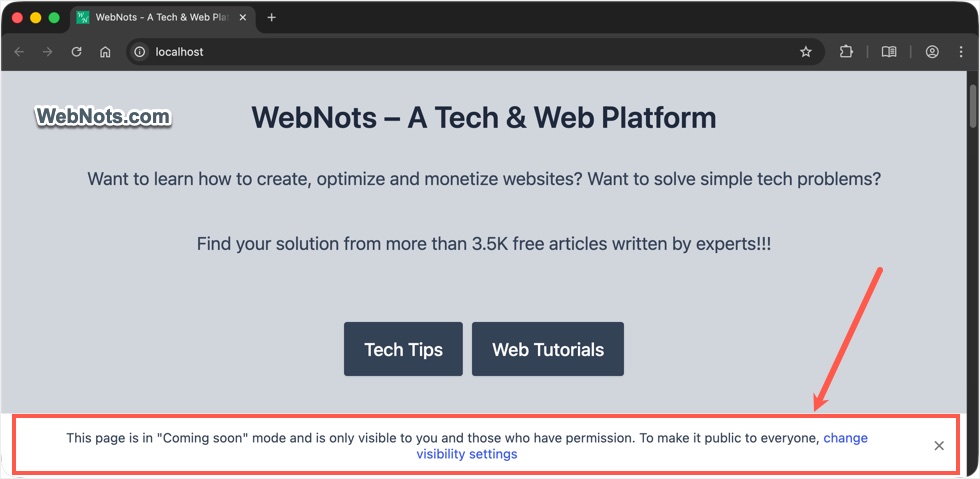
The best thing is that you can still test the shop pages by administrator and other allowed users.
- After enabling the coming soon mode, turn on “Share your site with a private link” option.
- This will reveal a hidden link and copy that link.
- You can share this link with anyone for accessing the site. This secret link will bypass the coming soon mode and allow the visitor to check your product, shop, and other WooCommerce pages.
Site Visibility Badge
As mentioned, WooCommerce plugin will show the online status of your store in top menu bar next to the site’s name.
- Live – entire site including shop pages are live.
- Store coming soon – only WooCommerce pages are behind coming soon mode.
- Coming soon – entire site is behind coming soon mode.
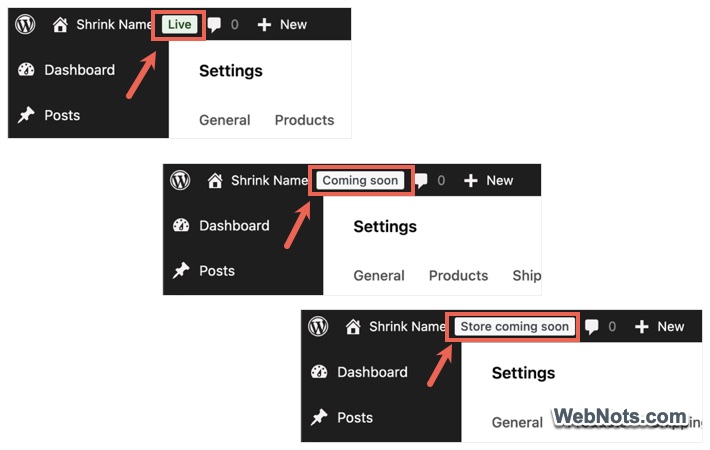
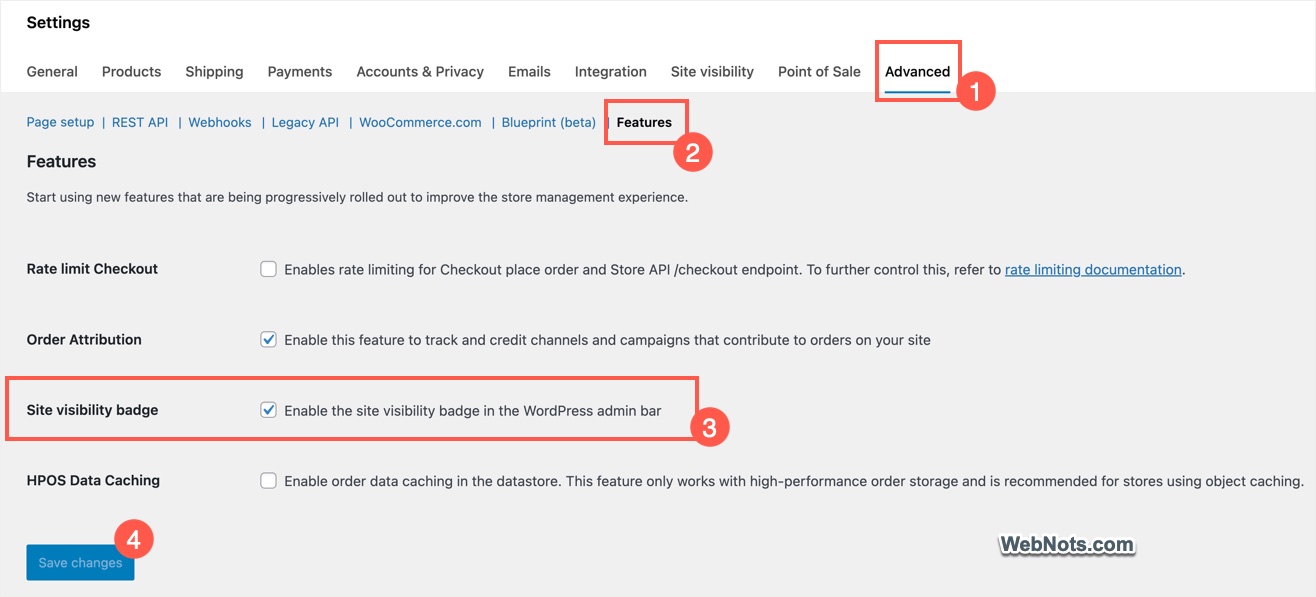
However, the visibility badge needs to be enabled to be seen in the admin bar.
- Go to “WooCommerce > Settings” section.
- Navigate to “Advanced” tab and go to “Features” section.
- Scroll down and check “Enable the site visibility badge in the WordPress admin bar” against “Site visibility badge” option.
- Click “Save Changes” button at the bottom.
Customizing Coming Soon Page
WooCommerce allows to customize the coming soon page only if you are using block-based themes. Otherwise, it is not possible to edit the template.
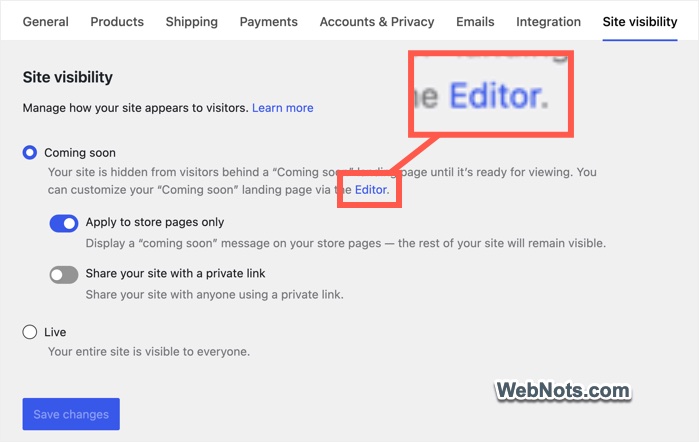
- When you are in “Site visibility” section, you will see an “Editor” link below the “Coming soon” mode option. As mentioned, this option will show only if you are using a block-based theme and not a classic theme like Astra.
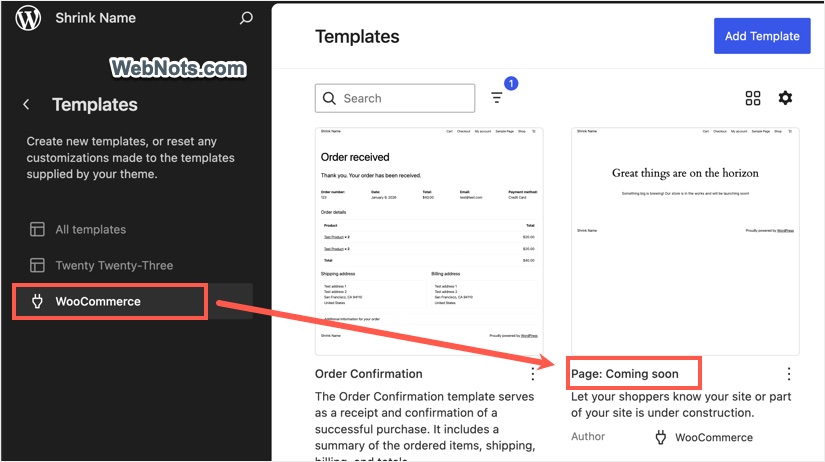
- Alternatively, go to “Appearance > Editor > Templates > WooCommerce” section and select “Page: Coming soon” template.
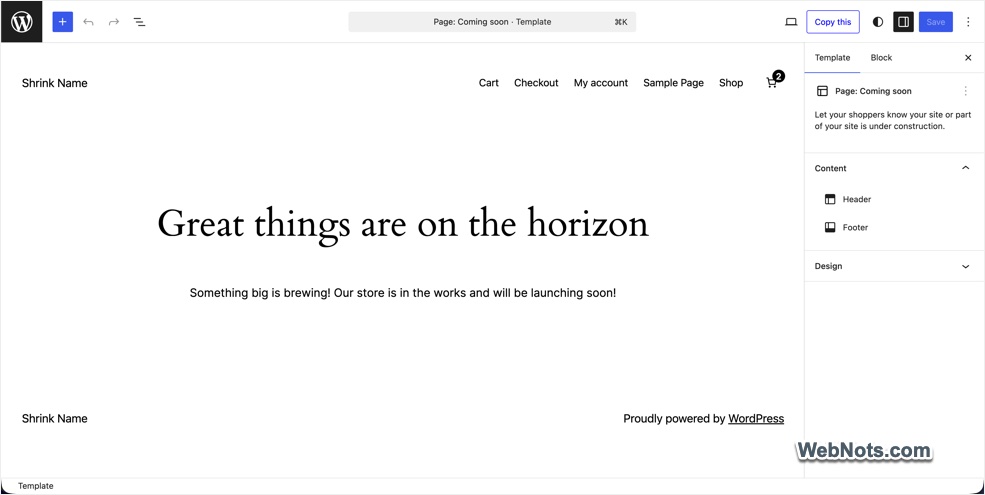
- This will open the coming soon template and you can customize the header, footer, and content area as per your preferences.
Final Words
WooCommerce coming soon mode is a good option for quickly taking your site or store down without installing any other plugin. The only problem is that you need to use a block-based theme for editing the template. Otherwise, you may need to use the default template, which should be sufficient for a short time usage.