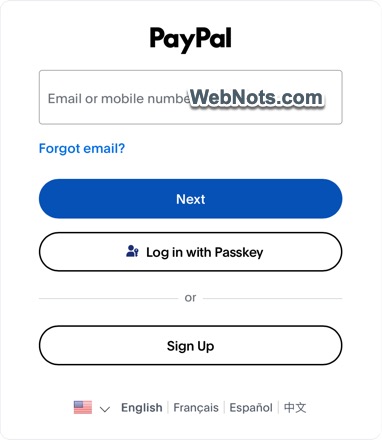
PayPal allows you to log in with an email/password or using a passkey. Although passkey is an easy option, it is convenient only when you have a password manager app or using your own devices. Most users simply login using their email/password, which is not a secure option, especially if you are using multiple devices. The best option is to add an additional layer of security called 2-Factor Authentication (2FA), which is the same thing referred to as 2-step verification in PayPal. In this article, we will explain why you need 2-step verification and how to set it up with an authenticator app.
Why 2FA Matters for Your PayPal Account?
Have you ever received a security code (a six-digit code) on your mobile phone or email for login or password recovery when you were not accessing the account? This is an indication that someone knows your PayPal email and is trying to guess the password. This is a common problem when you use your PayPal email on your website, as large numbers of visitors and bots can easily find your PayPal address and try to hack your account.
With 2-step verification enabled, even if a hacker obtains your password, they will be unable to log in without that second verification code generated by an authenticator app on your phone. This simple step provides a powerful defense against unauthorized access and potential financial loss.
1. Install an Authenticator App
First, open the App Store or Google Play Store on your mobile device and install an app like Google Authenticator or Microsoft Authenticator. The screenshots shown in this article are from the Microsoft Authenticator app on iPhone. This is a free app, and you don’t need to have a Microsoft account to use it. It generates a new six-digit code every 30 seconds that you enter to log in.

Because this method doesn’t rely on cellular networks, it’s more resistant to interception by attackers, making it the recommended choice for anyone who regularly handles significant funds through PayPal.
2. Enable 2-Step Verification in PayPal
The PayPal mobile app also opens the same web interface, and you will have difficulty in scanning the QR code. So, here we will explain using the web interface, which is convenient.
- Log in to your PayPal account in any browser using your email address and password.
- Click your profile icon on the top right corner and select the “Profile settings” link.
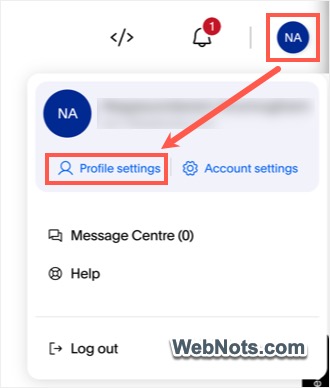
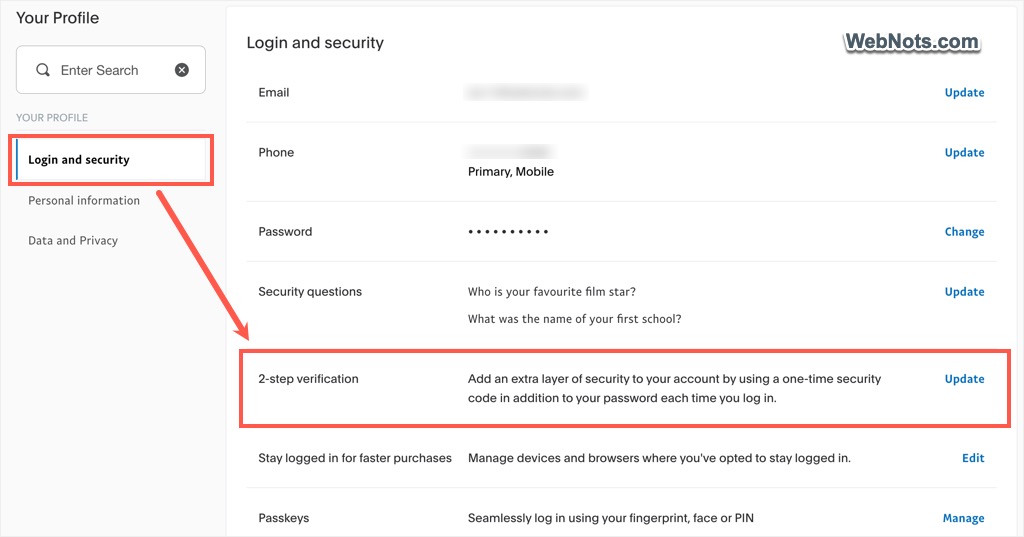
- Navigate to the “Login and security” section from the left sidebar.
- You will see various options and click the “Update” link next to “2-step verification”.
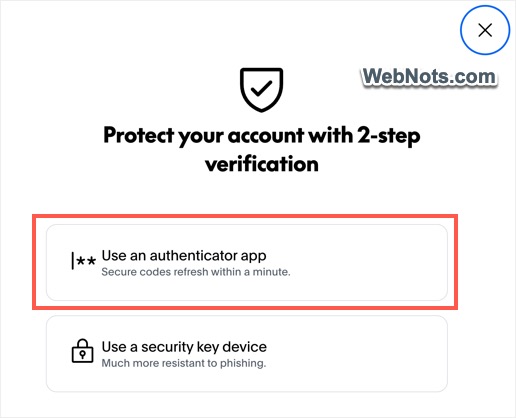
- You will be prompted to choose how you want to receive your verification code. Select the “Use an authenticator app” option.
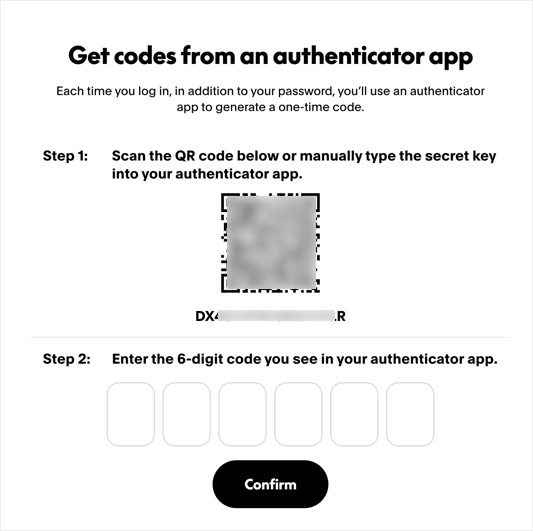
- A QR code will appear on your screen along with a 16-digit secret key.
3. Adding PayPal Account in Authenticator App
- Open your Microsoft Authenticator app on your smartphone.
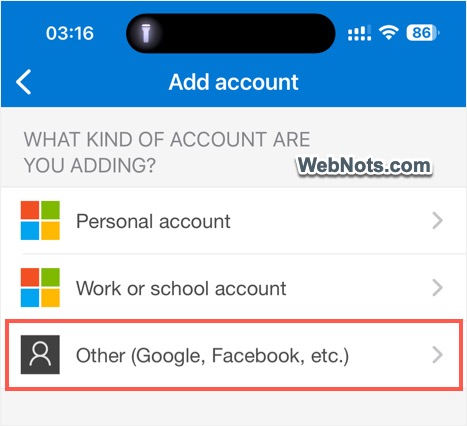
- Tap the floating QR code icon or tap the + icon on the top right corner and then select the “Other” account option.
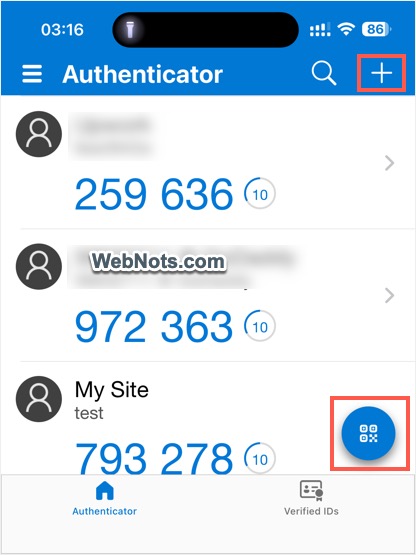
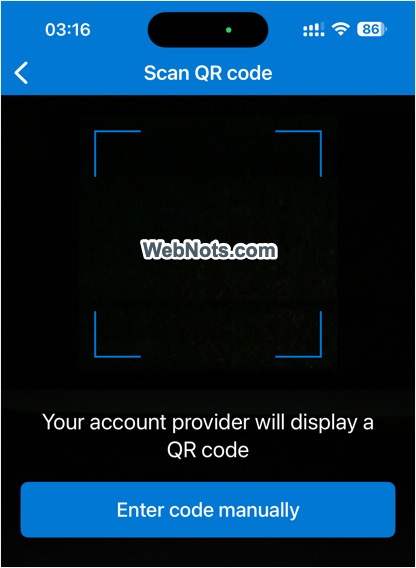
- Scan the QR code displayed on your computer or tap the “Enter code manually” button and type the 16-digit secret key.
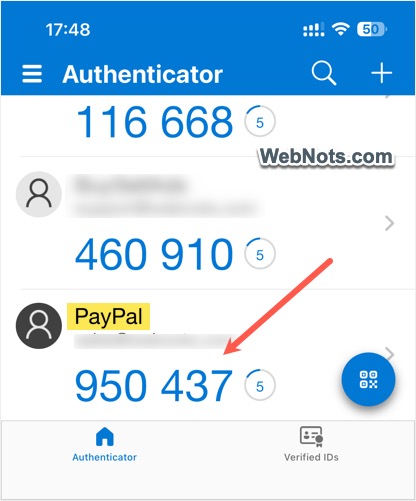
- The app will then begin generating a six-digit code.
- Enter this code in the verification box on the PayPal website and click the “Confirm” button.
4. Approving 2-Step Verification
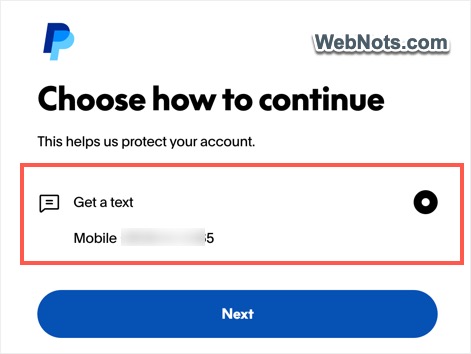
Since this is an account-level change, PayPal will prompt you to select a method for approving the 2-step verification setup.
- Generally, you will see a “Get a text” option for your mobile phone. Select that and click the “Next” button.
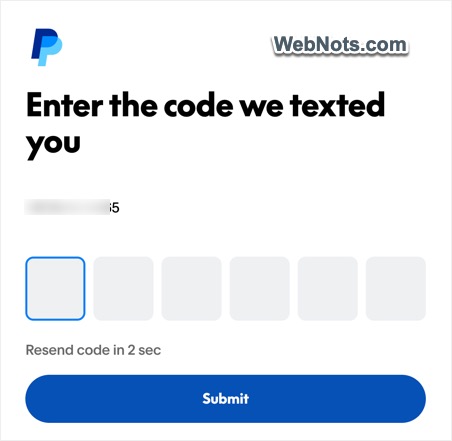
- PayPal will send a verification code to your mobile number via text message. Enter that code into the field on the website and click “Submit”.
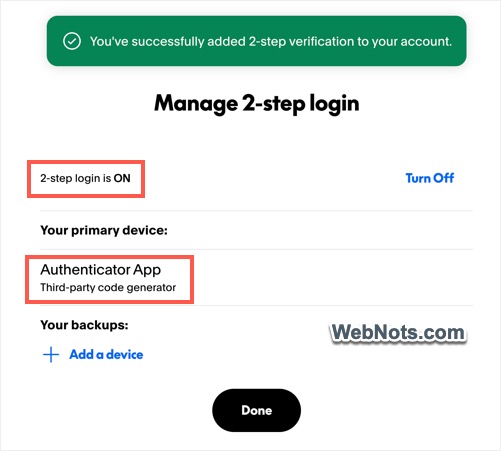
- You will see a success message that 2-step login is now turned “ON” for your PayPal account. You will also see “Third-party code generator” next to the “Authenticator” option. Click the “Done” button to finish the setup.
5. Test by Logging In
Log out of your PayPal mobile app or web interface. Then, try to log in again with Face ID / fingerprint or email/password. You will be prompted to enter the 6-digit code from your authenticator app.
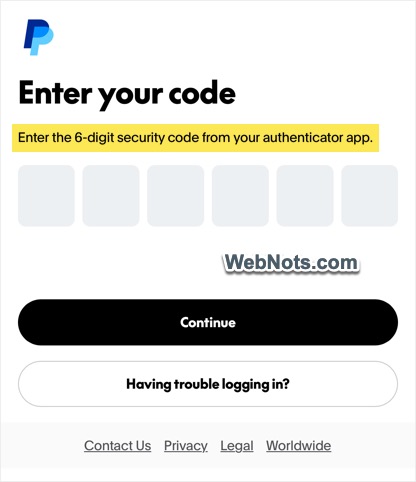
Without the code, no one can log in to your account, which will stop most automated bots and hackers even if they guessed your password.
Using a Hardware Security Key
For those seeking an even higher level of protection against phishing, PayPal also supports physical USB security keys (like a YubiKey). However, note that to use a hardware key, you typically must first have another 2FA method (like an authenticator app or SMS) already set up on your account. These keys provide robust security, but it’s worth noting that PayPal’s support for them may have limitations, such as allowing only one key to be registered at a time.
The only potential downside of 2-step verification is that you must always have your mobile phone with you. You can go to the profile settings and turn off the 2-step verification anytime if not needed.