Windows by default comes with few items pinned in the taskbar. Generally, it includes File Explorer, Photos, Edge, etc. However, have you even wondered how to directly pin your favorite websites and launch them from taskbar? Microsoft Edge offers a multiple ways to pin websites to your taskbar for immediate access without the need to open the browser first or dig through bookmarks.
Pinning a Website to the Taskbar
There are two ways to do this:
- Add website shortcuts and launch them through Edge.
- Create web apps for sites and access them as independent apps.
Good thing is that you don’t need any extensions or third-party utilities as Edge handles everything natively.
Method 1: Pinning a Website Shortcut
- Launch the Edge browser and go to pin sites webpage.
- Scroll down where you can find a list of popular websites like Copilot, YouTube, Reddit, Amazon, Facebook, etc.

- Simply click on any site and Edge will start pinning it to your desktop.

- If your favorite site is not listed, click on “Pin your favorite sites” button. Type the site address and click “Pin click to taskbar” button.
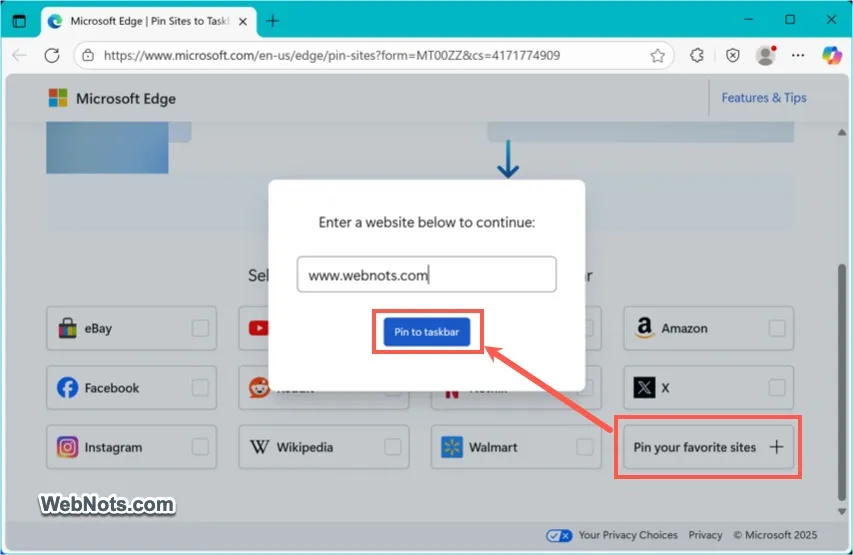
- A notification will appear asking you to confirm pinning the site icon to taskbar. Click “Yes” to confirm your action.

- The selected or entered site will be instantly added to your taskbar.
- Click the pinned icon to open the site using Edge browser.

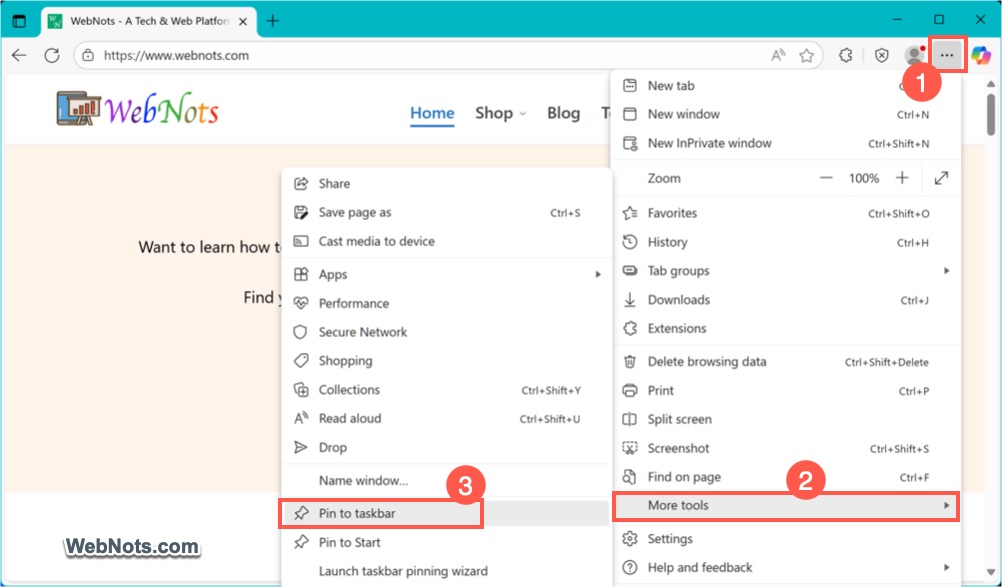
Alternatively, open a website in Edge and click the “Settings and more” icon (Alt + F). After that, navigate to “More tools > Pin to taskbar” menu to add that site’s shortcut to taskbar.
Method 2: Install Site as an App and Pin to Taskbar
Microsoft Edge allows you to install websites as apps, which can then be pinned to the taskbar.
- First, open the website that you want to pin.
- Click the three-dots “Settings and more” button or press “Alt + F” keys.
- Hover over “More tools” and then click on “Apps” menu.
- Select “Install this site as an app” option.

- A pop-up will appear prompting you to name the app. You can use the default name or customize it as you wish.
- Click the “Install” button and Edge will create a web app for the site.

- You will see a notification to confirm your action and click on “Yes” button.

- This will open a new app window with the site opened, separate from the main browser.
- Once the web app launches, you will see a “App installed” notification along with options to add shortcuts (otherwise, click the three-dots icon inside the app window to open the menu).
- Select “Pin to taskbar” to add the app to your taskbar.

Unpinning Sites from Taskbar
After pinning the site, simply right-click its icon on the taskbar. Select “Unpin from taskbar” option to remove the icon. This works for both the methods explained above.

For web apps, you can also uninstall them by going to Edge’s Apps section (Settings > More tools > Apps > View apps). Find your app, click on the “More options” (three-dots) icon against the app name and select “Uninstall” option to delete it permanently.

Pinning Website Shortcuts Vs Pinning App Shortcuts
Though both methods will show a similar notification for app installation, they behave differently.
- You do not have a central place to manage the websites added to taskbar with the first method. However, all apps (second method) can be accessed in Edge using edge://apps/ URL.
- First method will launch the site by opening the Edge app but the second method will launch the site as an independent app. This means it will not open the actual Edge browser app.
- Web apps also offer a useful feature to launch it automatically after login which is not possible with website shortcuts. You can use web apps for Gmail or YouTube sites to install them as apps and use launch them independently (as Google does not provide desktop apps for YouTube and Gmail).
Here is a summary of both methods for easier understanding:
| Feature | Website Shortcut | App Shortcut |
|---|---|---|
| Launching | Using Edge | As a separate app |
| Managing | No | edge://apps in Edge |
| Pin to Start | No | Yes |
| Desktop Shortcut | Need to create separately | Yes |
| Launch with start | No | Yes |
| Support | All website | Only sites that support progressive web apps (PWA) feature |
| Unpinning | Yes | Yes |
| Custom name | No | Yes |