If you always print your documents from a desktop or laptop, it’s time to use your iPhone. Thanks to Apple’s AirPrint technology, you can use your iPhone to manage all your printing tasks. You can print from any app, cancel a stuck job in the queue, and print double-sided on the go. If you’re wondering how, here is how to truly manage printing on your iPhone or even convert your pictures and documents to PDF.
Using Apple AirPrint
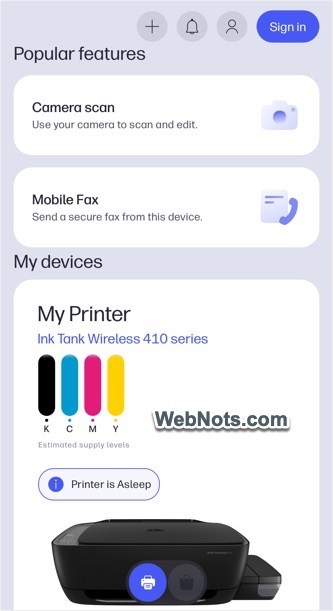
Most printers come with their own iOS app. For example, if you are using an HP printer, the HP app comes in handy for checking estimated supplies (cartridge ink), scanning and printing using your camera, and printing from any supported app.
However, we strongly recommend using AirPrint, which is Apple’s built-in, zero-setup protocol. As long as your printer is on the same Wi-Fi network as your iPhone, it will appear automatically when you hit the “Share” icon.
Printing a Document or Photo
Open your document or picture in an app and follow the steps below (we explain here using the Photos app):
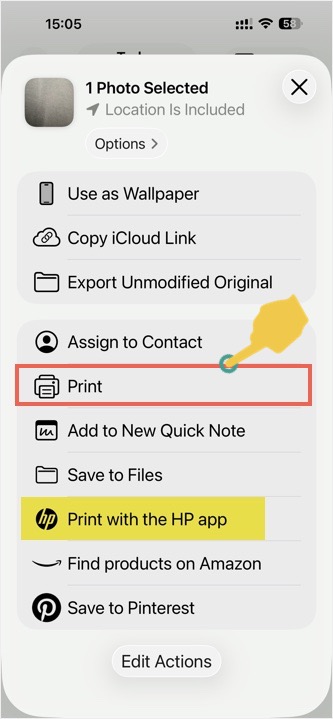
- Tap the “Share” icon (the box with an arrow pointing up).
- Scroll up and tap the “Print” action.
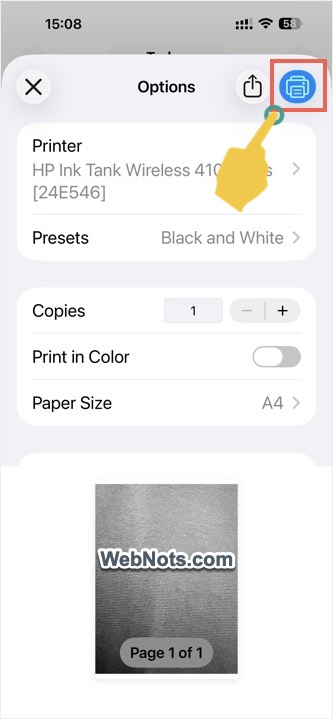
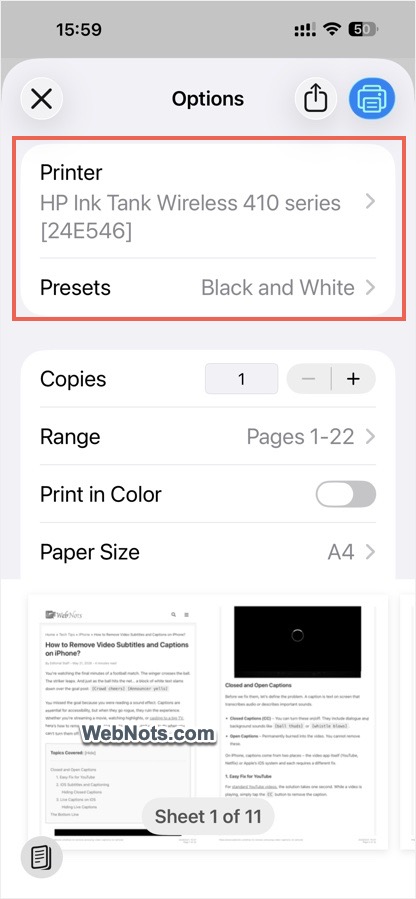
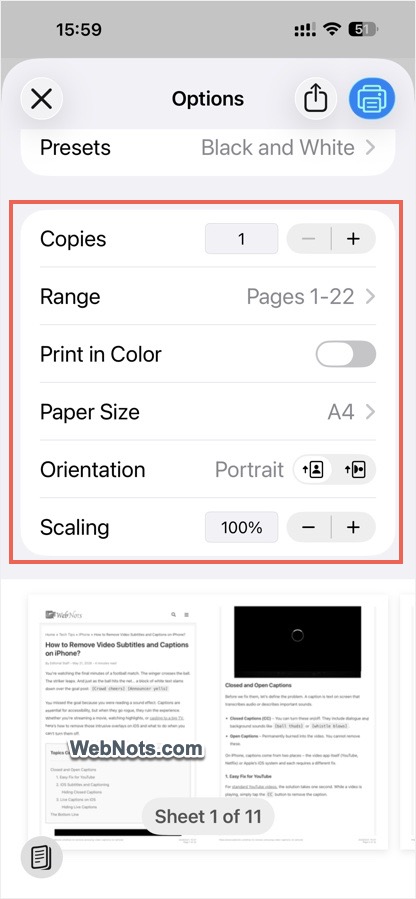
- Select your printer and presets, choose the number of copies, color or grayscale, and paper size, then tap the printer icon in the top right.

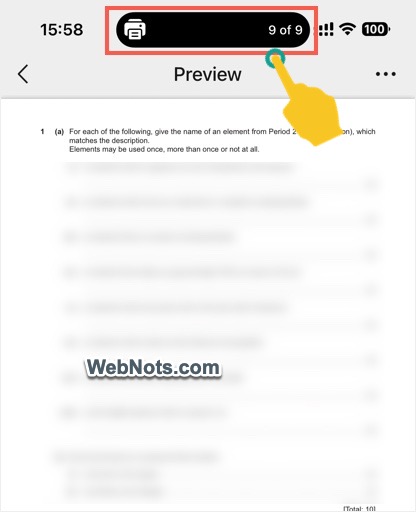
- You will see the job added to the print queue in the Dynamic Island area (on older models, you will see a printer icon on the top status bar).
Pause or Cancel a Print Job
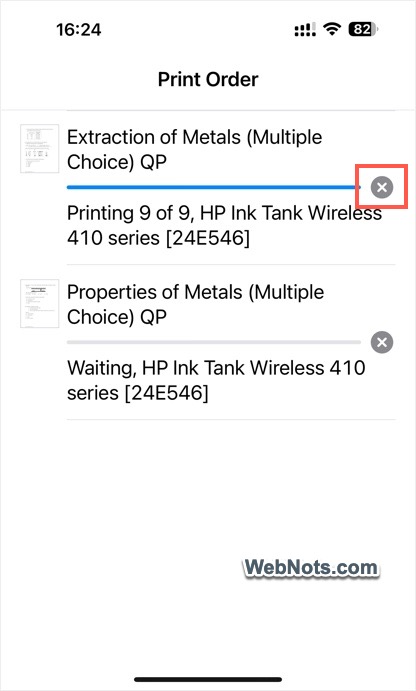
Here’s where most users get lost. Unlike a computer, the iPhone doesn’t keep a permanent Print Queue icon on the home screen. As mentioned, the latest models will show the details in the Dynamic Island area, but you can also easily manage the print queue, especially when you have printed a large number of pages or multiple documents.
- Swipe up from bottom of the screen and hold to open the App Switcher.
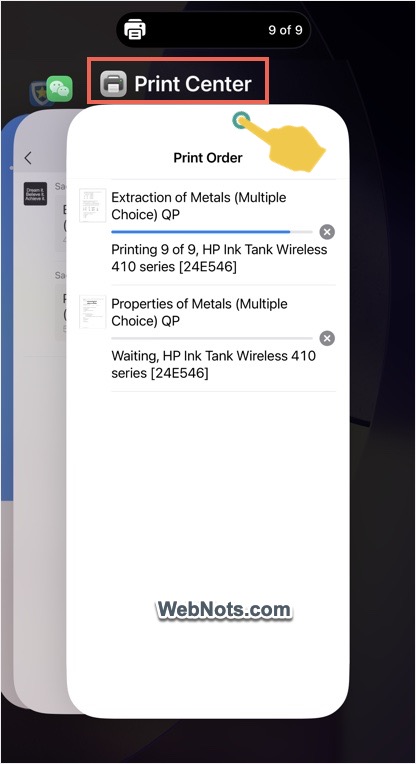
- Select the “Print Center” app. This is a hidden app that only appears when a job is processing.
- Inside Print Center, you can view all pricing jobs in the queue, cancel a job by tapping the close icon and pause a job by tapping the document.
Managing Advanced Settings
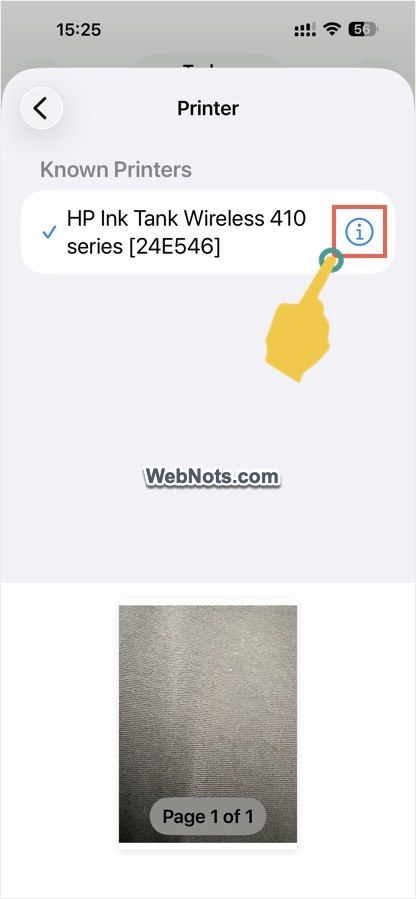
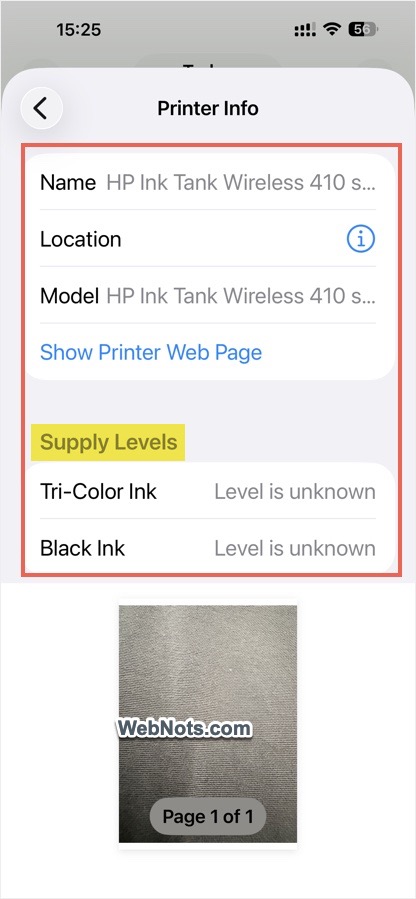
When selecting a printer, tap the ⓘ icon to find supply levels, location, and other supported information from your printer.
After selecting a printer, you can customize the following:
- Presets: If your printer has saved presets (for example, Black and White, Color, or Draft), tap this to load them.
- Paper Size: Select the size supported by your printer (default should be A4).
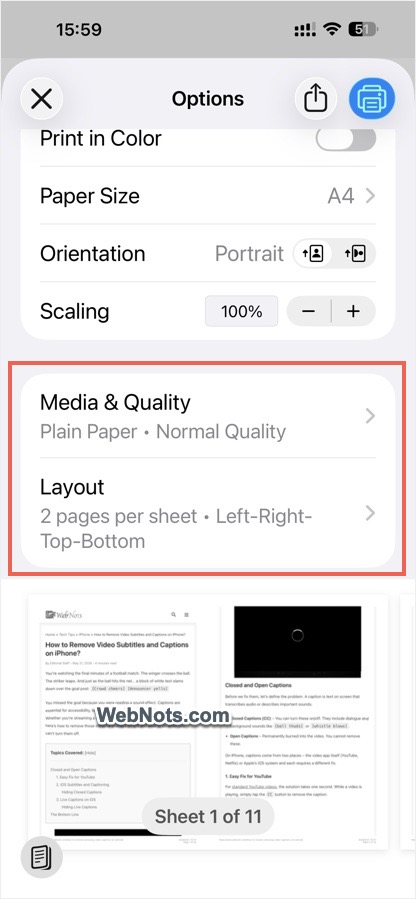
- Media & Quality: Choose Media Type (Plain Paper or Photo Glossy Paper) and Print Quality (Draft, Normal, or Best).
- Layout: Choose pages per sheet, orientation, and border style.
- Page Selection: When printing multiple pages, tap on the preview to unselect pages from printing. Alternatively, use the Page Range option to select the from and to pages.
- Orientation and Scaling: Change to Portrait or Landscape and adjust scaling to fit the content to your paper size.
- Duplex: Choose single-page or duplex (two-sided) printing and staple/punch (for collating pages) if your printer supports those options over AirPrint.
Common Fixes for Frustrating Print Problems
Though the Print Center app automatically shows the print order list for management, here are some common problems you may face when printing from an iPhone.
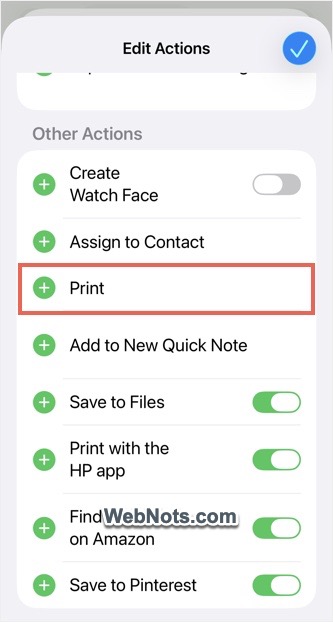
1. Why doesn’t the “Print” action show in the Share menu?
Printing is a default action and can’t be removed from the Share menu on iPhone. However, it may be buried under other items if you have too many actions. In that case, scroll down to the bottom and tap Edit Actions. Tap the green ⨁ icon in front of Print to add it to your Favorites. This will show the “Print” action in the top favorites section for quicker access.
2. What happens when the printer has problems?
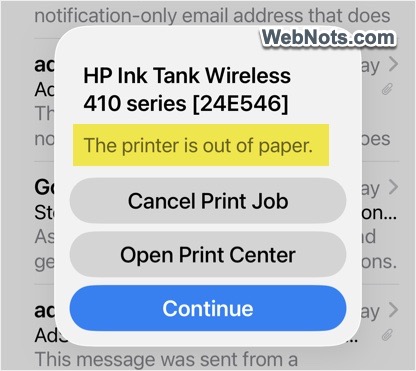
Don’t worry. Your iPhone will show a pop-up when the printer is out of paper or jammed. You will also find jobs stuck forever in Print Center without progress, indicating a problem with the printer.
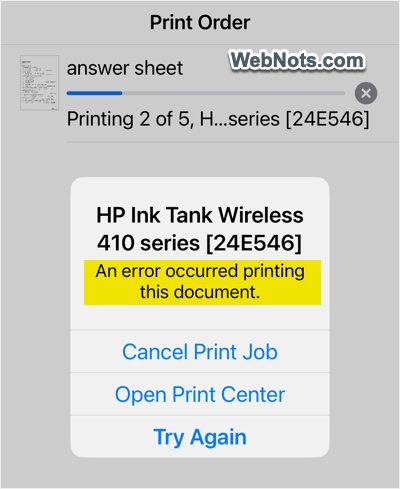
3. Why don’t I find my printer in the list?
As mentioned, AirPrint works when the printer and iPhone are connected to the same Wi-Fi network. If you are connected to a VPN or proxy, disconnect and make sure your iPhone is on the same Wi-Fi network as your printer. If necessary, restart your iPhone or router.
4. Why do I see a “printer is busy” message?
Your iPhone shows that the printer is busy, holding, or paused when the physical printer has a problem (even if it appears online). First, cancel the print job. Next, go to the printer’s physical screen, clear any paper jams or low-ink warnings, and retry printing.
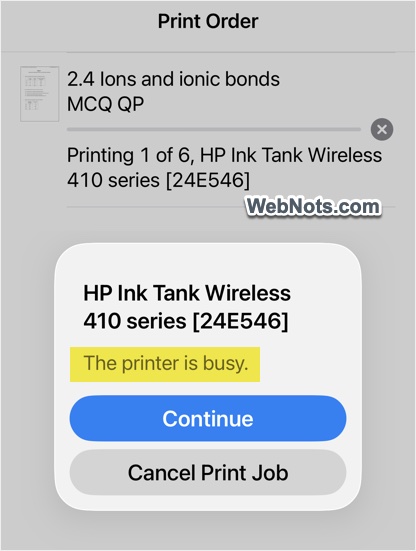
5. How to print webpages from Safari without distracting elements?
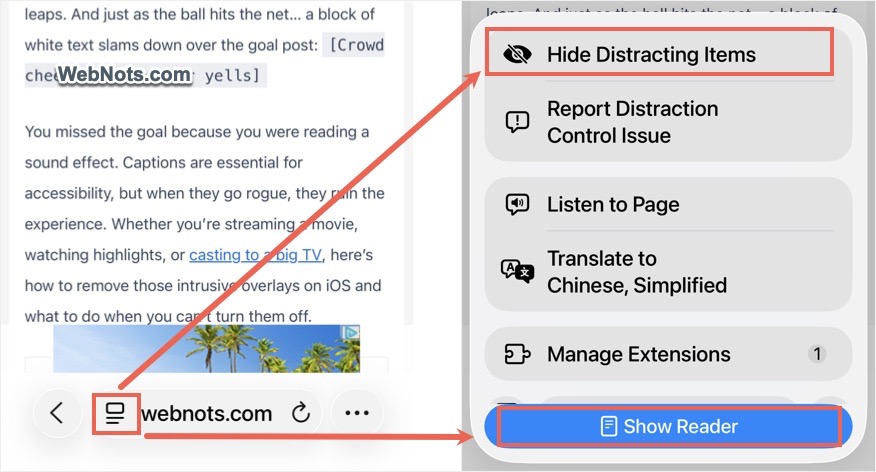
Most websites show advertisements (like ours). Simply tap the icon in front of the site’s address in Safari’s address bar and select “Hide Distracting Items“. Then tap the elements you want to remove from the page and print without distractions. Alternatively, tap “Show Reader” button to remove all ads. This strips away ads and weird formatting on the printed paper.
6. What to do when your printer isn’t AirPrint compatible?
As mentioned, use the app that comes with the manufacturer. These apps offer more control than AirPrint, including scanning, ink levels, and maintenance.
Convert to PDF for Saving Paper & Ink
Sometimes you don’t need paper at all. In those cases, you can simply convert the picture or document to a PDF file.
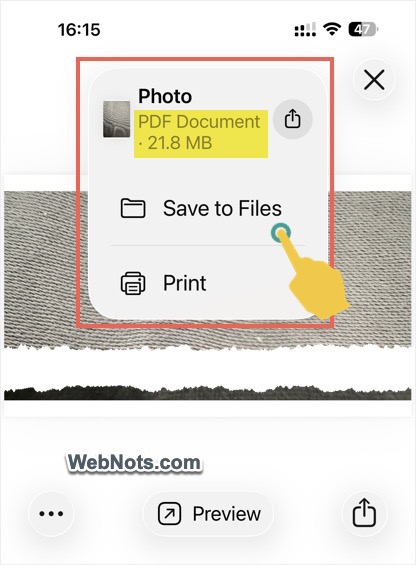
- Tap “Share > Print” to see the preview. Then tap the Share icon on the top right (next to the printer icon) to generate a PDF. You can AirDrop or save the PDF to the Files app.
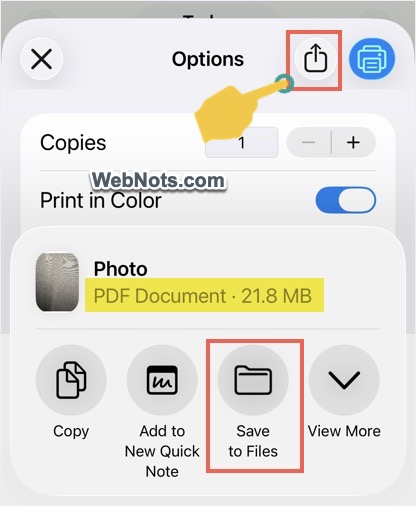
- Alternatively, long-press on the preview to enlarge it, then tap again to generate a PDF. You can also pinch outward with two fingers on the thumbnail. Then tap the file name and select “Save to Files” to save your PDF.