Pages is a free app that comes preinstalled with macOS and serves as an excellent alternative to the premium Microsoft Word app for Mac. You can add visual elements like charts, tables, and media to boost the interactivity of your documents. In addition, it is also easy to insert symbols and special characters in Pages using the in-built tools or keyboard shortcuts.
Insert Symbols in Pages
- Open your document and go to “Edit > Emoji & Symbols” menu.
- Alternatively, press Command + Control + Space or Globe / Fn + E shortcut keys.
- If Mac understands your text, it will show few relevant symbols and click on the small arrow at the end to open “Character Viewer” app.
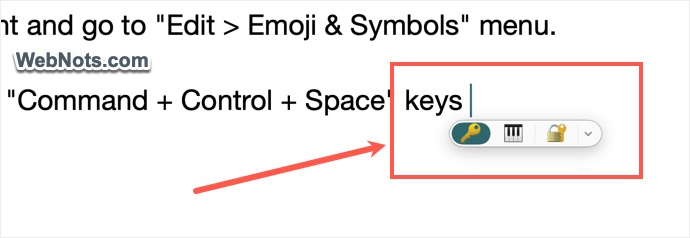
- Otherwise, you will directly see the “Character Viewer” app opens.
- Use the search box or navigate through various categories to find your favorite symbol.
- Double-click on a symbol to insert it on your document.
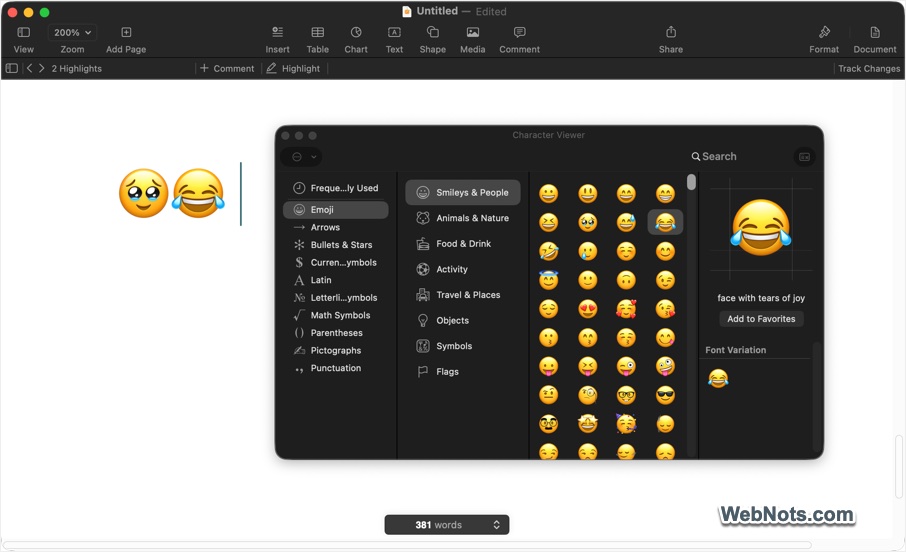
Learn more on how to effectively use the Character Viewer app to find symbols.
Insert Symbols with Keyboard Shortcuts
You may be using certain symbols frequently and every time inserting through Character Viewer is a tedious task. Best option is to create a custom keyboard shortcut for your symbols and insert them using the shortcut keys. By default, Mac already includes some shortcuts for popular symbols like copyright and trademark. For example, type (c) and it will be automatically converted as © and simply type tm and press space to create trademark ™ symbol. This is available as part of AutoCorrect feature similar to Microsoft Word.
- Go to “Pages > Settings…” menu or press Command + Comma keys.
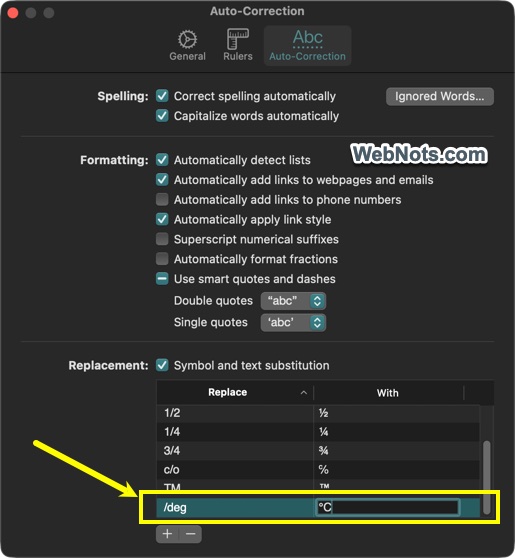
- Navigate to “Auto-Correction” tab.
- Make sure “Symbol and text substitution” option is checked against “Replacement” heading.
- You will see a list of default text replacements and click the + button.
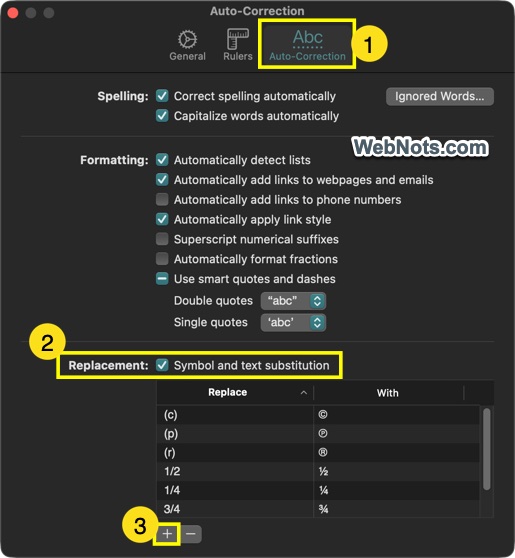
- Type your shortcut in the “Replace” box and copy paste the symbol in “With” box.
- For example, type /deg in replace and ℃ in with boxes respectively to insert ℃ with /deg shortcut.
- Close the settings pop-up and henceforth you can use the assigned replacement to quickly insert your symbol without searching for it every time.
Anytime, you can go to “Auto-Correction” settings and delete the added shortcuts.
Note: Press Command + Z to undo the auto-correction and retain the text you have entered.
Using Option Code Shortcuts
Similar to Alt code shortcuts in Windows PC, Mac also natively supports Option code shortcuts. Follow the below steps:
- First, change the input method to Unicode Hex Input as explained in this article.
- Press and hold one of the Option keys.
- Press the four characters hexadecimal code for the symbol. You can get the complete list of Option code for symbols in this article.
- Now, release the Option key and the typed characters will be changed to a corresponding symbol.
For example, Option + 261D will make the hand with pointing finger up symbol like☝.
Note: Option key also works with many other key combinations in macOS. For example, Option + G will make the copyright © symbol. You can use the standard English keyboard input (ABC) for this purpose.