iPhone comes with a Photos app where all the pictures you capture with camera and download from other apps are saved. This Photos app will generate memories and from the collection. There are also apps like Journal which will automatically show recommended pictures from Photos app. This will be a problem when you have private or sensitive photos which you do not want to pop-up suddenly. Good thing is that you can easily hide sensitive photos in iPhone and lock them with Face ID.
You can hide single or multiple pictures and unhide them anytime.
Hiding Single Photo in iPhone
- Tap on Photos app and go to “Library” section.
- Select a photo you want to hide.

- Tap on the three dots icon on top right corner and select “Hide” from the menu.
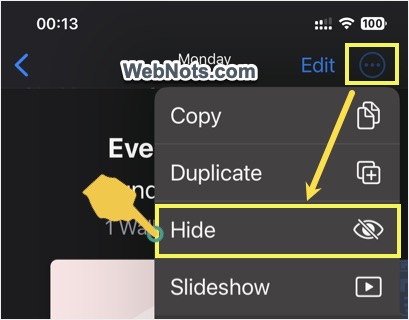
- Confirm you action by tapping on “Hide Photo” button.

Hiding Multiple Pictures in iPhone
- Open Photos app and go to “Library” section.
- Tap on “Select” button and then tap on the images to select multiple items. Alternatively, you can swipe over the images to select them.

- After selecting your pictures, tap on the three dots icon showing on bottom right corner.
- Select “Hide” from the menu that appears.

- Confirm your action by tapping on the “Hide x Photos” button.

Viewing Hidden Pictures
All the hidden phots will be removed from “Library” and “Albums”. They also will not appear in the search results and in other apps like Journal. However, they will not be deleted and still be there on your iPhone as a hidden album which you can manually view anytime.
- Open Photos app and go to “Albums” section.
- Scroll down to the bottom of the page.
- Tap on “Hidden” option showing under “Utilities” section.

- Unlock the screen with Face ID.
- View all your hidden pictures safely.

Protecting Hidden Album with Face ID
By default, iPhone will lock your “Hidden” and “Recently Deleted” albums with Face ID. You can see a padlock icon next to these headings, follow the below steps to lock if it is not locked.
- Open Settings app and go to Photos section.

- Scroll down to “Albums” heading.
- Turn on “Face ID” option.

This will enable Face ID lock for viewing your deleted and hidden pictures.
Completely Hiding Hidden Albums
You can also remove the “Hidden” albums from Photos app for added protection.
- Open Settings app and go to Photos section.
- Scroll down and turn off “Show Hidden Album” option showing under “Albums” heading.

Unhide Hidden Pictures
Now that you know how to hide and protect the sensitive pictures with Face ID. What if you want to unhide the pictures?
- Open Photos app and go to “Albums” section.
- Scroll down to bottom and tap on “Hidden” option.
- Tap on a single picture or select multiple items.
- Tap on the three dots icon and select “Unhide” option from the menu.
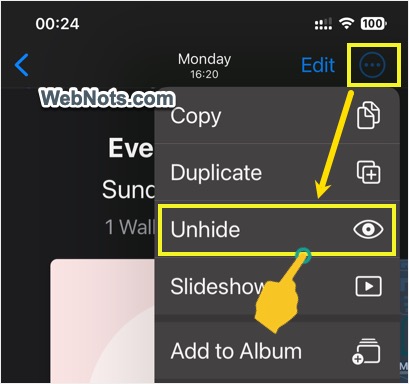
The pictures will go back to your “Library” section and shown there as per the date order.
Final Words
It is super easy to hide single or multiple photos in iPhone. All the hidden pictures will be removed from photo Library and moved to “Hidden” album by default. “Hidden” album is locked with your Face ID and you can hide that “Hidden” album also to prevent the access completely. You can anytime unhide the pictures to move them to “Library” or show “Hidden” album to view them privately. Remember, the pictures will not be deleted when you hide them.