Emergency contact in iPhone allows you or someone to call the contact person quickly without unlocking the phone. This helps to manage during medical, accident and other emergency situations and get the required information or help instantly. All you need is to identify a person from your contacts and assign his/her number as your emergency contact number. It is also possible assign multiple numbers as your emergency contacts.
Adding Emergency Contacts in iPhone
There are two ways you can add a person as your emergency contact:
- From Phone or Contacts app
- Using Medical ID in Health app
You can anytime remove the person or add additional people as your emergency contact. iPhone will show a red asterisk mark against those identified contacts indicating they are part of your Medical ID. You can also use the mark for quick visual identification.
1. Add Emergency Contact from Phone App
- Open Phone app and go to “Contacts” tab.
- Use the search box to find the name from your contact list which you wanted to assign as an emergency contact person. For example, I will search and find my wife’s name and tap on it.

- Scroll down to the bottom of the contact details screen and tap on “Add to emergency contacts” link.

- If the contact has multiple phone numbers, iPhone will show a prompt with all available numbers. Select a number that you want to use.

- You will be prompted to select the relationship between you and the selected contact and select the correct relationship from the list. I will select “spouse” from the list in my case.

- This will open your Medical ID details and you can see the selected contact with the relationship is added under “Emergency Contacts” section.
- Make sure to turn on “Show When Locked” option under “Emergency Access” section showing at the bottom of the screen. This helps to show your Medial ID details on the lock screen so that anyone can find and reach out your emergency contact person. Otherwise, you or someone need to unlock the screen with passcode or Face ID to view the details which will make accessing emergency contacts difficult.

- Now, you can see the “Add to Emergency Contacts” link is changed to “Remove from Emergency Contacts” indicating the number is added as your emergency contact.

- iPhone will also show a red color asterisk mark against your emergency contact person so that it is easy to find.

1.1. Remove Emergency Contact from Phone App
You can remove the person from emergency contact anytime later and add another number.
- Go to Phone app and navigate to “Contacts” section.
- Search and find your emergency contact and tap on it to view details.
- Scroll down to bottom and tap on “Remove from Emergency Contacts” link.
- Confirm your action by tapping on “Remove from Emergency Contacts” option.

- This will remove the person as your emergency contact, and you will see the contact details shows “Add to Emergency Contact”.
iPhone also will remove the red asterisk mark once you successfully removed the number from the emergency contacts list (and from your Medical ID).
2. Add Emergency Contact from Health App
Instead of using Phone or Contacts app, you can directly update the details in your Medical ID which will reflect in all other places.
- Open Health app which is one of the default apps from Apple comes with your iPhone.

- Tap on your profile icon showing on top right corner of the screen.

- On the next screen, tap on “Medical ID” option.

- Medical ID will show previously added information about you like blood type, weight, height, etc. including any emergency contacts (previously added). Tap on “Edit” link showing on top right corner to modify the details.

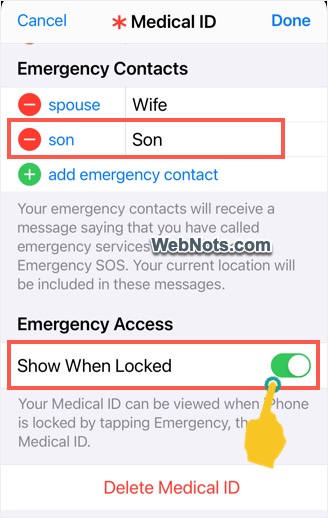
- On the editing screen, tap on “add emergency contact” link showing under “Emergency Contacts” section.

- Search and find a name from your contacts list. You will be prompted to choose a number if the selected contact has multiple numbers.

- Select the relationship on the next screen. This time I will add my son’s number, so I select “son” option from the list.

- Now, you can find the select person is added in “Emergency Contacts” list along with the relationship.
- Make sure to enable “Show When Locked” option and tap on “Done” link.
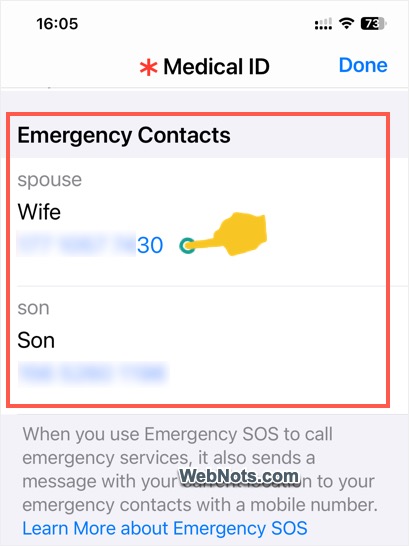
- Your Medical ID now will show the list of all emergency contacts with their relationship, name and phone number.

2.1. Remove Emergency Contact from Health App
Unlike Phone / Contacts app, you can remove multiple emergency contacts in the same screen from Medical ID section of Health app.
- Open Health app and tap on your profile icon.
- Go to “Medical ID” section and tap on “Edit” link.
- Scroll down to “Emergency Contacts” section and tap on the red minus icon showing in front of each added contact.
- Tap on “Delete” button to confirm your action and remove the contact from your emergency list.

Calling Emergency Contact
Follow the below steps to make a call to emergency contact’s number in iPhone:
- Press the side button and volume up button together.
- You will see “slide to power off”, “Medical ID” and “Emergency Call” buttons on the screen.
- Slide the red asterisk on the Medical ID button to unlock your Medical ID details.

- Tap on any number showing under “Emergency Contacts” section to make a call and reach out them. The call will work even if the contact is blocked in your iPhone.
After using Medical ID from lock screen, iPhone will block using Face ID for unlocking the screen. You should unlock the iPhone with passcode and then use the Face ID from next time onwards.
Note that if you use “SOS Emergency Call” option, iPhone will also send your location details as a message to emergency contacts with mobile numbers.