Apple introduced many new features in iOS 18 and locking the app is most useful among them. You can simply lock or hide and lock any app to protect it with Face ID. In this way, you can prevent unauthorized access to your private apps. In this article, we will explain how you can use the feature.
Remove Vs Lock Vs Hide and Lock
If you are aware, iPhone already has a function for removing apps from home screen to clean up the clutter. With the addition of hiding and locking, these functions may easily confuse you. Below is the summary for understanding:
| Function | Home Screen | App Library | Searches | Protection |
|---|---|---|---|---|
| Remove | Removed | Shown | Shown | No |
| Lock | Shown | Shown | Shown | Face ID |
| Hide & Lock | Removed | Shown in Hidden Folder | Not Shown | Face ID |
The apps will not be deleted when using any of these functions and you can access the App Library by reaching last home screen on the right side (swipe left to reach).
Locking App in iPhone
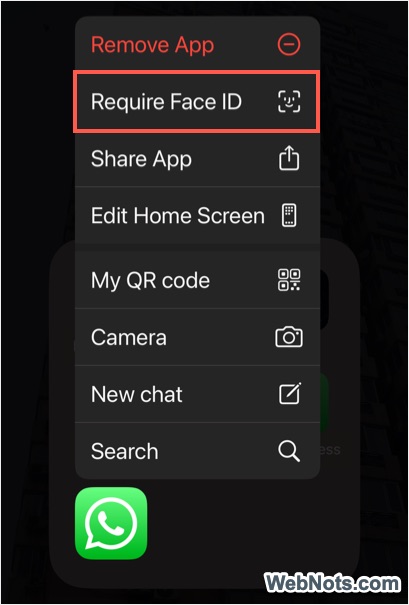
- Press and hold on any app.
- Select “Require Face ID” option from the menu that appears.
- Again, select “Require Face ID” option in the pop-up.
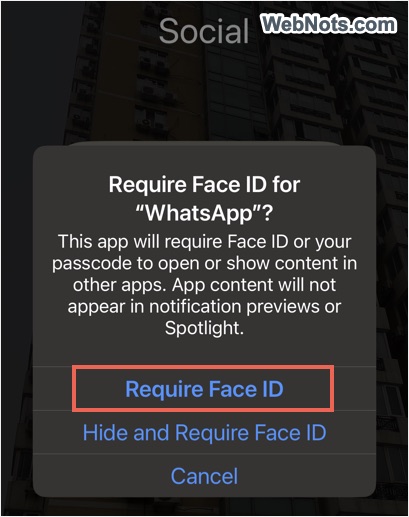
- Show your face and lock the app.
- Henceforth, you need Face ID to unlock every time when launching the app.
Locked app icon will not show any indication and they will be looking like normal app icons on the home screen. You can also find them by searching and from App Library section.
Hide and Lock App in iPhone
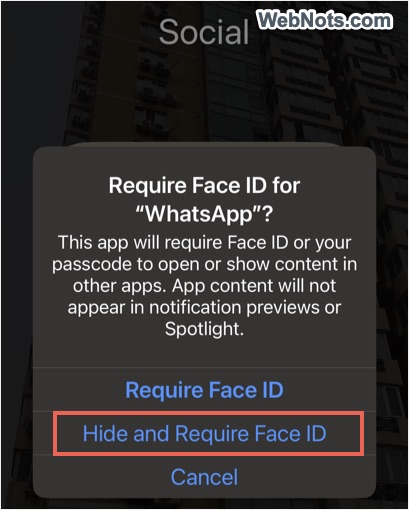
- Press and hold on any app till the menu appears and then select “Require Face ID” option.
- Now, select “Hide and Required Face ID” option.
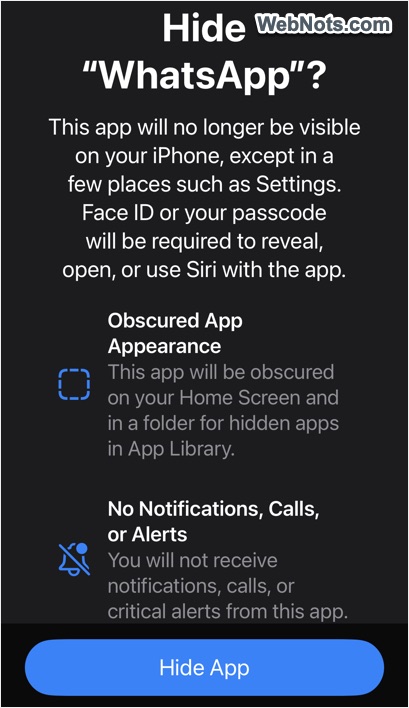
- You will be prompted to confirm the action and tap on “Hide App” button.
- The app will disappear from the home screen. Go to App Library and scroll down to the bottom.
- You will see a “Hidden” folder and tap on it.
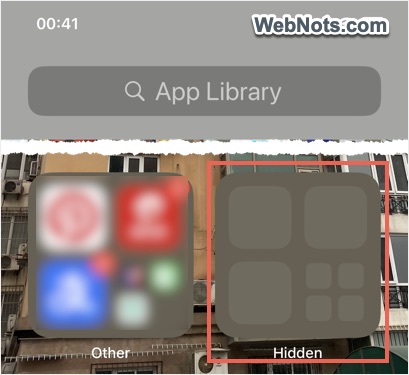
- Unlock the “Hidden” folder with Face ID to see the hidden app is showing.
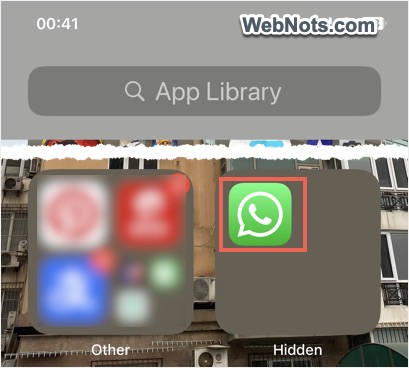
- Now, tap on the app and unlock with Face ID to start using it.
Hidden app and its content will not be shown in Siri suggestions and searches. Also, you can’t receive any notifications, calls and alerts from the hidden apps.
Remove Lock from App
You can remove the lock any time when needed.
- Tap and hold on the locked app on your home screen or in App Library.
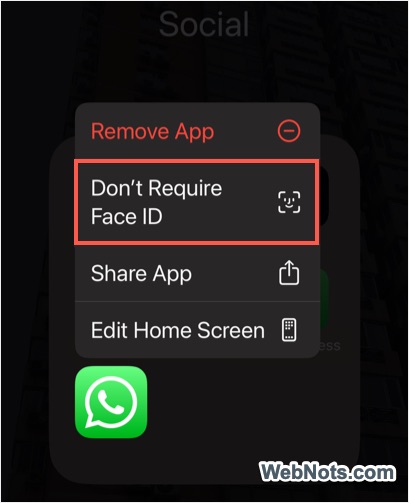
- Select “Don’t Require Face ID” option from the menu.
- Show your face and remove the locking set previously.
Remove Lock and Hide from App
- Go to App Library and tap on “Hidden” folder to unlock it.
- Tap and hold on the hidden app till your see the menu items.
- Select “Don’t Require Face ID” option and confirm with your Face ID.
- The app will be removed from “Hidden” folder.
However, the app will not go back to its previous position on home screen. It will be showing in App Library in one of the automatically grouped folders. You need to manually drag and drop to the home screen if required.
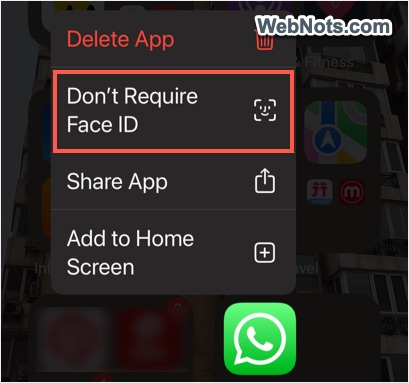
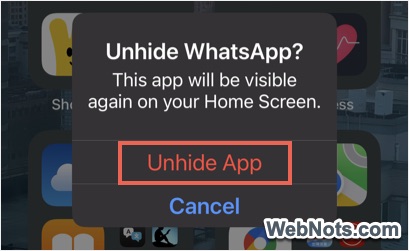
If you want to unhide the app and add to home screen, then select “Add to Home Screen” option from the menu. Tap “Unhide App” on the pop-up to move the app to your home screen and remove the lock.
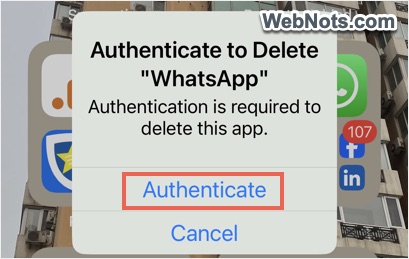
Note: Locking and hiding also prevent anyone from deleting the app. iPhone will prompt you to authenticate with Face ID for deleting locked / hidden apps.