
Microsoft Edge is a fast and secure browser which comes default with Windows OS. It stores all webpages you visit and cache the site’s data to improve user experience. However, there are times you may want to delete the browsing history for privacy or security reasons. In this article, we will explain various methods to clear your browsing history in Microsoft Edge browser.
What is Browsing History?
Browsing history includes the websites you have visited, cookies, cached images and files, download history, and other related data. Edge stores this data to:
- Help you quickly access frequently visited websites.
- Auto-fill forms and save passwords.
- Provide personalized browsing experience.
Deleting Browsing History in Edge
Follow one of the below methods to delete browsing history in Edge.
1. Using Edge Settings
- Launch Microsoft Edge browser on your computer.
- Click on the three-dots icon located in the top-right corner of the browser window.
- From the dropdown menu, select “Settings”.

- In the Settings sidebar, click on “Privacy, Search, and Services” option.
- Scroll down to the “Delete browsing data” section.
- Click the “Choose what to clear” button against “Clear browsing data now” option.

- A pop-up window will appear with various options. You can select:
- Browsing history: The list of websites you’ve visited including auto-complete entries.
- Download history: A record of the files you’ve downloaded.
- Cookies and other site data: Information stored by websites.
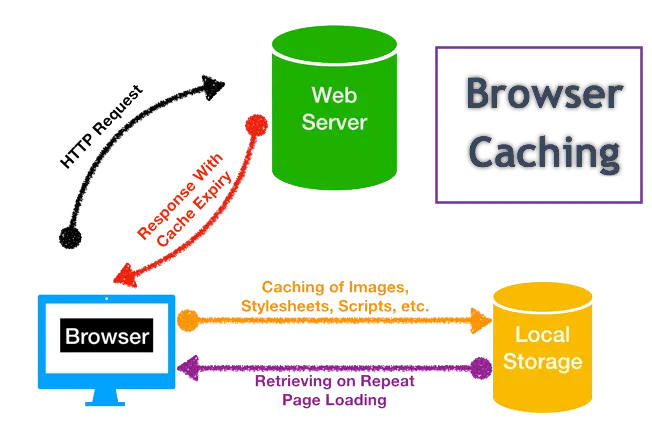
- Cached images and files: Stored copies of web pages to make them load faster.
- Passwords: Saved passwords and form entries.
- Autofill form data (includes forms and cards): Stored credit card and other contact form details.
- Site permissions: Saved permissions for individual websites like blocking push notifications.
- All data from the previous version of Microsoft Edge: Including old history, favorites and passwords.
- Media Foundation data: Stored licenses, certificates and security keys.
- Use the dropdown menu at the top to choose the time range as last hour, last 24 hours, last 7 days, last 4 weeks or all time.

- After selecting the desired options, click the “Clear now” button. Edge will delete the selected data.
2. Quick Shortcut to Clear Browsing History
You can quickly clear your browsing history using a keyboard shortcut:
- Press Control + Shift + Delete keys on Windows and Command + Shift + Backspace on macOS.
- The “Delete browsing data” pop-up will appear. Follow the steps to select and delete the desired data.
3. Delete from History Menu
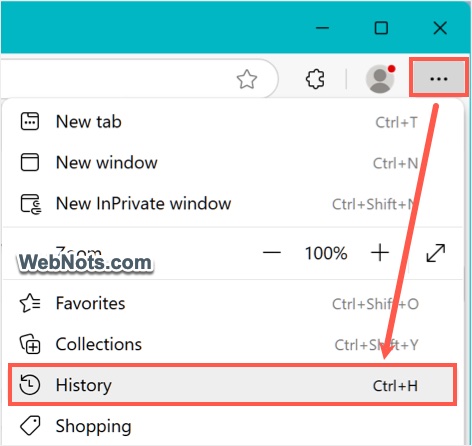
- Click the three-dots icon and select “History” menu from the dropdown.
- Click on the Trash icon that shows in the history section header.
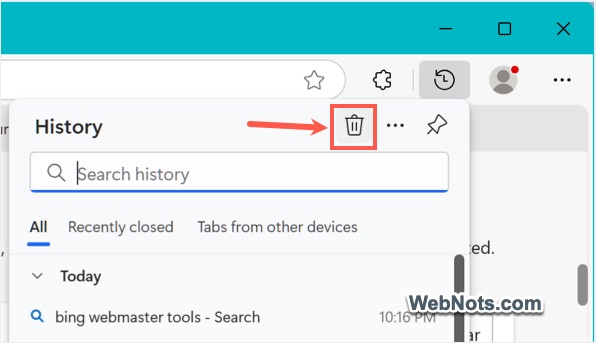
- This will open the same “Delete browsing data” pop-up and follow the steps to delete the selected items.
4. Set Up Automatic History Deletion (Optional)
To automatically delete your browsing history when you close Edge:
- Click the three-dots icon and go to “Settings > Privacy, Search, and Services” section.
- Under the “Delete browsing data” section, click on “Choose what to clear every time you close the browser”.

- Toggle the switches for the types of data you want to delete.

Why to Clear Browsing History?
Deleting browsing history and cached data can help in the following situations:
Protect Sensitive Information
As mentioned, Edge saves information such as the websites you visit, the files you download, and even cookies that track your activity. This data can be accessed by anyone who uses the same device, especially if your browser is logged in with your account. By clearing your browsing history, you:
- Prevent others from viewing your visited sites, which may include sensitive or private information like banking portals or personal emails.
- Stop cookies from revealing your login sessions, keeping your accounts secure.
- Avoid accidental exposure of autofill data like saved passwords or credit card information.
Free Up Space
Cached data includes images, files, and other content that Edge saves to load websites faster when you visit them again. Over time, this cached data can accumulate and take up significant storage space on your device. Deleting them can help to:
- Free up valuable disk space, especially on devices with limited storage.
- Remove unnecessary files, allowing your browser to operate more efficiently.
Fix Browser Errors and Issues
Sometimes, stored browsing data like cookies or cache can become corrupted. This can lead to:
- Websites not loading properly or displaying outdated content.
- Login issues, such as being unable to sign in to certain accounts.
- Performance problems, such as slower loading times or browser crashes.
Clearing your browsing data removes these problematic files, allowing the browser to start fresh and resolve common errors.


