XML is a way to store and exchange structured data. But when you open an XML file in a browser, you may see a wall of tags and values instead of a page that is easy to read. XSLT can turn XML data into a more readable presentation, while an XML viewer extension can help you explore the underlying file.
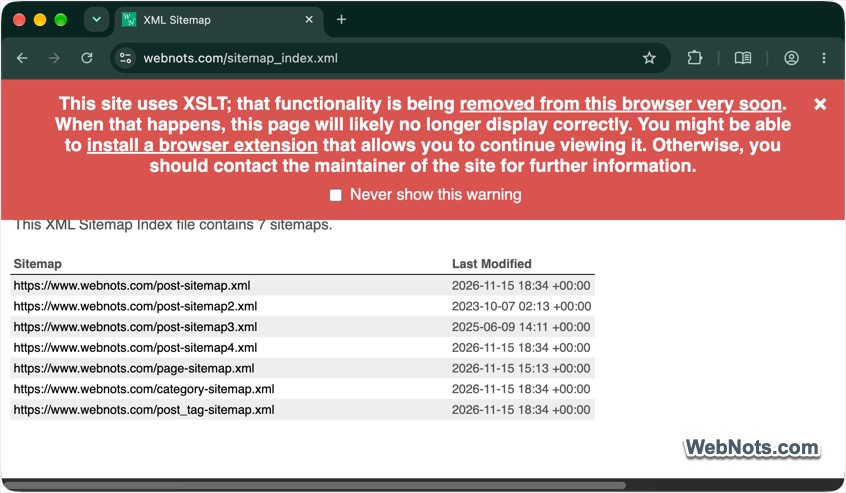
There is a timely reason to understand the difference: Chrome is scheduled to disable its built-in XSLT support in stable releases on November 17, 2026. Chrome will continue to support XML; the change affects XSLT transformations. Chrome’s deprecation notice gives the timeline and migration options. You may see a warning notification on top of the XML page in Chrome.
What is XML?
XML stands for Extensible Markup Language. It represents information with named nested elements like below:
<book>
  <title>Learning XML</title>
  <author>Alex Rivera</author>
  <year>2026</year>
</book>
The tags describe the data’s structure. Unlike HTML, XML does not define a standard set of display rules. For example, <title> is simply an element named “title”. XML is commonly used for feeds, sitemaps, configuration files, and data exchanged between applications.
What is XSLT?
XSLT, or Extensible Stylesheet Language Transformations, is a language for transforming XML documents. An XSLT stylesheet contains rules that select and rearrange information from an XML document and can produce HTML, plain text, or another XML document. For example, a website can associate an XML Sitemap file with a stylesheet using this instruction:
<?xml-stylesheet type="text/xsl" href="feed.xsl"?>A browser that supports the transformation can apply feed.xsl and display the result as a formatted page. XSLT can also be used by JavaScript through the browser’s XSLTProcessor API. Chrome’s built-in implementation supports the older XSLT 1.0 standard. Google says it is removing both the stylesheet processing instruction for XSLT and the XSLTProcessor API. This does not remove XML support, and XML files styled with CSS are not part of the announced removal.
Why XML Can Look Different in Chrome?
The result depends on the file and how it is served:
- Plain XML: Chrome may show a collapsible tree or raw text. That is the data itself, not a transformed page.
- XML with an XSLT stylesheet: Chrome has historically applied the stylesheet and shown its designed presentation. Starting November 17, 2026, stable Chrome is scheduled to stop doing this by default.
- A local XML file: Browser security restrictions can limit how stylesheets and other local resources are loaded.
- An RSS feed or sitemap: Chrome may show the XML source instead of a feed reader or a human-friendly table.
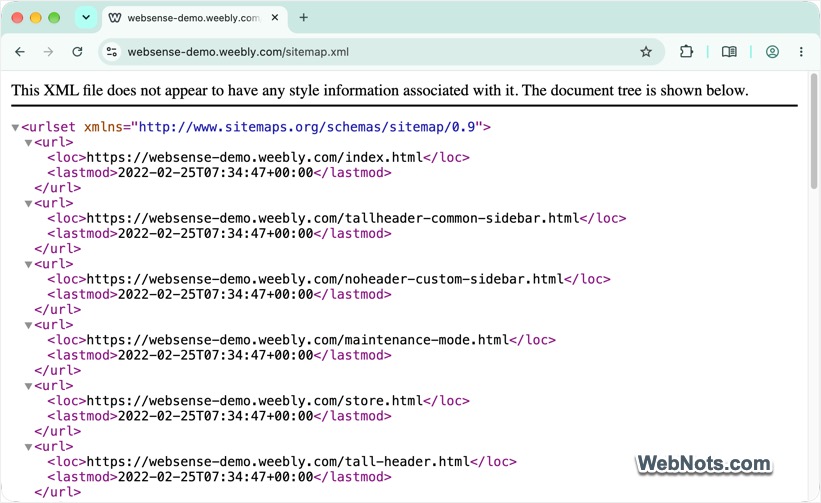
If a page suddenly shows raw XML or a browser warning, that does not necessarily mean the file is broken. Chrome may simply no longer be applying its XSLT stylesheet.
Properly Viewing XML Files with an Extension
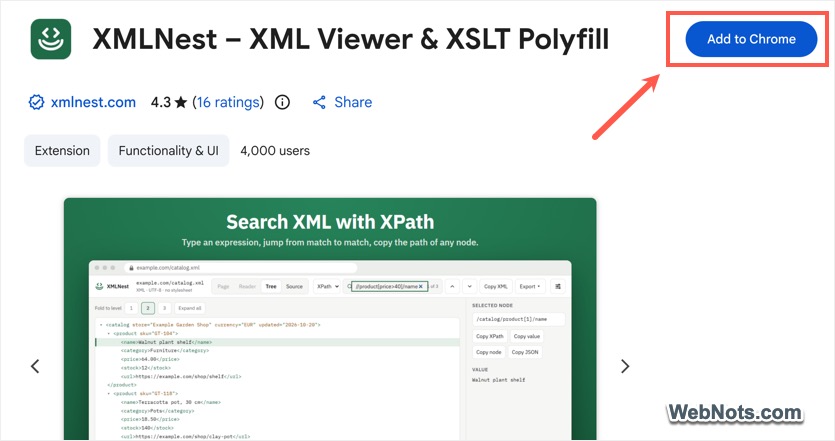
As you can see in the above screenshot, Chrome recommends using a browser extension to view XML files. Clicking “install browser extension” link in the warning will open Chrome Web Store with the pre-filtered search for “XSLT Polyfill”. For reading XML in Chrome, XMLNest is one option to consider. It’s an XML viewer with tree and source views and can restore XSLT 1.0 rendering for web pages. It also includes reader views for RSS and Atom feeds and tables for XML sitemaps.
- Open XMLNest extension page in Chrome Web Store.
- Click “Add to Chrome” button and then confirm the prompt by clicking “Add extension”.
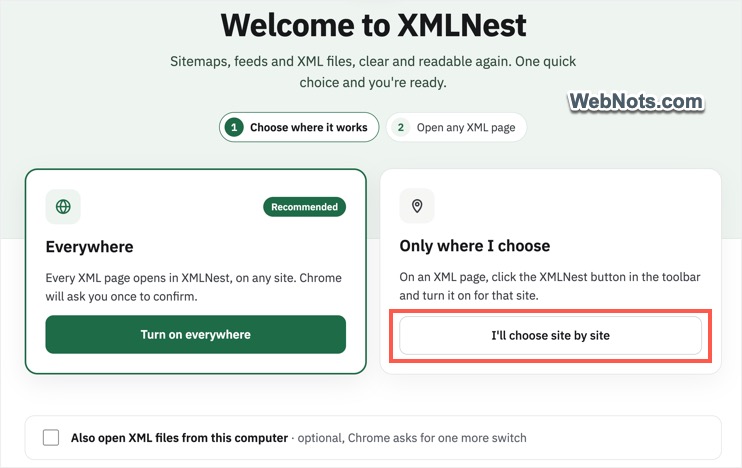
- You will see a welcome page asking you to turn on the extension everywhere.
- Simply ignore the option, which means you will be using “site by site” option, which gives you more control.
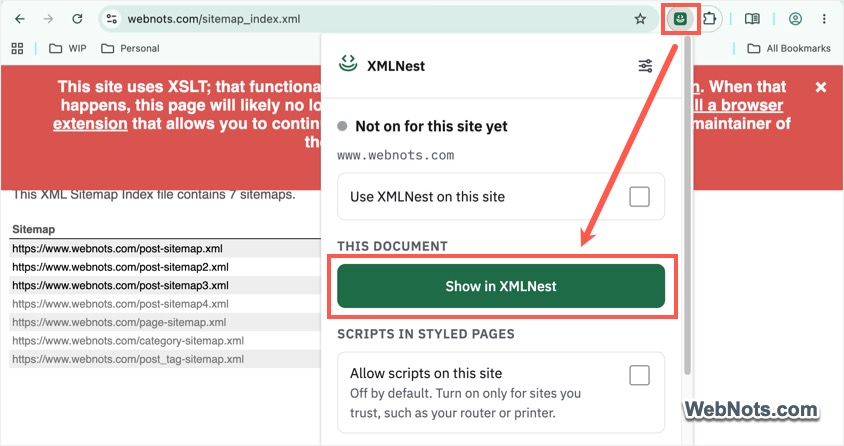
- Now, open an XML file from your computer. Click the XMLNest extension’s icon and select “Show in XMLNest” option.
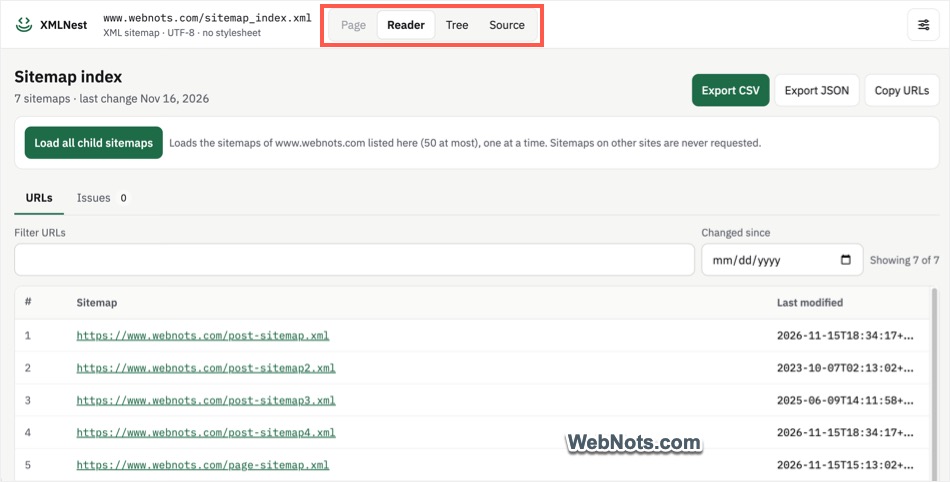
- You will see Chrome shows your XML file in a beautiful, structured way.
- Use the extension’s “Page / Reader / Tree / Source” views to inspect the document in a neat manner.
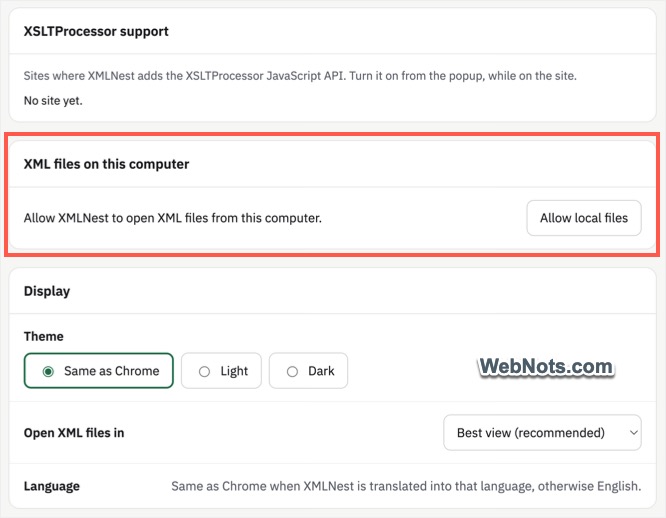
Click the extension’s icon and check “Use XMLNest on this site” option to allow the extension to always read content from the site. You will be prompted to provide the permission and click “Allow” button. If this is inconvenient, you can always turn on the permission for all websites from the extension’s settings page. If you want to properly view XML files on your computer, find “XML files on your computer” option in the settings page and click “Allow local files” button.
Note: XLST transforms documents that have a suitable stylesheet; it does not automatically provide a designed view for every XML file. If you maintain a site that depends on XSLT, a browser extension is best treated as a viewing workaround. Google recommends transforming XML on the server and sending HTML to the browser, using a JavaScript-based XSLT library, or changing the application’s data and rendering approach.
In Short
XML holds structured data; XSLT describes how to transform that data into another format, often a readable web page. Chrome is scheduled to disable its built-in XSLT support in stable releases on November 17, 2026, but it will continue to support XML. For everyday inspection, XMLNest extension offers source and tree views, plus webpage XSLT support. For site owners, the longer-term solution is to update the application or its rendering pipeline rather than depend on a browser extension.