Stealth Mode is a security feature in macOS designed to enhance the privacy and safety of your device when connected to a network. When enabled, it makes your Mac less discoverable by blocking responses to unsolicited network requests. This can be particularly useful when using your Mac in public networks where you want to minimize exposure to potential attackers. In this article, we’ll explain what Stealth Mode is, why you might want to use it, and how you can enable it on your Mac.
What is Stealth Mode?
Stealth Mode is part of the macOS built-in firewall setup. When active, it prevents your Mac from responding to unrequested network probes. Typically, devices on a network respond to “ping” requests or other similar probes that confirm their presence. Stealth Mode ensures your Mac remains silent in response to such queries, making it harder for hackers or malicious software to detect your device.
While Stealth Mode doesn’t make your Mac completely invisible or immune to all attacks, it does provide an extra layer of security. Combined with macOS’s other built-in protections, it helps to secure your personal data and privacy.
How to Enable Stealth Mode on a Mac?
Enabling Stealth Mode is simple and only takes a few steps through the System Settings. Here’s how to do it (make sure you have administrator access):
- Click on the Apple menu in the top-left corner of your screen.
- Select “System Settings…” from the menu that appears.

- In the Settings app, go to “Network” section on the sidebar.
- On the right pane, click “Firewall” option.
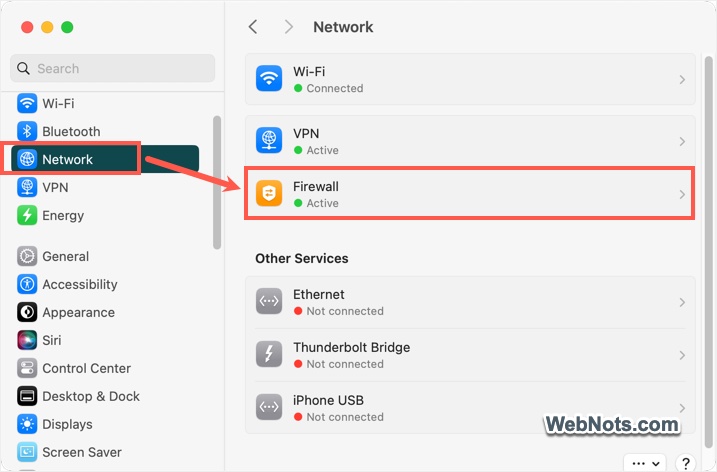
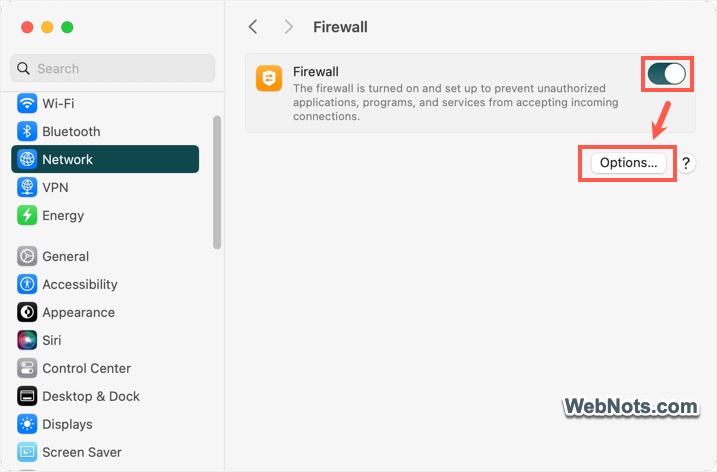
- If the Firewall is turned off, click the toggle against “Firewall” to first activate it. You may be prompted to enter your administrator password.
- Now, click the “Options…” button in the Firewall section.
- Scroll down to bottom on the pop-up and turn on “Enable stealth mode” option.
- Click “OK” button to save your changes.
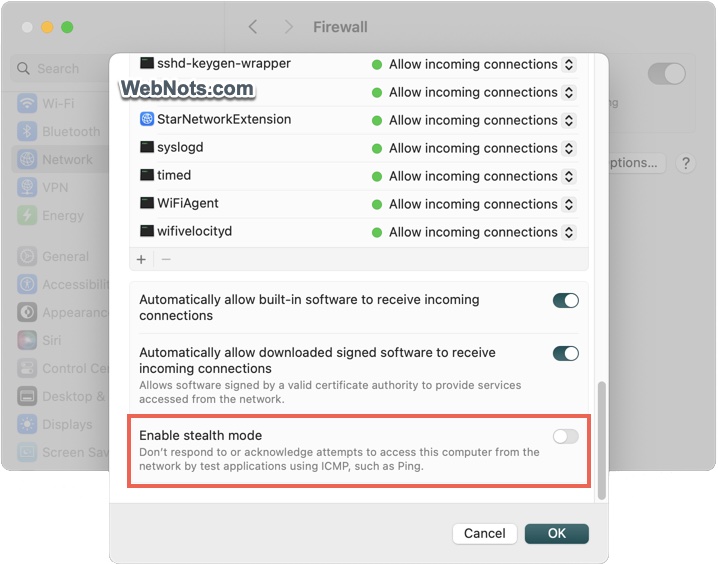
On macOS Monterey or Older Versions
Follow the below steps if you are using older macOS versions (12 or earlier).
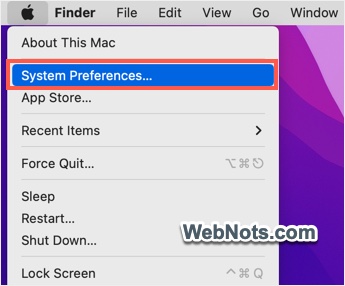
- Click the Apple Menu and then select “System Preferences…” option.
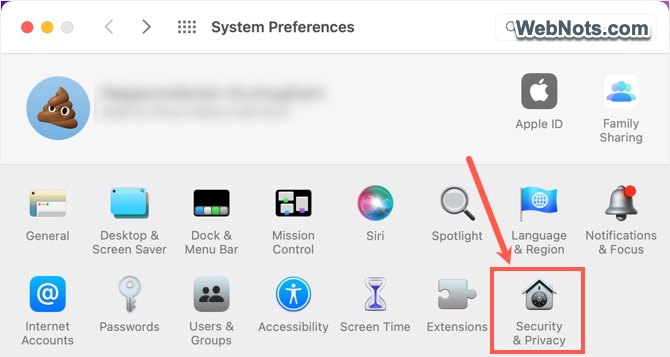
- Select “Security & Privacy” from the list of available items.
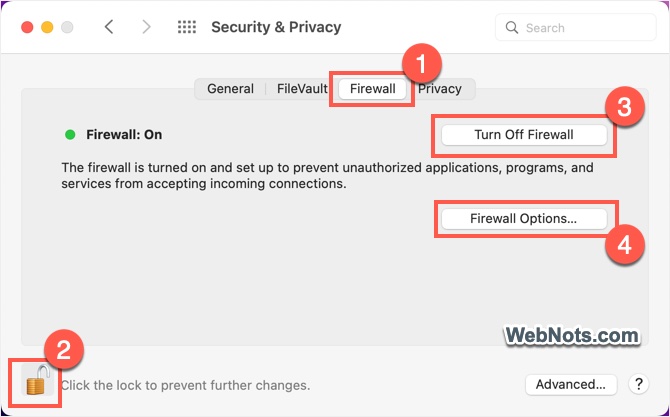
- Go to “Firewall” tab and then click the padlock on bottom left to unlock the screen for editing. You need to provide administrator password for this purpose.
- When the screen is editable, click on the “Turn on Firewall” button (if it is turned off).
- Now, click on the “Firewall options…” button.
- Check “Enable stealth mode” option and click “OK” button.

When Should You Use Stealth Mode?
Stealth Mode is particularly useful in the following scenarios:
- When you are using public Wi-Fi networks in airports, coffee shops, or hotels, where network security is often weak. Stealth Mode reduces the chances of your device being detected by others.
- When connecting to untrusted network environments that you don’t own or manage. By ignoring unauthorized network traffic, your Mac becomes less likely to be targeted by potential attackers.
- For professionals working with sensitive data, it’s an essential part of staying secure during normal and remote working mode. It minimizes the chances of malicious scans or attempts to exploit vulnerabilities in your system.
Limitations of Stealth Mode
While Stealth Mode adds a layer of privacy, it’s important to understand its limitations:
- It is not foolproof as skilled attackers can still use advanced tools to detect devices.
- Stealth Mode doesn’t protect your Mac from malware or viruses. Always keep safe browsing habits and use antivirus software if needed.
- Enabling Stealth Mode might prevent some legitimate devices on your network from communicating with your Mac.