In-built translation is one of the most useful features come with modern devices. Whether you have a smartphone, laptop or desktop, it is easy to translate the content to your favorite language without any third-party tools. On Mac, all you need is to right-click on the selected text and get the translation. However, it comes with a cost of privacy that the content will be sent to Apple for translation. In this article, we will explain how to setup on-device translation so that you can translate text without sending to Apple.
Default Online Translation
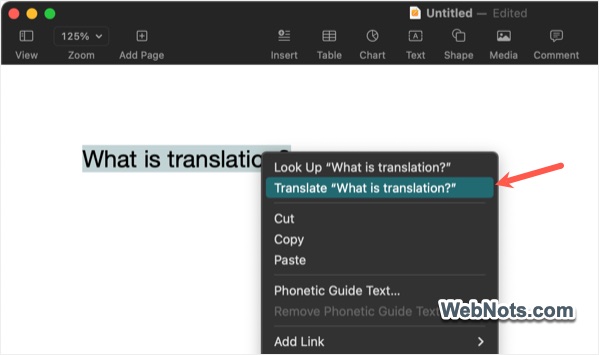
Apple’s Translation feature works on most of the macOS apps though third-party apps like Microsoft Word will use their own translation feature. For example, highlight a text in Pages app, right-click on it and then select “Translate….” option.
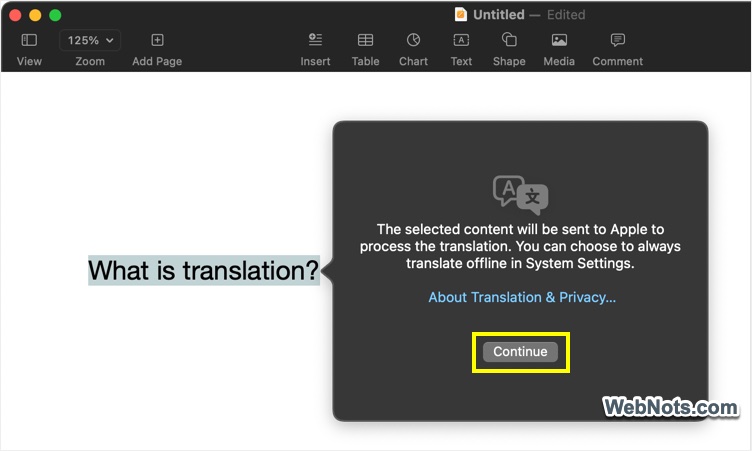
Mac will show a message that the selected content will be sent to Apple and click on “Continue” button.
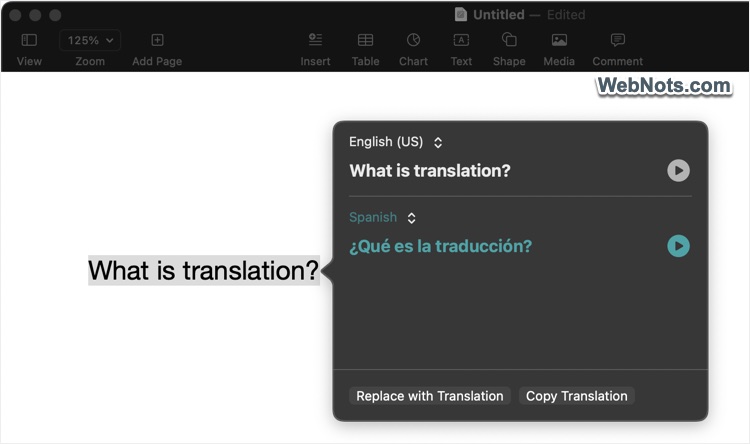
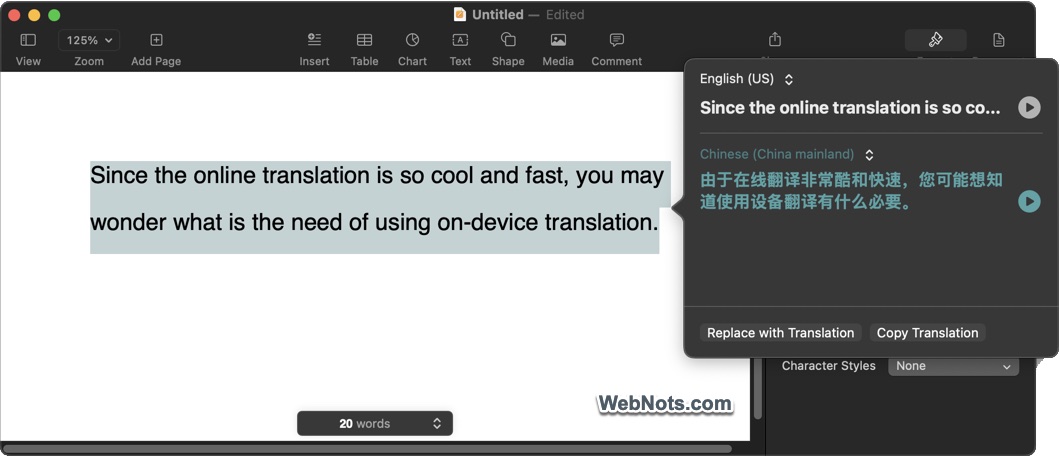
You will see the translated content in a pop-up with the options to change the language. You can also replace original text with translated content or copy the result to clipboard.
Why You Need On-Device Translation?
Since the default Apple’s translation is so cool and fast, you may wonder what is the need of using on-device translation.
- You will be prompted only once and afterwards the content will be automatically sent to Apple.
- You prefer not to send private content to Apple as it may be stored (you can opt-out this from “Settings > Privacy & Security > Analytics & Improvements” and disable “Improve Siri & Dictation” option).
- Without the internet connection, you can’t use translation feature.
How to Use On-Device Offline Translation?
The best part of on-device translation is that it works offline which means you do not need the internet connection.
- Click the Apple logo on top left corner of the screen and select “System Settings…” from the menu.
- Go to “General” section and select “Language & Region” option.
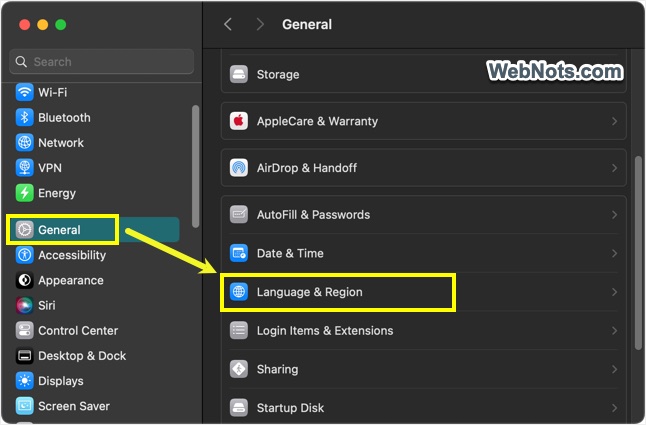
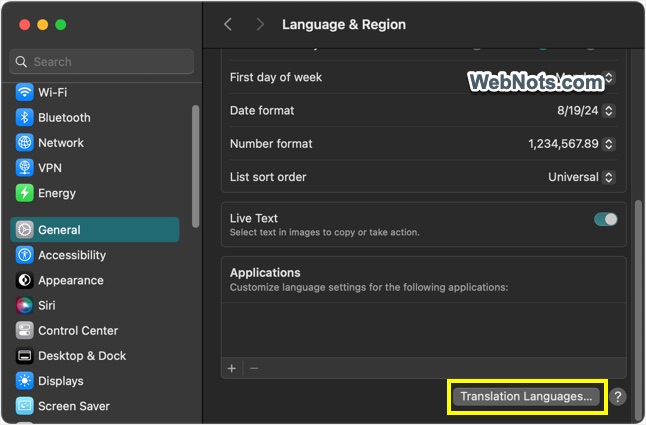
- Scroll down to bottom and click on the “Translation Languages…” button.
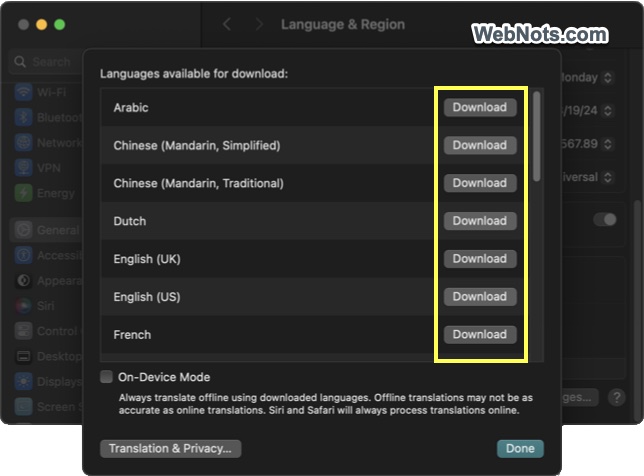
- Download the languages you want to use for offline translation by clicking on the “Download” button.
- This will also automatically download your system language (English (US) in our case).
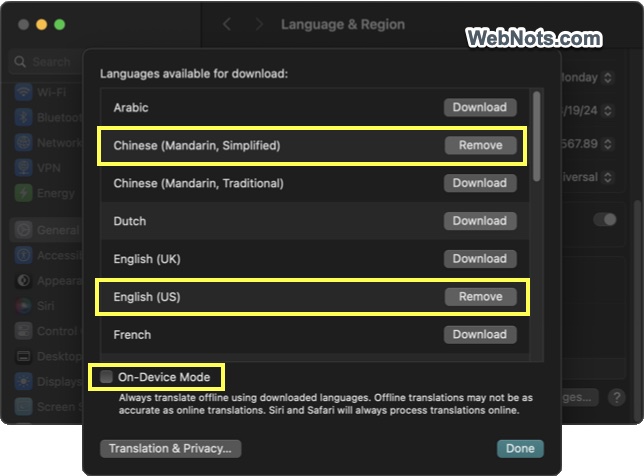
- Check “On-Device Mode” option and click “Done” button.
Checking Offline Translation
It is important you test the quality of offline translation before relying on it.
- For testing purpose, click the W-Fi icon on top menu bar and turn off your internet connection.
- Select text content in Pages or Messages app, right-click on it and select translate option.
- Select your language and click the “Download languages” button.
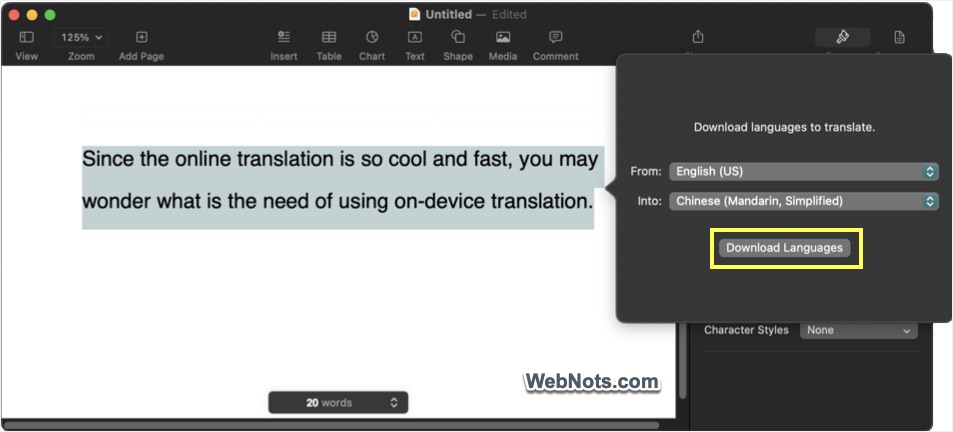
- Since you have already downloaded the language files, Mac will show the translation with the options to copy and replace.
Mac will always show “Download languages” pop-up when “On-Device Mode” translation is enabled. If you are connected to internet, you can download any other language directly from the pop-up and translate it on-device. Otherwise, you should use one of the previously downloaded languages.
Final Words
Apple claims the quality of offline translation may not be good as online translation. However, it will be sufficient in most cases. Anytime you can download additional languages or remove previously installed languages from Settings app.
Note: Apple offers translation only in these languages regardless of whether you use online or offline mode – Arabic, Chinese (Simplified & Traditional), Dutch, English (UK & US), French, German, Hindi, Indonesian, Italian, Japanese, Korean, Polish, Portuguese (Brazil), Russian, Spanish (Spain), Thai, Turkish, Ukrainian and Vietnamese.