If your iPhone is experiencing software issues, freezing, or failing to update, opening it in recovery mode can help you troubleshoot and restore the device. Recovery mode is a built-in feature that allows iPhones to connect to a computer, perform system updates, or restore the device’s software without fully booting into iOS. In this article, we will explain the process of putting iPhone into recovery mode for different models.
When to Use iPhone Recovery Mode?
You should consider using recovery mode if:
- Your iPhone is stuck on the Apple logo for long time.
- The device is unresponsive or frozen.
- An iOS update has failed or caused the phone to malfunction.
- iTunes or Finder cannot recognize your iPhone.
- You need to restore your iPhone to factory settings.
Open iPhone in Recovery Mode
Before proceeding, make sure to update your Mac or install the latest version of iTunes for Windows PC. Also, use a proper connection cable that was supplied with your iPhone.
iPhone 8 or Later
- Connect your iPhone to your computer using a cable.
- Open Finder (on Mac) or iTunes ( on Windows).
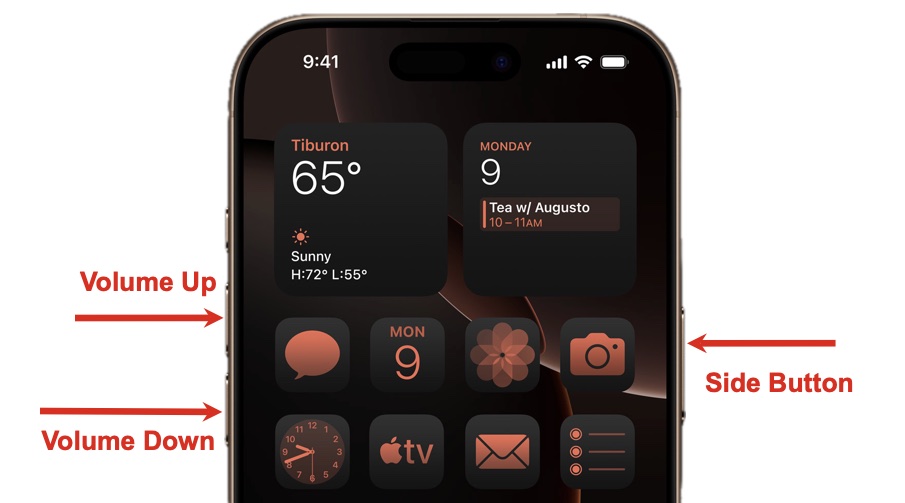
- Press and quickly release the volume up button.
- Press and quickly release the volume down button.
- Press and hold the side button until you see the recovery mode screen (a computer icon or iTunes logo with a cable).
iPhone 7 and 7 Plus
- Connect your iPhone to your computer.
- Open iTunes or Finder.
- Press and hold both the volume down button and the side button at the same time.
- Keep holding the buttons until you see the recovery mode screen.
iPhone 6s or Earlier
- Connect your iPhone to your computer.
- Open iTunes.
- Press and hold both the home button and the power button at the same time.
- Continue holding until the recovery mode screen appears.
What to Do Once in Recovery Mode?
Once your iPhone is in recovery mode, your computer will detect the device and prompt you with two options:
- Update: This option will attempt to reinstall iOS without erasing your data.
- Restore: This option will erase all data and install a fresh version of iOS.
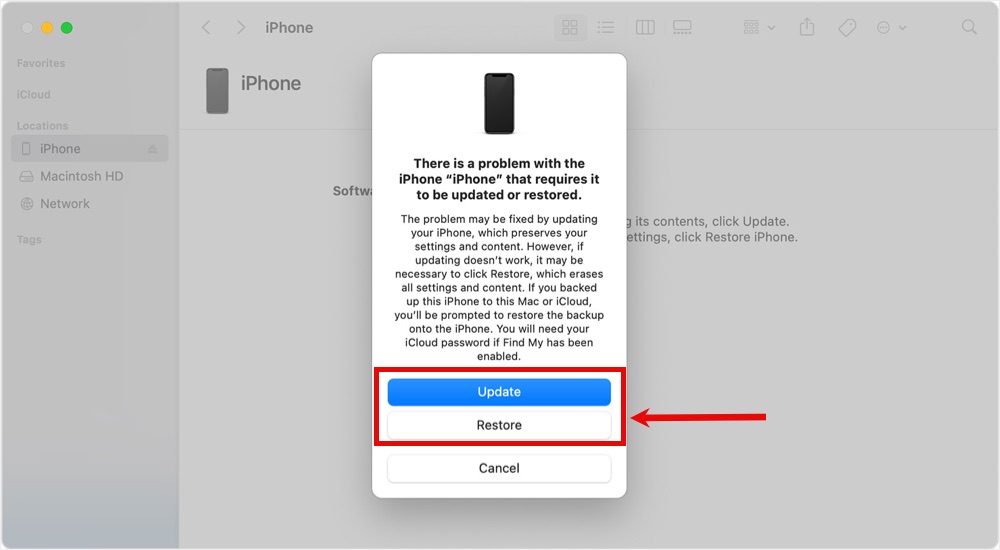
Follow the on-screen instructions to complete the update or restore process.
How to Exit Recovery Mode?
If you decide not to proceed with recovery mode, you can exit it by performing a force restart:
- For iPhone 8 or later: Press and release volume up, press and release volume down, then press and hold the side button until the Apple logo appears.
- For iPhone 7: Press and hold volume down and side button until the Apple logo appears.
- For iPhone 6s or earlier: Press and hold both the home button and the power button until the Apple logo appears.
Conclusion
Recovery mode is a useful troubleshooting tool that can help you restore your iPhone when it isn’t functioning properly. Whether you’re updating software or performing a factory reset, following these steps will allow you to access recovery mode safely. If recovery mode doesn’t solve your issue, contacting Apple Support may be your best option.